How To Make Custom AI Sound Effects
37% of music producers already use AI tools, and more than 86% believe it'll replace some traditional gear.
Sound effects play a critical role in making content feel immersive, polished, and professional. Whether you're creating a video, podcast, game, or animation, the right audio cue can add impact, emotion, and context. But sourcing or recording the perfect sound can be time-consuming, and stock libraries often fall short when you need something specific.
That’s where AI-generated sound effects come in. With tools like Kai, you can generate custom, royalty-free sound effects from simple text prompts — no microphones, downloads, or audio editing experience required.
In this guide, you’ll learn how to create your own sound effects and how to write prompts that get great results.
Table of Contents:
- Why Use AI to Make Custom Sound Effects?
- How to Generate AI Sound Effects
- Prompt Guide for AI Sound Effects
- Frequently Asked Questions
Why Use AI to Make Custom Sound Effects?
Sound effects are audio cues that add realism, emotion, or information to a scene. For example, in FPS games, footsteps on gravel can signal danger, while in UI/UX design, a chime tells the user that their action was successful. Sound effects guide attention, reinforce visual cues, and make digital experiences feel immersive.
One of the most famous sound effects in cinema is the lightsaber hum from Star Wars. It’s not an actual recording of any single object.
Sound designer Ben Burtt custom-created it, using a combination of a film projector’s motor hum and interference picked up from a TV set. The result was instantly iconic, and the sound of a lightsaber is now inseparable from the identity of Star Wars.
This kind of audio craftsmanship used to require specialized gear, field recordings, and professional editing. Now, AI generation gives creators a faster, more accessible way to achieve the same specificity.
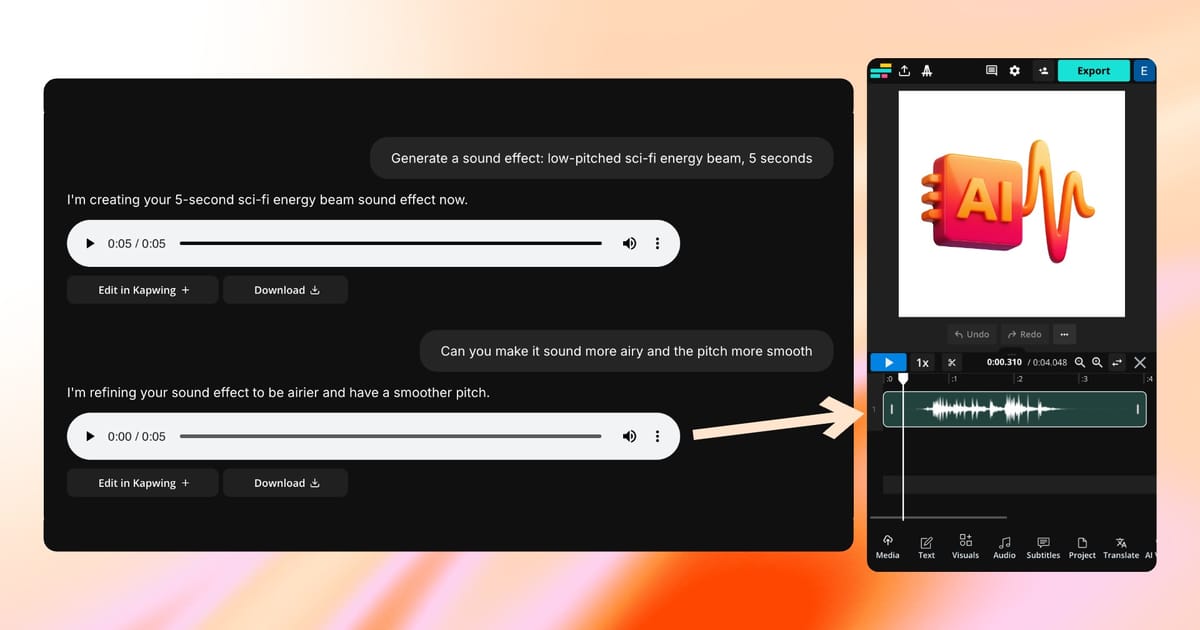
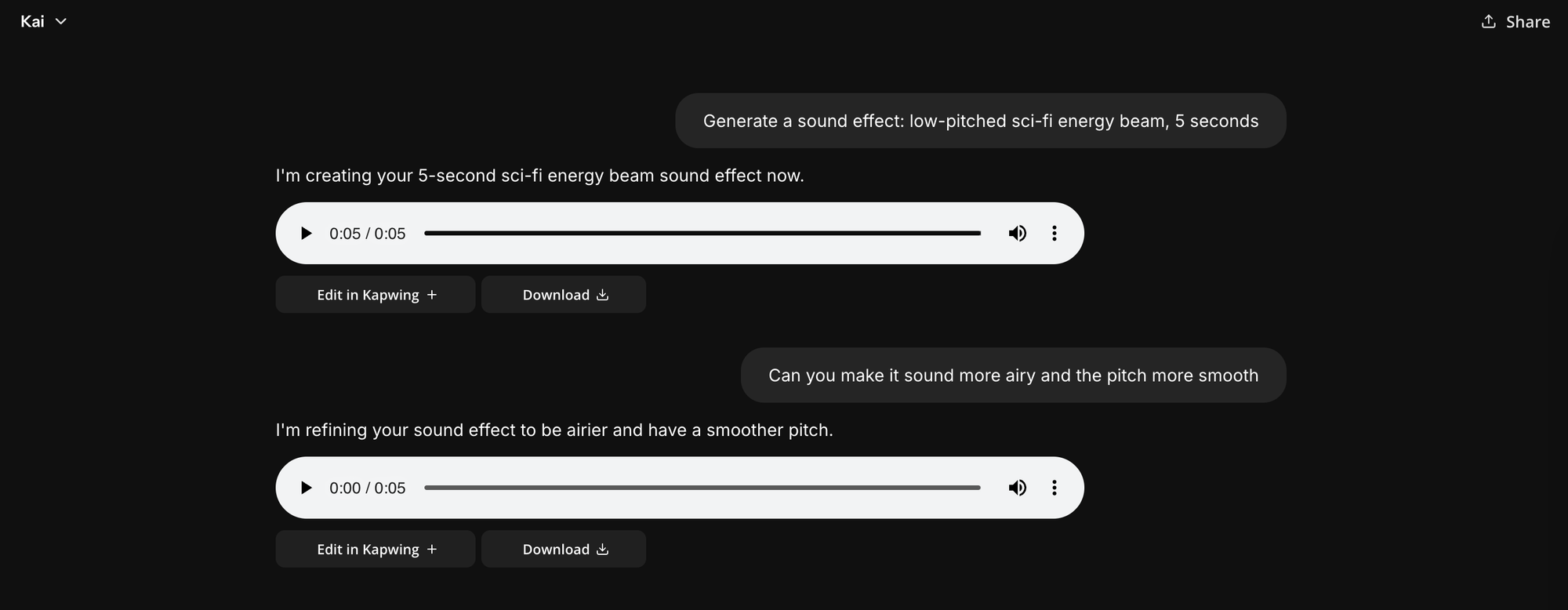
Instead of searching through stock libraries or trying to record a perfect take, you can type a prompt like “low-pitched sci-fi energy beam, 5 seconds” and instantly generate a custom, royalty-free effect.
AI generators also let you prototype and iterate with speed. This is essential because sound design is rarely perfect on the first try.
You'll often need to adjust based on timing and tone. AI lets you edit a prompt and instantly generate a new version. You don’t need recording equipment or audio engineering skills.
How to Generate AI Sound Effects
Creating sound effects with Kai is fast, intuitive, and doesn’t require any extra software.
Here’s how to generate royalty-free audio using a simple text prompt.
1. Open Kai
Open Kai from the main Kapwing dashboard.
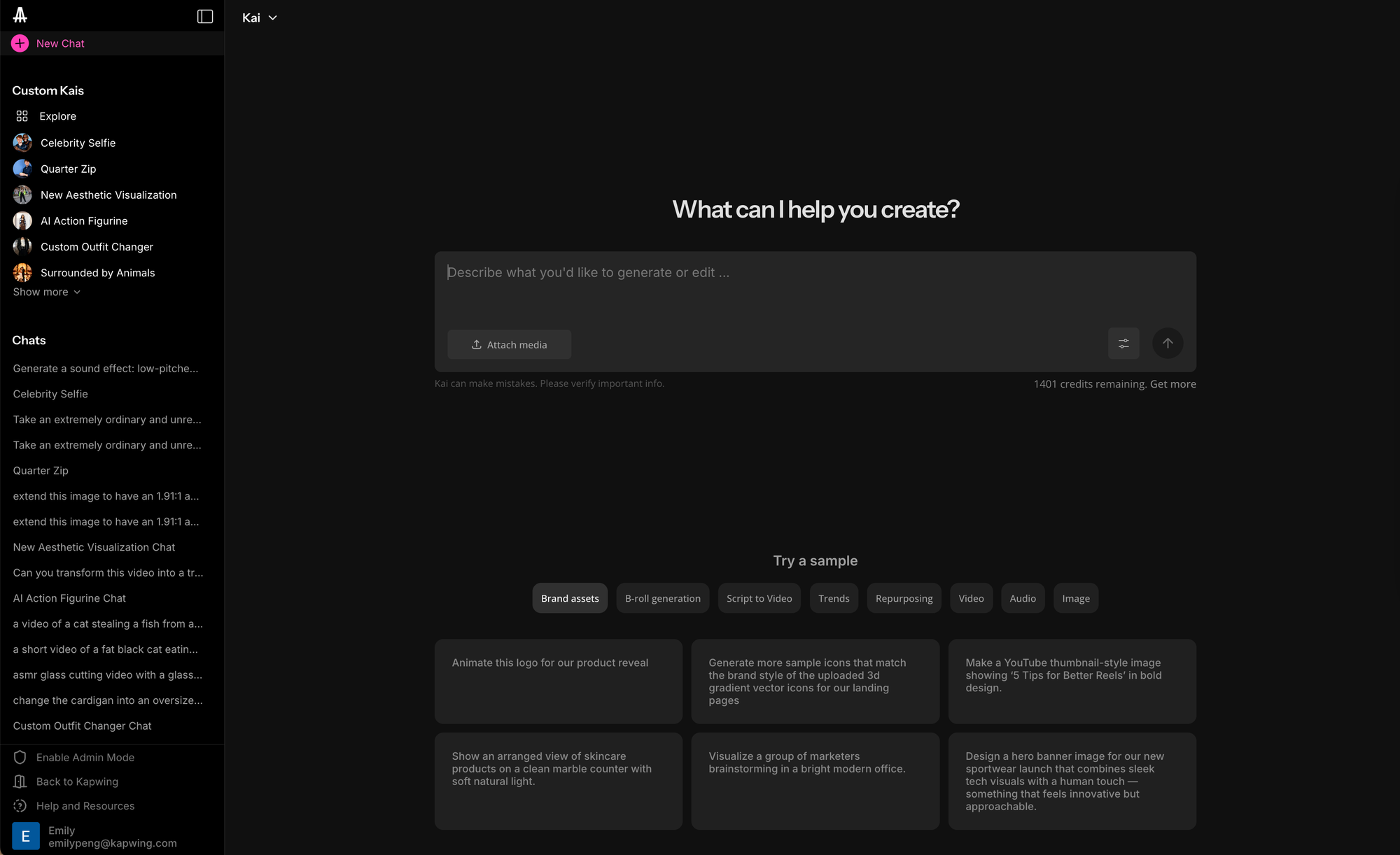
You’ll see a chat-style interface where you can type in a description of the sound effect you want to generate.
2. Write a Descriptive Prompt
In the chat, describe the sound you want Kai to create. Include key details like the action, material, environment, tone, and duration. For example:
“Creaking wooden floorboard in a quiet cabin at night, 4 seconds.”
The more specific your prompt, the better the result. If you’re not sure how to structure your request, the next section breaks down exactly how to write effective AI sound prompts with examples and tips.
Press enter to generate your sound effect.
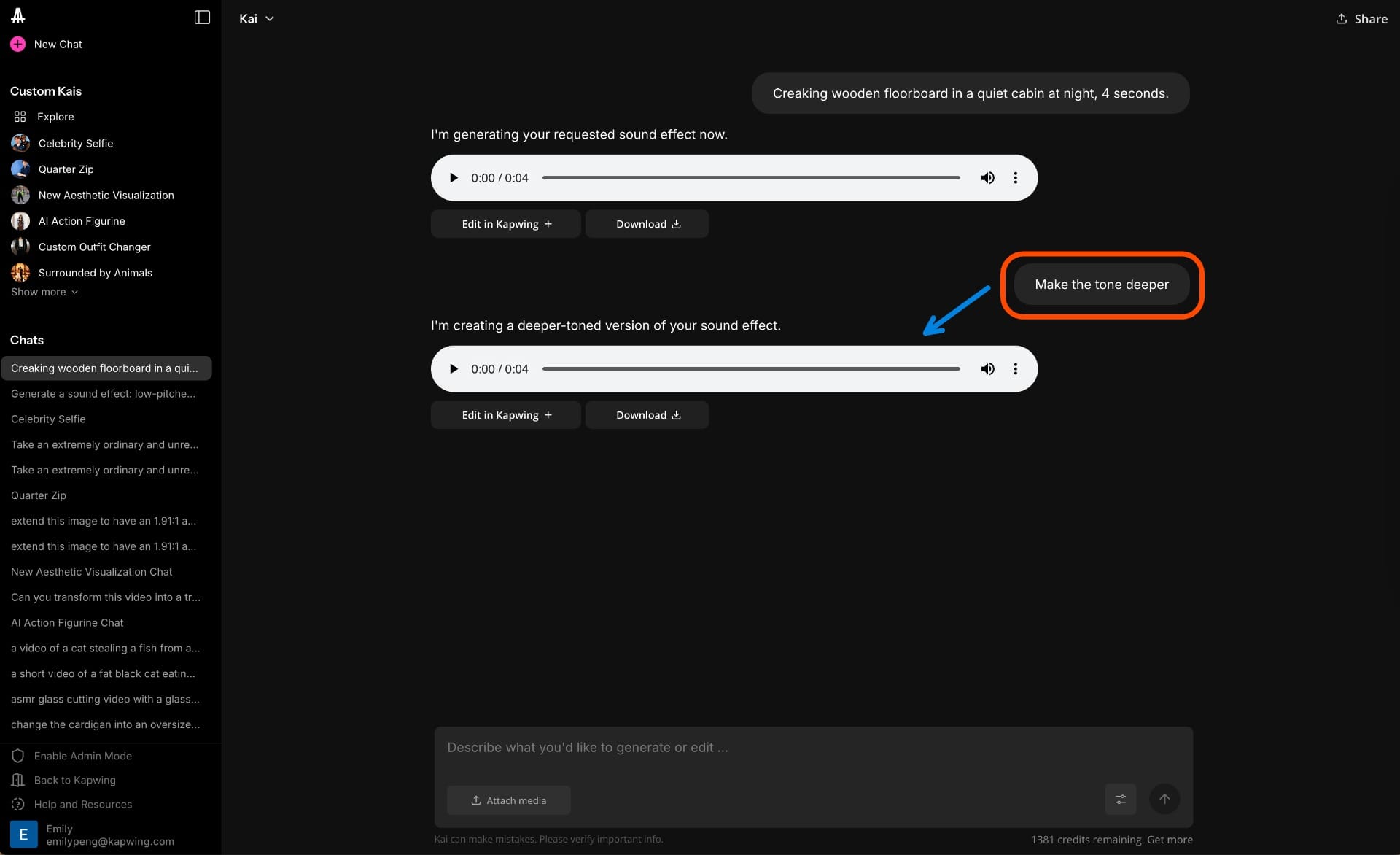
3. Preview and Refine
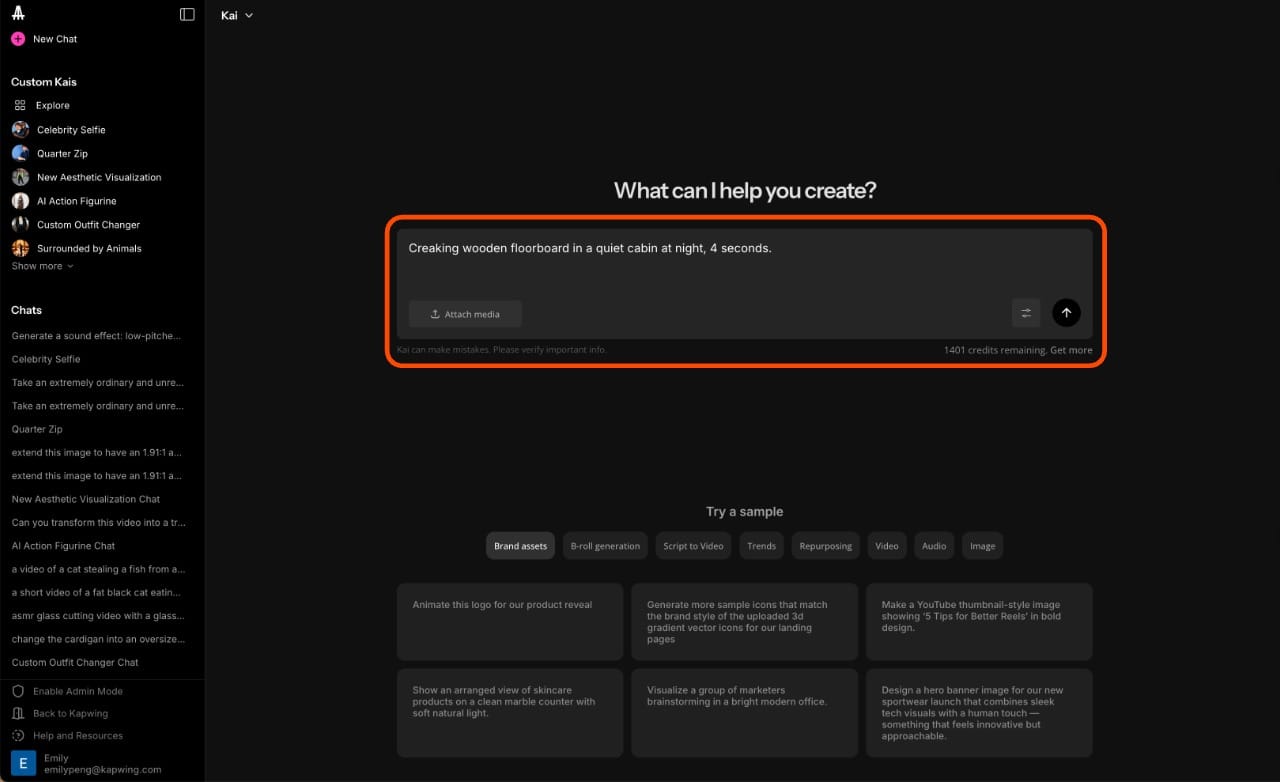
Once the sound is ready, you can preview it directly in the chat. If it’s not quite right, you can ask Kai to adjust it.
For example, you could ask the AI to “make the tone deeper,” “add echo,” or “shorten to 2 seconds.”
Kai understands conversational edits, making it easy to refine until it fits.
4. Download
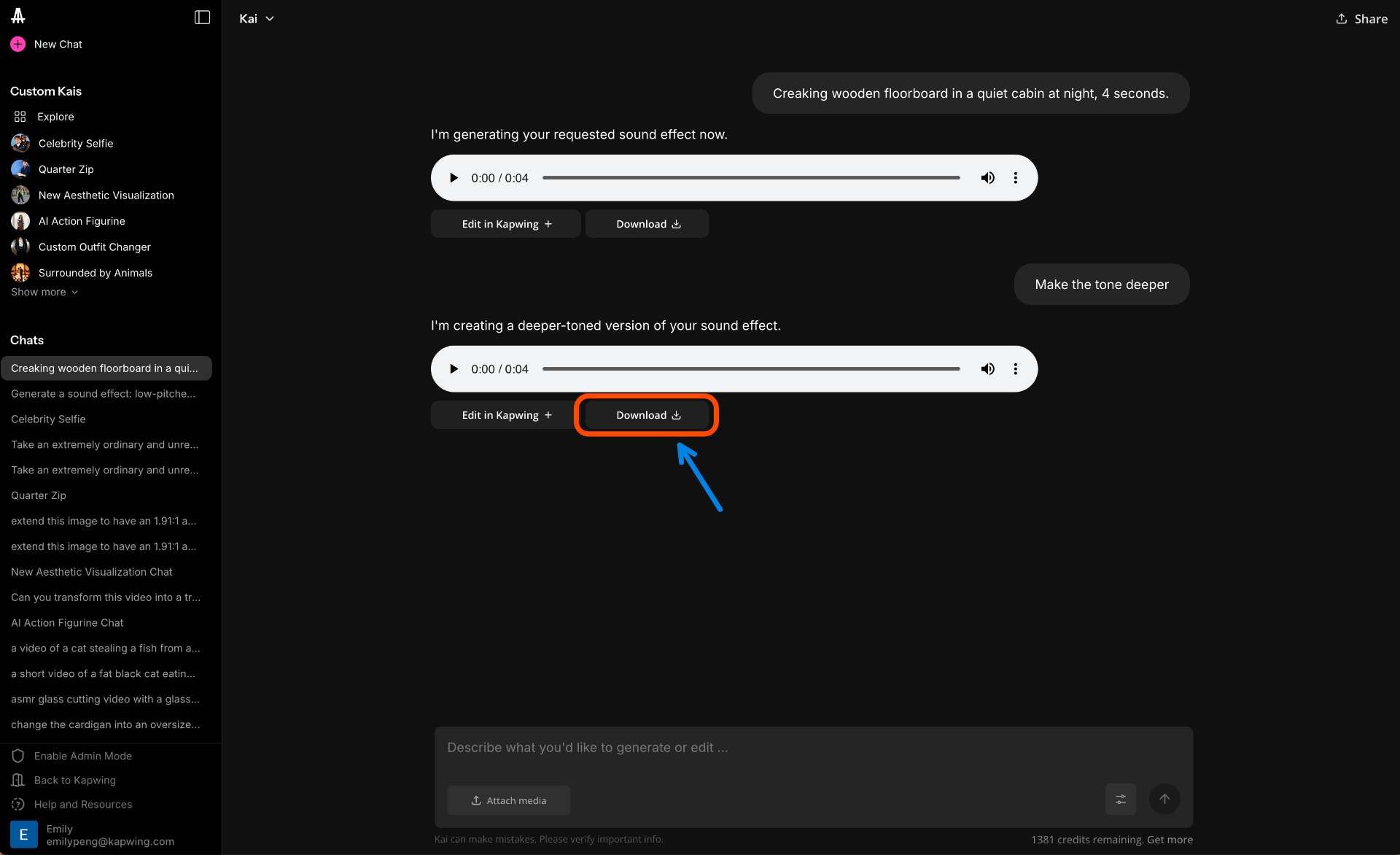
Click to download your generated sound as an MP3 file.
Since Kai’s output is royalty-free, you’re free to use the audio in any personal or commercial project, whether it’s a YouTube video, mobile game, or podcast episode.
5. (Optional) Edit in Kapwing
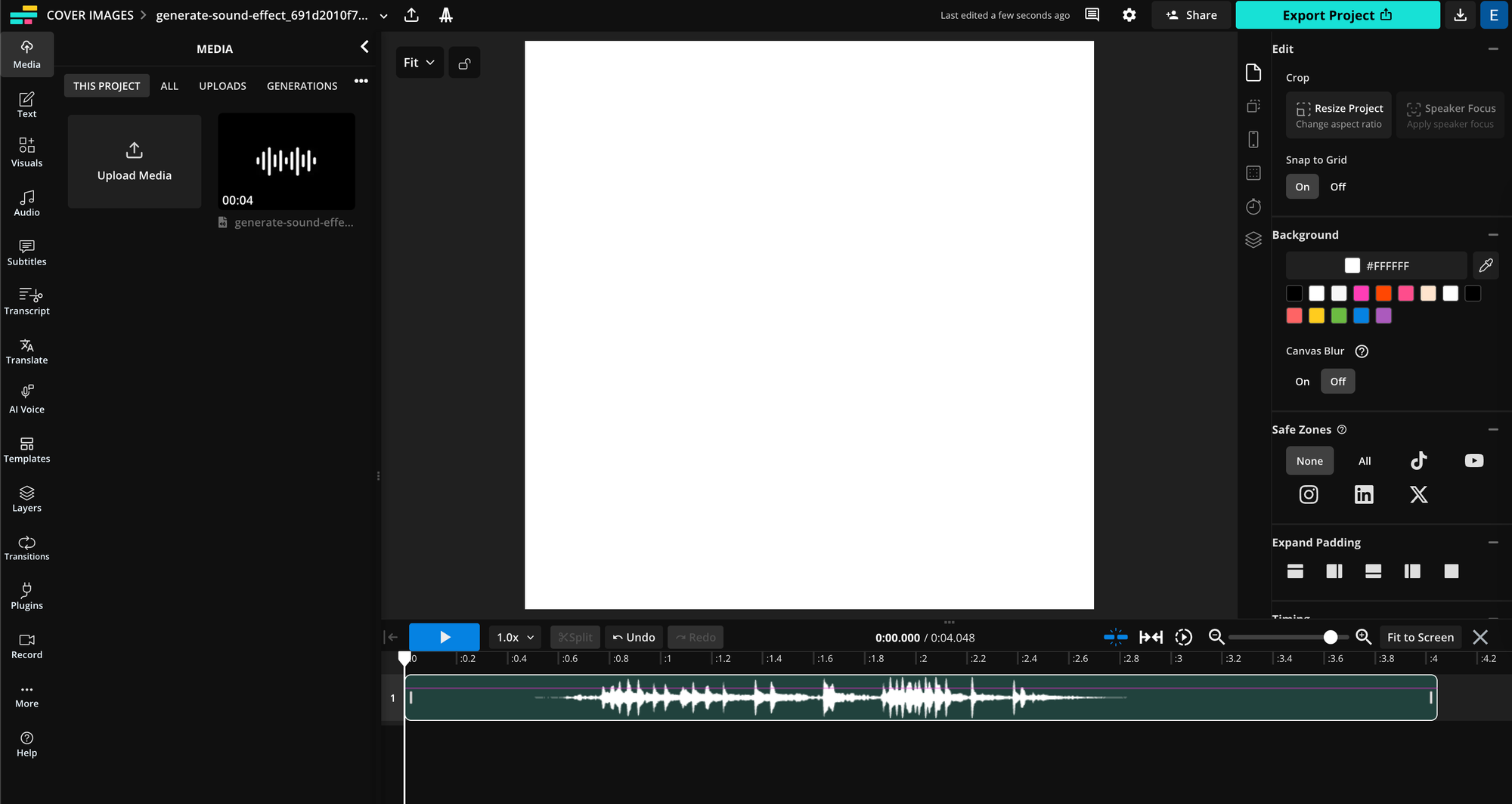
If you want to fine-tune your sound or build it into a larger piece, you can open it directly in the studio. To do this, click the "Edit in Kapwing" button.
This opens the wider audio editing studio with further manual controls. Here, you can trim or layer the audio, add fades or effects, and combine it with video, images, music, or voice over.
You can even edit your entire project from start to finish without switching tools.
Prompt Guide for AI Sound Effects
Writing an advanced prompt is the key to getting high-quality, usable results from an AI sound generator.
To get realistic, context-appropriate AI sound effects, your prompt should do more than name a sound. It should communicate the action, material, setting, tone, and length.
Here’s how:
Describe What’s Happening
Start by thinking about what’s happening in your scene – the physical action that creates the sound. Is something breaking, opening, hitting the ground, or moving through space? Describe that in clear, simple terms.
Next, consider what’s making the sound and what it’s interacting with. For example, footsteps sound much sharper on tile than they do on grass or gravel. These details shape the tone of the final sound, so include them whenever possible in your prompt.
"Footsteps walking across tile floors"

Add Environmental Context
Once you’ve defined the action and the material, describe where this sound is taking place. The environment changes how a sound behaves: a footstep in a small, empty room will sound short and tight, while the same step in a stone cathedral might echo and linger. These spatial details help the AI simulate reverb, distance, and ambient noise.
"Footsteps walking across the tile floors of an empty ballroom"

Define the Mood or Emotional Tone
Think about the tone of the scene and let it dictate how the sound effect should feel. Is the moment supposed to be tense, playful, or dramatic? Make sure to define this in the prompt.
While it may seem irrelevant, tonal qualities can affect how the sound is shaped. For example, a door slamming shut can sound silly in a cartoon, but unsettling in a horror film.
"Footsteps walking suspensefully across the tile floors of an eerie empty ballroom"

Specify the Duration for Better Timing Control
The final detail to include in your prompt is how long the sound effect should be. Duration especially matters if you need to sync the sound with a visual cue or match a transition. Think about the pacing of your scene. A quick button click or pop animation might only need one second, while a storm ambience would stretch over several seconds.
Kai allows you to generate sound effects up to 10 seconds long.
"Footsteps walking suspensefully across the tile floors of an eerie, empty ballroom. Duration: 7 seconds"

By combining action, material, environment, tone, and duration, you’re giving the AI a clear creative brief.
The more context you provide, the more usable and tailored your sound effect will be, saving you time in editing and helping your project sound exactly the way you envisioned.
Frequently Asked Questions
Can I use AI‑generated sound effects in commercial projects?
Yes. Many text‑to‑sound AI tools state that the output sound effects are “royalty‑free” and cleared for commercial use, meaning you can include them in monetized videos, games, ads or apps without additional licensing fees.
How realistic are sound effects created by AI?
Very realistic in many cases. Modern real-world training on large data sets of real-world audio can recreate convincing textures, such as footsteps, ambient noise, object impacts, and more.
That said, subtle authenticity (micro‑dynamics, imperfections) may still require manual editing or layering for professional‑grade use.
What type of prompt should I write to get good sound effects?
An effective prompt includes these components:
- The action (what’s happening)
- The material/source (what’s making it)
- The environment (where)
- The duration (how long)
- Optionally, the mood/tone and intended use case
For example: “Heavy metal gate slamming shut in an empty warehouse, 3 seconds, dramatic” — this gives the AI enough context to generate a rich, tailored sound.
Do I need any special equipment or software to use AI sound‑effect tools?
No. One of the major advantages is accessibility: you just need a computer or device, an internet connection and access to a tool that accepts text prompts for sound generation.
What formats and export qualities do AI sound‑effect tools use?
Most tools export common formats like MP3 or WAV. Some free tiers restrict export quality (bit rate or file type), while premium plans may allow uncompressed WAV or higher‑resolution formats. It’s wise to check the export specs if you need professional audio grade.