How to Convert a TikTok Video to a GIF
Learn how to convert a TikTok video to a GIF in a few steps with this step-by-step tutorial.
Creators are repurposing TikTok videos to maximize existing video content. In addition to converting TikTok videos to ringtones, users can make these short-form videos into eye-catching GIFs.
Converting TikToks to GIFs allow users to capture funny moments from a video, and brands can easily create digital assets while saving time on content creation. In this article, I'll show you two ways to convert TikTok to GIFs.
Table of Contents
- How to Convert a TikTok Video to a GIF on TikTok
- How to Convert a TikTok Video to a GIF with a GIF Maker
How to Convert a TikTok Video to a GIF on TikTok
The easiest way to convert a TikTok video into a GIF is directly on TikTok. Note that while this is the simplest method, some creators may disable the Save/Share as GIF option, which means you won’t be able to export that particular video.
Step One: Open the TikTok Video
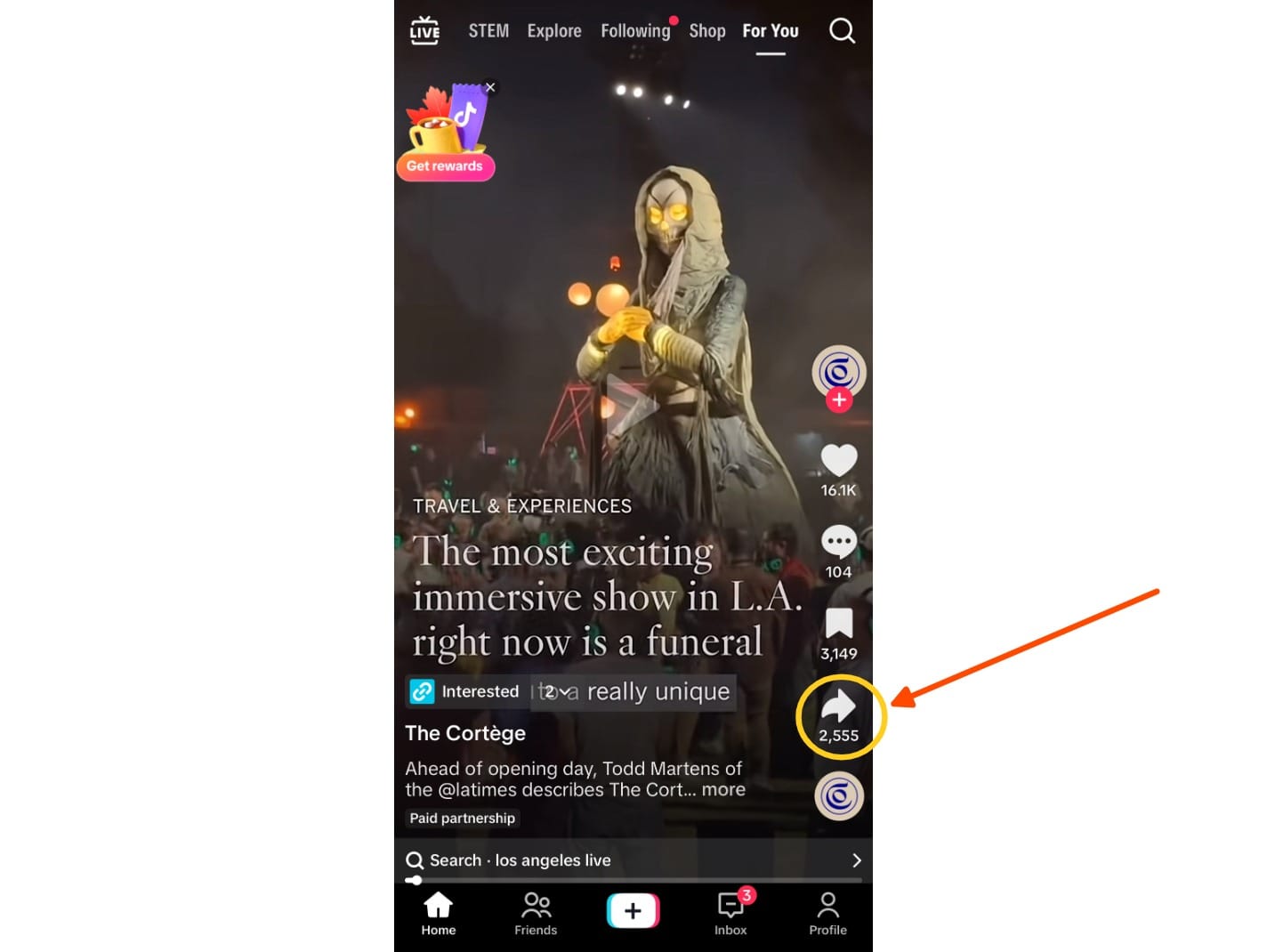
To begin, open the TikTok video you want to convert into a GIF, and tap the share icon.
Step Two: Tap "Share as GIF"
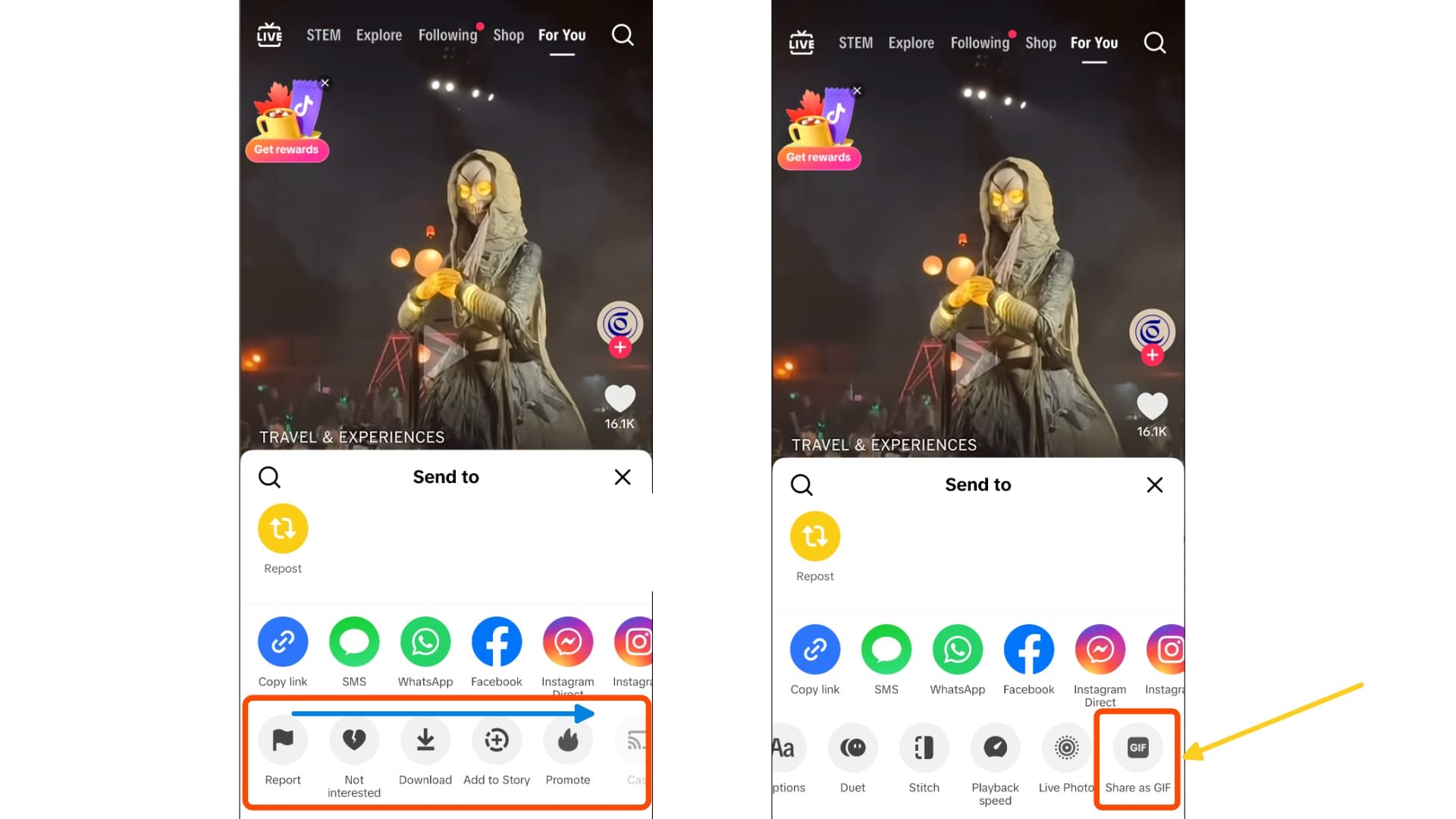
Scroll to the end of the third row on the share menu (the one with the grey icons).
The last icon on that row will be “Share as GIF.” Tap it. TikTok will automatically generate a looping GIF from the video.
Step Three: Download as an Image
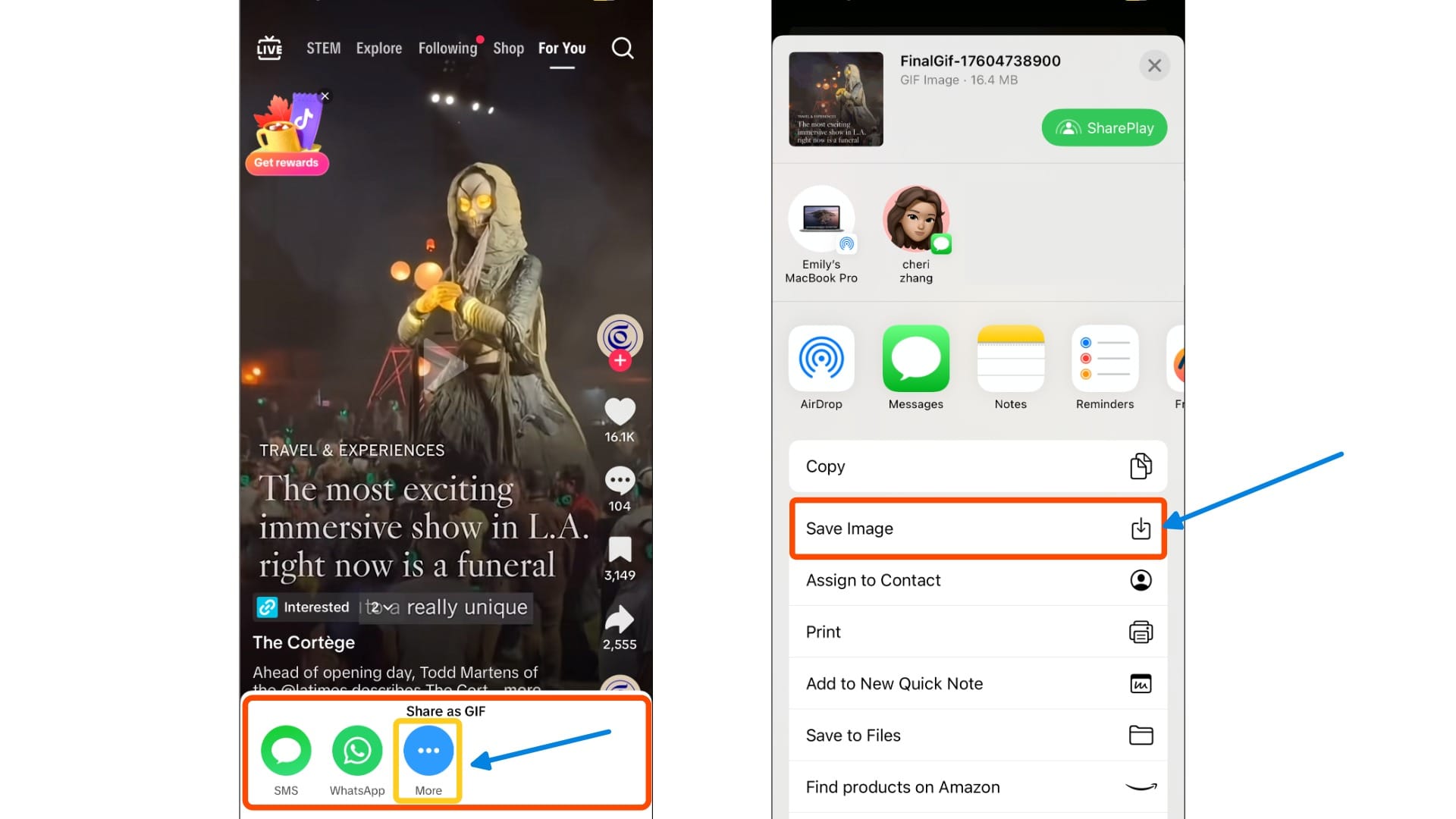
Once the GIF finishes generating, you’ll see three options: SMS, WhatsApp, and More.
Tap More. This opens your phone’s native share menu, where you can send the GIF through SMS or other apps.
For easiest sharing or reposting later, tap Save as Image to download the GIF directly to your phone’s album.
How to Convert a TikTok Video to a GIF with a GIF Maker
Some TikTok videos don’t have the Save or Share feature enabled. If you come across a video without this option, you’ll need to use a GIF maker to convert the TikTok into a GIF manually.
In this example, we’ll use a free GIF maker by Kapwing.
While this adds an extra step to your process, it also gives you more creative flexibility. You can customize your GIF by adding text, stickers, or filters before downloading it.
Step One: Copy the Link to a TikTok Video
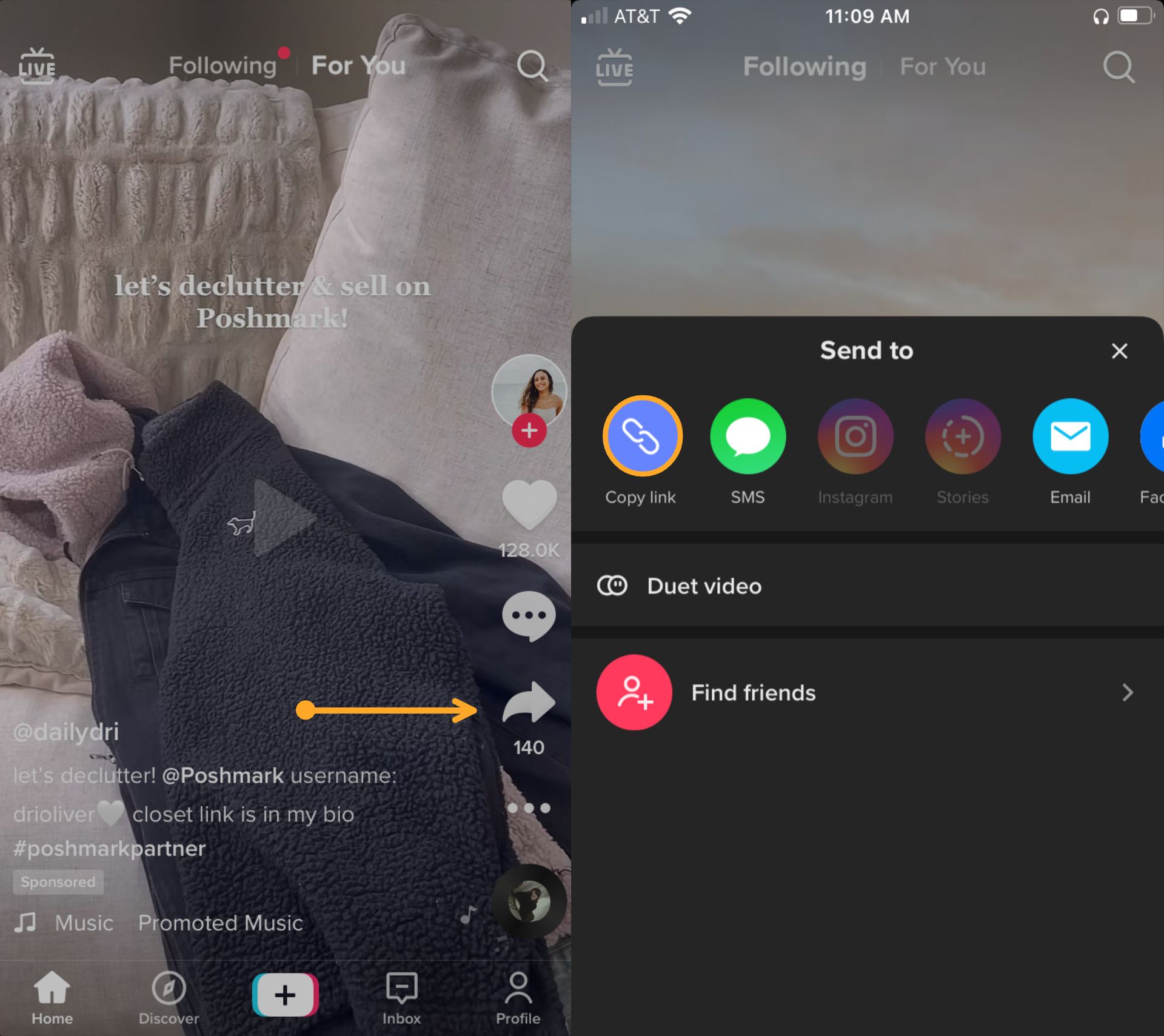
Find a TikTok video, tap the share button, then tap Copy Link to save the link of the video. Afterwards, you'll see a pop-up at the top of the screen that reads, "Copied."
Step Two: Open the GIF Maker Tool
Head over to the free GIF Maker and paste the TikTok link. This will take you to the Kapwing Studio.
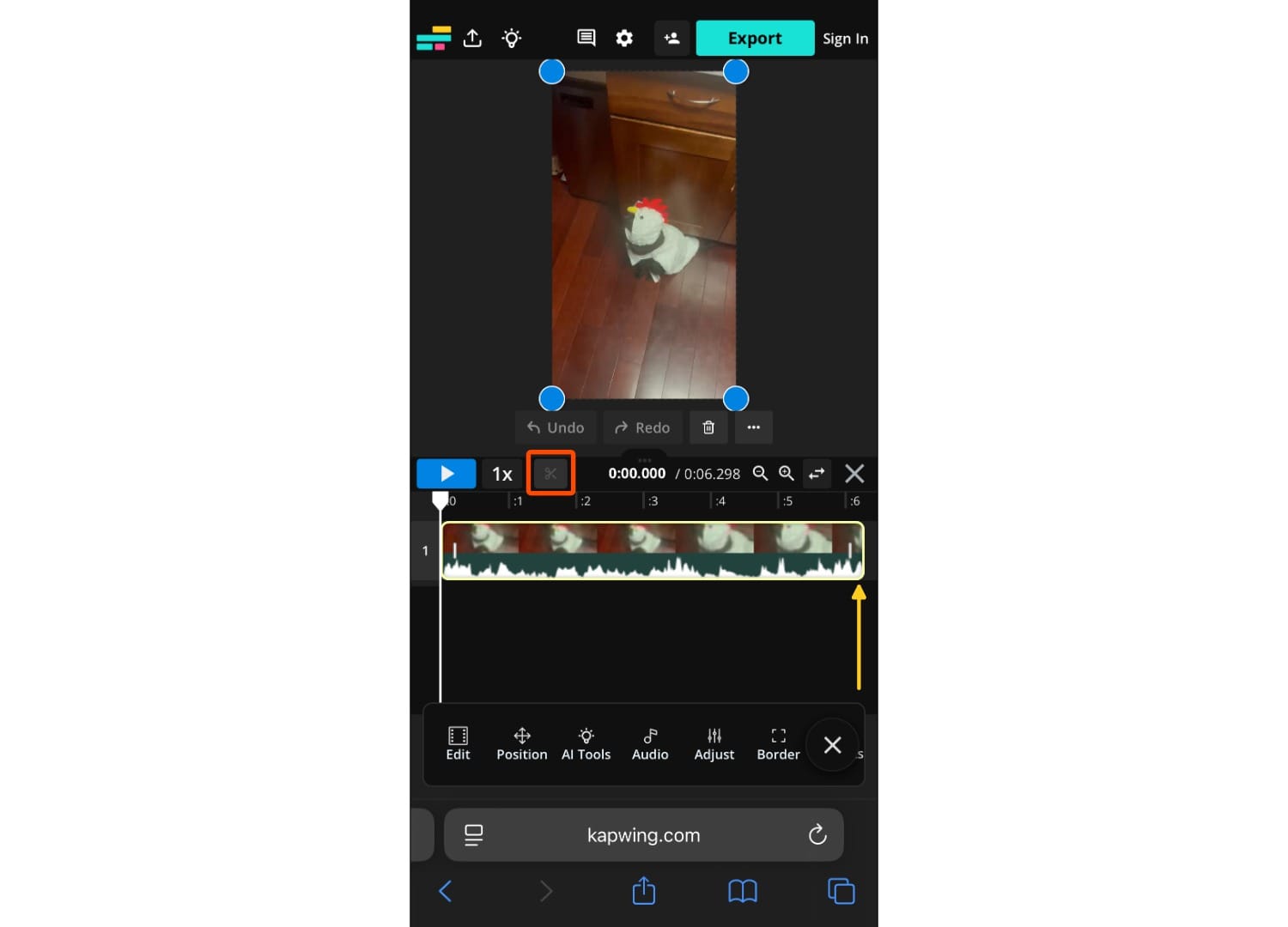
You can trim, split, and cut your video to the ideal length for a GIF. We recommend making your video between 3-5 seconds long. Drag the ends of the video layer to trim the length, and use the split button above the timeline to add cuts.
Tap Done at the bottom of the screen to finalize your changes.
Step Three: Export and Download GIF
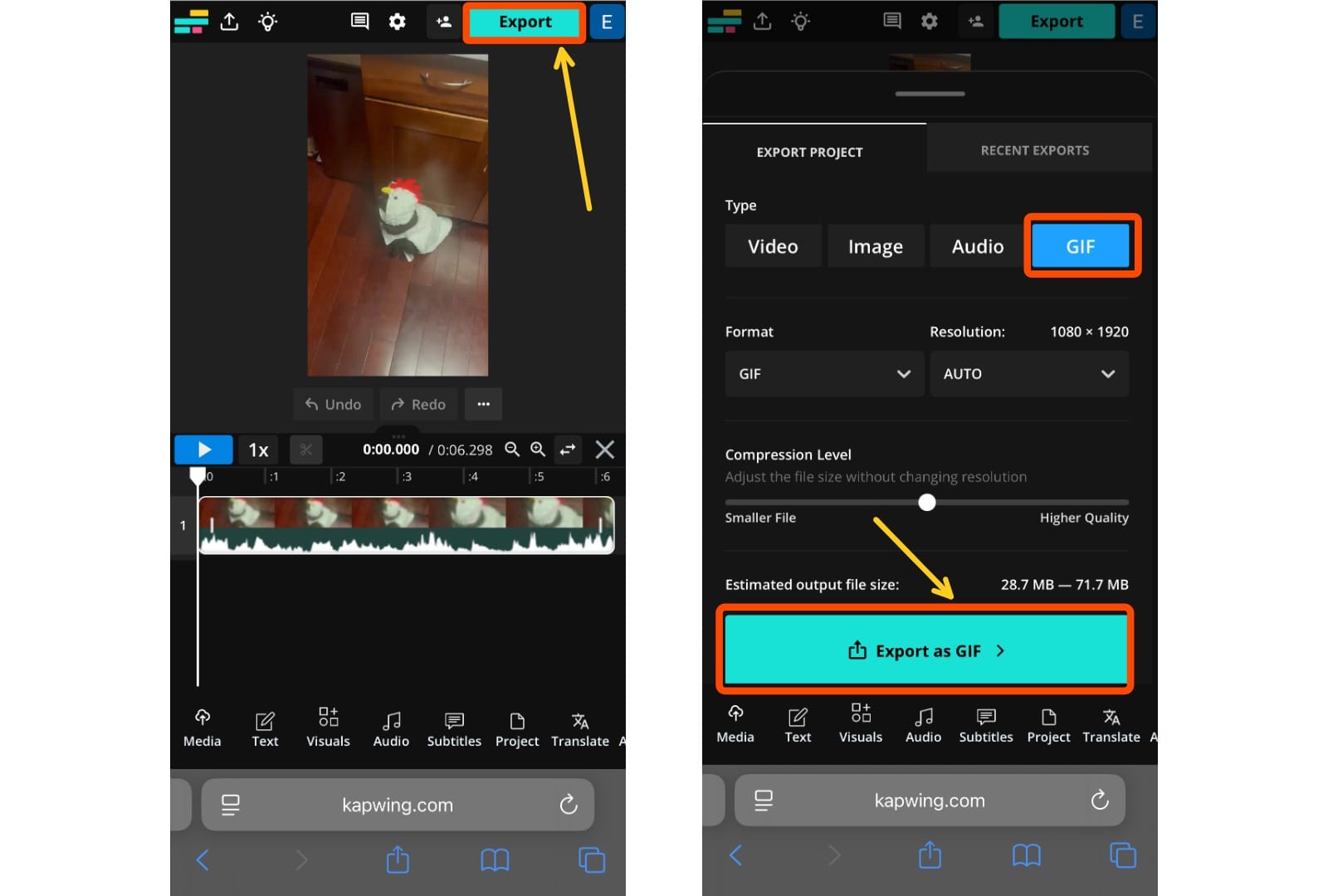
When you’re ready to save the GIF to your device, tap the Export button at the top of the screen. This will open the export menu.
In the Format section, select GIF, then tap Export as GIF.
After the project finishes processing, tap Download to save the GIF directly to your smartphone.