How to Make 5120x1080 Instagram Posts (Video + Image)
The 5120×1080 Instagram trend is blowing up—top Reels are hitting 1M views and racking up 30K+ likes.
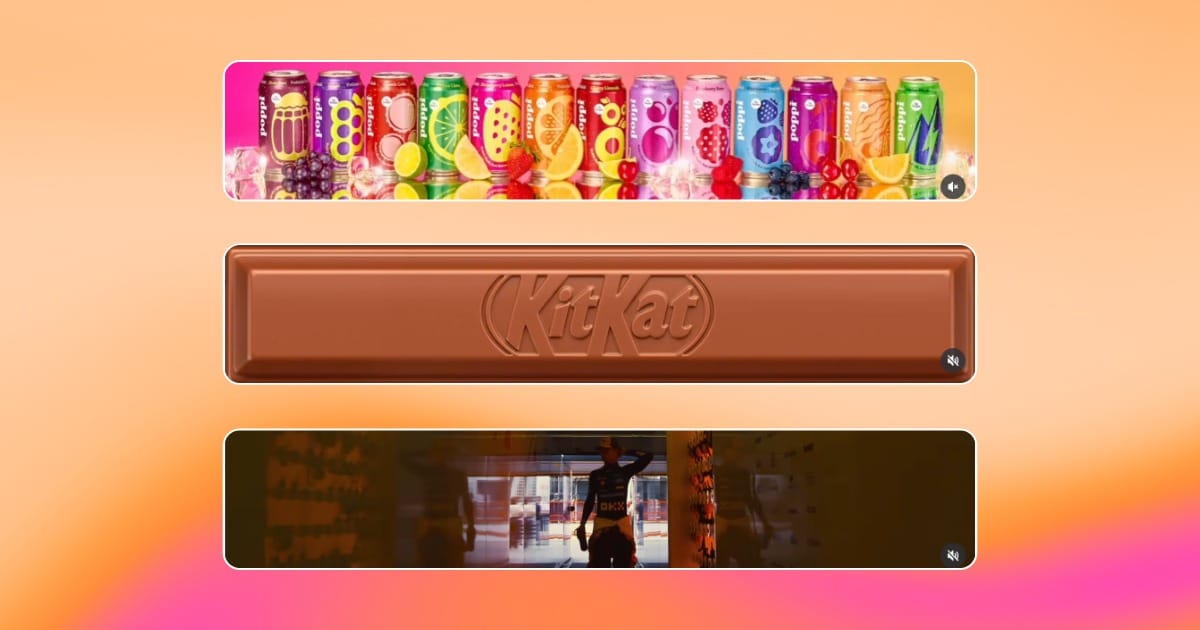
The 5120×1080 Instagram trend, also known as the “thinnest video” or ultra-wide reel, is the latest viral format creators are experimenting with. Unlike the standard vertical 9:16 Reels or square 1:1 posts, this 21:9 cinematic ratio appears as a very thin horizontal strip across the feed.
The 5120x1080 format draws inspiration from cinema: wide-angle frames, panoramic landscapes, and letterbox movies. As such, creators are reimagining their vertical-first content through a more expansive lens. For example, the brand KitKat has used this format to frame its chocolate bar, while creators like Isa Sung have used it to create montages.
Because the 5120×1080 Instagram size emphasizes width over height, it works well for content that benefits from panoramic framing, like travel videos or landscape photography. It’s also a great way to create something that looks unique.
In this guide, we’ll show you how to make 5120×1080 Instagram posts for both photo and video, with expert tips on choosing content, framing, and editing.
Table of Contents
- How to Create a 5120x1080 Instagram Photo Post
- How to Edit and Upload a 5120x1080 Instagram Video Post
- Frequently Asked Questions
How to Create a 5120x1080 Instagram Photo Post
While the 5120×1080 format has become popular, Instagram does not support photos in this aspect ratio. The platform restricts photo uploads to a much smaller range, accepting aspect ratios between 1.91:1 (landscape) and 4:5 (portrait).
That means a 5120×1080 image is too wide to be posted as a photo. If you want to share content in this style, the workaround is to convert your image into a video and upload it as a Reel.
Here’s how to do it:
Step 1: Select the Right Photo
The first step is choosing the right photo. This is especially important because the 5120x1080 Instagram aspect ratio is so unique and restrictive. Selecting the wrong photo can make your post look awkward or unbalanced.
Here are some things to keep in mind when working with the 5120x1080 format:
- Tall subjects don’t work well: Portrait shots, skyscrapers, or standing figures often get cropped in ways that cut off important details.
- Keep subjects wide: Landscapes like panoramic skylines, cars, or buildings, are ideal because they stretch naturally across the horizontal frame.
- Close-ups must be centered: If you use a close-up, make sure the focal point sits in the middle band so it doesn’t disappear when cropped.
- Avoid text-heavy designs: Small text or captions can become unreadable in such a narrow strip, so rely on visuals over words.
- Make products obvious: If the product is small or vertically oriented, it may look insignificant. Instead, show in multiples or exaggerate with close-ups.
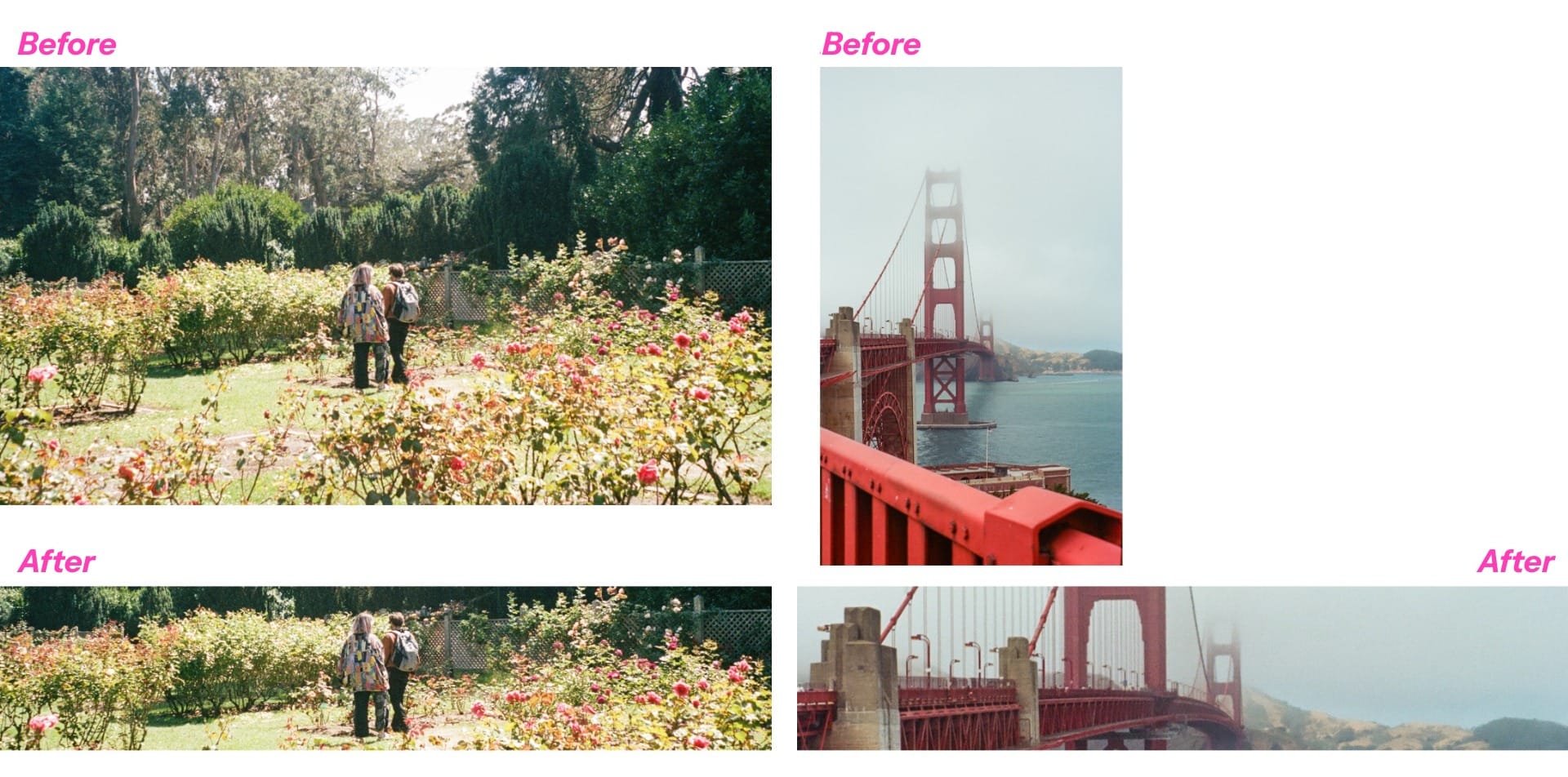
For example, in the images above, the flower garden scene translates well to an ultra-wide format because both the subjects and the background stretch across the frame. In contrast, the Golden Gate Bridge's vertical structure gets cropped, cutting off key details and diminishing the sense of scale.
Step 2: Resize Your Image to 5120×1080
Once you’ve selected the right photo, the next step is to fit it into the 5120×1080 aspect ratio. The easiest way to do this is the 5120×1080 photo template.
Open the template, right-click on the existing photo asset, and select Replace. Then upload the new picture you want to use, and it will automatically snap into the ultra-wide format.

You can also adjust the duration of your Reel. Just keep in mind that the minimum length of a Reel is 3 seconds, and the maximum length is 90 seconds. In our template, we used a duration of 5 seconds.
Step 3: Finalize and Export
Once your photo is inserted into the template, you can make optional edits before posting. For example, you might adjust brightness or add text.
When you’re ready to export, click the blue “Export Project” button in the top-right corner of the studio. This will open the export menu, where you can choose your file type and resolution. When finalized, click the blue “Export” button again.

Once the export is complete, head to the “Recent Exports” tab in Kapwing.
Find your exported image, and click “Download” to save it directly to your device.

Step 4: Post to Instagram
Now that your video is exported, it’s time to share it on Instagram.
Open the Instagram app and tap the “+” button at the bottom of the screen. Choose Reel as your post type. Then, select your exported 5120×1080 reel and click next.

You’ll be taken to the Reel editor screen, where you can add music, stickers, or text overlays. If you’re happy with how it looks, tap Next.
On the final post screen, enter your caption, add hashtags, and choose a cover image. When you’re ready, click Share to publish your Reel.

How to Create a 5120x1080 Instagram Reel
The 5120x1080 Instagram Reel trend is a great way for creators looking to edit in fresh and cinematic ways. Because the aspect ratio is so unconventional, it opens the door for content that feels more creative than a standard vertical Reel.
Animated text is one of the most popular ways to use the 5120x1080 Instagram format. The ultra-wide strip behaves like a digital banner. This template is especially good for:
- Brand campaigns and promotions: dropping a tagline or announcement
- Lyric edits and audio trends: revealing short phrases or punchlines to sounds.
- Event teasers: showing dates or names in a creative way
Step 1: Open the 5120x1080 Text Template
Open the 5120x1080 Text reel template. The project is already set to the 5120x1080 aspect ratio and comes with a pre-animated text banner, so you don’t need to build anything from scratch.
Step 2: Customize Your Text and Background
Double-click the text box to replace the placeholder words, and adjust the font, color, or size to fit your brand or style.
Keep in mind that the length of your phrase affects playback: shorter text loops faster, while longer text extends the Reel.

You can also swap the background with your own image or video. Just right-click the background and select Replace.
Photos, branded graphics, or subtle video loops all work well, but keep motion minimal so the animated text stays the focus.

Step 3: Export Your Project
When you’re ready to export, click the blue “Export Project” button in the top-right corner of the studio. This will open the export menu, where you can choose your file type and resolution.
When finalized, click the blue “Export” button again.

Once the export is complete, head to the “Recent Exports” tab in Kapwing.
Find your exported image, and click “Download” to save it directly to your device.

Step 4: Post to Instagram
Now that your video is exported, it’s time to share it on Instagram.
Open the Instagram app and tap the “+” button at the bottom of the screen. Choose Reel as your post type. Then, select your exported 5120×1080 reel and click next.

You’ll be taken to the Reel editor screen, where you can add music, stickers, or text overlays. If you’re happy with how it looks, tap Next.
On the final post screen, enter your caption, add hashtags, and choose a cover image. When you’re ready, click Share to publish your Reel.

Frequently Asked Questions
Can you post 5120x1080 photos on Instagram?
No—Instagram only supports photos between 1.91:1 and 4:5 aspect ratios. The 5120x1080 (21:9) format is too wide for photo uploads, but you can work around this by converting your photo into a video Reel.
Why use the 5120x1080 aspect ratio?
The ultra-wide format creates a cinematic strip that stands out in the feed. It’s great for brand campaigns, event teasers, travel footage, and lyric edits because it mimics the look of movies and panoramic shots.
How do you make a 5120x1080 Instagram post?
The easiest way is to use an online editor like Kapwing, which lets you start with a pre-sized 5120x1080 template. You can then customize with text, images, or video before exporting and posting as a Reel.