How to Change Your TikTok Cover Photo
TikTok thumbnails with text see a 19.5% higher engagement rate

Your TikTok cover photo is the preview image people see before your video plays, and the visual that shows up on your profile grid. On a fast-paced platform like TikTok, a well-chosen cover can grab attention and help you get more views. For example, TikTok videos with thumbnails that include text enjoy a 19.5% higher engagement rate compared to those without any text.
It can also make your profile look more cohesive and polished. For example, the makeup brand Summer Fridays maintains a pastel green color across all of its TikTok cover photos, which makes its page look curated and instantly recognizable to followers.
@summerfridays
In this guide, we’ll walk you through how to choose or change your TikTok cover photo, how to upload a custom image, and what to do if you need to change the cover after your video is live. We'll also cover some pro tips for creating thumbnails that fit your content and style.
Table of Contents
- How to Change Your TikTok Cover Photo (Before Posting)
- How to Change Your TikTok Cover Photo (After Posting)
- What Makes a Good TikTok Cover Photo?
- How to Make a TikTok Cover Photo More Engaging
How to Change Your TikTok Cover Photo
Before Posting
To change your TikTok cover photo before posting, you must select a frame from the video or upload a custom image before publishing. Here's how:
- Open TikTok and tap the “+” icon at the bottom of the screen to create or upload a video. Then, record your video or upload one from your camera roll.
- On the post screen, tap “Edit cover” (right under the caption field).

- This will take you to the thumbnail editor. Either drag through the timeline to choose a frame from your video, or tap “Upload” on the right side to add a custom image from your phone's gallery.

You can also add text to your cover photo. Use the font style menu, scroll through the styles, and tap one to select it.

Simply tap on the text box to edit the text.
Then, pinch to resize, drag to reposition, or rotate the text box.

When you're "Save" corner to finalize your changes. Add a caption, link, adjust your share settings, then tap the red "Post" button to share your TikTok video.
After Posting
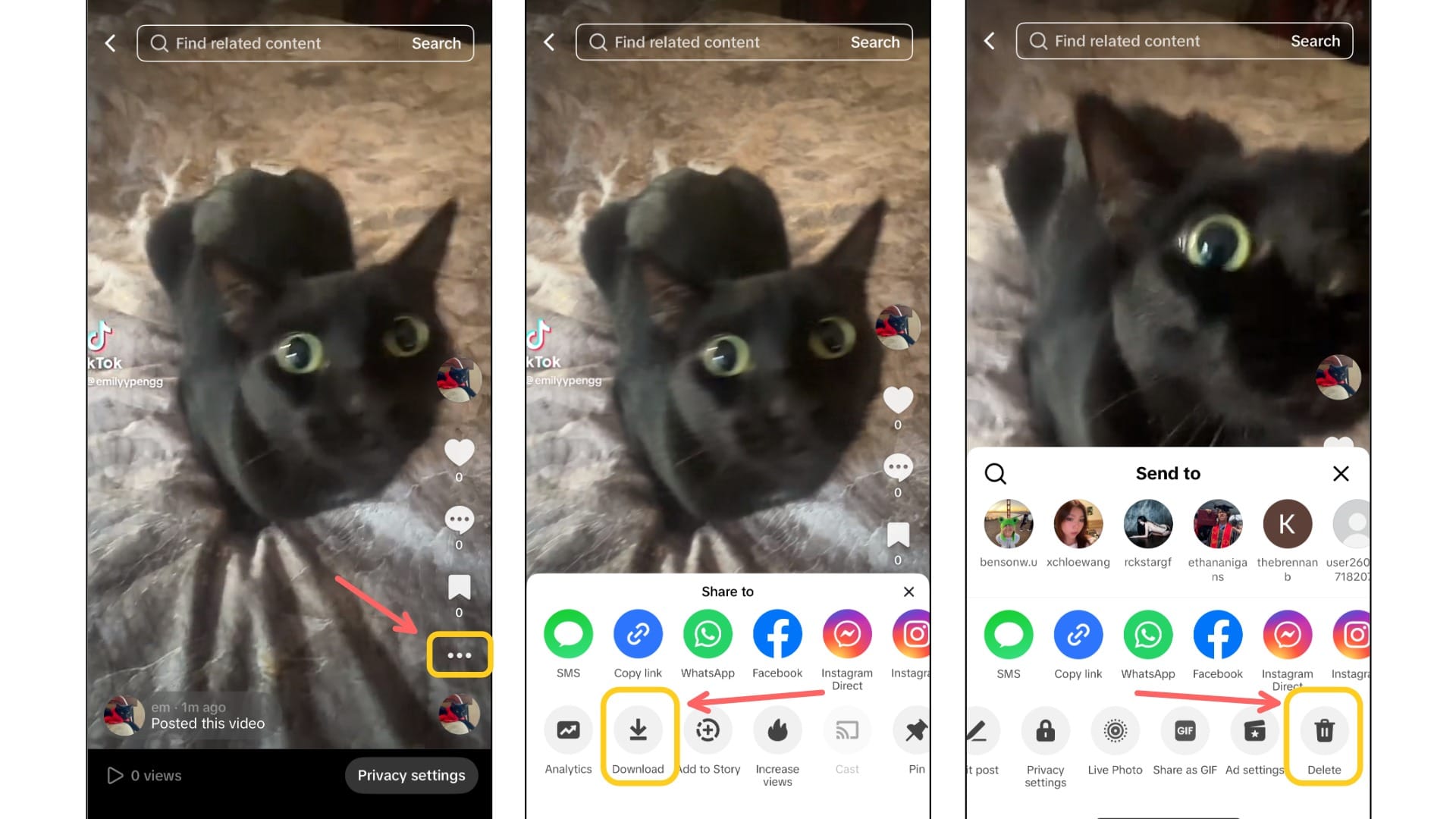
TikTok doesn’t currently allow you to edit the cover photo after a video has been posted. Once it’s live, the thumbnail is locked in, even if you update the caption or settings. However, there is a simple workaround that can help if you really need to change it:
- Open the video you want to update and tap the “…” button on the right side of the screen.
- From the list of options, select “Download.” This saves the full video to your phone’s camera roll.
- Tap the “…” button again, scroll to the end of the third row of options, and select “Delete.”
- Go back to the TikTok home screen, tap the “+”, and re-upload the saved video. This time, select a new cover photo and update the caption as needed before posting.
This method definitely works in a pinch, but keep in mind that you'll lose any views, likes, or comments the original video had.
So whenever possible, it’s always best to plan your cover photo ahead of time to avoid reposting.
What Makes a Good TikTok Cover Photo?
Since you can’t change your cover photo once a video is live, it’s worth planning more about your thumbnail before you hit “Post.” While a good TikTok cover photo depends on the type of content you’re creating, there are a few practices every creator can follow to make their thumbnails more effective.
1. Clear and Relevant: Your TikTok cover photo should instantly show what the video is about. Avoid blurry frames or random screenshots, and instead use a crisp, engaging image that makes sense even without context.
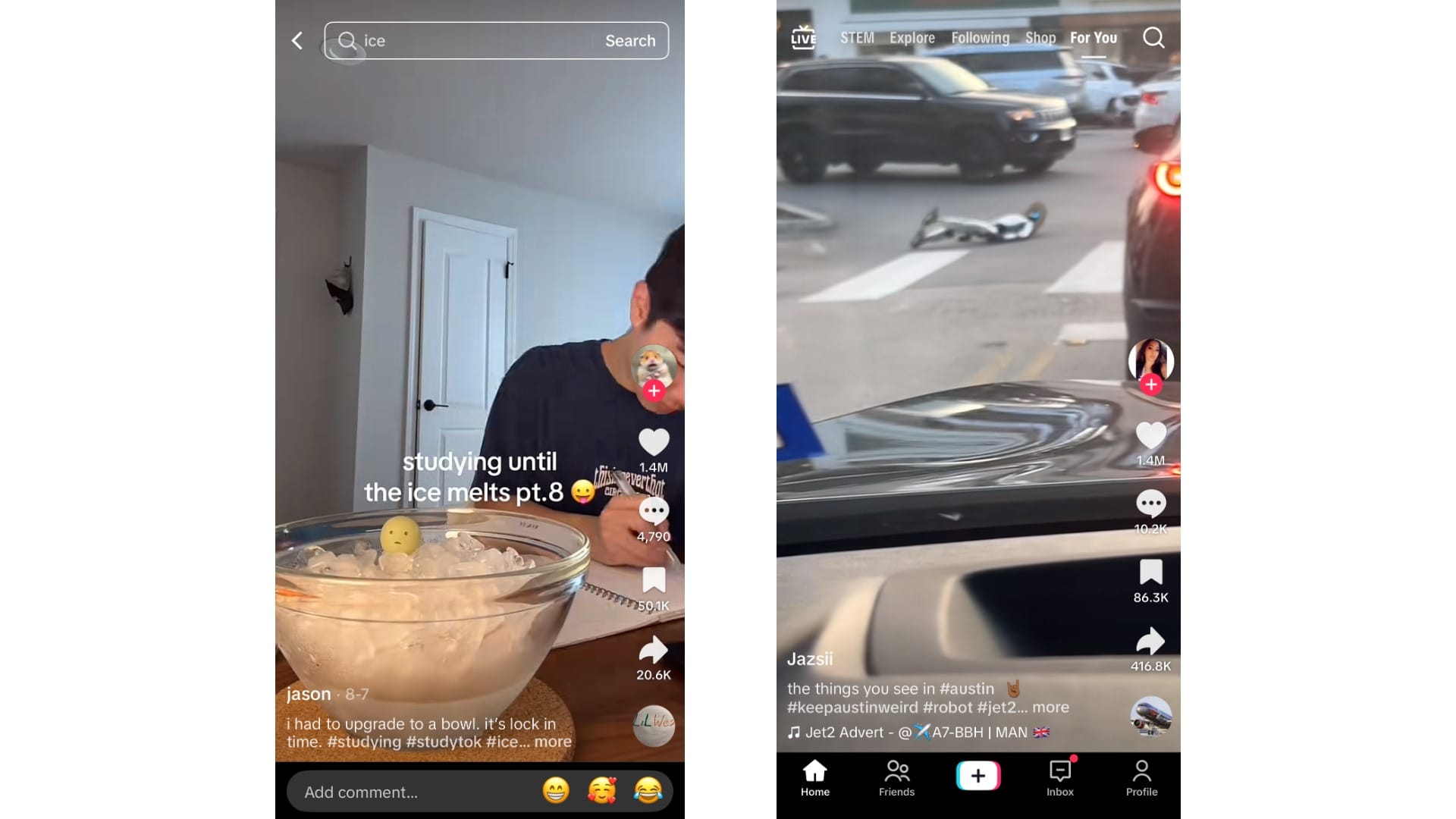
- For example, in the thumbnails below, the image on the left is a stronger TikTok cover photo because of the clear title and relevant image. The thumbnail on the right, however, is less effective because it offers no context, forcing the viewer to watch the video before understanding what it’s about.
2. Readable Text Overlays: Adding text to your TikTok cover photo is a great way to give viewers a preview of the video. Keep it skimmable and use bold fonts so it’s easy to read.
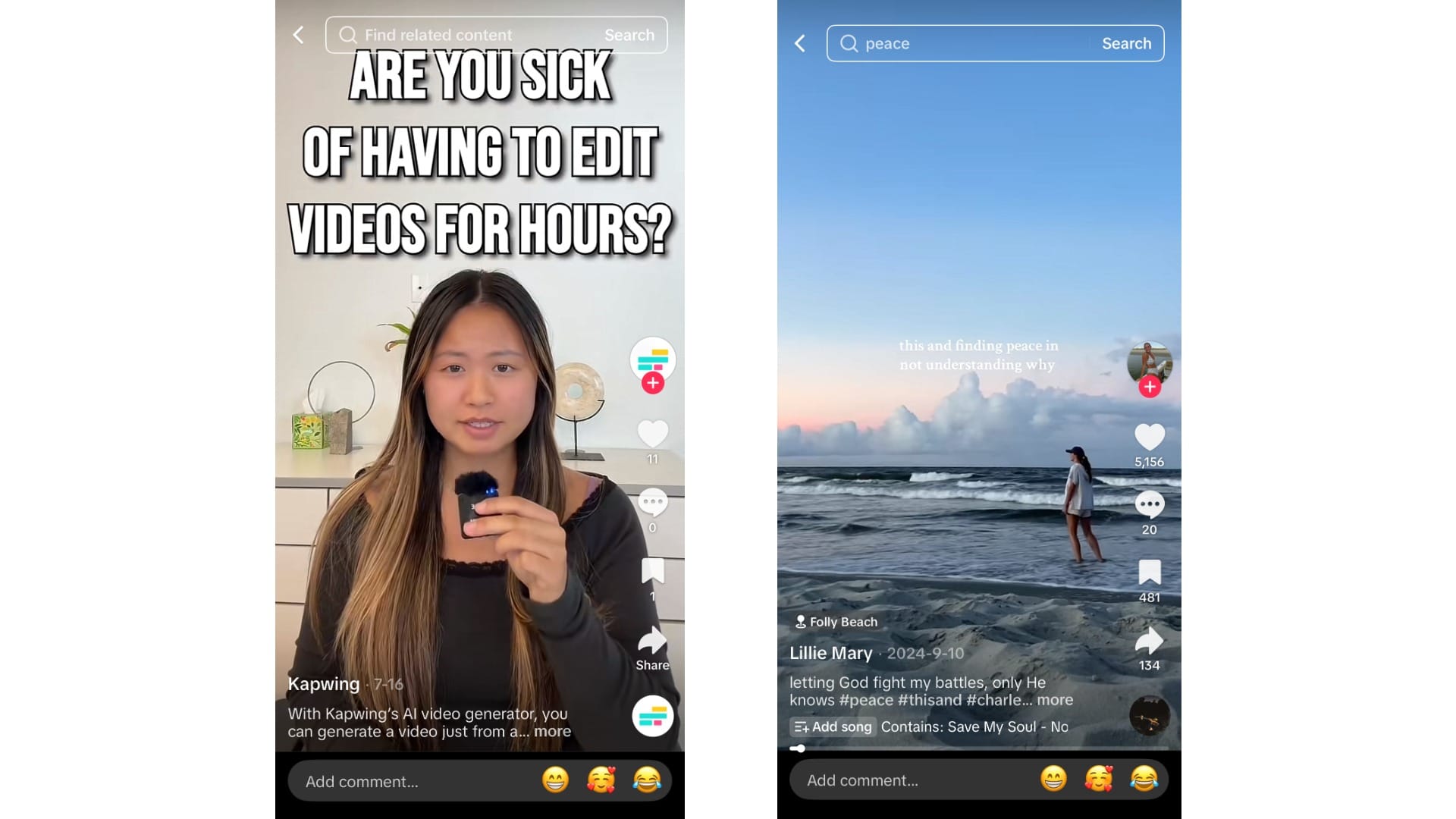
- For example, in the thumbnails below, the image on the left is a stronger TikTok cover photo because the text is bold, high-contrast, and easy to read at a glance. The image on the right is a weaker example since the text is small, low-contrast, and blends into the background.
3. Consistency Across Covers: A consistent style makes your TikTok profile grid look cohesive and professional. This could mean using the same font and color palette for your text, sticking to a recurring brand color, or featuring a signature character or visual element in every cover.
While TikTok provides some built-in fonts and backgrounds, they're limited, which can make your covers look similar to everyone else’s. You might want to make more stylized edits if you’re trying to stand out.
How to Make a TikTok Cover Photo More Engaging
A great tool for this is Kapwing, which lets you create TikTok thumbnails with custom text, overlays, and branded designs. Here's how:
Step 1: Pick a Keyframe From Your Video
The first step to creating a good TikTok thumbnail is choosing a keyframe that best represents your video. Look for a frame that:
- Clearly shows the subject of the video
- Features an expressive face or action moment
- Has clean space around the subject to add text later
You can screenshot this frame directly from your video, but keep in mind that the resolution might not be the highest quality. For a sharper image, upload your full video into Kapwing Studio and convert the frame into a still image. Here's how:
Select your video in the timeline and move the playhead to the exact frame you want to use. Long click on the video and select the “Freeze Frame” button. This will create a still image from that moment in your video.

Next, delete the video from the timeline so only the freeze frame remains.
With the freeze frame selected, scroll on the bottom toolbar until you see the Timing section. There, click “Convert to Image.”

Step 2: Add Text, Stickers, and Overlays
Next, add elements that will make your TikTok cover photo stand out. All of these tools can be found in the Text and Visuals sections on the left-hand toolbar in Kapwing. From there, you can add:
- Text with custom fonts, colors, and effects

- Stickers and emojis to add personality and grab attention
- Shapes or backgrounds behind your text for readability
- Branded elements like a logo or watermark for consistency

These overlays not only make your cover photo more engaging but also help create a recognizable style across all of your TikTok thumbnails.
Step 3: Export and Use
Once your TikTok thumbnail design is ready in Kapwing, it’s time to export and save it to upload it to TikTok.
Click “Export” in the top-right corner of the editor. This will take you to the export menu, where you select the file type and resolution. Then, click “Export as JPG.” When your image finishes processing, click “Download” to save it to your device.

Now you have a high-quality TikTok cover photo ready to use. The next time you upload your video to TikTok, just tap “Edit cover” → “Upload” and select the custom thumbnail you created.