How to Make an AI Earth Zoom Out Video (Higgsfield AI)
"AI Earth zoom out" has received over 250,000 monthly searches worldwide
AI-powered video effects are a regular staple in a content creator's toolkit. While simple trends like TikTok’s “Bugatti trend” offer quick (and some may argue cheap) engagement, creators, social media managers, and marketing teams are turning to more advanced AI tools to stay ahead in 2025.
One of the latest viral formats is the AI Earth Zoom Out, a cinematic effect that begins with a close-up and pulls back to reveal the city, country, Earth, and eventually outer space. This trend is made possible with tools like Higgsfield AI and Kapwing.
Higgsfield generates the zoom-out sequence, but additional edits in Kapwing are needed to personalize the video and fully match the trend. In this article, we’ll show you how to create your own AI Earth Zoom Out video and explore whether it’s possible to do it entirely for free.
Table of Contents
- What is the AI Earth Zoom Out Trend?
- How to Make an AI Earth Zoom Out Video Using a Photo
- How to Make an AI Earth Zoom Out Video Using a Video
- Frequently Asked Questions
An example Earth Zoom Out video I created with Higgsfield and Kapwing
What is the AI Earth Zoom Out Trend?
The AI Earth Zoom Out trend is a viral video effect where the video appears to continuously zoom out from a person, expanding through buildings, into the sky, and eventually into space.
This effect is created using Higgsfield AI, the same AI video tool that powered the Eye Zoom Trend that went viral on TikTok in May.
Higgsfield allows users to input a photo or prompt and generates short, cinematic transitions and animations.
@nctbyduy " EARTH ZOOM OUT " Have you given it a try? #higgsfield #zoomin #zoomout #trekking #nature #ai #duyluoivandong #fyp ♬ nhạc nền - Duy Lười Vận Động
Can you join the trend for free?
Yes, you can create the AI Earth Zoom Out effect for free using the Higgsfield AI free plan. However, the free plan comes with daily generation limits and slower processing speeds compared to the Pro version.
For the Earth Zoom transition, you can generate up to two videos per day on the free plan. While Higgsfield estimates wait times of up to 45 minutes for free plan users, it often renders faster depending on demand.
Because of these limitations, it’s especially important to understand how to set up your input properly before using it.
How to Make an AI Earth Zoom Out Video Using a Photo
Step 1: Open Higgsfield AI
To start creating the Earth Zoom Out effect, go to Higgsfield.ai.
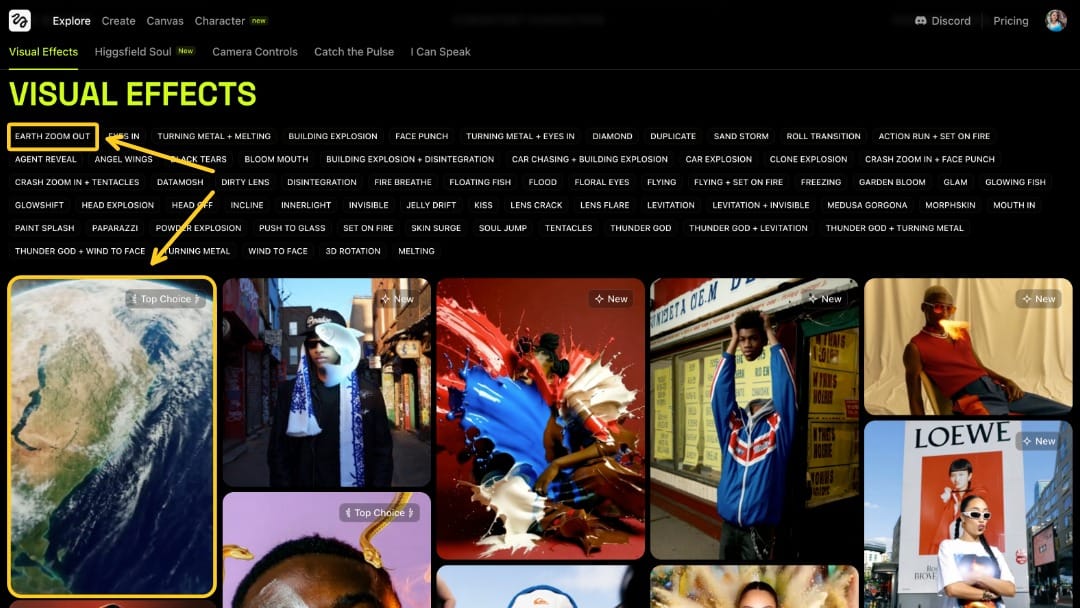
On the homepage, you’ll see a gallery of featured video effects.
Earth Zoom Out is currently the first option. If it’s not immediately visible, look for it in the horizontal menu of effect names above the preview clips. Select it to begin.
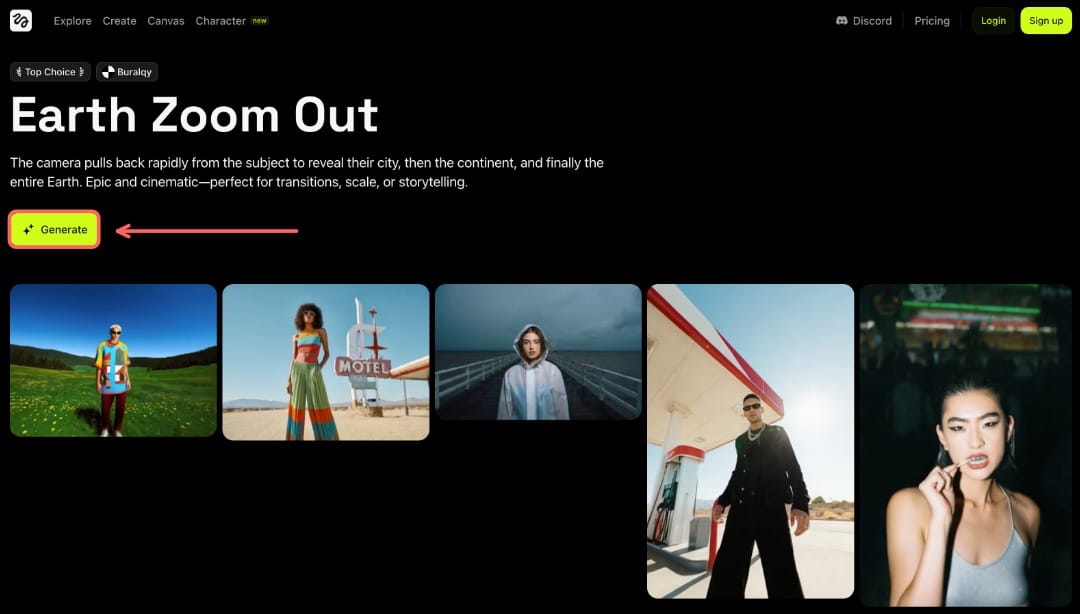
After selecting the Earth Zoom Out effect, you’ll be taken to a page showcasing high-quality examples of the video in action.
Clicking on any of these previews will display the prompt used to create it.
To start making your own, simply click the Generate button.
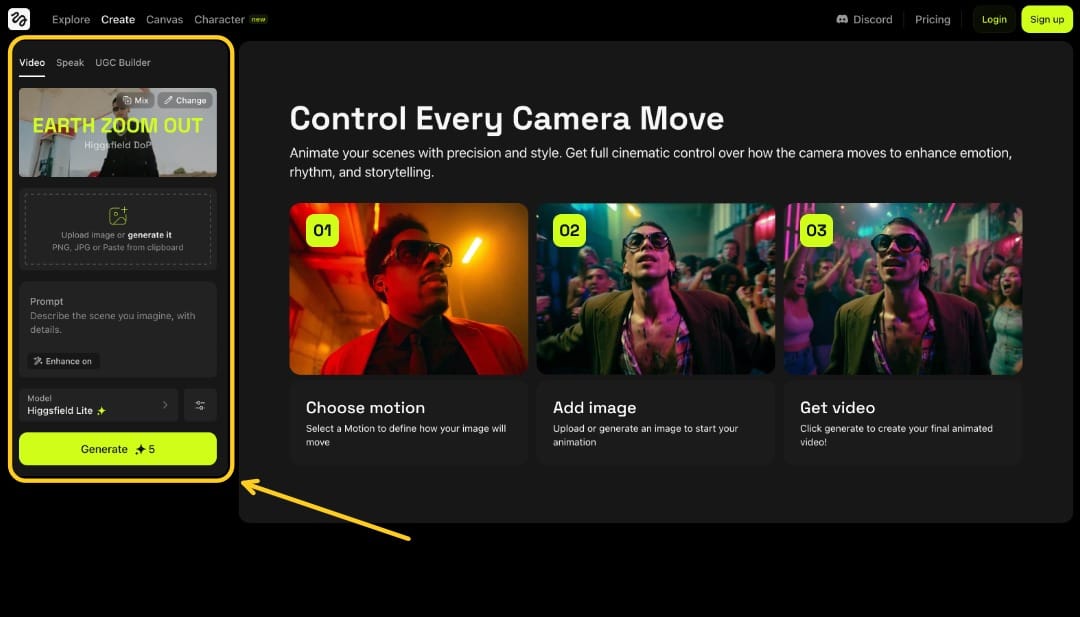
On this page, you’ll see a basic overview of the Higgsfield workflow. Our main focus is the generation menu on the left-hand side of the screen.
If you have the correct effect selected, it should display EARTH ZOOM OUT at the top of this menu. If not, click the Change button and select the correct one.
Step 2: Upload a Reference Image
First, attach a reference image by either uploading a photo or generating one using in-platform tools.
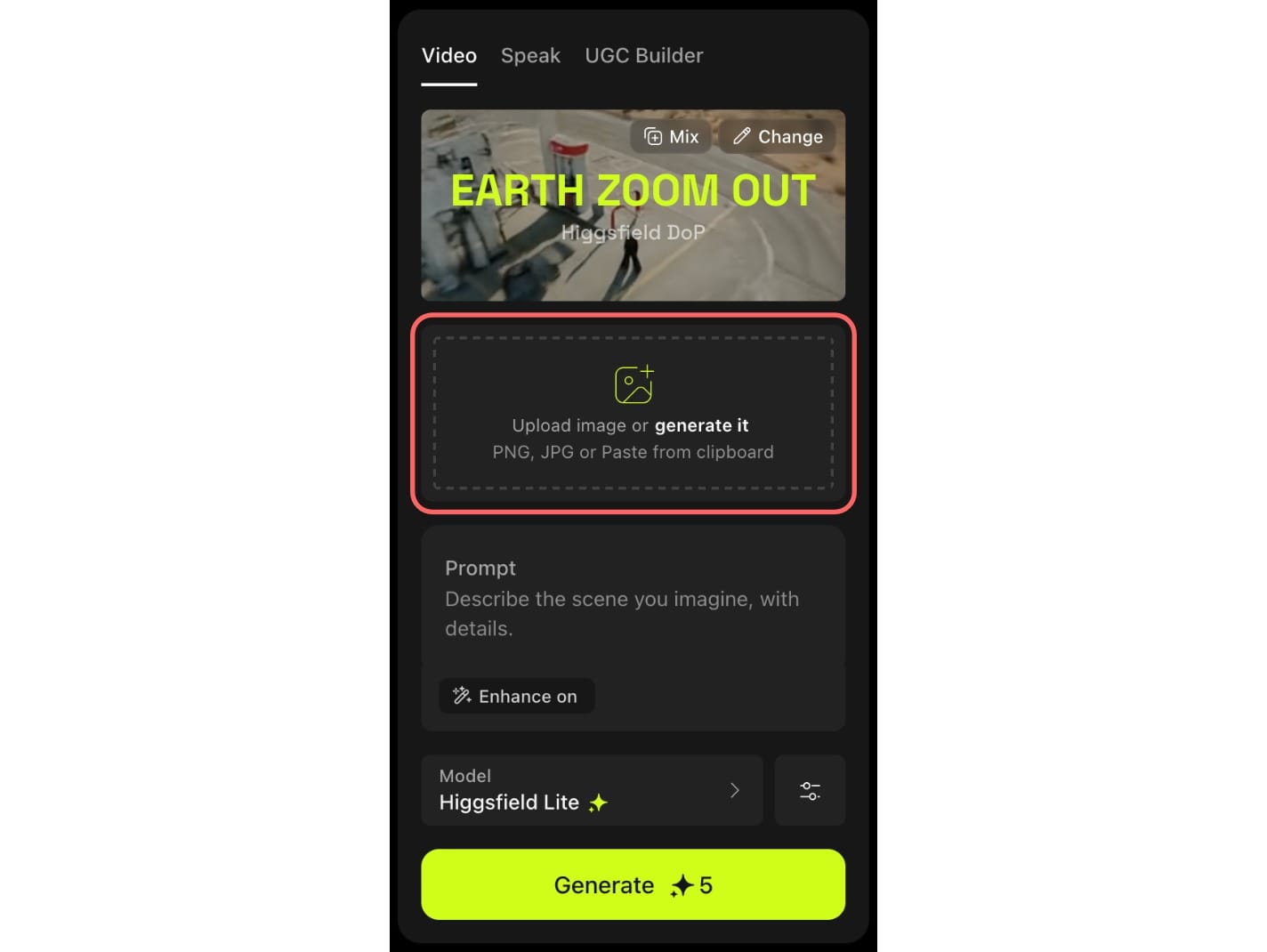
For this trend, it's more common to use your own photo. There are a few criteria your image should meet to ensure a smooth transition:
- High image quality – Avoid blurry or pixelated photos. A sharp, well-lit image will generate better results. We recommend starting with an HD photo (around 1920 × 1080 pixels) to give the AI more detail to work with and help preserve clarity even after downscaling during generation.
- Clear view of the background – The effect will look best with some context to build out the environment, so avoid close-up portraits with solid or unclear backdrops.
- Outdoors setting – Since the zoom transitions through a city or natural landscape, outdoor scenes work best.
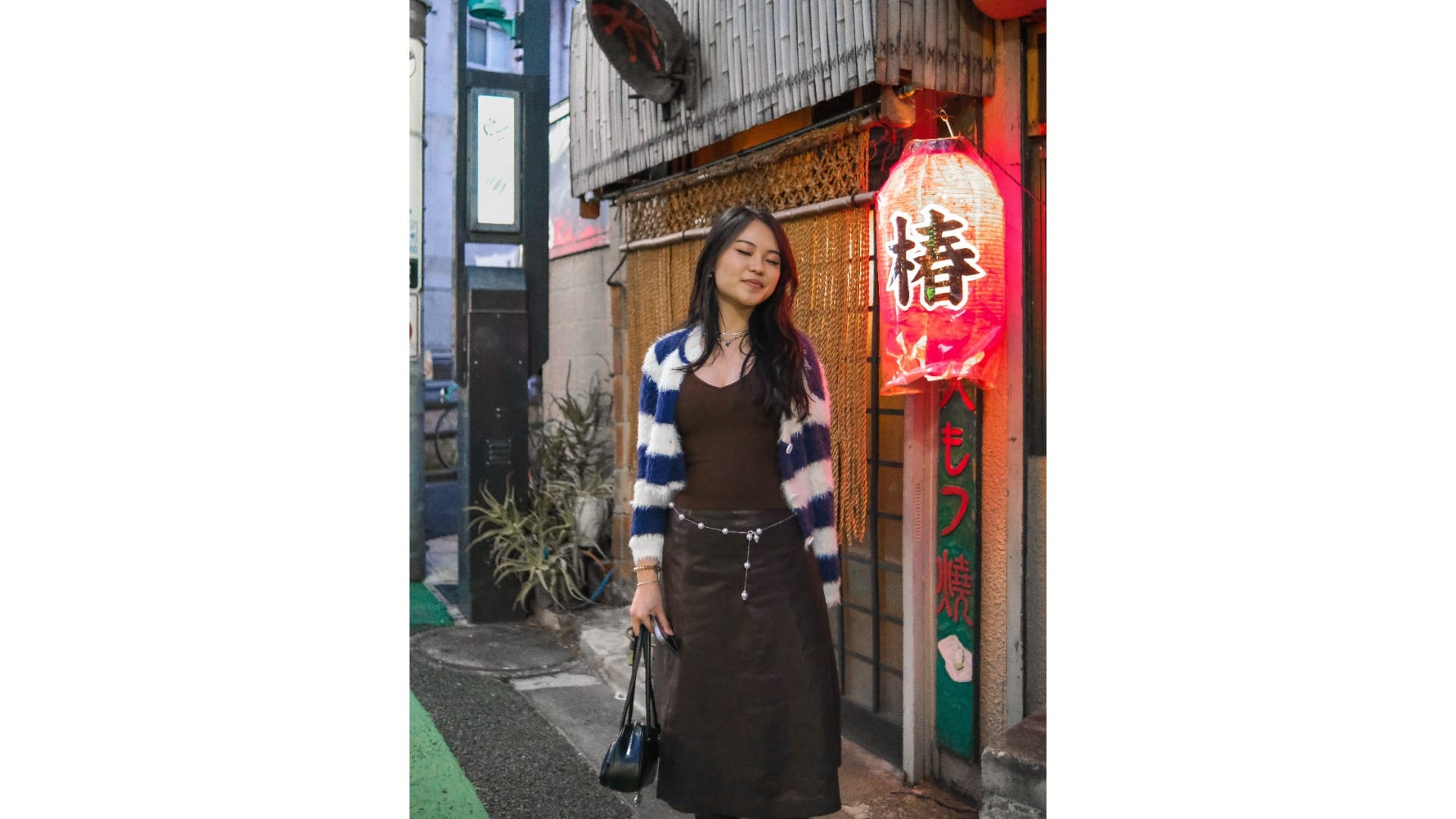
For example, here is the image I chose to start my AI Earth Zoom Out video. The photo is 3922 × 5048 pixels, which is more than high enough resolution for Higgsfield to generate a clean video.
Although it’s in portrait orientation, it works well because the background is clearly visible and the subject is outdoors, both of which help create a smooth, realistic zoom-out effect.
Step 3: Add a Video Prompt
Next, enter a video prompt to help guide the generation. While Higgsfield relies heavily on your uploaded photo, the text prompt still plays an important role in shaping the look, pacing, and direction of the zoom-out animation.
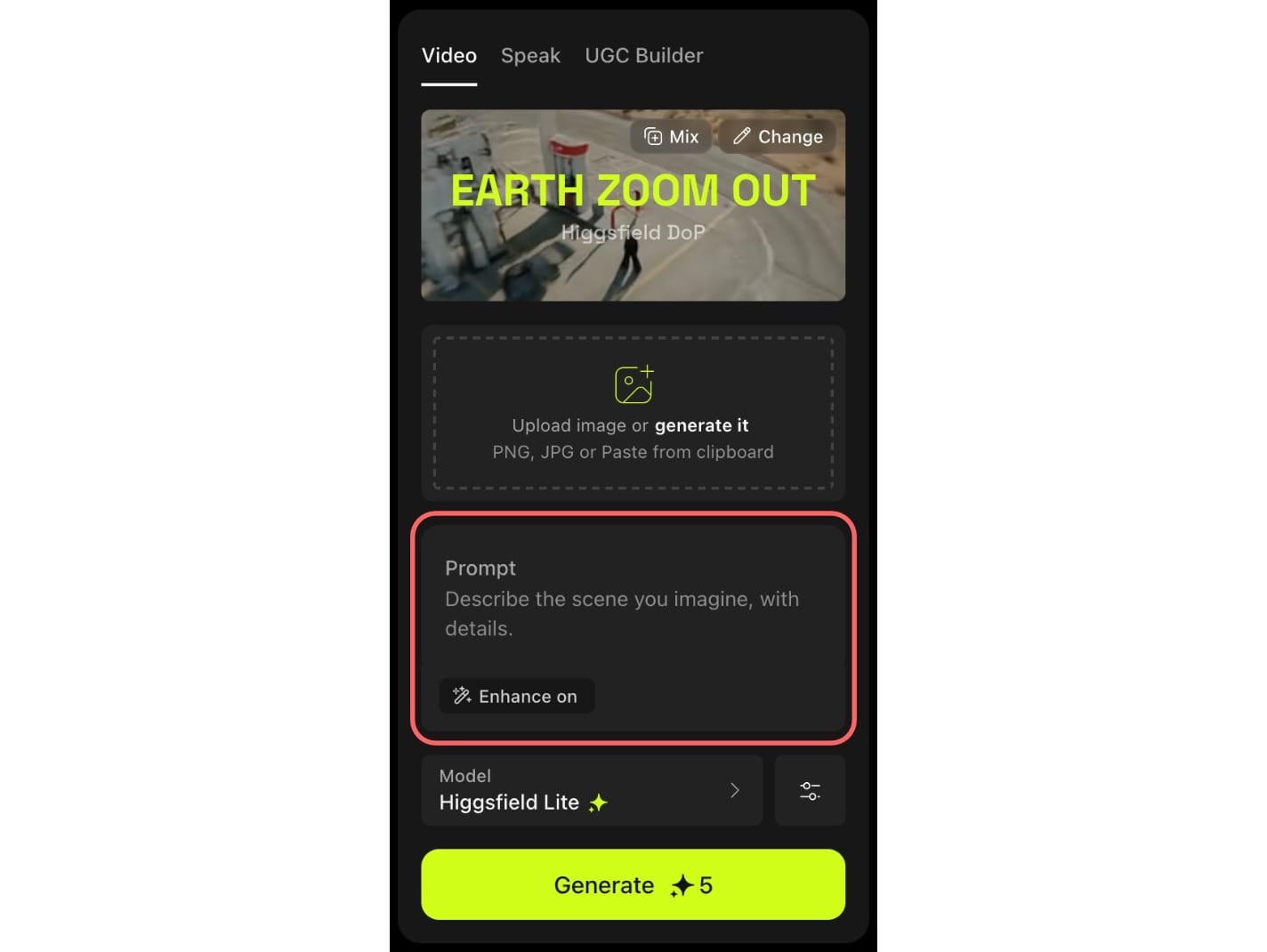
When browsing the example videos on the effect page, you'll notice that many include detailed prompts.
If you click on any sample clip, the prompt used to generate that video will appear beside it. These give you a sense of how specific your own prompts should be.
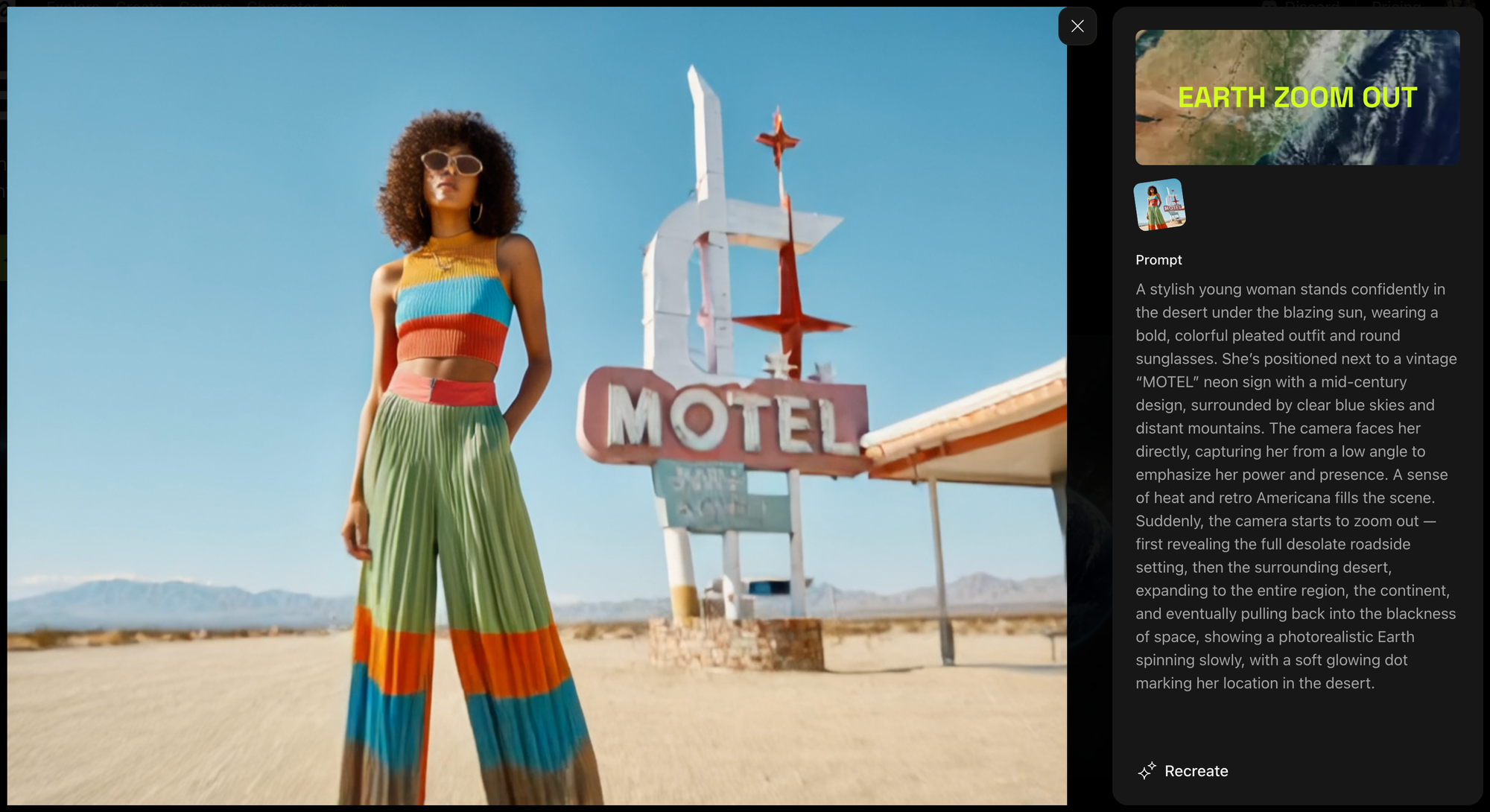
With the Higgsfield example prompt in mind, here's a structure you can follow when writing your own prompt:
- Start with the subject and setting
Describe who or what is in the image, and where they are.
Example: "A stylish young woman stands confidently in the desert under the blazing sun (...)" - Describe how the camera should move
Mention the speed and style — smooth, fast, cinematic, etc.
Example: "The camera zooms out slowly in a smooth cinematic motion." - Add what should appear during the zoom
Guide the AI with visuals you want included during the transition.
Example: "The camera reveals the full desolate roadside setting, then the surrounding desert, expanding to the entire region, the continent." - Explain how the video should end
Be specific about what the final shot should look like.
Example: "Earth appears as a glowing sphere rotating in space."
Here is the prompt I used to generate the zoom out transition:
A young woman stands in a narrow alleyway in Japan, bathed in warm sunset light. The camera pulls away sharply, initiating a smooth and rapid zoom-out. It rushes upward through the alley, past glowing signs and lanterns, revealing the architecture of a Japanese city. The pace accelerates, transitioning into the night sky before breaking through the atmosphere. In the final shot, Earth appears as a single, pristine globe rotating slowly in the dark, with her location marked by a glowing dot far below.
I started with the Higgsfield example prompt and customized it with my own details. The version shown here was automatically enhanced by Higgsfield’s AI, which adds extra detail to improve the result.
If you'd prefer to keep your original wording, you can disable this feature by clicking the “Enhance On” button at the bottom of the prompt editor.
Step 4: Choose Your Model and Generate
At the bottom of the menu, you’ll find options to select a model type and adjust advanced settings.
These steps aren’t required to create a high-quality AI Earth Zoom Out video, but they can help if you want more control over output speed and quality.
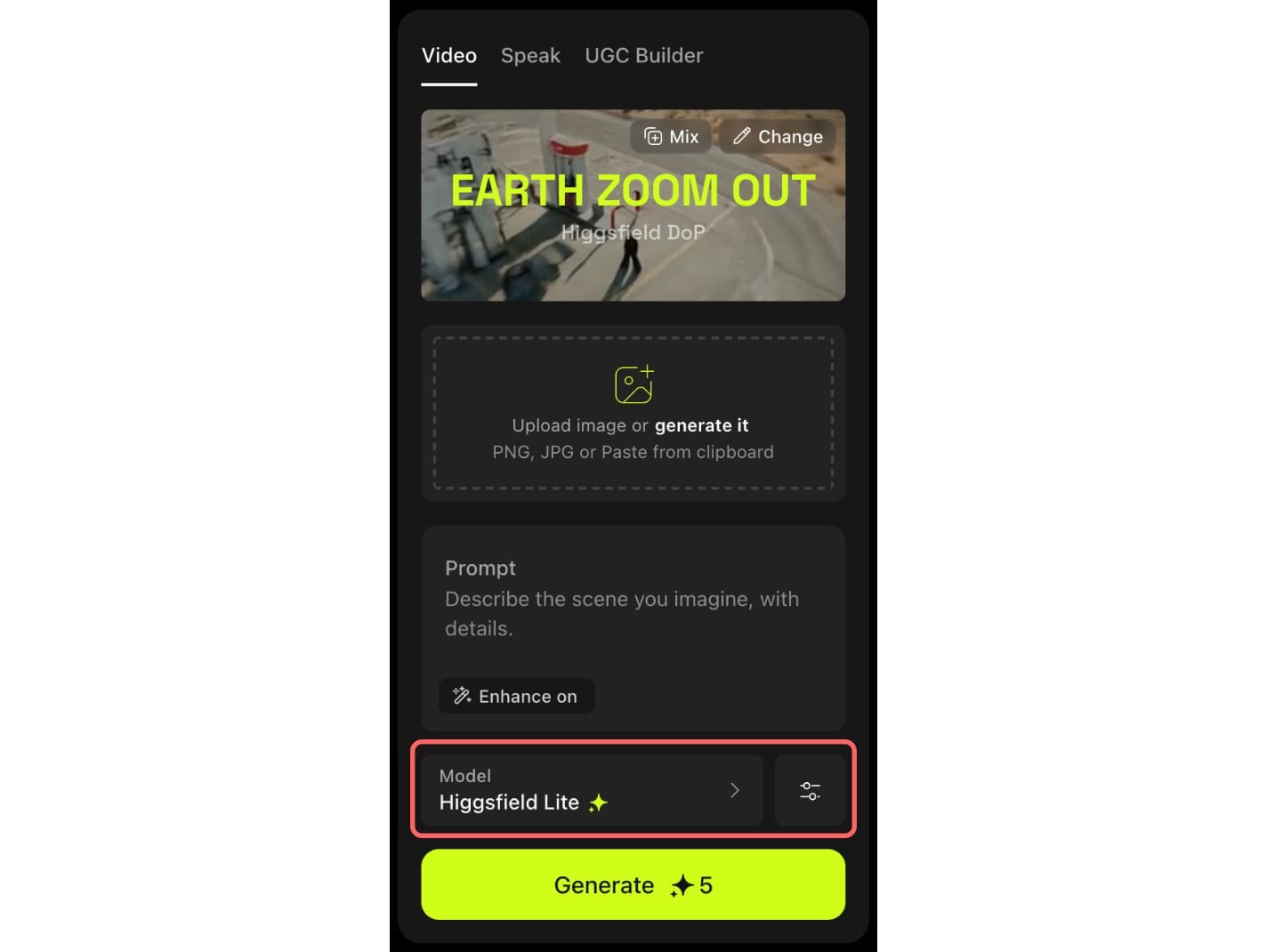
If you're a paid user, you can select the Standard or Turbo models for faster processing and higher-resolution results. Free users are limited to the Lite model, which still works well but may take longer to render.
Next to the model selector, you’ll see a button with two slider icons. Click it to open the advanced settings panel, where you can:
- Choose your video length (3 or 5 seconds)
- Set a generation seed (for consistency across runs)
- Adjust the number of inference steps (to fine-tune output detail)
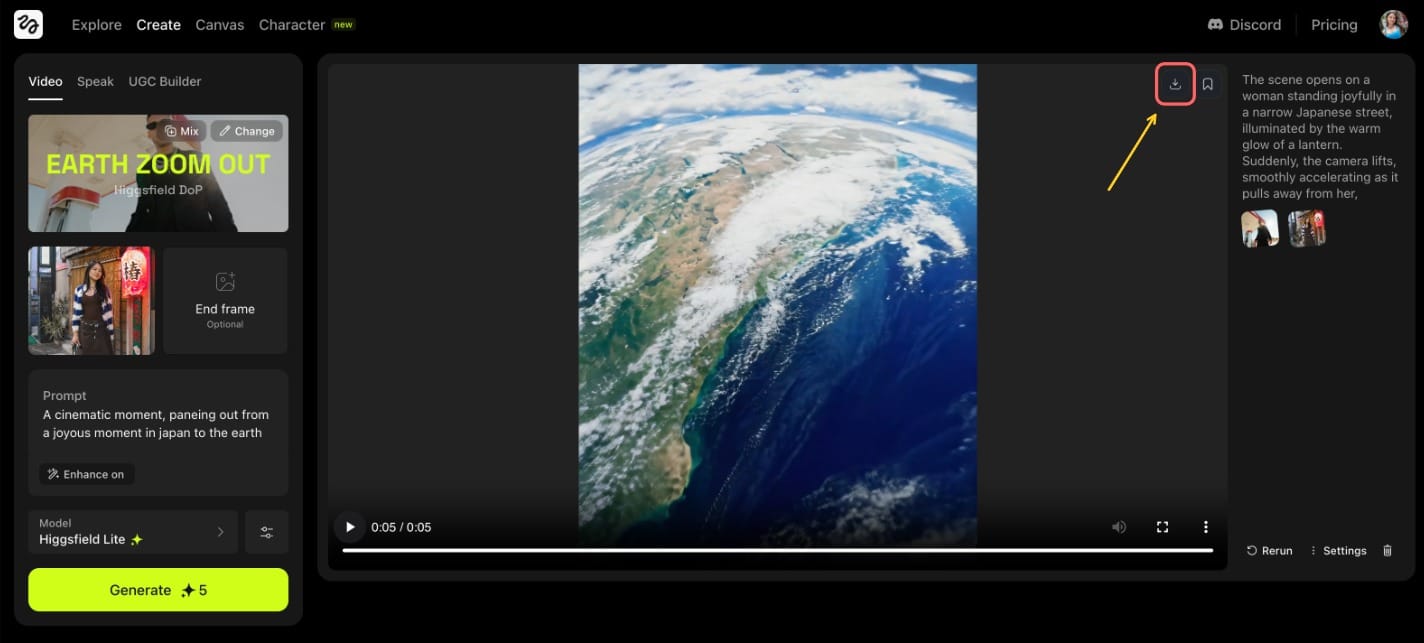
Once your inputs are set, click the Generate button to render your video. When it’s finished, click the download icon in the top-right corner to save your AI Earth Zoom Out clip.
Step 5: Edit Earth Zoom Out Effect
Since Higgsfield does not have any editing tools, you'll need to upload your video to a video editor. For this tutorial, we'll be using Kapwing, a browser-based video editor that can add the necessary edits for free.
Begin by uploading your clip into the Kapwing studio. Once you've done so, you'll likely need to resize your video.
Higgsfield will create your video using the same aspect ratio as your reference image, which is rarely the correct aspect for TikTok or Instagram Reels.
To resize your video, select the Resize Project button on the right-hand toolbar.

Next, select your desired aspect ratio. The 9:16 aspect ratio is best for platforms like TikTok and Instagram.
To confirm your changes, select the Resize Project button.

Next, you can loop your video to replicate other viral renditions of this trend. To do this, first create a copy of your clip.
On a desktop, you can copy your clip by right-clicking and selecting Copy. On mobile, tap and hold the track, then select the Copy option.
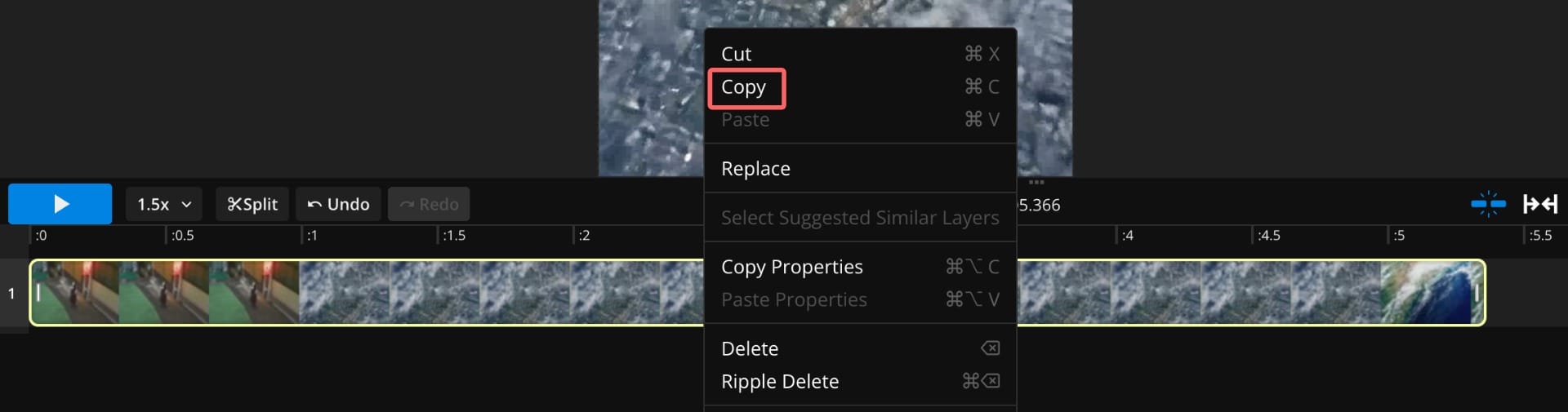
Then, paste your track using the same process, but selecting the Paste option from the menu.
Your project will now include the same clip placed back-to-back in the timeline.
To create the looped effect, reverse the second video clip.
You can do this by selecting the clip and finding the Reverse video toggle in the editing tools.
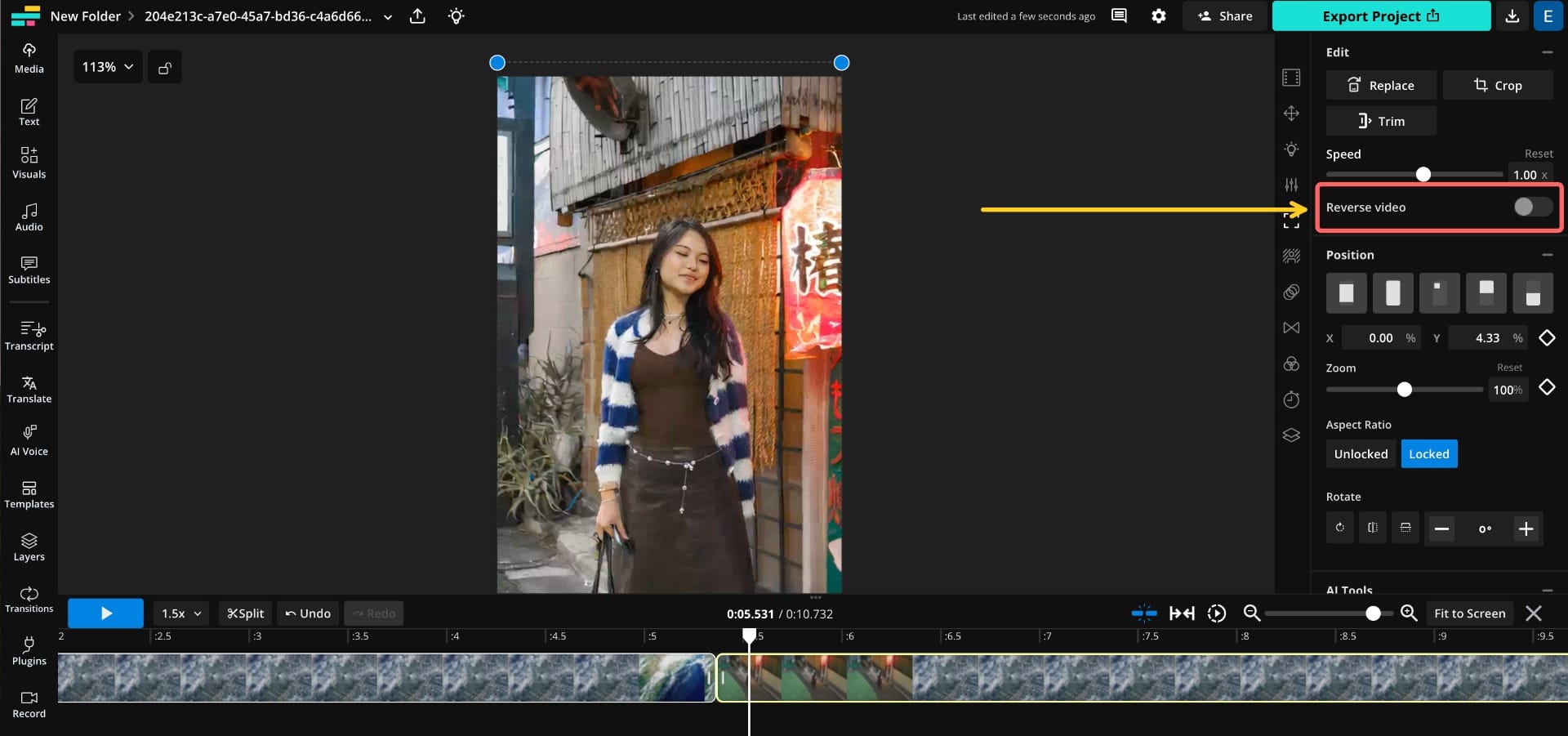
While the rest of the editing process is up to you, you can further personalize your video by adding music, sound effects, or text animations.
Here is an example of what the final product will look like:
An example Earth Zoom Out video created with Higgsfield and Kapwing
How to Make the AI Earth Zoom Out Trend Using a Video
While most AI Earth Zoom Out videos are created as short, standalone clips from photos, you can also repurpose them into eye-catching transitions or intro sequences.
This is a great way to make the start of your content more captivating and instantly hook viewers – especially for travel content, creative edits, or vlogs.
Step 1: Capture the First Frame of Your Video
Start by capturing the first frame of your video. One simple way to do this is by using the Kapwing Freeze Frame tool. Here's how:
After you've uploaded your video into the Kapwing studio, click on the clip in the timeline to select it. In the right-hand toolbar, select the "Timing" icon (it looks like a stopwatch).
Make sure the playhead (the vertical line in the timeline) is positioned at the very beginning of your video. Then, click the "Freeze Frame" button in the timing menu.
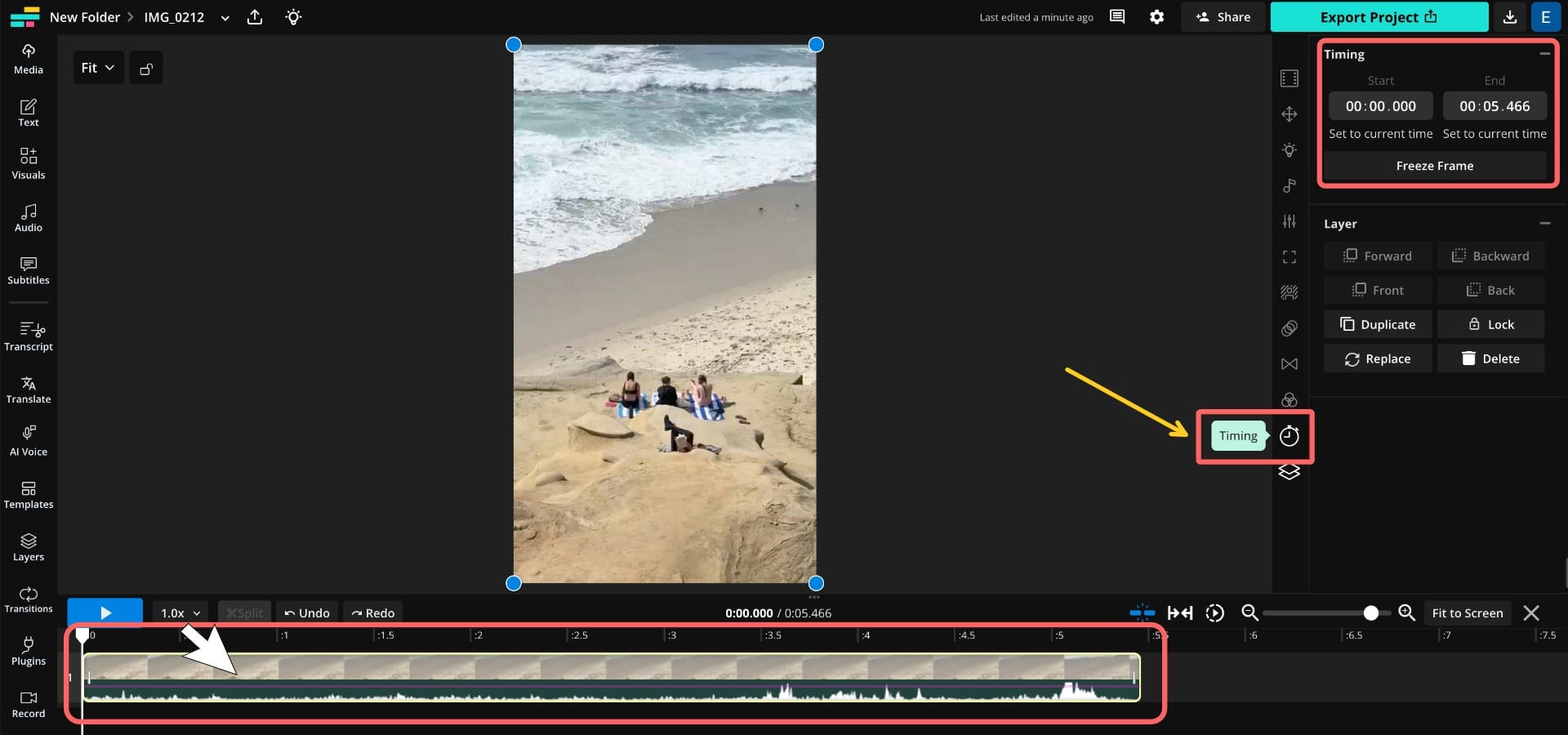
This will generate a freeze frame at the selected moment — in this case, the very start of your video. Next, delete the original video from the timeline.
- On desktop, select the video and press the Delete key, or right-click and choose Delete from the menu.
- On mobile, long-press the video clip and tap Delete.

After deleting the original video, only the freeze frame will remain in your timeline. Make sure the timing menu is still open and selected.
There, you’ll see a button labeled “Convert to Image.” Click that button to proceed.
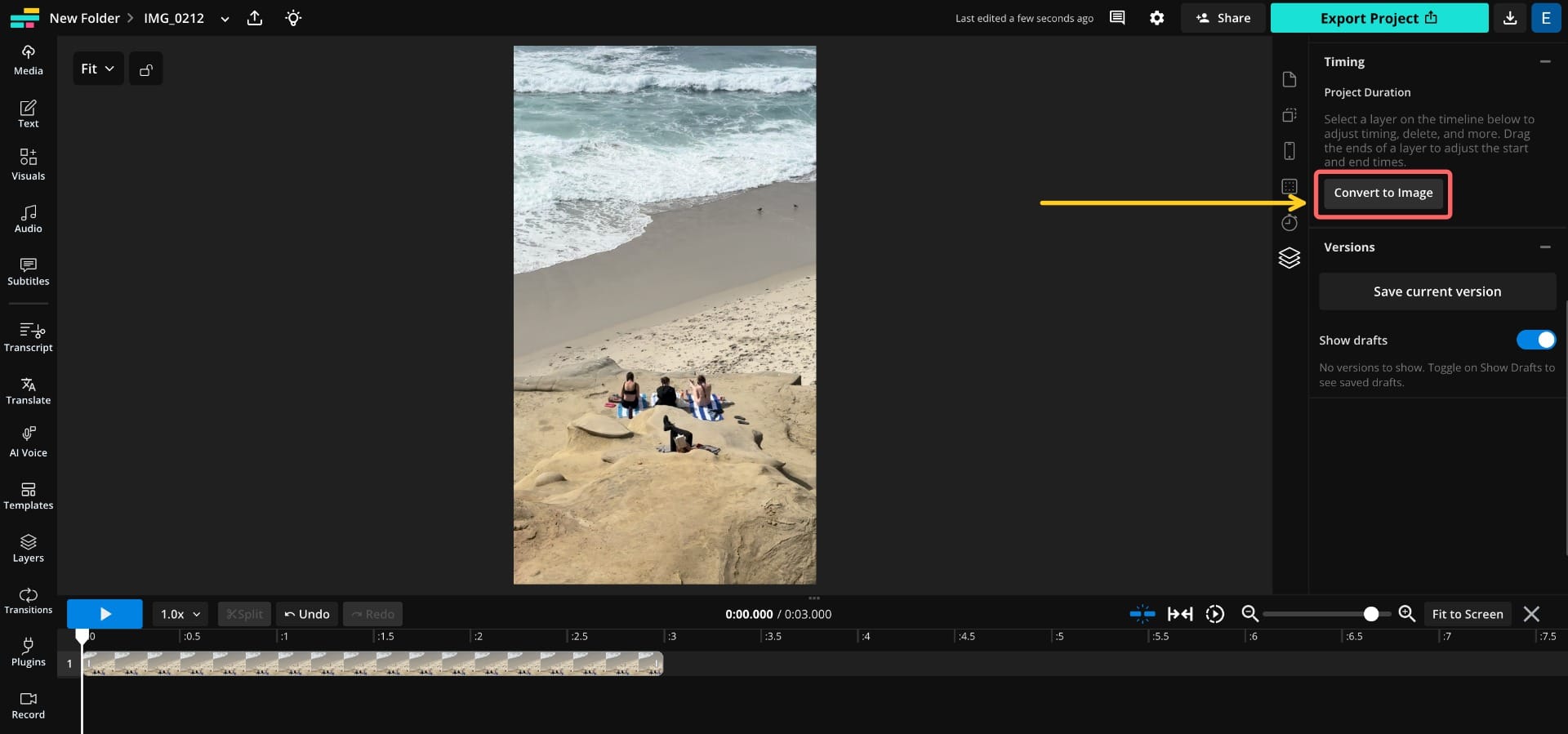
Click the blue Export Project button in the upper-right corner to export your image file.
Make sure to check the resolution settings. As mentioned before, you’ll want your image to be at least HD, around 1080p, for better quality Higgsfield generations.

Step 2: Generate Your Earth Zoom Out Transition
Next, upload the first frame screenshot into Higgsfield as your image input, and follow the same steps outlined in the image upload section above to generate the transition using a detailed prompt.
Once your video is ready, download it.

Step 3: Edit Earth Zoom Out Effect
Start by uploading your clip into Kapwing Studio.
Once it’s uploaded, select the clip on the timeline and apply the reverse effect. You can do this by clicking on the "Reverse video" toggle on the right-hand toolbar.

Once you’ve reversed your video, it should now start with a wide shot of Earth and smoothly zoom in toward your subject.
To complete the transition, upload your original (unreversed) video into the editor and place it directly after the reversed clip on the timeline.
If you’ve already imported the original video, it should be available in your Media Library, located under the Media tab in the left-hand toolbar. Otherwise, you can simply upload it again.
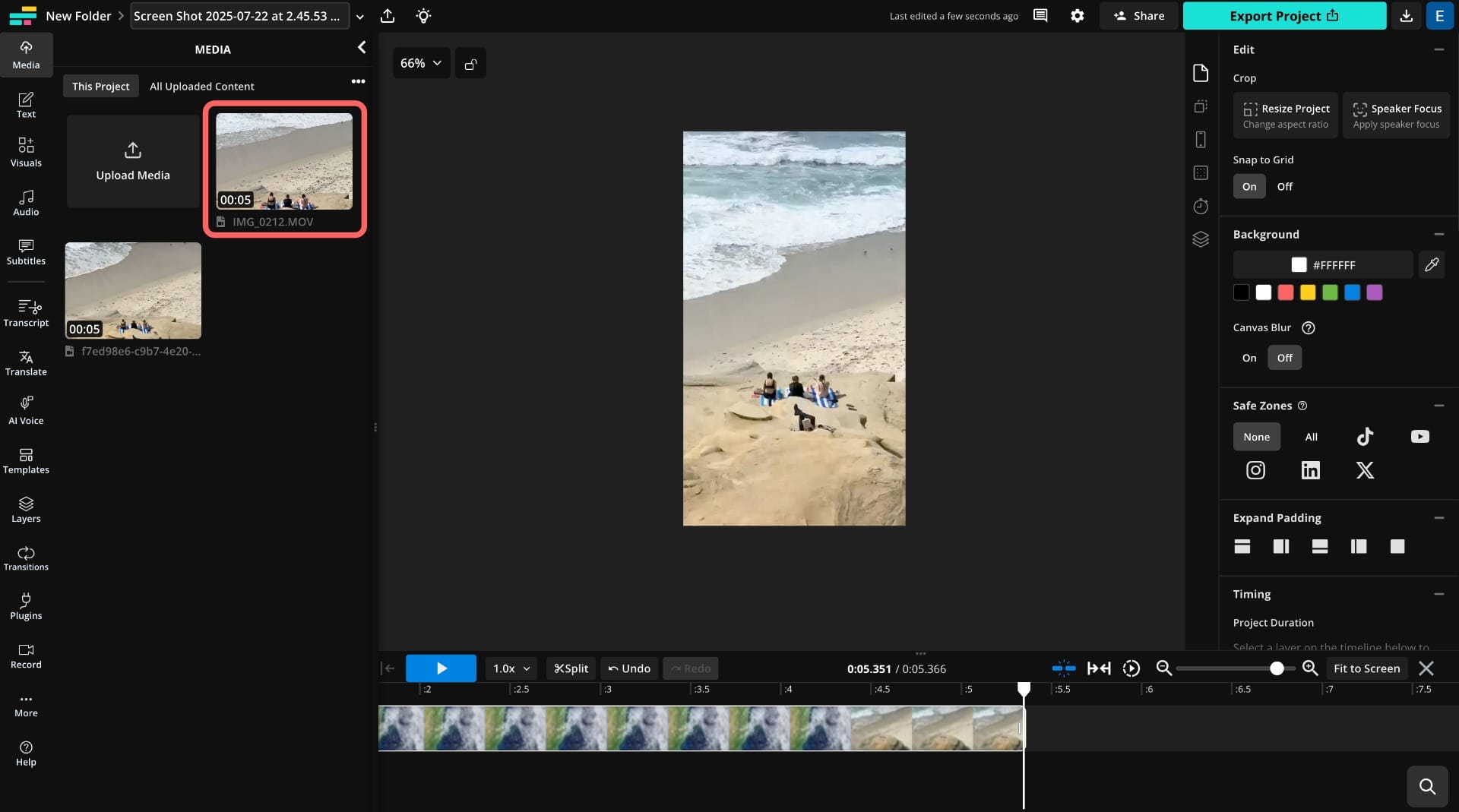
This creates a seamless effect that begins in space and flows naturally into your original footage. Whether you decide to use this as a transition, an intro, or a standalone video, the AI Earth Zoom Out effect is a great way to elevate your content.
Here is the example we created:
An example Earth Zoom In video created using Higgsfield and Kapwing
Frequently Asked Questions
Is Higgsfield free?
Higgsfield AI has both free and paid plans. The Free plan comes with generation limits and slower processing speeds compared to the Pro plan.
Can you create the AI Earth Zoom Out video for free?
Yes, you can generate the AI Earth Zoom Out video for free using your Higgsfield generation credits—provided you haven’t used them all yet.
Can you create the AI Earth Zoom In trend with a video?
Not directly. Higgsfield only supports the Zoom Out effect from a photo. However, you can reverse the generated clip using a video editor like Kapwing. Then, blend it with your original video for a smooth transition.