How to Get Rosalia Font on Instagram
Instagram's latest font just dropped. Brands using intentional, consistent typography see up to a 30% boost in engagement.
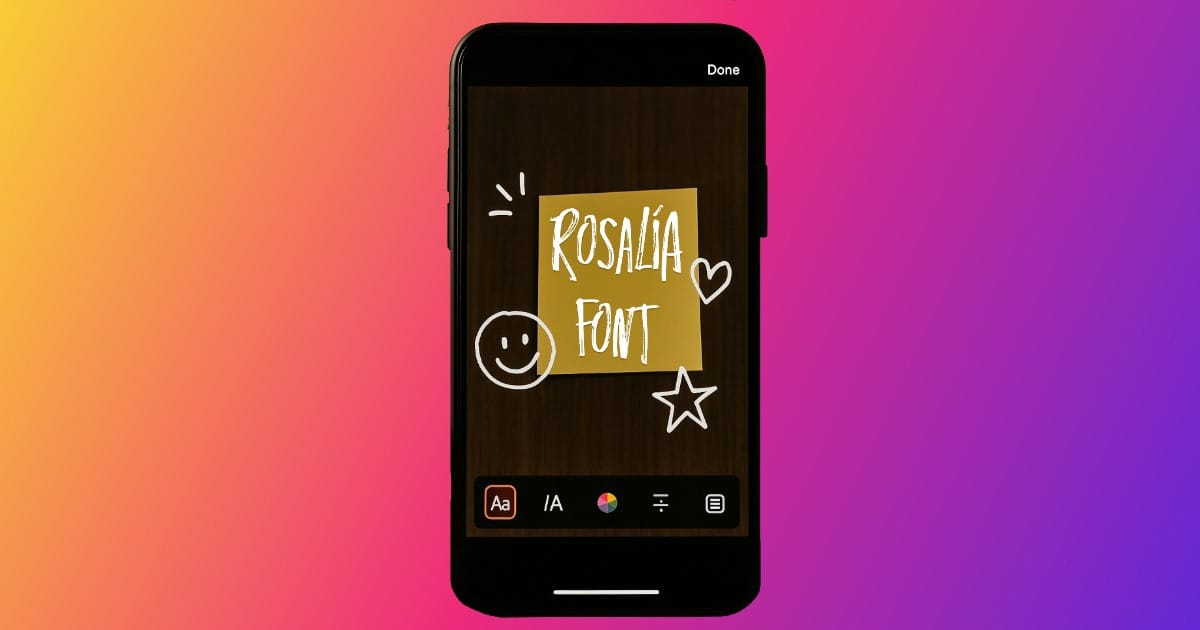
Instagram’s new font, Rosalía, is a splotchy, handwritten typeface that adds an edgy, artistic flair to Stories and Reels.
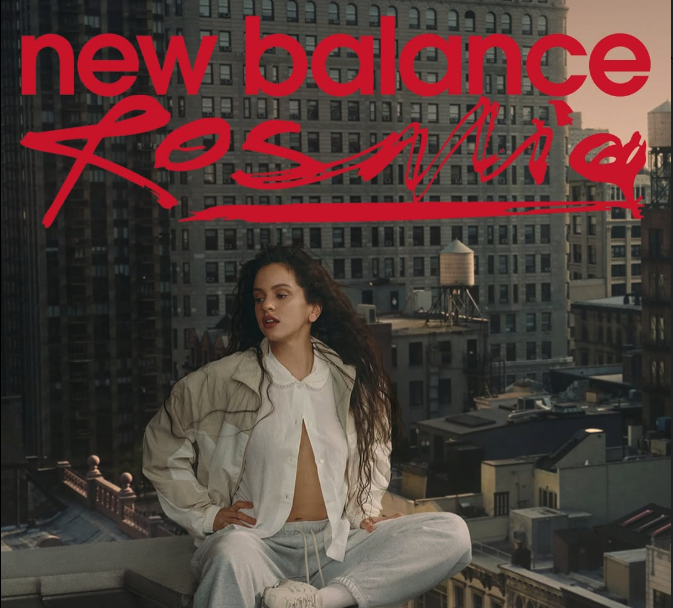
Designed as part of a limited-time collaboration with Spanish pop star Rosalía, the font is inspired by her actual handwriting. Here's an example from her New Balance ad on her Instagram:
Although Instagram hasn’t confirmed how long the font will be available, it’s already become a trending tool for creators looking to personalize their content and make it stand out.
In this article, we’ll cover everything you need to know about the Rosalía font on Instagram: what it is, how you can use it, its hidden emoticons, and whether it’s available for download.
Table of Contents
- What is the Rosalía?
- How to Get the Rosalía Font on Instagram
- How to Use Special Emoticons in the Rosalía Font
- Can You Download the Rosalía Font?
- Similar Rosalía Fonts For Outside Instagram
What is the IG Rosalía font?
The Rosalía font is one of the new typefaces on Instagram as of 2025, designed in collaboration with the Spanish popstar of the same name.
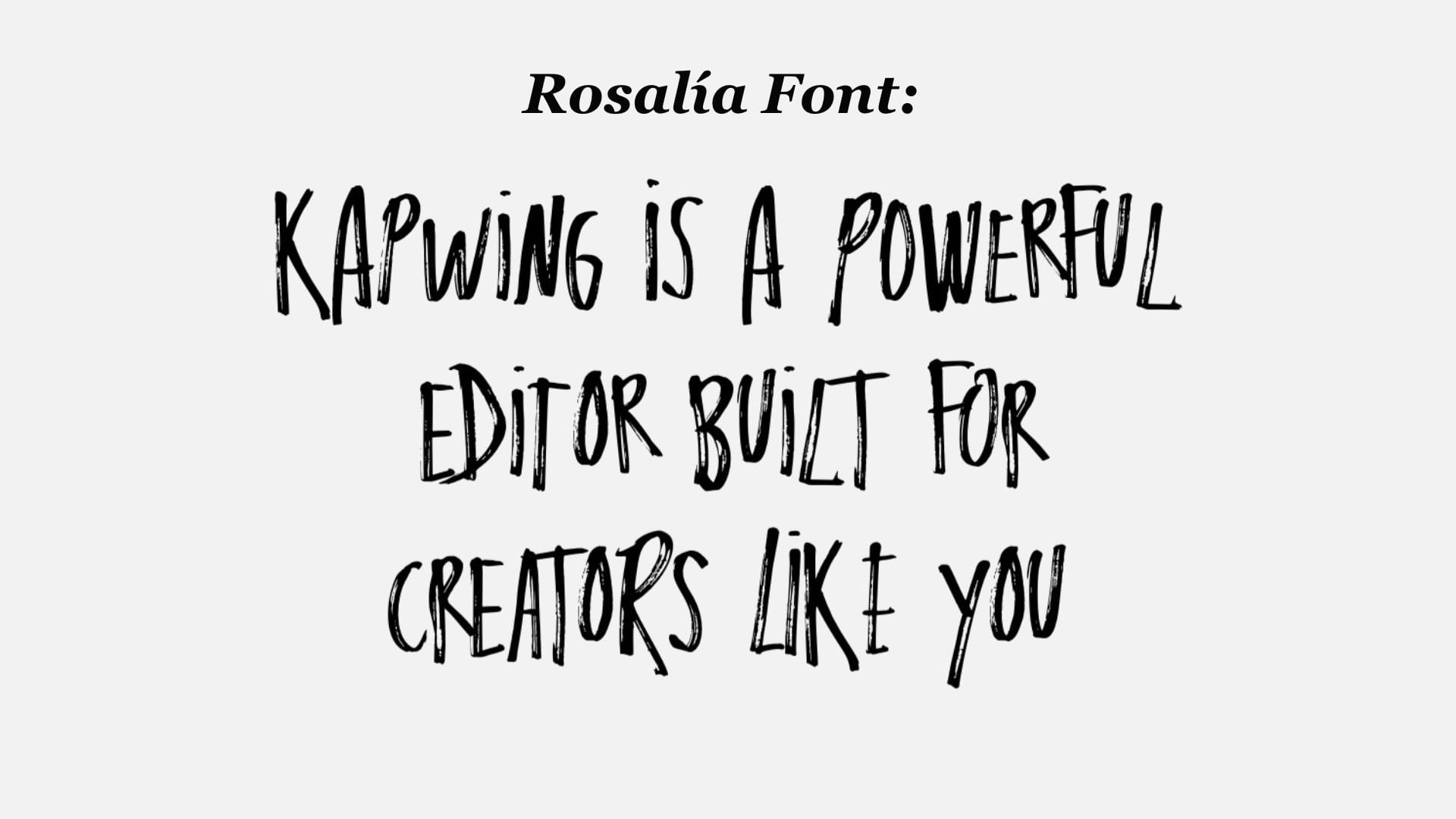
It mimics Rosalía’s handwriting in all caps, featuring messy strokes, an ink-like texture, and case alternation. It can be used when adding texts to both Reels and Stories.
Though described as a limited-time feature, there’s no set end date, so it’s best to take advantage while it lasts.
How to Get the Rosalía Font on Instagram
The Rosalía font is available to all Instagram users globally, on both iOS and Android devices.
If you don’t see it listed in your text options, try updating the Instagram app to the latest version.
Some Instagram features roll out in phases, so it might take a bit of time to appear for everyone. Otherwise, here’s how you can use the font on both Reels and Stories.
Instagram Reels
- Tap the "+" Button: Tap the “+” icon at the center of the bottom toolbar. This opens up the content creation menu.
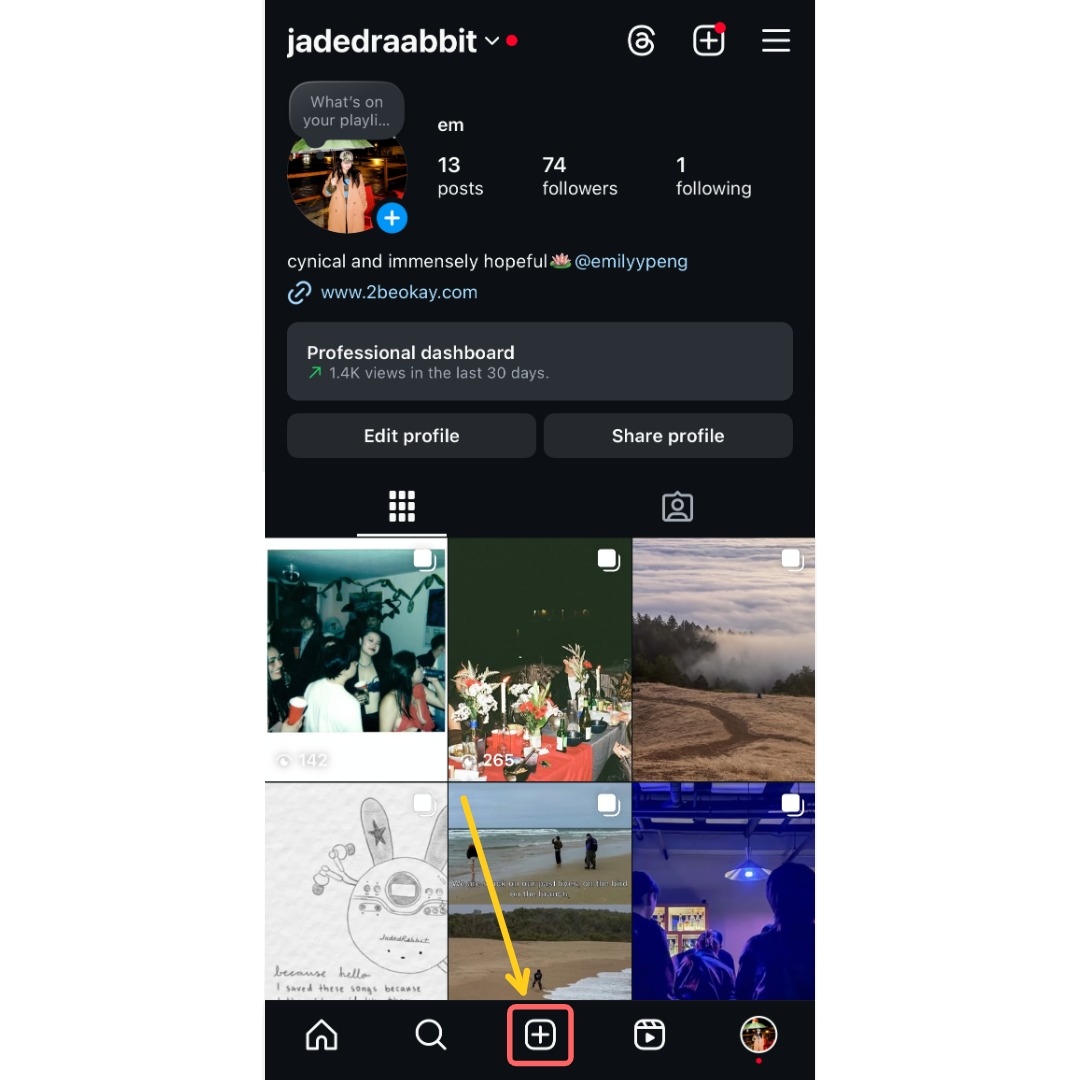
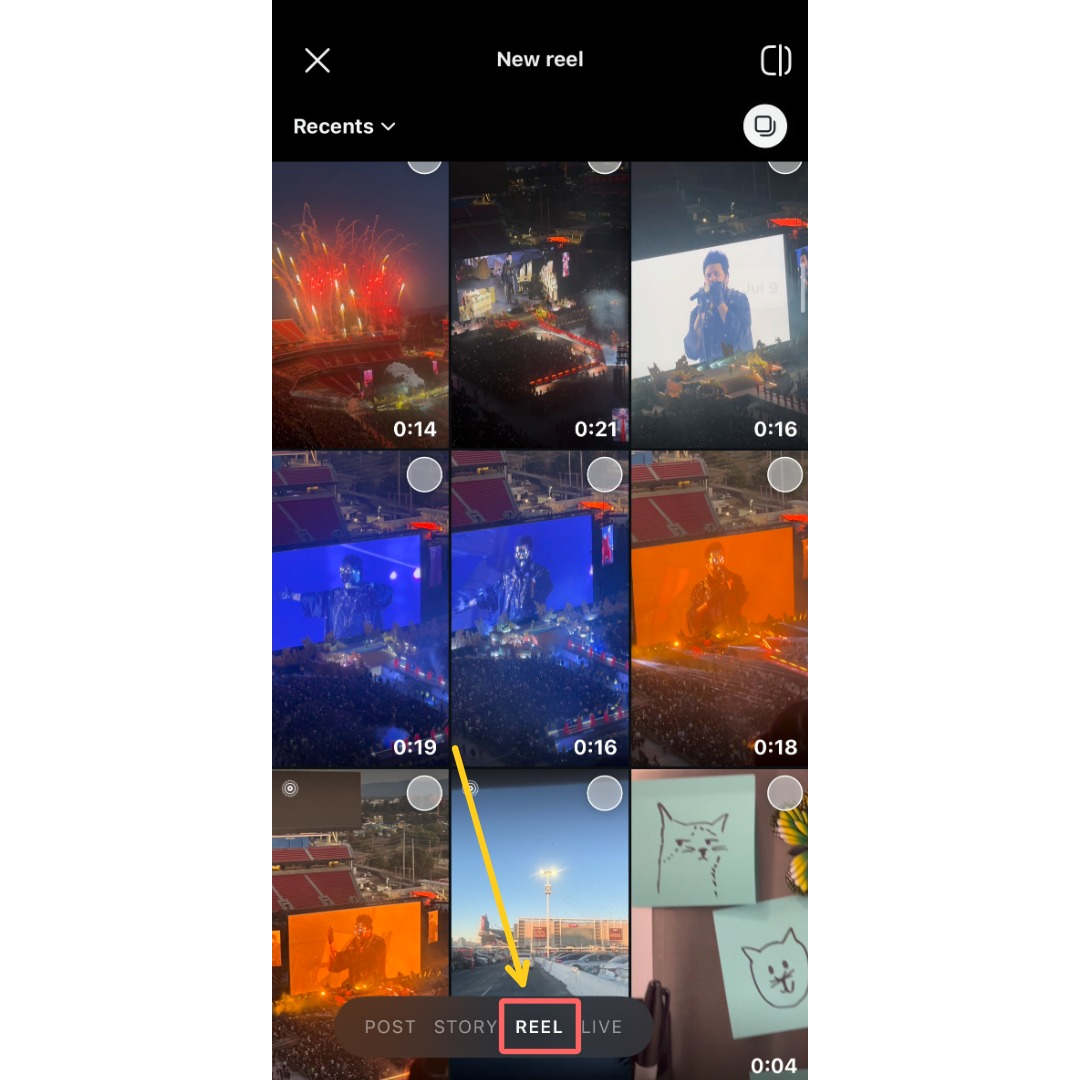
- Select “Reel”: Make sure you swipe or tap to select “Reel” at the bottom of the screen. Pick a video or image from your gallery or film a new one by holding the capture button. Once you're done, tap "Next" to move to the editing screen.
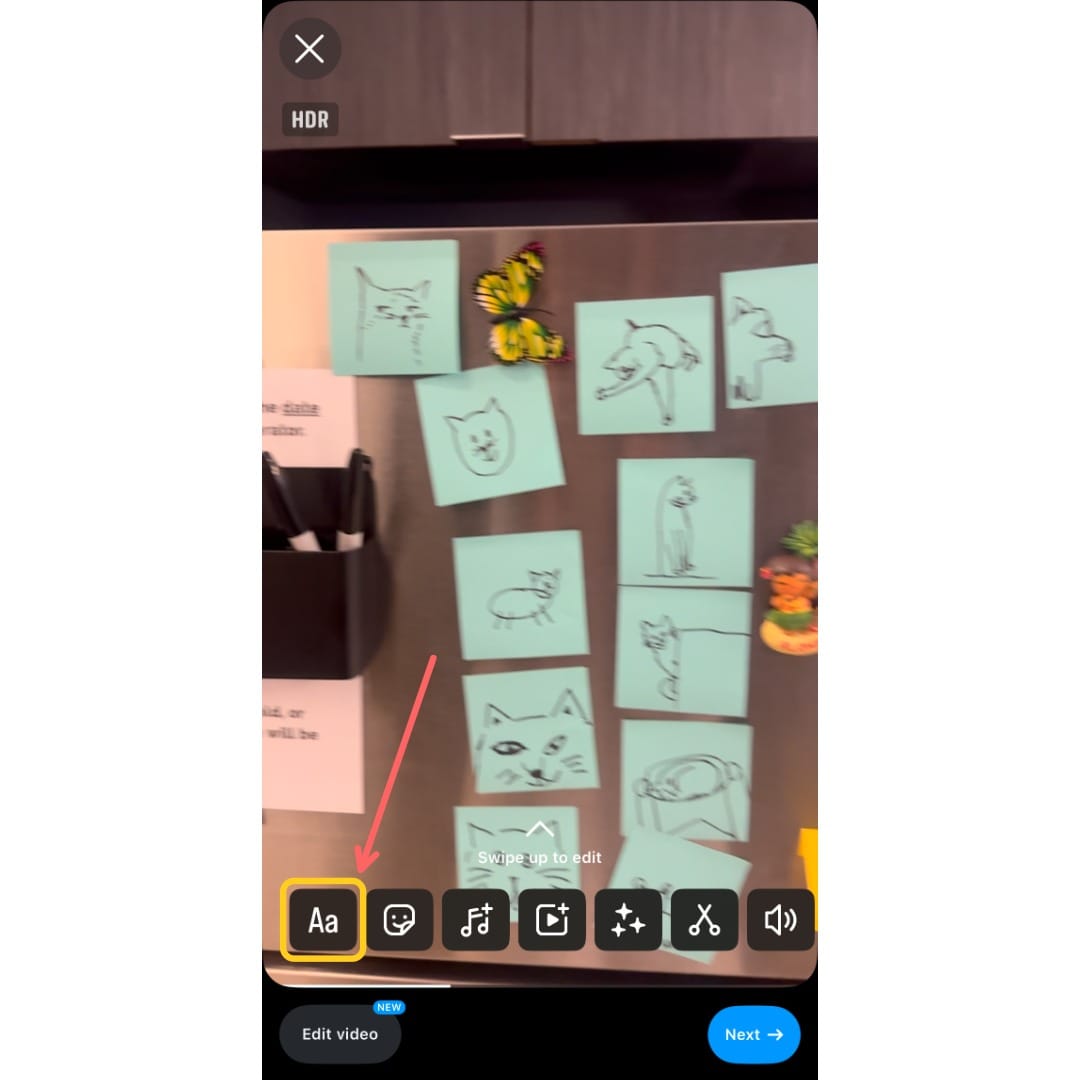
- Add Text: On the editing screen, tap the “Aa” icon in the lower menu to add text.
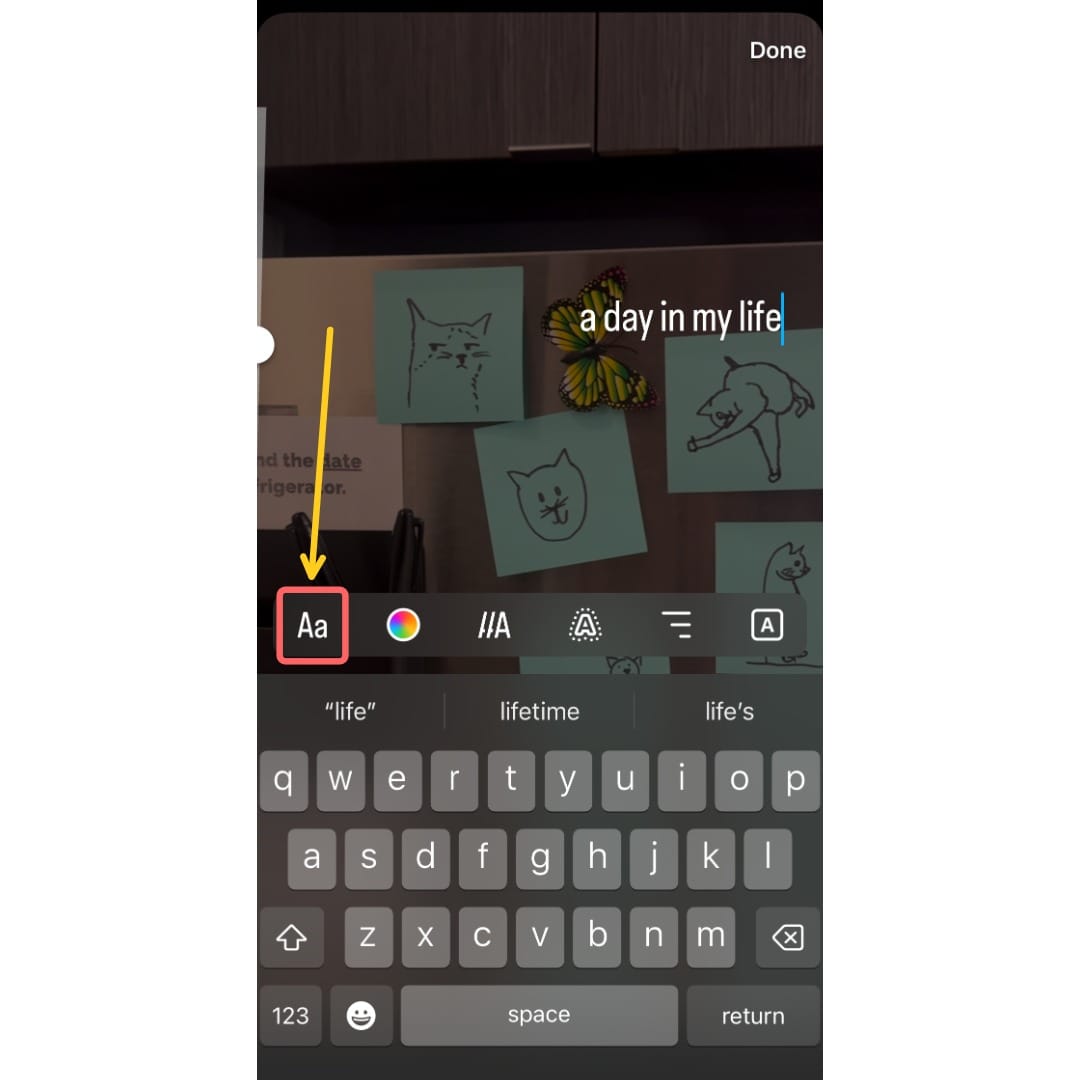
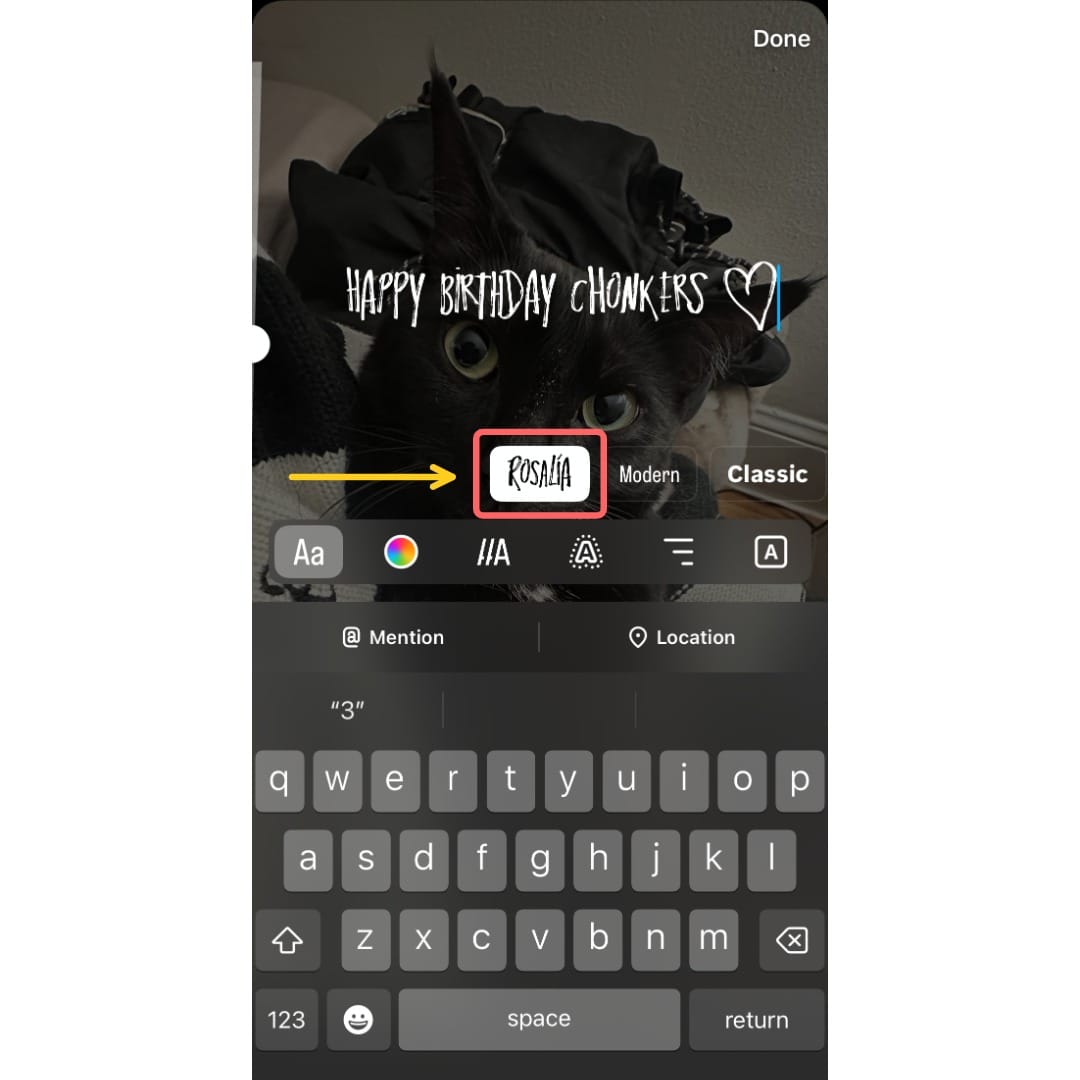
- Change Your Font: From here, you can enter in your text. Once you've done so, click on the "Aa" icon on the toolbar above the keyboard to access the font styles.
- Select the Rosalía Font: Scroll sideways until you find the font labeled “Rosalía”. It should be the left-most option on the menu. Tap on it to apply it to your text.
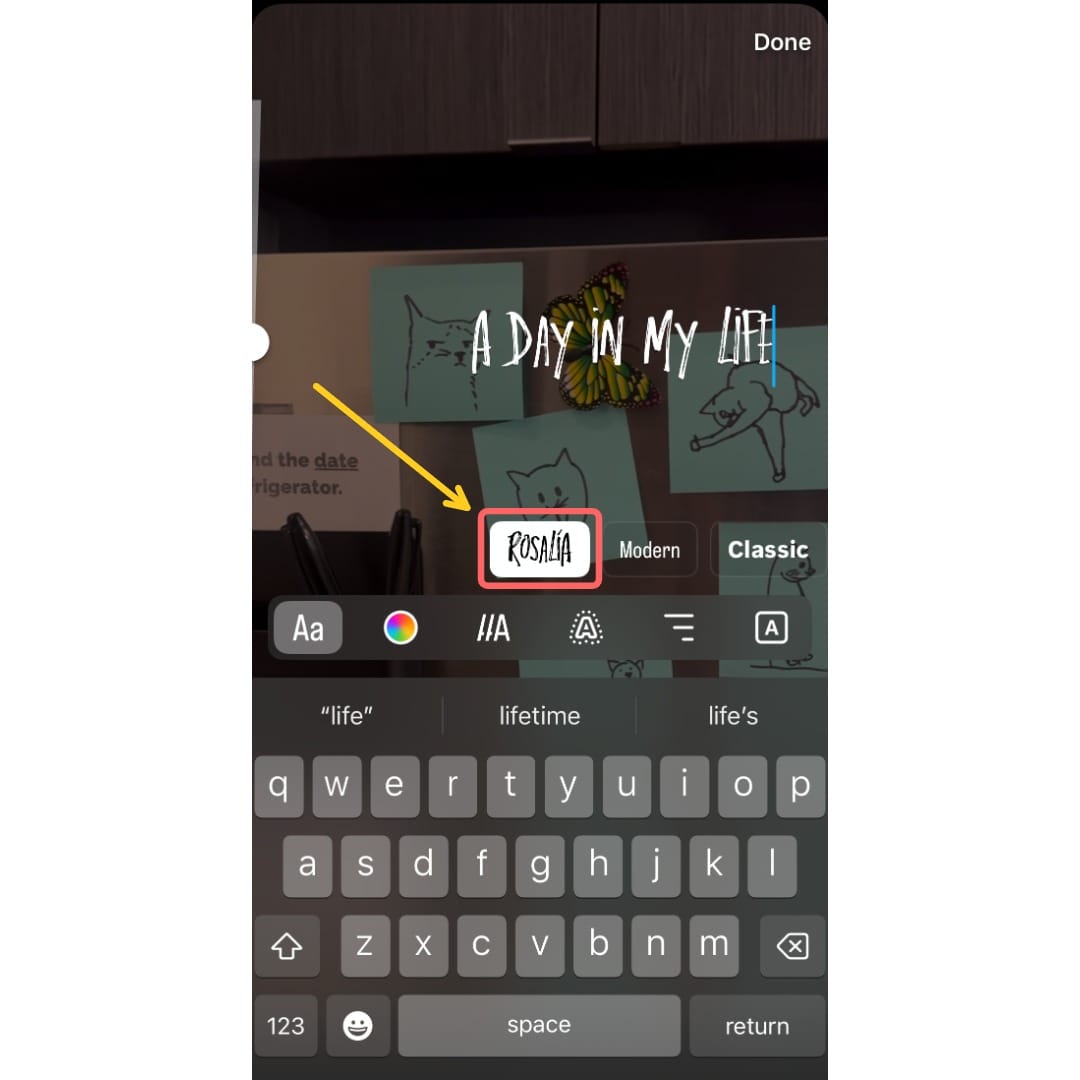
Once you've selected the Rosalía font, you can customize it further.
For example, you can change the color by tapping the color wheel, or adjust placement and size by pinching and dragging the text directly on your screen.
Instagram Story
- Tap the "+" Button: Tap the “+” icon at the center of the bottom toolbar or next to your profile picture. This opens up the content creation menu.
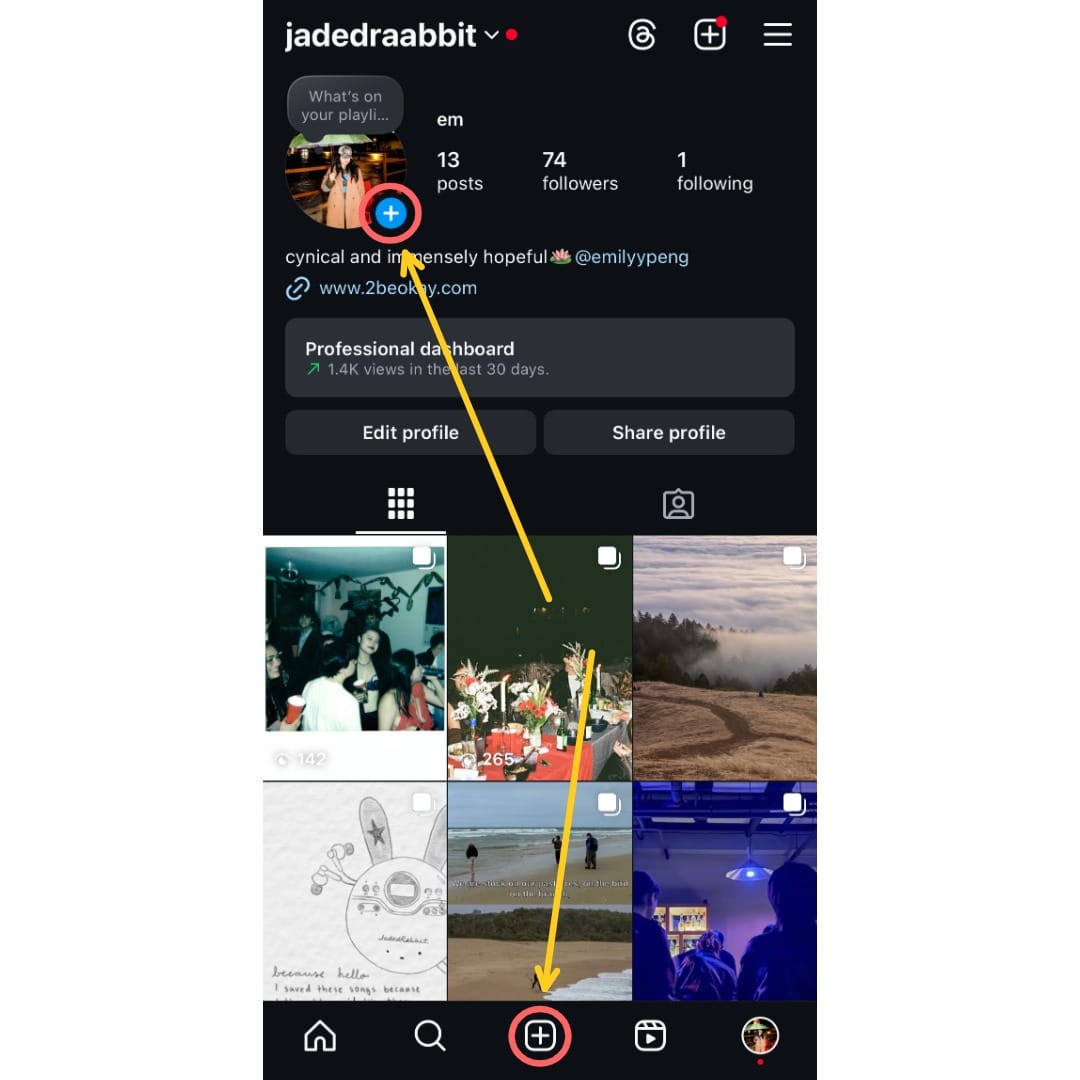
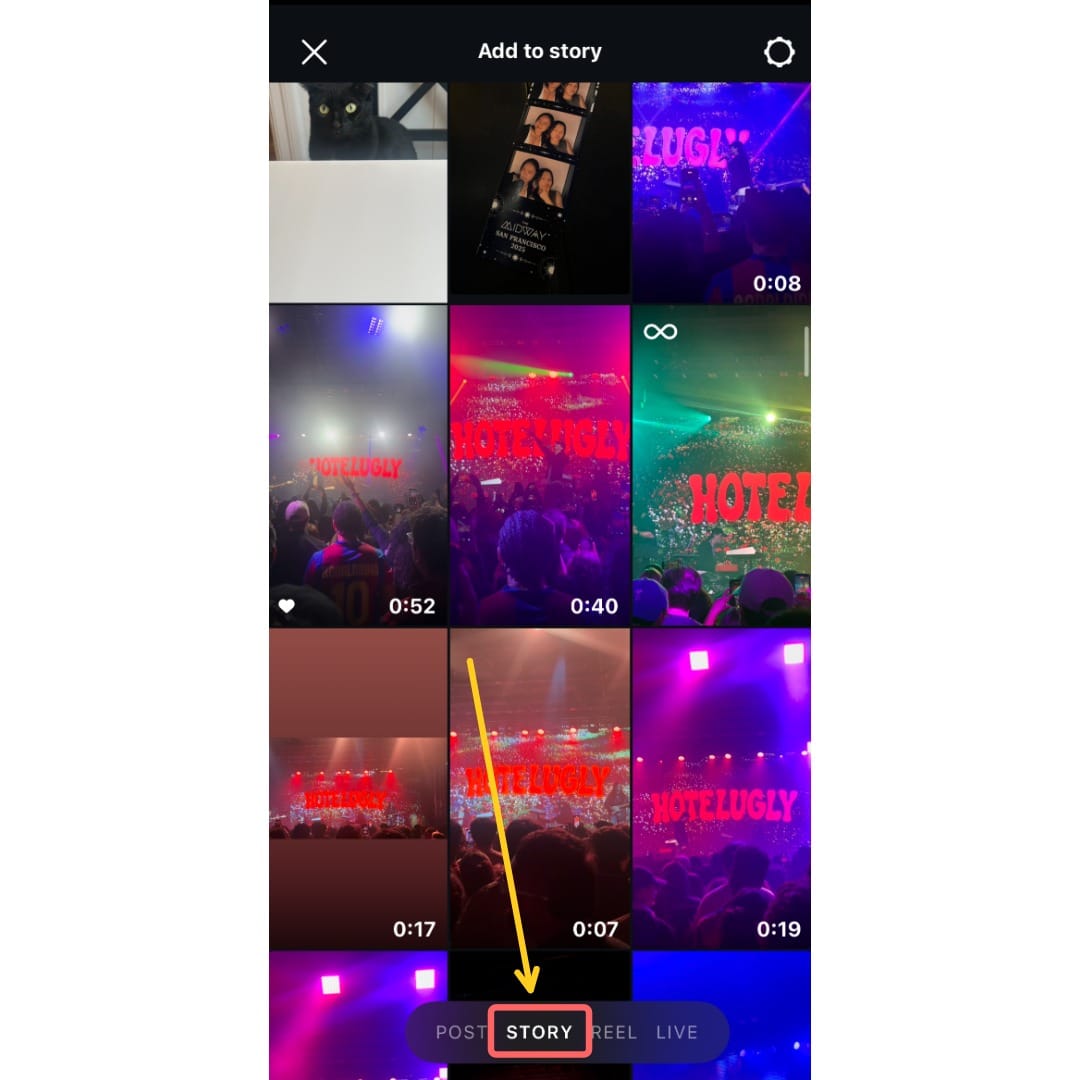
- Select “Story”: At the bottom of the screen, swipe or tap to select “Story”. Pick a video or image from your gallery or film a new one by holding the capture button. Once you're done, tap "Next" to move to the editing screen.
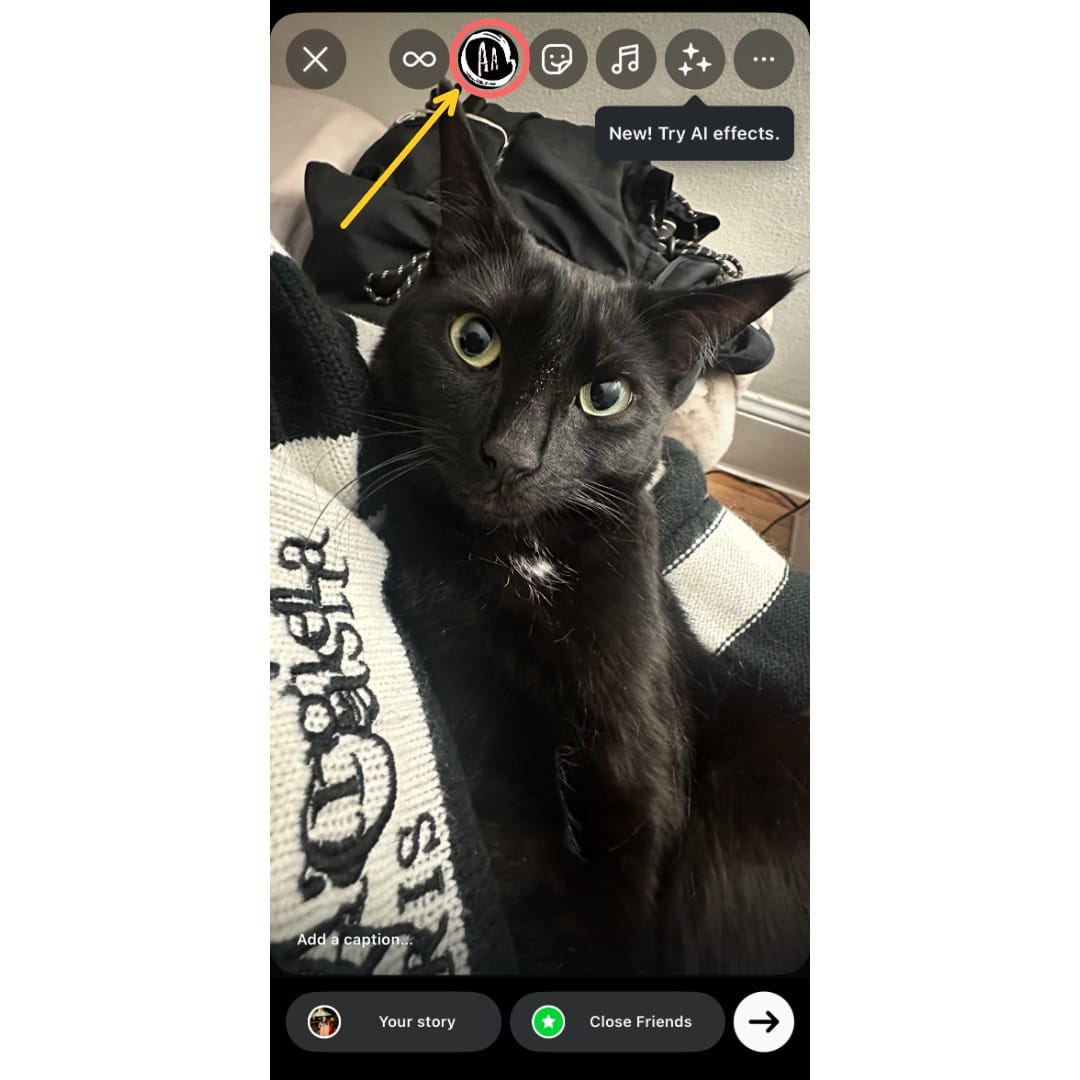
- Add Text: On the editing screen, tap the “Aa” icon in the upper menu to add text.
- Change Your Font: From here, you can enter in your text. Once you're done, scroll sideways until you find the font labeled “Rosalía”. It should be the left-most option on the menu. Tap on it to apply it to your text.
How to Use the Special Emoticons in the Rosalía Font
One of the most unique features of the Rosalía font is the hidden hand-drawn doodles that appear when you type certain characters.
These illustrations were created from Rosalía’s sketches and can be added as fun visual elements in your content.
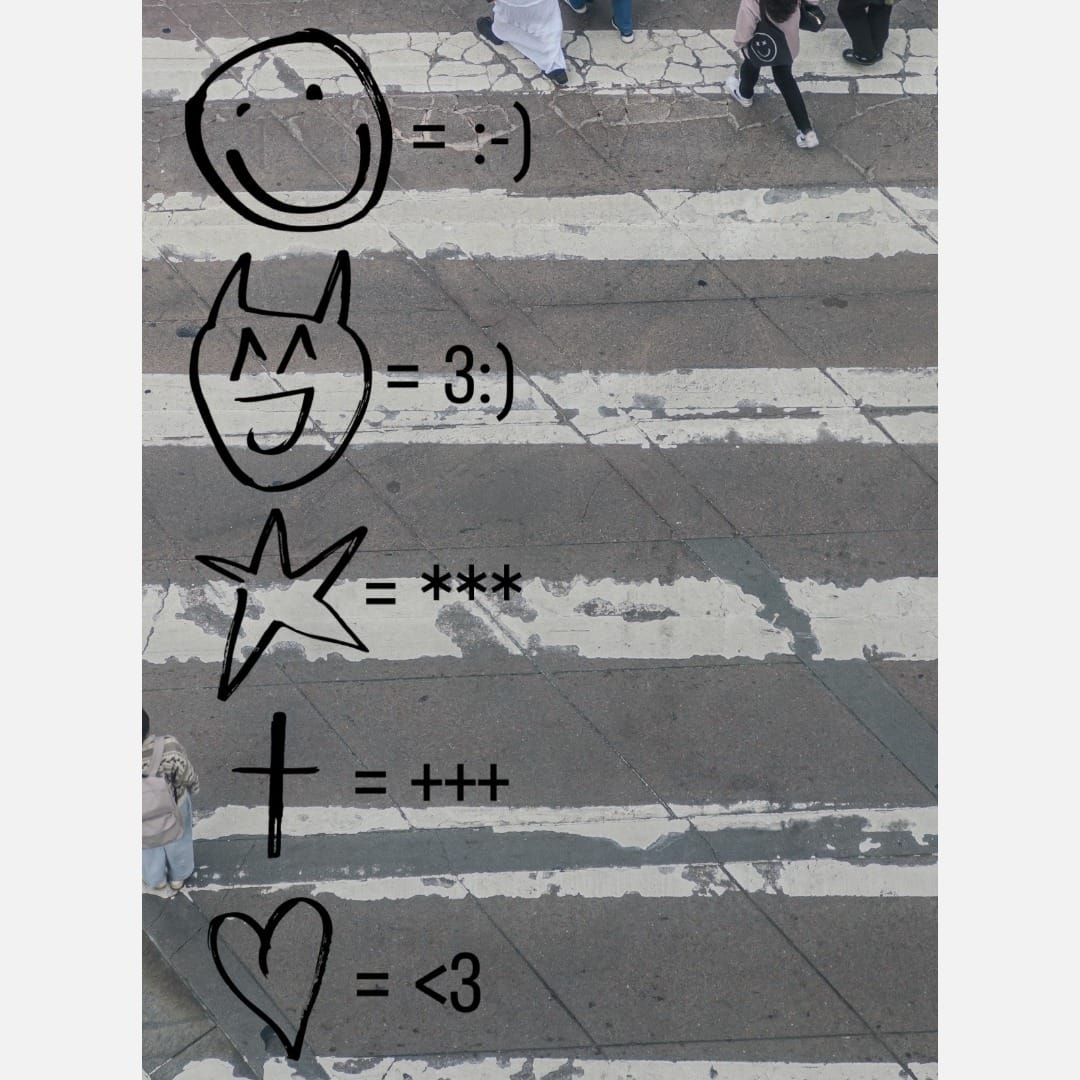
Here are the existing doodles, and the symbols you can type to trigger them:
- Smiley Face :-)
- Devil 3:)
- Heart <3
- Cross +++
- Star ***
Just type these into your text while using the Rosalía font and the doodles will automatically appear in place of the characters.
Can You Download the Rosalía Font?
No, the Rosalía font is exclusive to Instagram and cannot be downloaded for external use.
Since the font is only available for a limited time, creators seeing strong engagement or aiming to maintain a consistent visual style should plan to switch to an alternative soon. This helps ensure your content stays visually consistent even after the font is no longer available.
Similar Rosalía Fonts For Outside Instagram
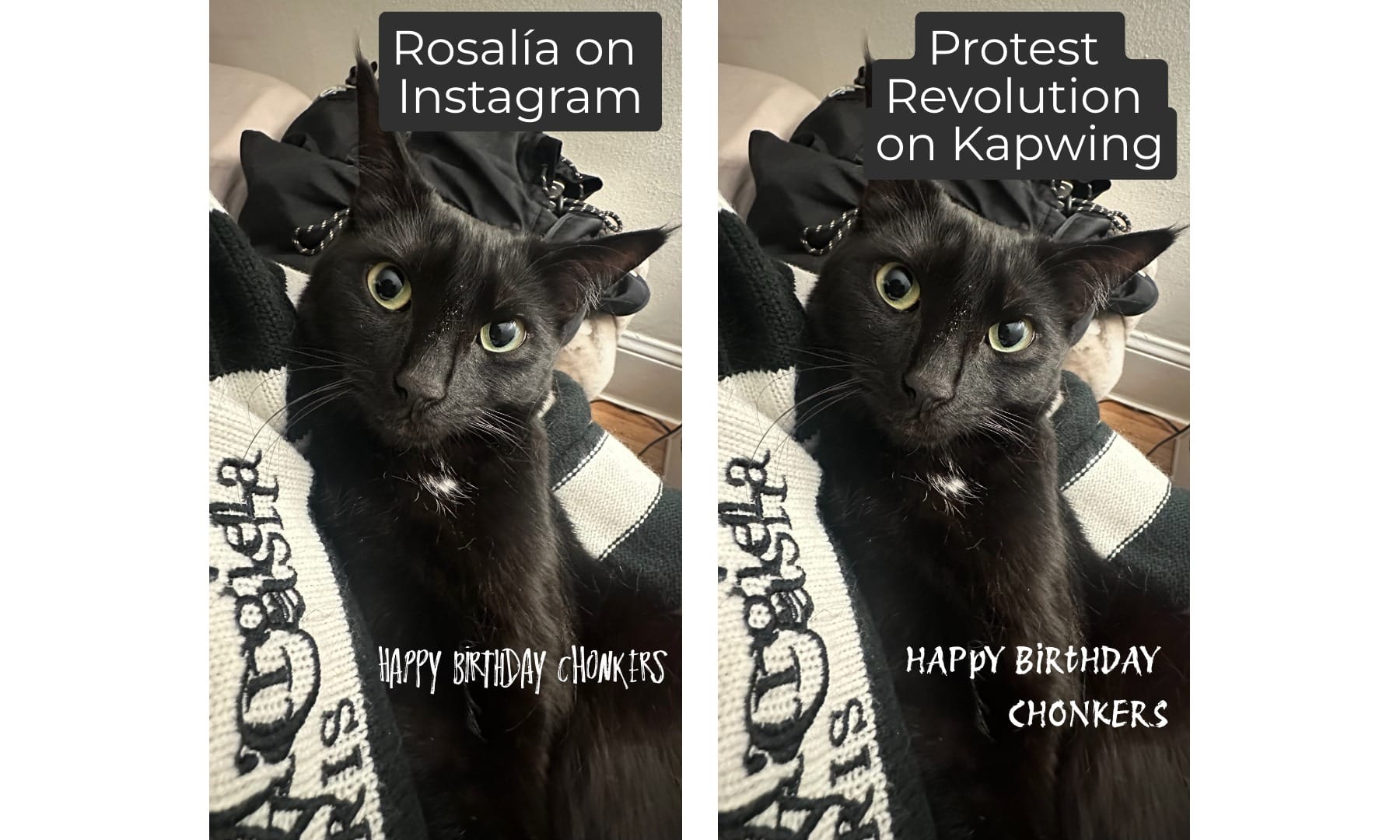
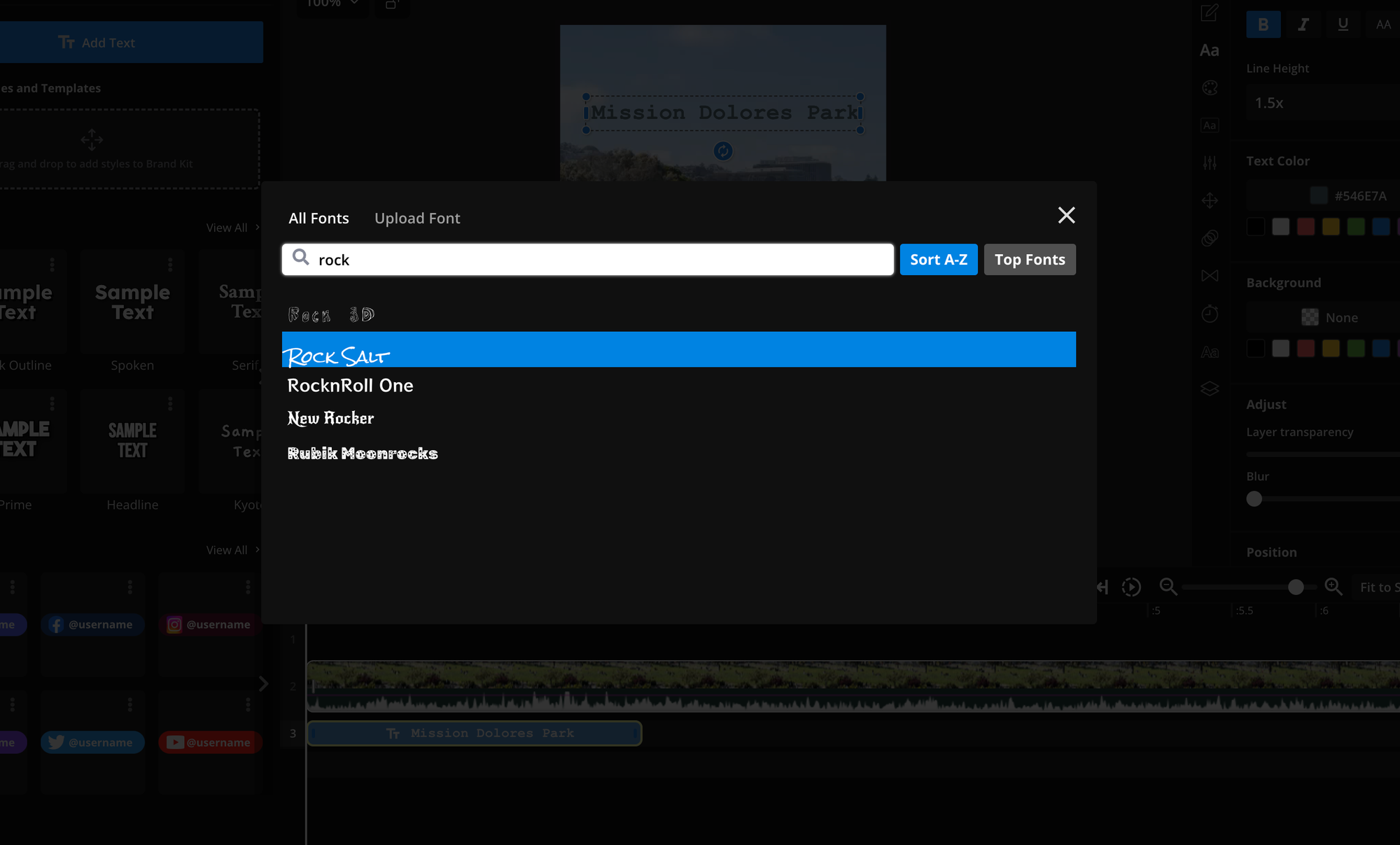
If you want to use a Rosalía lookalike font in your own designs, you will need an external image editor like Kapwing that supports custom fonts. While there’s no exact replica of the Rosalía font available for download, here are three free alternatives that come close:
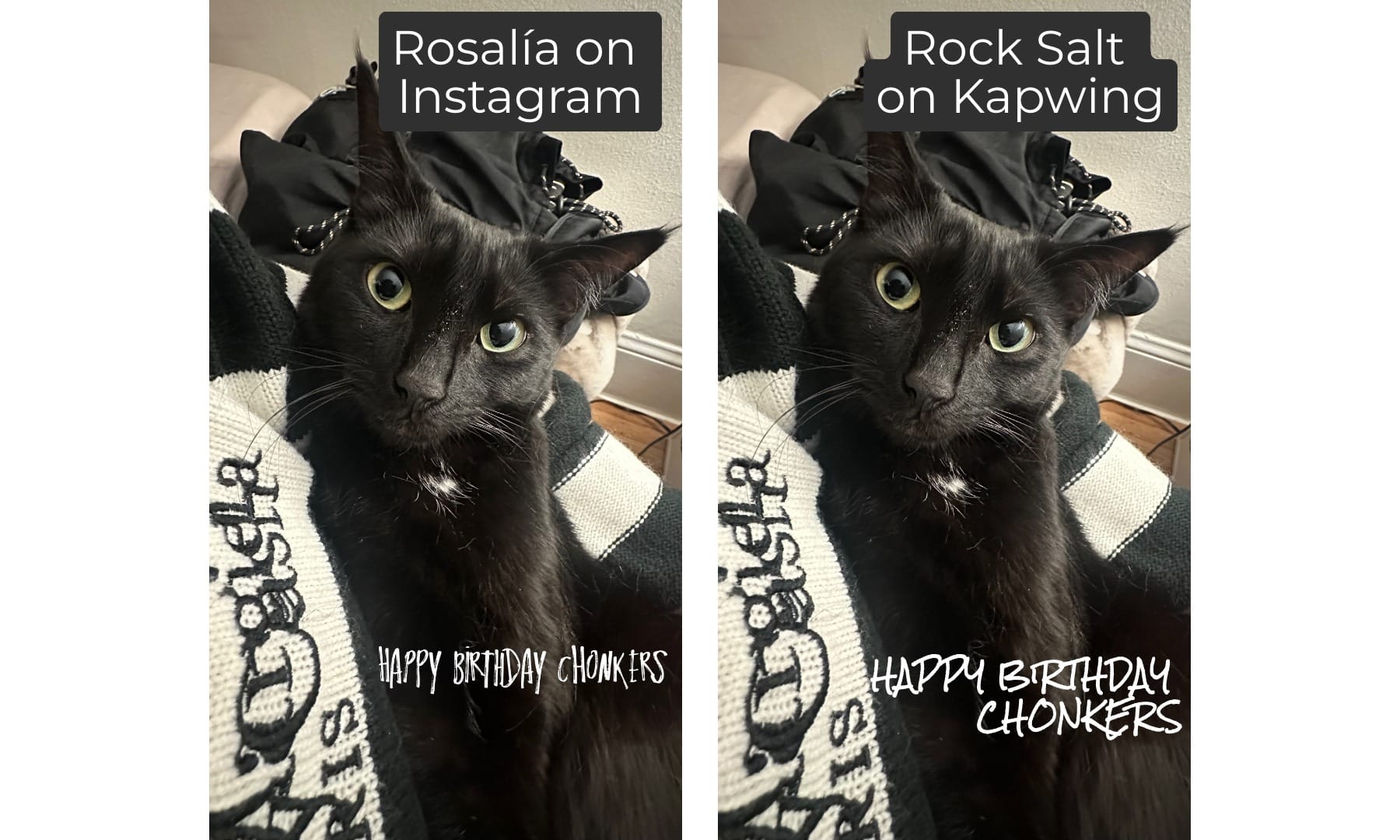
Rock Salt
While Rock Salt is noticeably wider and more spaced out than the Rosalía font, both share a similar handwritten, textured style.
To make Rock Salt feel closer to Rosalía’s aesthetic, try typing in all caps and using a lowercase “i”.
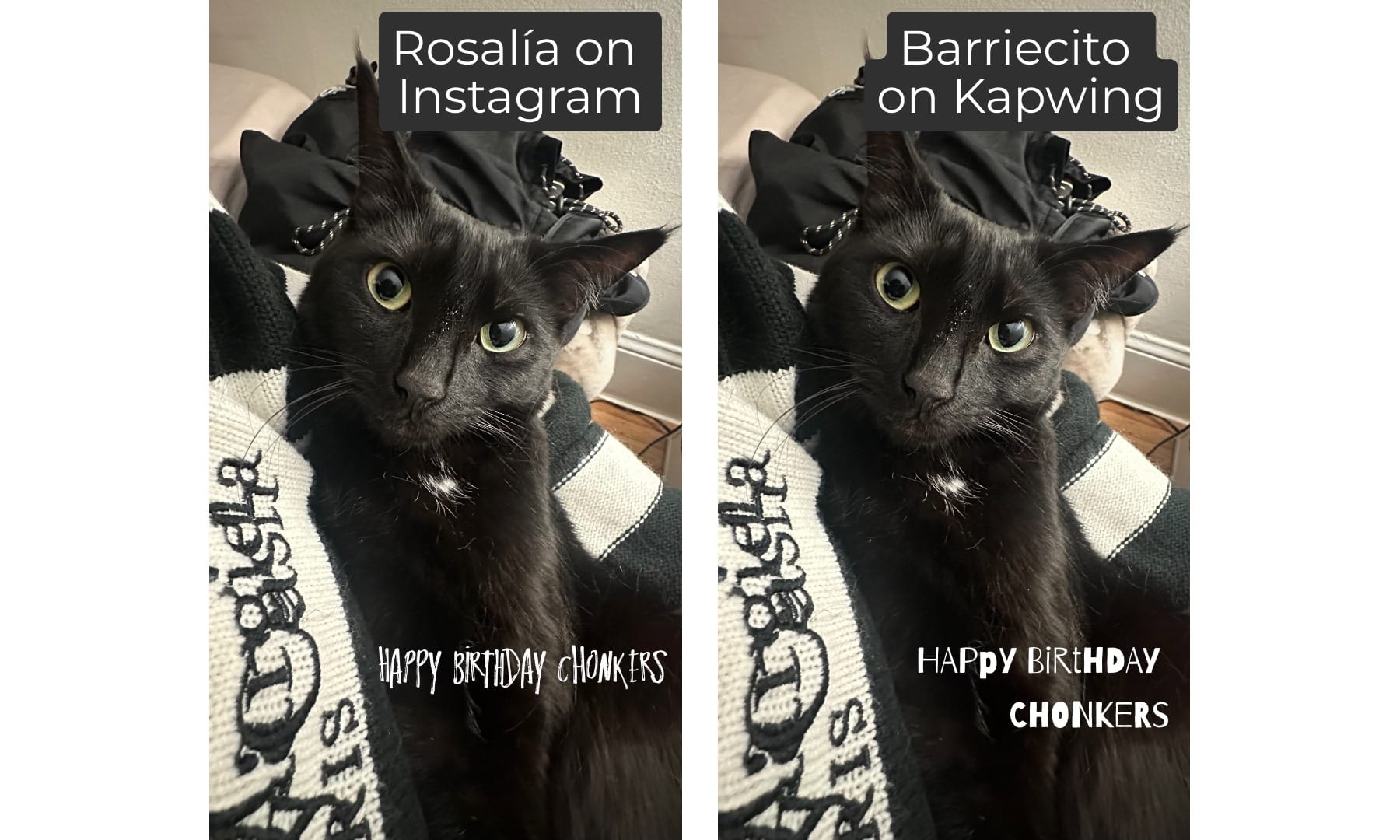
Barriecito
Barriecito is a playful, edgy font. While its forms are a bit more structured and upright, you can get closer to the Rosalía look by alternating between capital and lowercase letters.
Protest Revolution
Protest Revolution is a bold, marker-style font. It shares the gritty, inky elements of the Rosalía font.
Though it's more uniform and blocky, to make it more like the Rosalía font, you can try alternating between capital and lowercase letters, or adding in italics.
Once you’ve picked a Rosalía-inspired font that fits your style, the next step is using it in your own content.
Whether you're making Reels, YouTube videos, or TikToks, you can design with these fonts in Kapwing. Here's how:
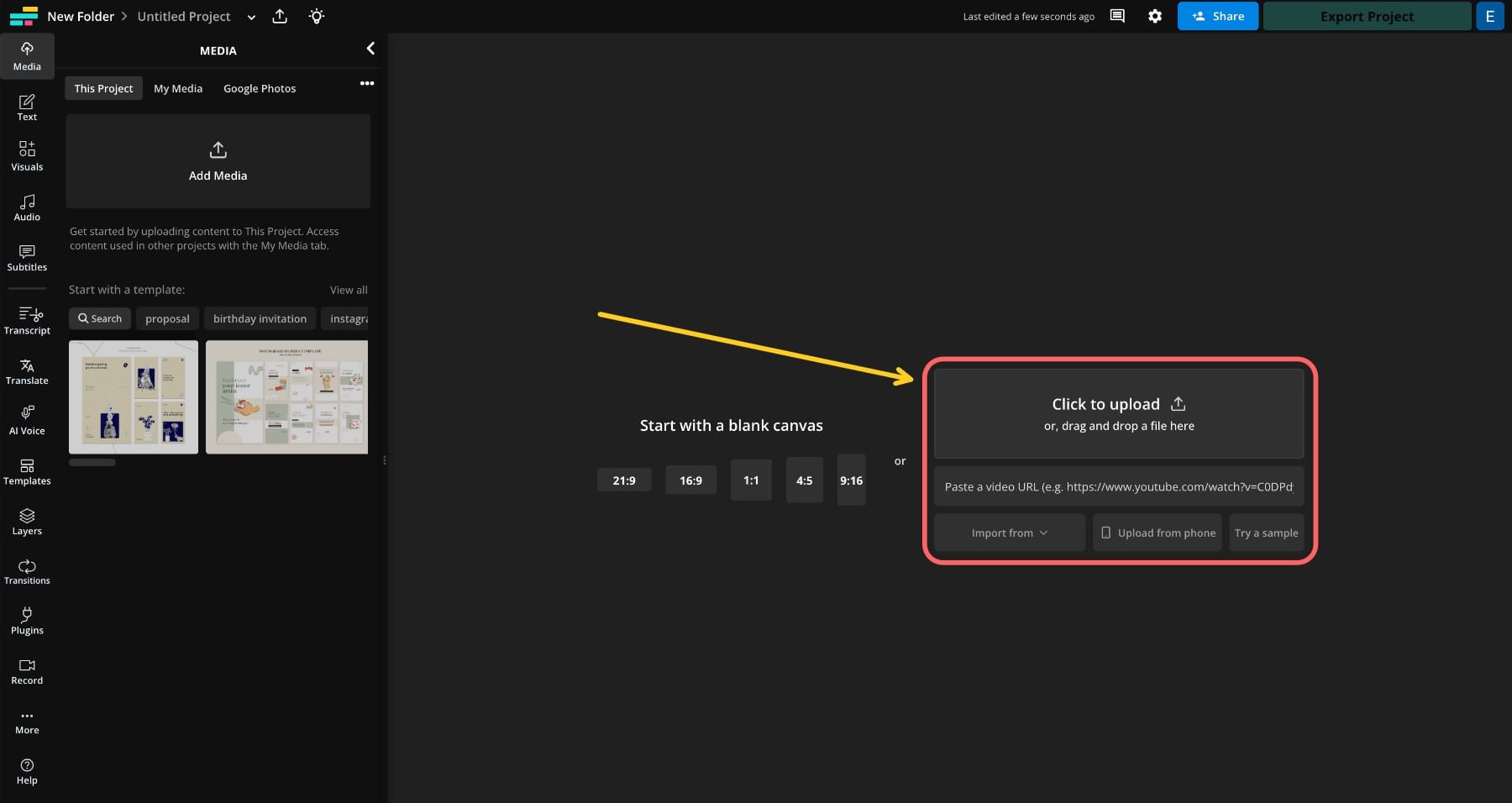
- Upload your content or paste a video/image link into Kapwing Studio.
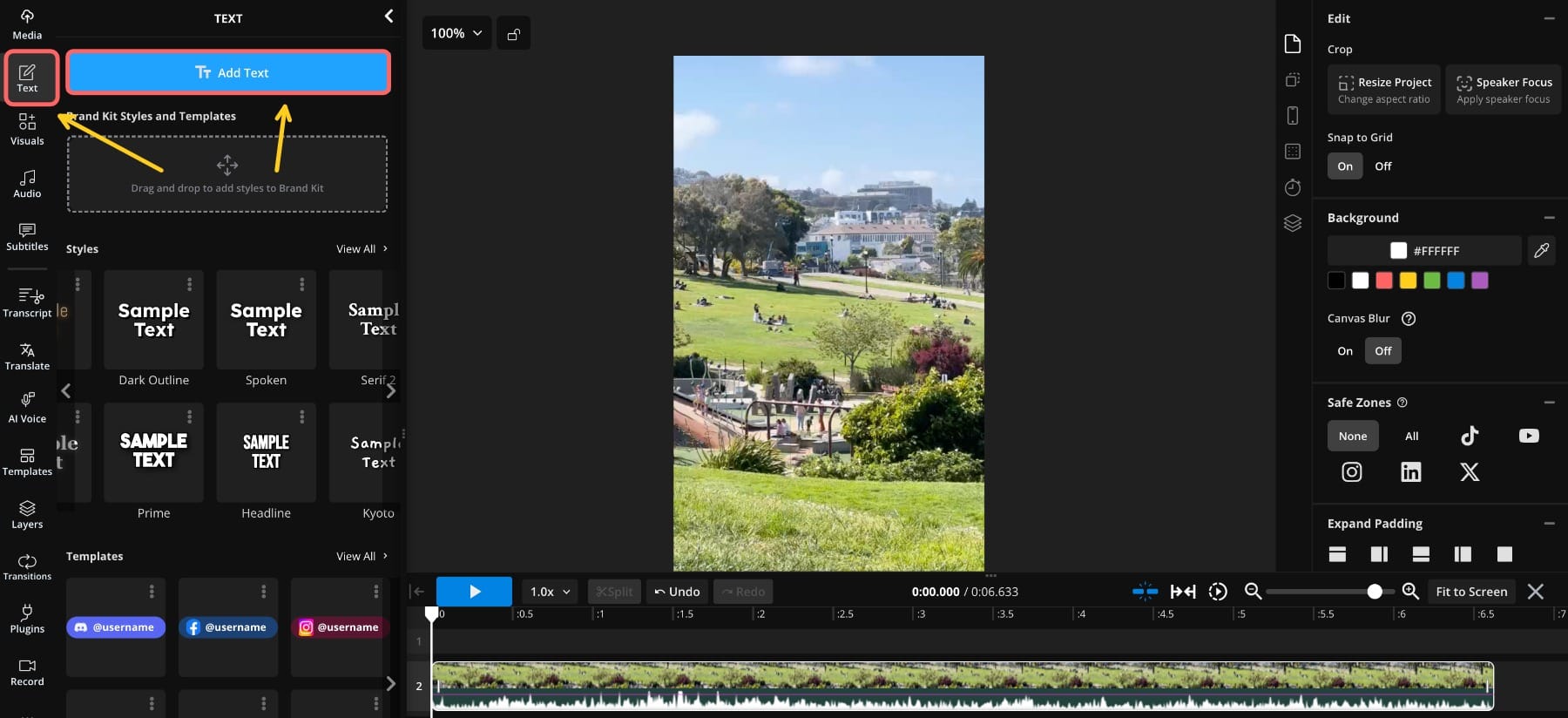
- On the left toolbar, click “Text” and then “Add Text.”
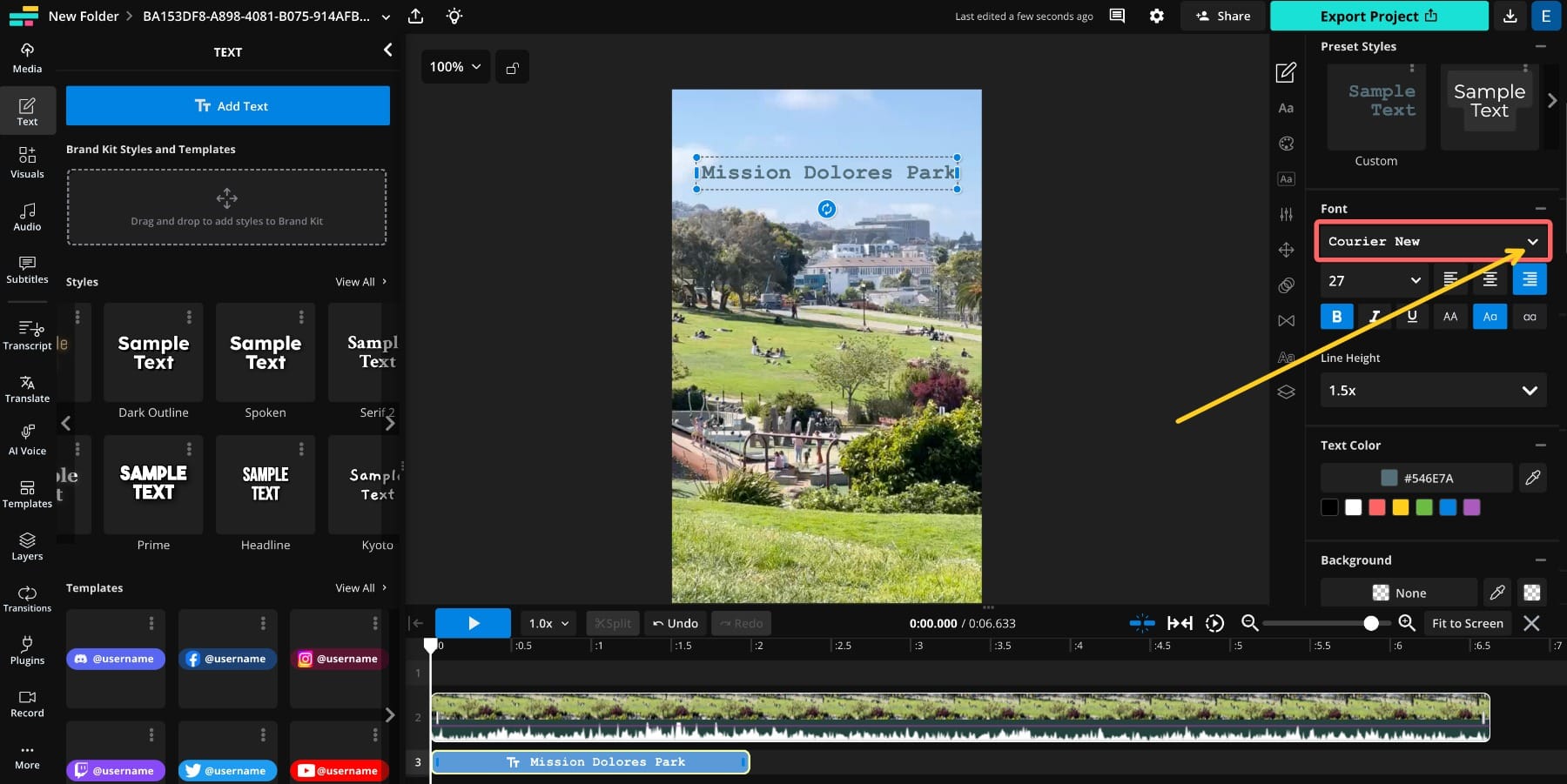
- On the right side, expand the Font dropdown.
- Click “Browse all fonts.”
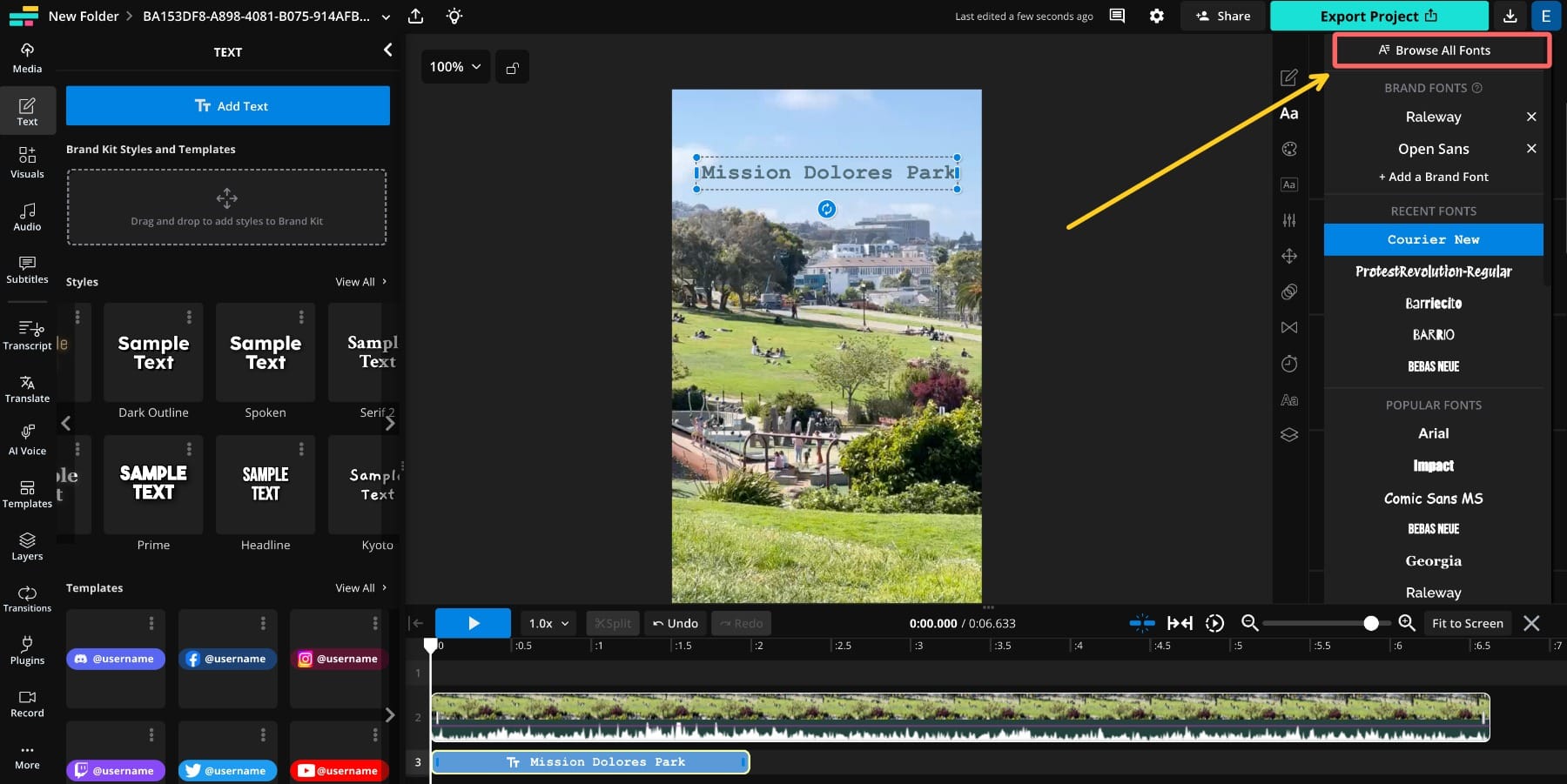
- Use the search bar to find the font you want to use (e.g., Rock Salt, Barriecito, or Protest Revolution).
Or, if none of the fonts match your vision, you can upload your own. Browse any font library for a splotchy, capitalized .TTF like Rosalia; no known open-source file exists, but free and paid font libraries do have other options. Once you’ve selected your font, you can customize your design with colors, effects, and animations.
Why Did Instagram Launch the Rosalia font?
Instagram announced the new Rosalia font on July 1, 2025 with the caption "say it with us: @rosalia.vt’s 👏 handwriting 👏 is 👏 now 👏 a 👏 font 👏 on 👏 Stories 👏." It rolled out globally on July 2-3.
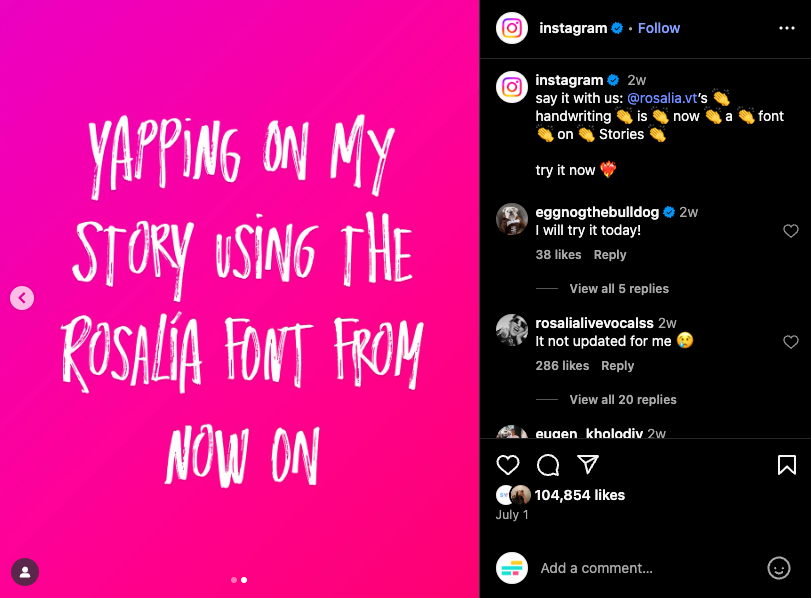
Spanish pop and flamenco singer Rosalía partnered with Instagram on the new font option, and it has her name. The Instagram design team wrote in a post: "Dilo' is Spanish for 'say it,' and that’s exactly what we hope you’ll do with our new font, created in partnership with the one and only Rosalía. Inspired by her bold and declarative handwriting, our Instagram Design team worked tirelessly from sketches to the final product to translate her one-of-a-kind letterforms into a font for everyone."
Earlier, on June 23, the app posted a Reel in collaboration with the singer featuring the caption "If you want to say something, say it."
This collaboration with a creative icon, apparently unpaid, reinforces Instagram's cultural relevance among Rosalina's younger fanbase. The co-branded font has been received enthusiastically by the Instagram design community, driving buzz and prompting users to update their app.
I still don’t have the ig fonts. Anybody try anything that works? Major FOMO. - reddit user
Will this be the start of commercial celebrity partnerships for new fonts on Instagram? Time will tell! Share your best Rosalia font posts with @kapwingapp for an extra like from Team Kapwing.