How to Change the Safari Background on Mac
You open your Mac, and you’re greeted with the same old grey, default Safari background. Here's how you can change the Safari background on Mac to a customized image of your choice.
You open your Mac, ready to get some work done or catch up on your favorite websites—only to be met by Safari's plain default start page. While it's functional, it doesn't exactly make your browser feel personal.
The good news is that Safari lets you customize your Start Page with any background image you like. Whether you want a favorite photo, a minimalist wallpaper, or something that matches your Mac's aesthetic, changing your Safari background only takes a minute.
In this guide, we'll show you how to change the Safari background on your Mac, upload a custom image, and personalize your browser in just a few clicks.
- Open the Safari browser on your Mac.
- Click the Edit (slider) icon in the bottom-right corner of the Start Page.
- Check the Background Image box.
- Upload your preferred image or choose one of Safari's built-in backgrounds.
Step 1: Customize Your Desired Background Image.
If you’re going to be greeted with this Safari background every time you open your browser, you’ll want to set it as an image you know you’ll never get tired of. Explore your creativity by customizing an image online or upload your own photos of family and friends to set as your Safari background in your browser.
For my example, I want to create an image collage of my two cats. To do this, I’ll be using the free online editor, Kapwing.

I uploaded two photos onto my workspace and arranged them to fit a canvas sized at 16:9 aspect ratio. This is the standard size that I will be using as my Safari background. You can also choose to add text, stickers, or effects to your image to make it more personal to your liking.
Step 2: Open the Safari Browser on Your Computer.
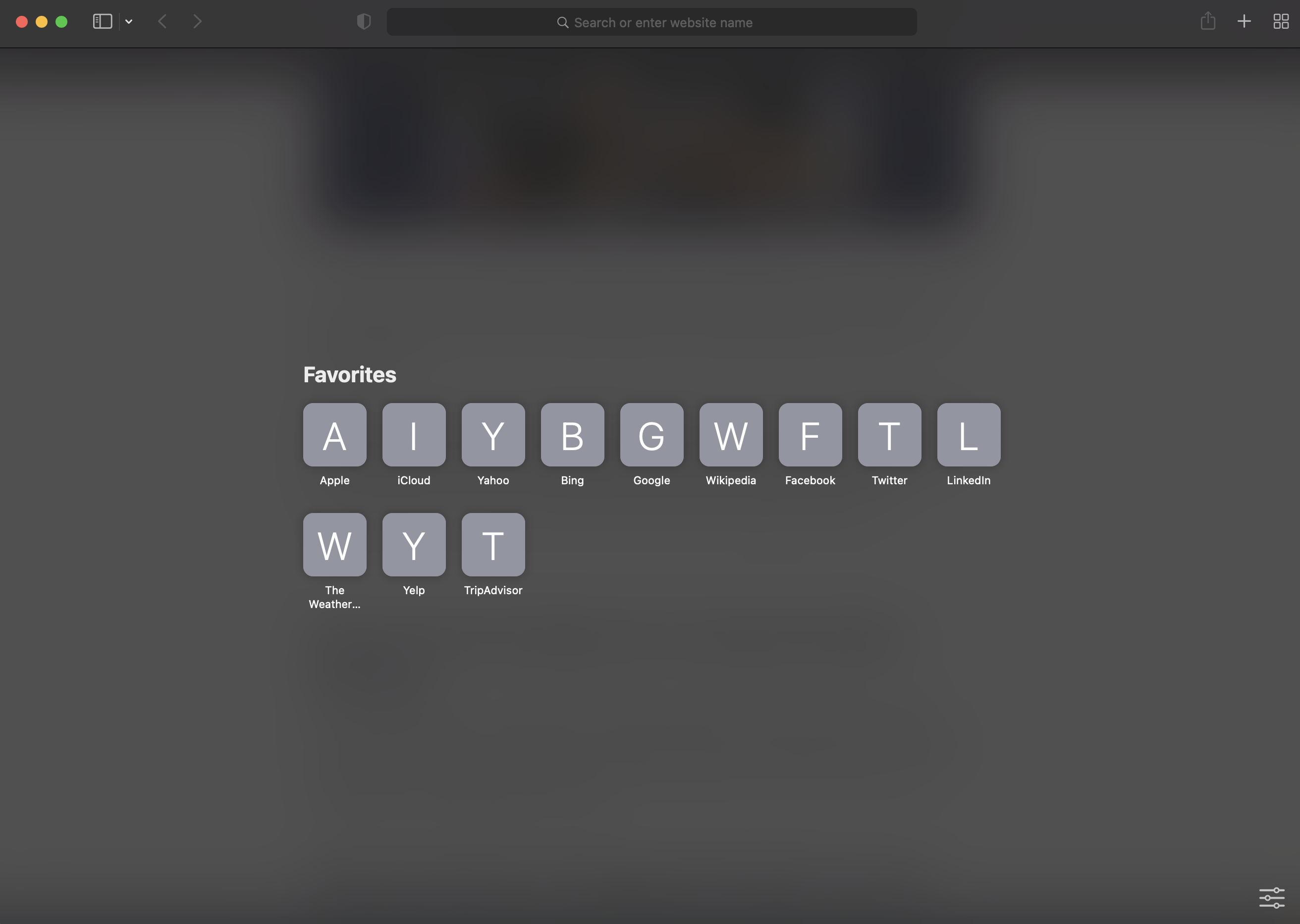
Launch Safari to open your starting page. Your browser should look like the picture below, if you haven’t made any changes the background before.
Step 3: Click the Slider Icon to Open the Safari Start Page Settings.
Open the Safari browser settings and information by clicking on the slider icon pictured below.
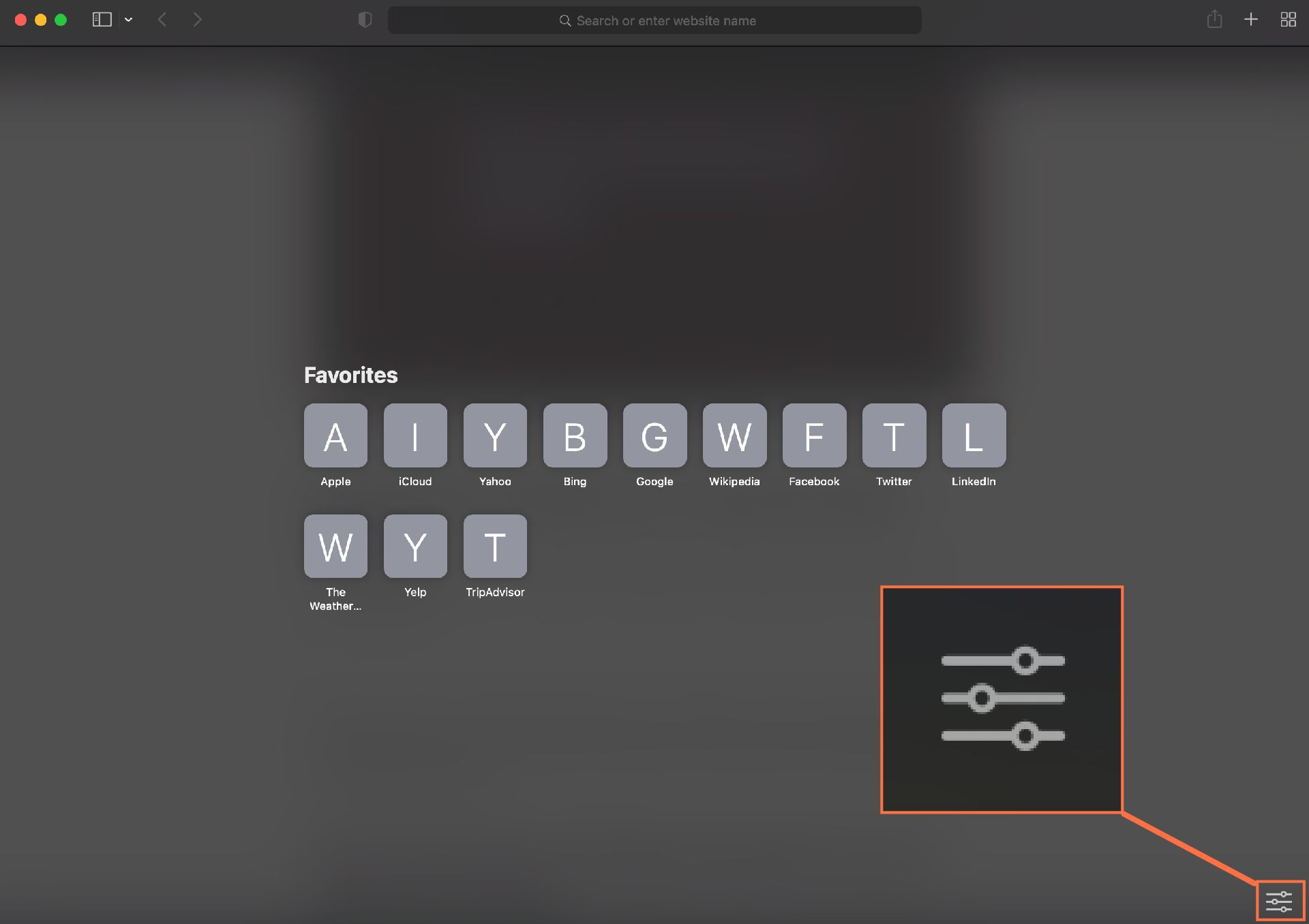
This will open up a selection of items you can add or remove from your Safari starting page. You’ll see the list ranges from your Favorites to your Reading List and Background Image.
Step 4: Check the “Background Image” Box and Upload Your Image.
Once you’ve checked the “Background Image” box, click the "+" button to open your Finder and upload the image you want to set as your Safari background.
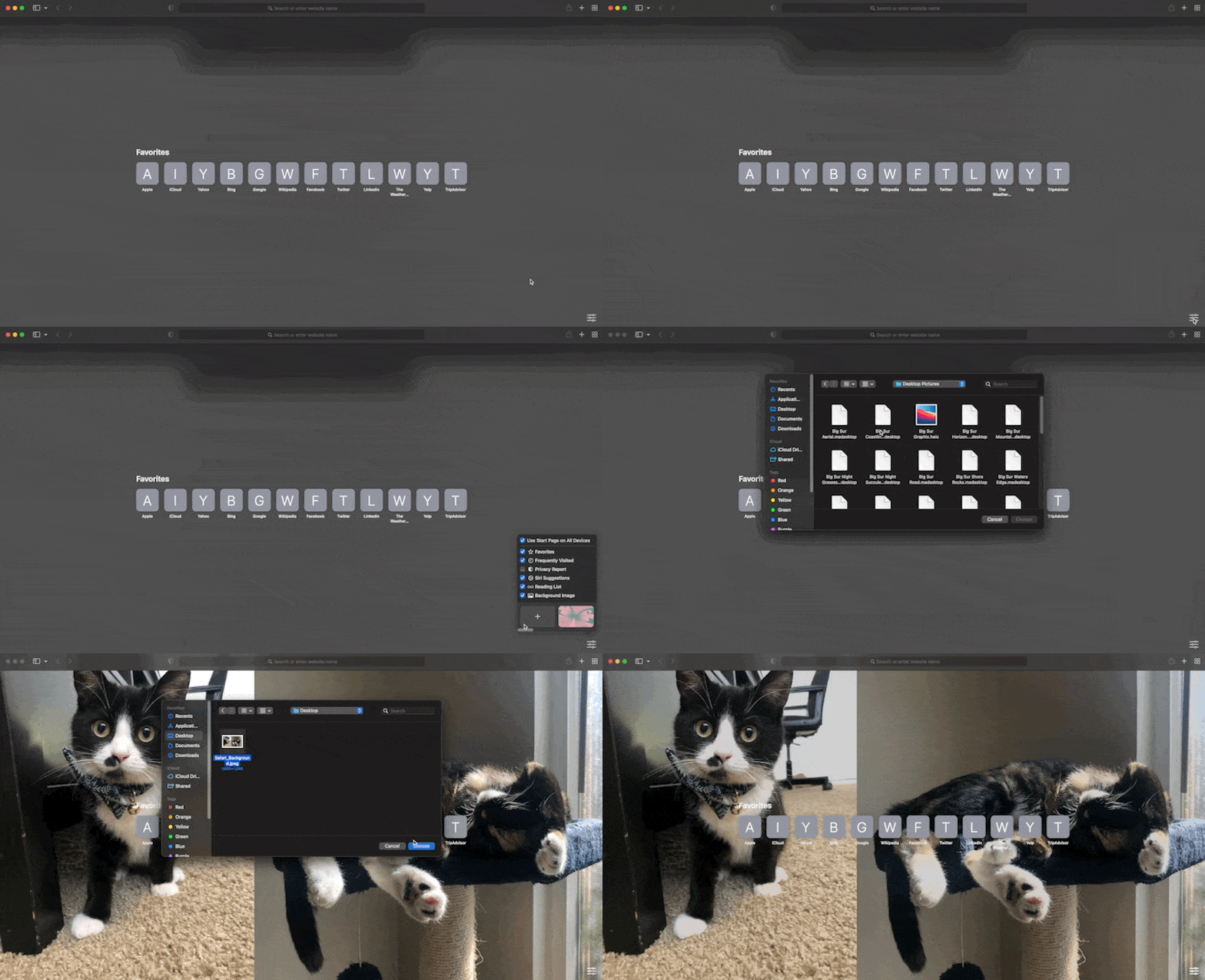
Go through your folders to find your desired image. If you customized it earlier in Kapwing, your file would automatically be downloaded into your Downloads folder, unless you changed the location of it.
Safari Browser Background Shortcut:
If these steps felt too much, you can also change your Safari background in a quicker way. To do this, open the starting page to your Safari again. Then, right-click and select “Choose Background…”
This will open up your Finder for you to select which background image you want to use. Set the image you want as your background, and that’s all!