GIF Filters: Adjusting and Filtering GIFs online
In this tutorial, you'll learn how to add a filter to any GIF in a just a few clicks using a free online video editor called Kapwing.
If you want to filter a GIF using an Instagram-like filter before posting it on Twitter, Tumblr, or any other platform, you’ll need to find a different filtering tool to make your GIFs fabulous. In this post, I’ll describe how you can filter your GIFs on your phone or computer with a free website called Kapwing.
Here’s the sad news: Instagram doesn’t support GIFs. If you try to upload a GIF to Instagram, it won’t move. It just looks like an image.
Instead, you’ll need to use an online tool to filter your GIFs. This tutorial explains how.
How to filter a GIF online
Step 1: Import your GIF
Go to Kapwing’s Filters tool and upload your GIF. You can either upload it directly from your phone or computer or paste a link to Giphy, Google Drive YouTube, or wherever else you store your GIF.
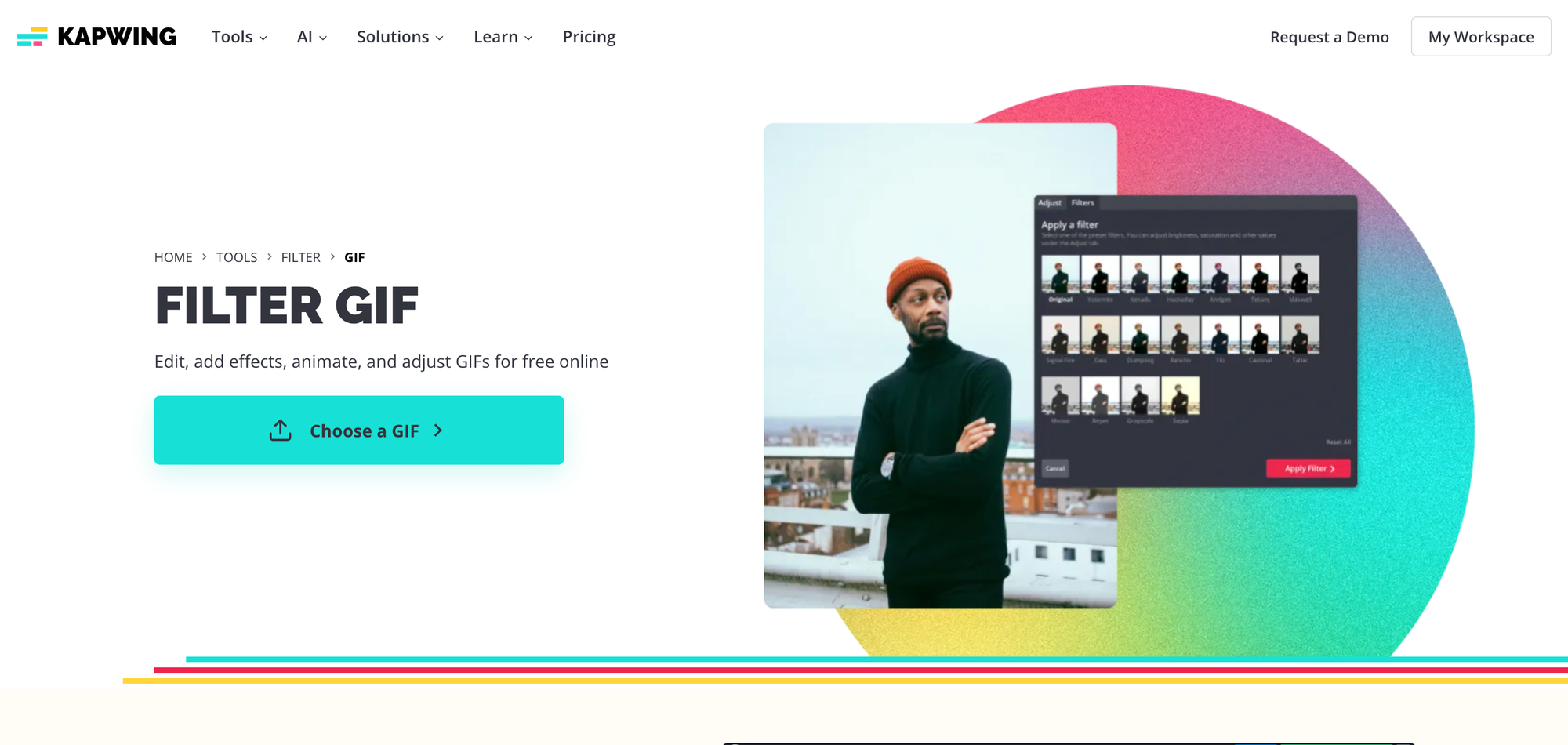
You can also search for GIFs in the Visuals tab. Kapwing has an embedded library of GIFs from Giphy and other stock image sites.
Step 2: Choose your filters and adjustments
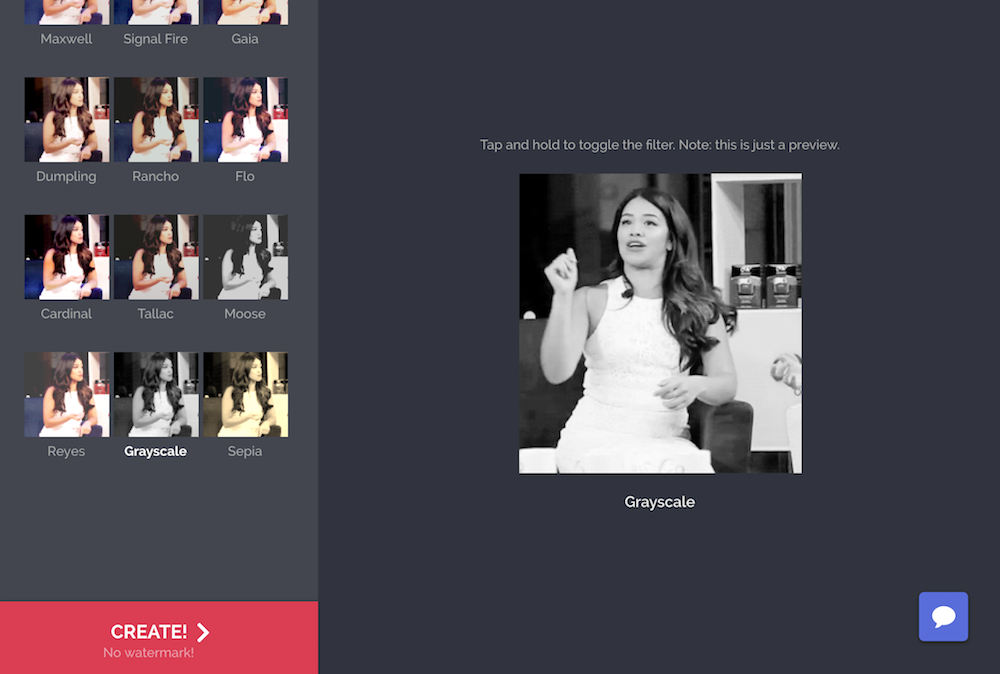
Along with your GIF preview, you’ll see all of the preset filters available on the left. Like Instagram, you can test out the filters to find your favor and press on the video to compare the filtered to the original version. Kapwing’s original filter library includes:
- Cardinal: Bright, high contrast filter
- Reyes: Mellow yellow like Insta’s Rise
- Grayscale: Take out the colors from your GIF
- Sepia: Make your GIF feel old fashioned
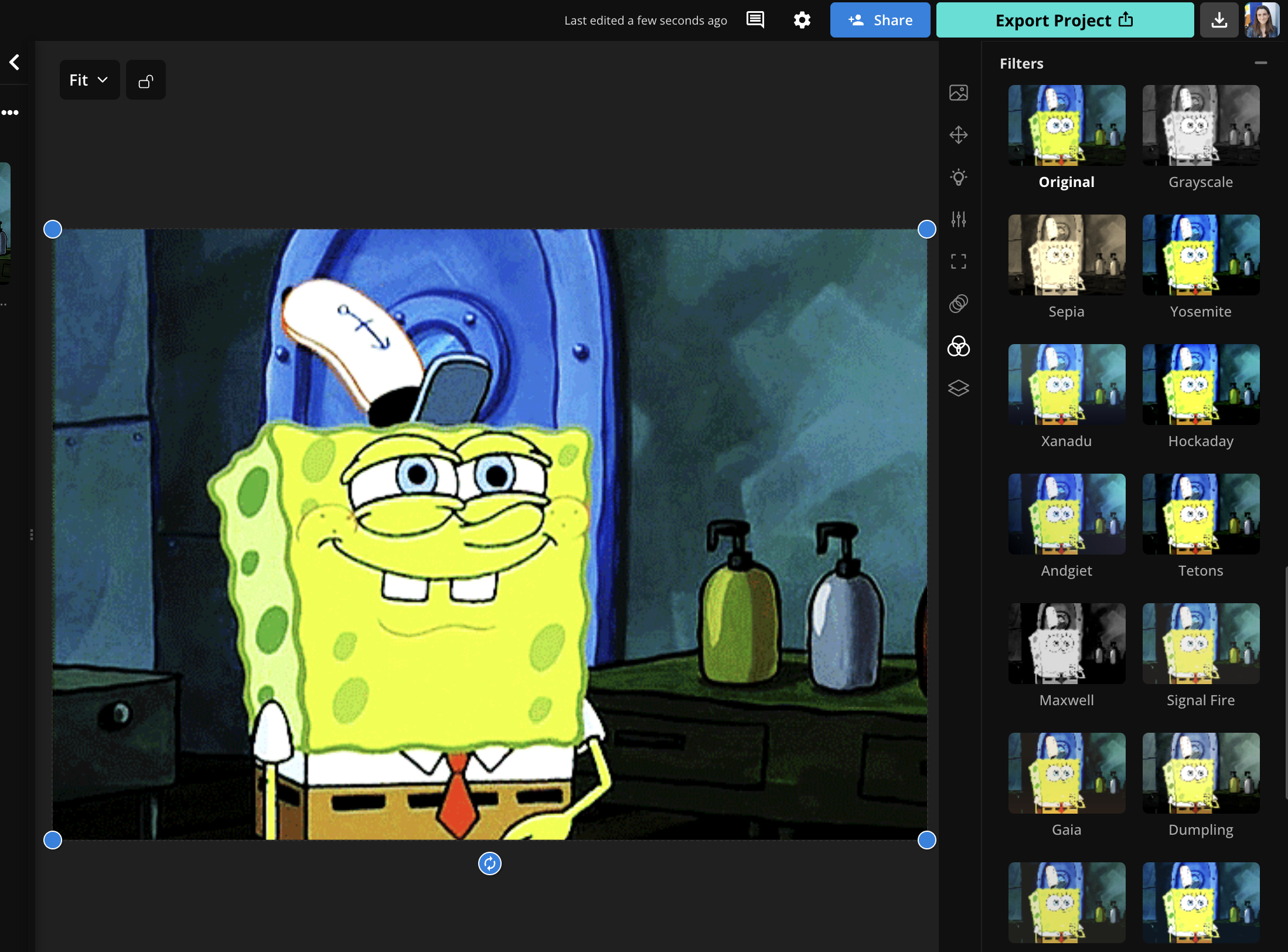
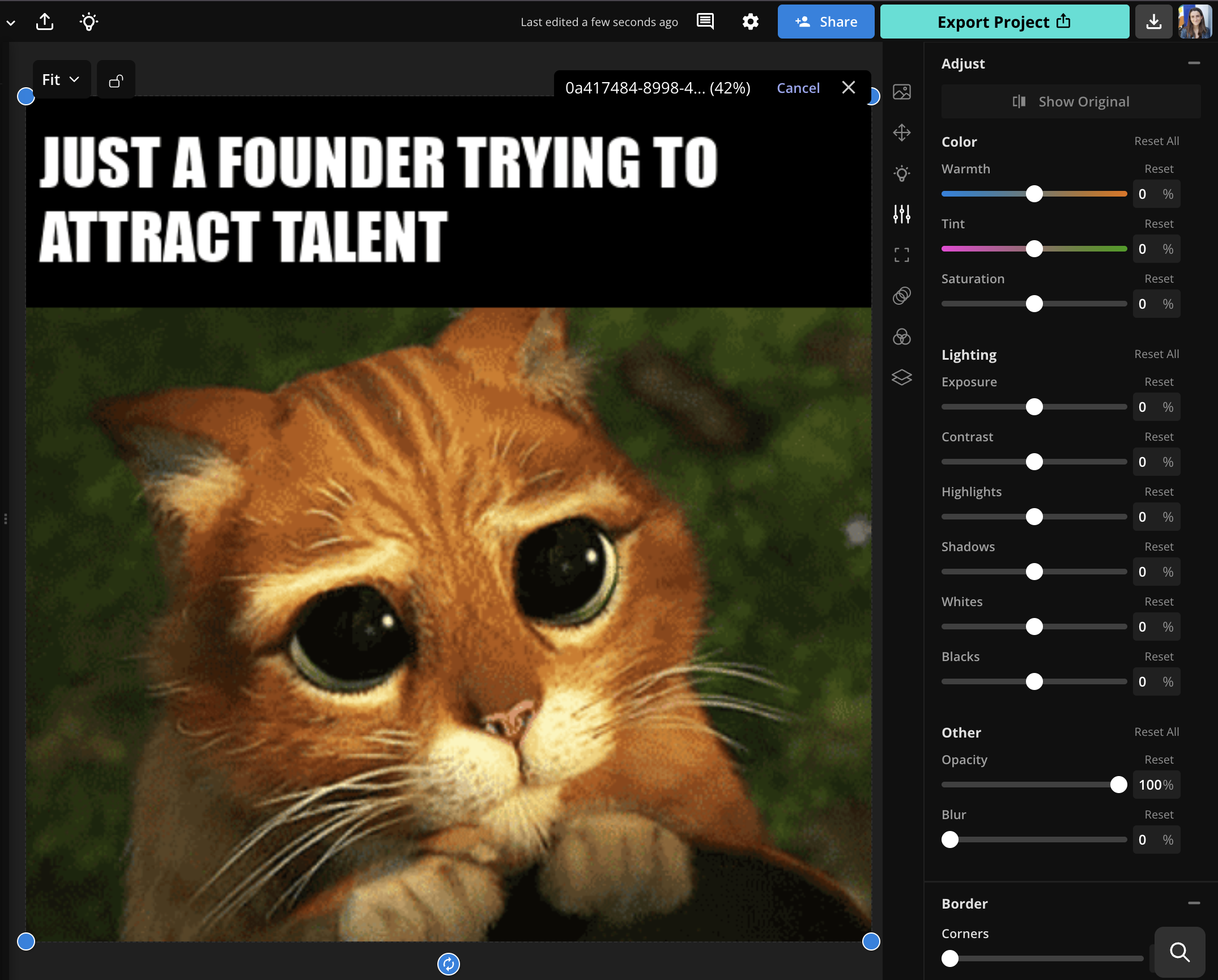
Click on the “Adjust” tab to change the brightness, saturation, and contrast. You can also add fade and vignette to the GIF.
Kapwing added new color correction tools in 2025. Now, you can also make changes to the tint or warmth of the GIF. For creators, this makes it easy to correct imbalances or deep fry your image.
Step 3: Create and Download
Once you’re happy with your GIF, click “Export” to process the edits. Then you can download your filtered GIF and share it on Instagram, Twitter, or other social platforms. Try combining multiple filters and adjustments together for unique results.
Kapwing turns the file into an MP4 so that you can share it on IG, but you can convert your MP4 output back to a GIF with their Convert Tool.
Kapwing vs other GIF Filter Tools
Kapwing is free to use, but there is a watermark on the filtered GIF. Some extra features that are available on Kapwing that are not available on other platforms:
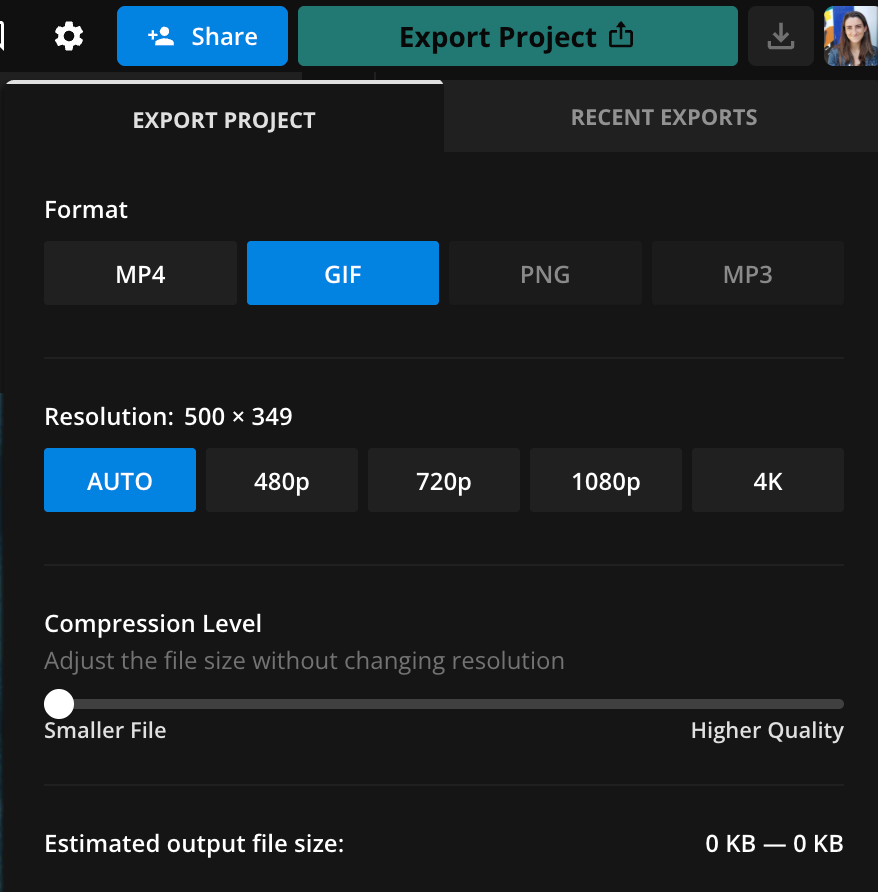
- Export as WebP: In the Settings menu, choose if you want the GIF to be a .WEBP file or a .GIF file. WebPs can be ideal for emails or websites as they're smaller in size.
- Compress the GIF: Choose the resolution of the GIF and the size. Kapwing will estimate the size of the output fit and will retain the original resolution if you prefer.
- Make a GIF Collage: Kapwing supports multiple uploads and GIF layers. You can apply the same adjustments to both GIFs by clicking "Copy Properties" on the editing GIF in the right-click menu. Then, select the other GIF and click "Paste Properties" to apply the same edits.
Kapwing is also a fully functional video editor, so you can add text to the GIF, add a background, resize, or convert the GIF into a video file.
Conclusion
Happy GIF-ing! Hopefully this article helps you give the same color correction and effects to your GIFs that you give to your images and videos. Kapwing’s filter tools supports all types of visual media, and it’s free to use (although you do need to pay a fee to remove the small watermark from the corner).
Thanks for reading, and as always we would love to hear your thoughts, comments, and ideas over email or X.
For more ideas, tutorials, and features, check back in at the Kapwing Resources page or our YouTube channel!