
How to Use Repurpose Tool on Kapwing
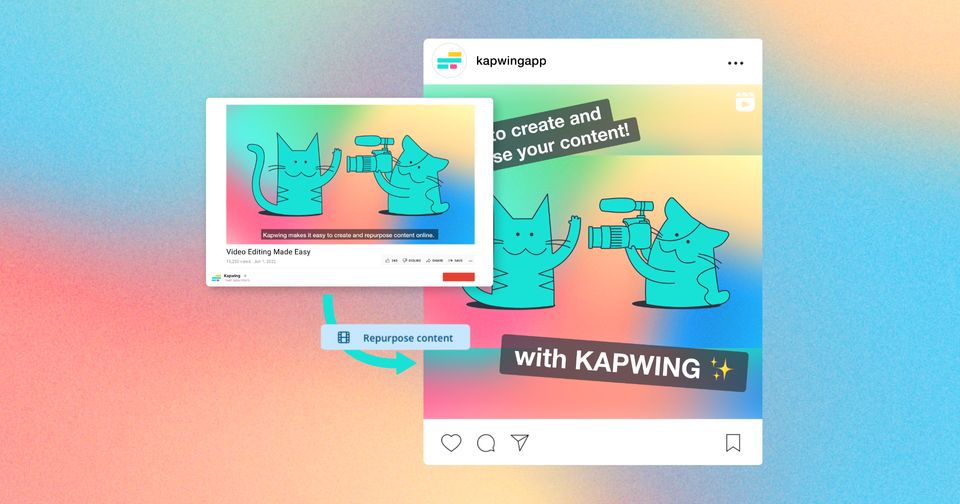
Kapwing offers an AI-powered regeneration tool to help you get your content out online faster. After you've created your full video, Kapwing's Repurpose Custom Kai allows you to save time from clipping and re-creating short-form content by suggesting the best sections of your video.
Table of Contents
How To Start Repurposing Your Videos
Once you have a video at least 10 minutes in length, upload it to our Repurpose Clip Generator.
Prompt Details
By default, the generator will create 3-5 clips in mobile output format with subtitles and a title if all you do is upload one video. However, you can use the prompt box section to optionally direct the AI on what topic(s) in particular you want for your generated clips from the video you uploaded.
You can share single-word topics or short phrases. If your suggested topic(s) do not match the content in the video, the AI will offer what it feels is best.
For example, if you uploaded an hour-long video about a famous athlete, you can write in the prompt "Find clips related to growing up, being a teen, childhood, and school” if you only want clips from the interview about their younger years, and deprioritize the clips about their current sports record.
You can also use the prompt box to share the aspect you want if you would prefer something like 4:5 or 16:9 instead of the 9:16 default.
Editing the Suggested Clips in Studio
Once the clips are generated, you can continue prompting with edits for tasks like longer/shorter clips or clips about different topics. If you would like to change the subtitle styling, add in images, and/or background music, you can move the clip(s) over to Kapwing Studio to edit them further. If you
To learn the basics of studio editing, check out this help center article.
Trim with Transcript
If the AI-generated clip left out a specific sentence you want, you can add it back in; if it left in a word you didn't want, you can delete it in the studio. You can do all this with our Trim with Transcript feature.
FAQ
Where Is My Clip In Kapwing?
After choosing to edit your clip from Kai, you will have Kapwing open on the right side to make adjustments immediately. However, after closing the tab, to find your project, know that your project will be added to the workspace and folder you most recently had open before editing the project.
The Repurpose Tool On An Audio-Only Podcast?
No visuals/video to upload? No problem! As long as you are uploading an audio of at least ten minutes in length, we can still suggest short clips of it for you to pick, edit, and share following the same tips as shared above.



