
How to Dub a Project
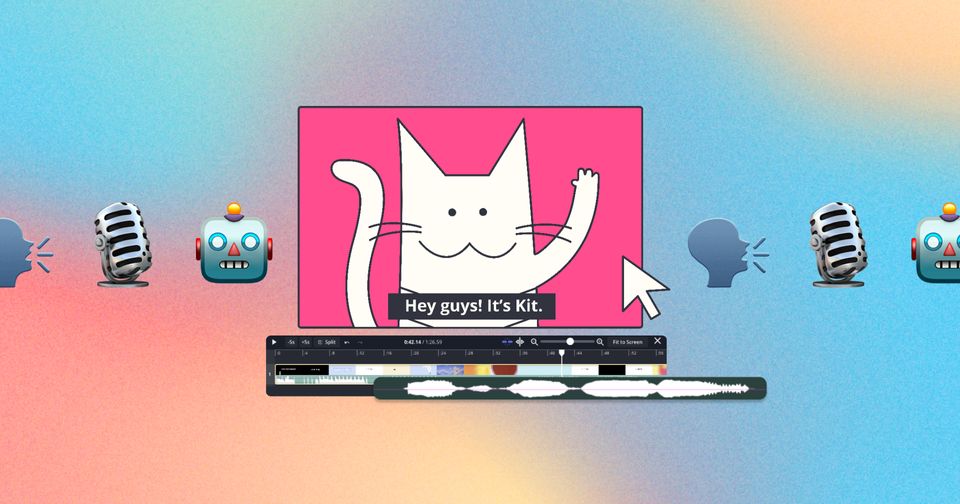
There are several reasons you might have a video recorded in one language but need to export it in a different one. The internationalization of content is no surprise in today's digital era. Here is how to use dubbing on Kapwing.
Table of Contents
Step-by-Step Dubbing
- Upload your video(s)
- Please ensure the videos have audible speech (videos with no speech, little or inaudible speech, or songs cannot be dubbed)
- Click the "Translate" tab on the left side
- Click the "Dub Video" option
- Unselect the media in "assets to dub" that you don't want to dub if you uploaded more than one video and only want to dub some of them
- Select the "Original language" of the video and what you want to translate the audio and subtitles to. You can select multiple languages to process at once, but they will each count towards your dubbing limits. To learn more about your limits, click here.
- Select if you want to use a stock voice or clone the voice(s) of the asset.
- Custom voices are within the stock drop-down if you have created one but are only available for Business & Enterprise Workspaces.
- If you select a stock voice, it will be applied to all the speakers of the dubbed video. However, you can change voices within the review step.
- If "clone original voice(s)" is grayed out, this means it is not available by our provider in that language at this time.
- You can open the Advanced Settings to turn off the speed adjustment toggle or edit translation rules.
- By switching the “Timing toggle” on, Kapwing will automatically adjust the speed to create a more natural and realistic alignment between the dubbed audio and video.
- [Optional] Review transcript before dubbing. This option will let you proofread the transcription and translation side by side before processing the text-to-speech file. Take this step for the highest quality output.
- Click "Dub Video"
- Make any other edits you want before exporting the project. If you make updates to the transcription, translation, speaker assignment, voice options, or other settings, you can click the "Apply changes to dubbed audio” button at bottom of Translate Tab or “Regenerate dubbed audio” button next to every section within the Translate Tab.
- [Optional] Lip Sync: Kapwing's AI-powered lip sync feature will change the lips of the speaker to match the new synthetic text. Find this feature under the "Smart Tools" menu after you generate the dub.
How to dub using a translated SRT file
You can upload an SRT file to Kapwing to use as the basis for the dubbed voice. When you've uploaded the video and clicked "Dub Audio," use the "Upload SRT/VTT" button in the target language to import an existing captions file. Kapwing will use this file as the basis for the dubbed video.
You can also download the translated captions as an SRT file. If you want to upload a new version of this SRT file before re-dubbing, you can re-generate a new dub based on the updated file.
What are the different dubbing voices available?
The automatic dubbing tool supports 180+ different voices. Each voice varies in voice, age, gender, narration style, and accent. By default, videos will be dubbed with voice clones taken from the source video if voice cloning is supported for that language. However, users can also choose from our stock voice selection. Kapwing leverages the latest technology in voice cloning to ensure high-quality, natural-sounding dubs.
How to Dub with a Stock Text-to-Speech Voice?
In the dubbing configuration menu, choose "Use a stock voice" to pick a voice from Kapwing's library of realistic text-to-speech options. This is a great approach if you want to get a native-sounding speaker in the target language.
Kapwing offers voices from Google AI and ElevenLabs. Paid users have access to our full selection of premium stock voices. Please inquire if you have a specific voice that you'd like Kapwing to add or a vendor you're interested in.
How to Dub on Kapwing with a Custom Voice or Voice Clone?
Kapwing offers the ability to save a clone of your voice or upload a voice of your choosing, allowing you to create a text-to-speech layer using your voice model. We've enabled Voice Cloning in partnership with Eleven Labs.
To add a voice clone, you must be a Business customer. Business plan customers can save up to 2 voice clones in their Brand Kit. Once you've upgraded to the Business Plan, click the "Add new Voice" button in the Text to Speech dropdown menu. You'll be prompted to upload an example of the speaker whose voice you want to clone*.
When dubbing, you can select the voice you have uploaded in Brand Kit under the "Voice" dropdown.
To delete a voice clone, go to your Brand Kit and scroll down to the saved voice clones. Hover over a voice model icon and click the delete icon that appears in the upper corner.
*Customers must have the rights to clone a speaker's voice, as noted in Kapwing's terms of service.
What dubbing features does Kapwing have?
Kapwing has roots in AI video editing, so the integrated AI technology and customization for tweaking the audio and video layer sets us apart from other dubbing products. Here's a list of features that we support:
Supported Features
✅ Automatic speech recognition (ASR) and captioning
✅ Machine translation, with support from multiple translation vendors
✅ Translation rules that can be added manually or uploaded to leverage an existing translation glossary
✅ Bulk dubbing flow that allows dubbing from one language to multiple
✅ Background sound preservation
✅ Voice cloning
✅ Lip sync
✅ Support for uploaded SRT files and Slavic, Arabic, and RTL languages
✅ Realistic synthetic voices in over 40 languages
✅ Import from YouTube and Google Drive
✅ Speaker labels and dubbing for videos with multiple speakers
✅ Translate text embedded in the video
✅ Advanced timing and speed adjustments technology to match the original timing of the video
✅ Real-time collaboration and team comments
✅ Custom spelling glossary for commonly-used words
✅ Translation rules available across the brand workspace
✅ Regeneration of text-to-speech layers
✅ Download SRT of translated captions or embed captions into the video
✅ Download dubbed MP3 or Mp4
✅ Video uploads up to 6GB and 2 hrs long
✅ Dialect-specific language selection
✅ Custom pronunciation guide
Here are some features that Kapwing's Dubbing platform does not support:
Not Supported Features
🚫 Emotive controls or adjustments. Creators can use punctuation to add inflection and disfluencies to generated TTS, but the same voice clone is used throughout the video, so they do not express a high degree of emotional variance.
🚫 Bulk import or export. Each video must be uploaded and exported individually, although it is possible to dub one video into multiple languages
🚫 Programmatic dubbing API
What languages does Kapwing Dubbing support?
Kapwing supports over 40 different languages for dubbing, as it does for text-to-speech. When users start a new dubbed project, they choose the target language and dialect to translate into. Though we offer dubbing for all the listed languages, please note that the ones in which voice cloning is not supported are marked with an asterisk (*). See the full list of supported languages below:
Supported Language List
English (US)
English (UK)
English (AUS)
Arabic (Multi-Region)
Bulgarian
Chinese (Mandarin)
Croatian
Czech
Danish
Dutch
Finnish
Filipino (Tagolog)
French
German
Greek
Gujarati*
Hebrew*
Hindi
Hungarian
Indonesian
Italian
Japanese
Kannada*
Korean
Lithuanian*
Malay
Malayalam*
Norwegian
Polish
Portuguese (Brazil)
Portuguese (Portugal)
Romanian
Russian
Slovak
Spanish (Spain)
Spanish (Mexico)
Swedish
Tamil
Telugu*
Turkish
Ukrainian
Vietnamese
* We do not support voice cloning in these languages
Additional Resources:
Advanced Dubbing Tips
Dubbing FAQ
How to Add Subtitles or Captions with Kapwing
How to use Text-to-Speech in Kapwing
Looking for more help?
Check our Release Notes for tutorials on how to use the latest Kapwing features!



