Video Accessibility Guide for Content Creators (2025)
In 2024, over 8,800 lawsuits were filed for non-compliance to video accessibility.

Video accessibility means making your content usable and comprehensive for everyone. While this often involves accommodations for vision and hearing (such as captions or transcripts), it also includes support for cognitive and motor disabilities (such as keyboard navigation and voice control). Regardless of the specific need, the goal is that everyone can navigate and understand your video content equally.
In 2025, over 2.2 billion people worldwide live with vision impairment, and 430 million experience disabling hearing loss. At the same time, video now accounts for 82.5% of all internet traffic. When such a large portion of the population relies on accessible formats, prioritizing accessibility isn’t just thoughtful, it’s essential.
The good news? Accessibility isn't hard to implement. This guide will break down what video accessibility means, what it looks like in practice, and how you can easily apply it to your own videos.
Table of Contents
- What is Video Accessibility?
- Video Accessibility Guidelines & Requirements
- Best Examples of Accessible Video Content
- Accessibility Checklist & Tools for Creators
What Is Video Accessibility?
Video accessibility means designing your content so that it can be understood and used by everyone, including people with disabilities. This includes captions, transcripts, audio descriptions, and keyboard-friendly controls to support viewers who are deaf, blind, or have cognitive or motor impairments. The goal is that everyone, regardless of ability, can engage with content fully and equitably.
The Web Content Accessibility Guidelines (WCAG 2.2) is the most widely recognized framework for defining video accessibility. It is built around four principles: Perceivable, Operable, Understandable, and Robust (POUR).
- Perceivable – Content must be presented in ways users can detect (e.g., captions for audio, alt text for images).
- Operable – Users must be able to navigate and control content (e.g., keyboard shortcuts, pause/play controls).
- Understandable – Information should be clear and comprehensible (e.g., simple language, consistent layouts).
- Robust – Content should work with a variety of assistive technologies and remain accessible as technology evolves.

Content creators usually have the greatest control over the perceivable and understandable principles. You decide whether to include captions, transcripts, and audio descriptions that make content detectable to viewers with vision or hearing impairments, and you shape how clear and predictable your messaging is.
Video Accessibility Guidelines & Requirements
The four WCAG principles aren't just a nice extra; many national and international laws around accessible video content are built on the WCAG 2.2 framework.
For example, in the U.S., the Americans with Disabilities Act (ADA) makes sure people with disabilities have equal access. Although the ADA was originally written for physical spaces, Title III (which covers “places of public accommodation”) is now interpreted to apply to video content.
Furthermore, in the EU, the European Accessibility Act (EAA) mandates that all new digital content, including videos, must be accessible to people with disabilities. The rules are the same across all EU countries and are based on the WCAG guidelines.
As digital media becomes more central to how we learn, work, and communicate, these laws are becoming more strictly regulated. In 2024 alone, over 8,800 digital accessibility lawsuits were filed in the U.S. for non-compliance, all targeting websites and videos that lacked captions, transcripts, or other accessible features.

It’s paramount for content creators to know what video accessibility is and how it impacts content. In the next sections, we’ll break down the key video accessibility requirements outlined by the ADA and EAA as of August 2025, and what they mean for content creators in practice.
For this guide, we’re using the ADA and EAA as references. Since most accessibility laws align with the WCAG 2.2, the recommended best practices here will apply broadly. However, if you’re creating content for another region, it's best to still review your local video accessibility regulations.
Closed Captions for Pre-recorded Video
What it means: Applying text on screen that includes all spoken dialogue and meaningful sounds (e.g., laughter, music, sound effects).
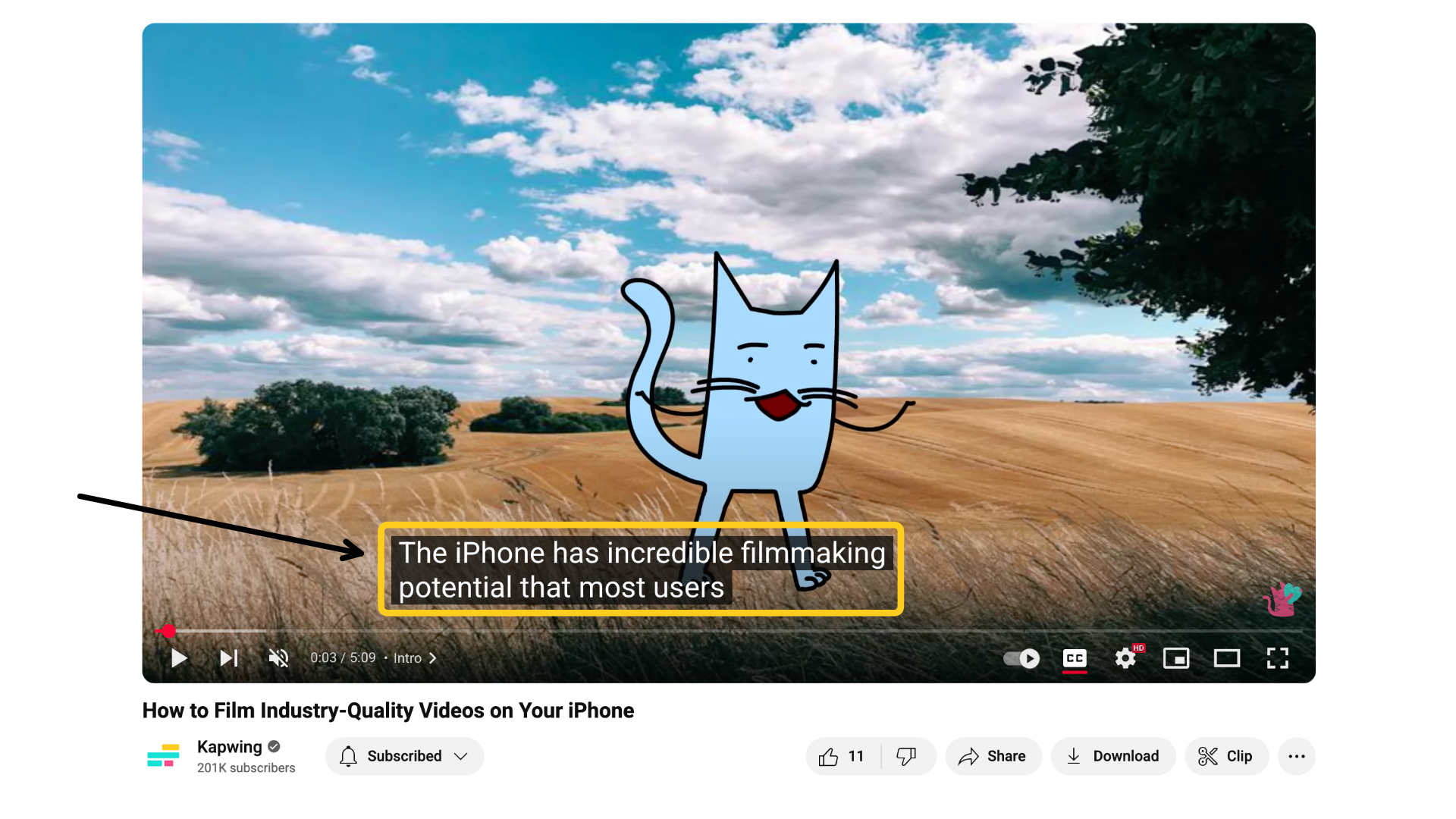
In practice: Adding accurate, synced captions that not only include what’s being said but also meaningful non-speech elements like [applause], [laughter], or [dramatic music]. Auto-captions (like YouTube’s) can be a helpful starting point, but they often miss key moments or mis-transcribe terms, so manual review is essential.
Why it's important: Closed captions make video content accessible to people who are deaf or hard of hearing. They also improve comprehension for non-native speakers, support viewers in noisy or sound-off environments, and boost engagement across platforms. In fact, up to 92% of smartphone users prefer to watch videos without sound. As such, adding closed captions has been shown to lead to a 25% increase in watch time.
Applies to: This rule applies to all pre-recorded, public-facing/educational videos, regardless of platform, length, or use.
Audio Descriptions
What it means: Describes important visual content for blind or low-vision viewers.
In practice: Scripting and recording short voice-over clips that describe visual cues (e.g., “she glances at the ringing phone”) and inserting them between spoken lines. If dialogue doesn’t leave enough space, extended audio descriptions (where the video briefly pauses) can be used. This is crucial for blind or low-vision viewers.
Why it's important: For blind and low-vision audiences, visuals without description can leave major gaps in understanding. Audio descriptions bring context to moments that would otherwise be lost.
For creators, they ensure your storytelling and impact land with everyone. Take the final scene of La La Land, for example (shown below): the last shared glance between Mia and Sebastian, which is the emotional resolution of the film, would be completely lost to visually impaired viewers without an audio description.
Applies to: In the EU, this rule applies to all organizations based there or serving EU audiences. In the U.S., it is expected under the ADA for public-facing, visual or audio content.

Descriptive Transcripts
What it means: A written version of everything in the video: spoken dialogue, sound cues, and visuals.
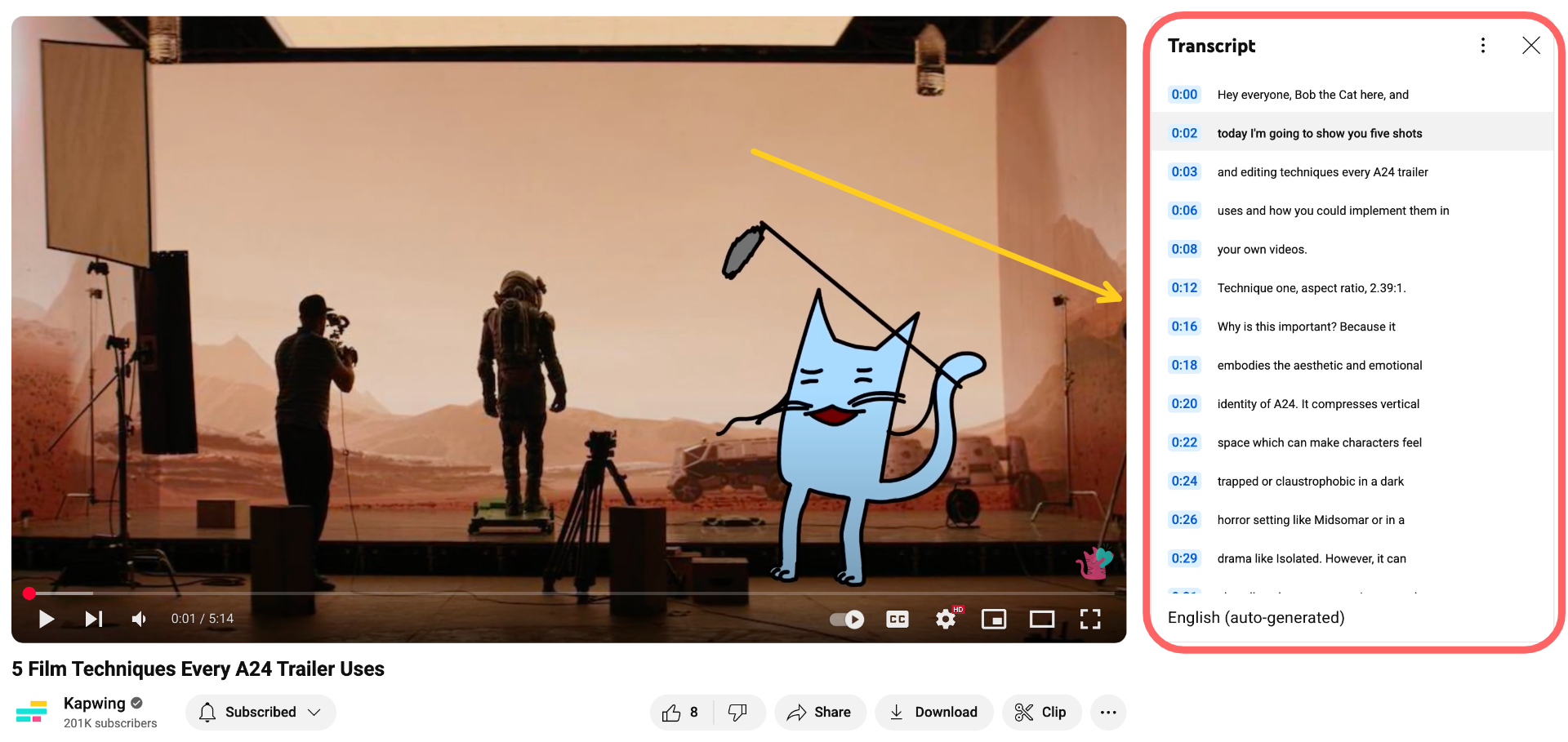
In practice: Unlike captions, transcripts aren’t timed to the video, but give users (especially those using screen readers) a complete alternative way to engage with the content. Most media players (such as YouTube, Netflix) include transcripts; however, you could also post these beneath the video or offer them as downloadable files.
Why it's important: Descriptive transcripts provide an alternative way to engage with your content, which doesn't require visuals and sound. This could be especially useful to viewers who use screen readers. However, they also generally allow users to read, search, quote, or translate your content with ease.
Applies to:
This is required under the EAA for organizations based there or serving EU audiences. In the U.S., it is not explicitly mentioned by the ADA, but may be expected for public-facing content where visuals are key to understanding.
Clear Fonts & High Contrast
What it means: Text in your video must be easy to read, regardless of lighting, screen size, or ability.
In practice: Stick to sans-serif fonts like Arial or Open Sans. Avoid overly decorative or script fonts. Make sure your text stands out clearly from the background (this includes captions). Add a semi-transparent background behind text if needed.
Why it's important: Text that’s hard to read can instantly exclude viewers, especially those with low vision. Even for fully sighted users, poor contrast or fancy fonts can make important information easy to miss. Whether it’s a title card, caption, or on-screen label, your message should be effortlessly legible. In the example below, a gradient overlay was added behind the text, ensuring that the words remain clear regardless of the background image.
Applies to: If you’re in the EU or serving EU audiences, this is required under EAA. In the U.S., it’s generally expected under the ADA for public-facing content. Applies to all videos, on any platform, that include on-screen text.

Visual Descriptions / Alt Text for On-Screen Graphics
What it means: Any text or visual information (charts, titles, maps) must also be described in audio, captions, or a transcript.
In practice: For on-screen names or visual cues, include them in captions or verbally reference them. For videos on websites, include alt text in the HTML surrounding the video. This ensures users who can’t see visuals can still follow the message.
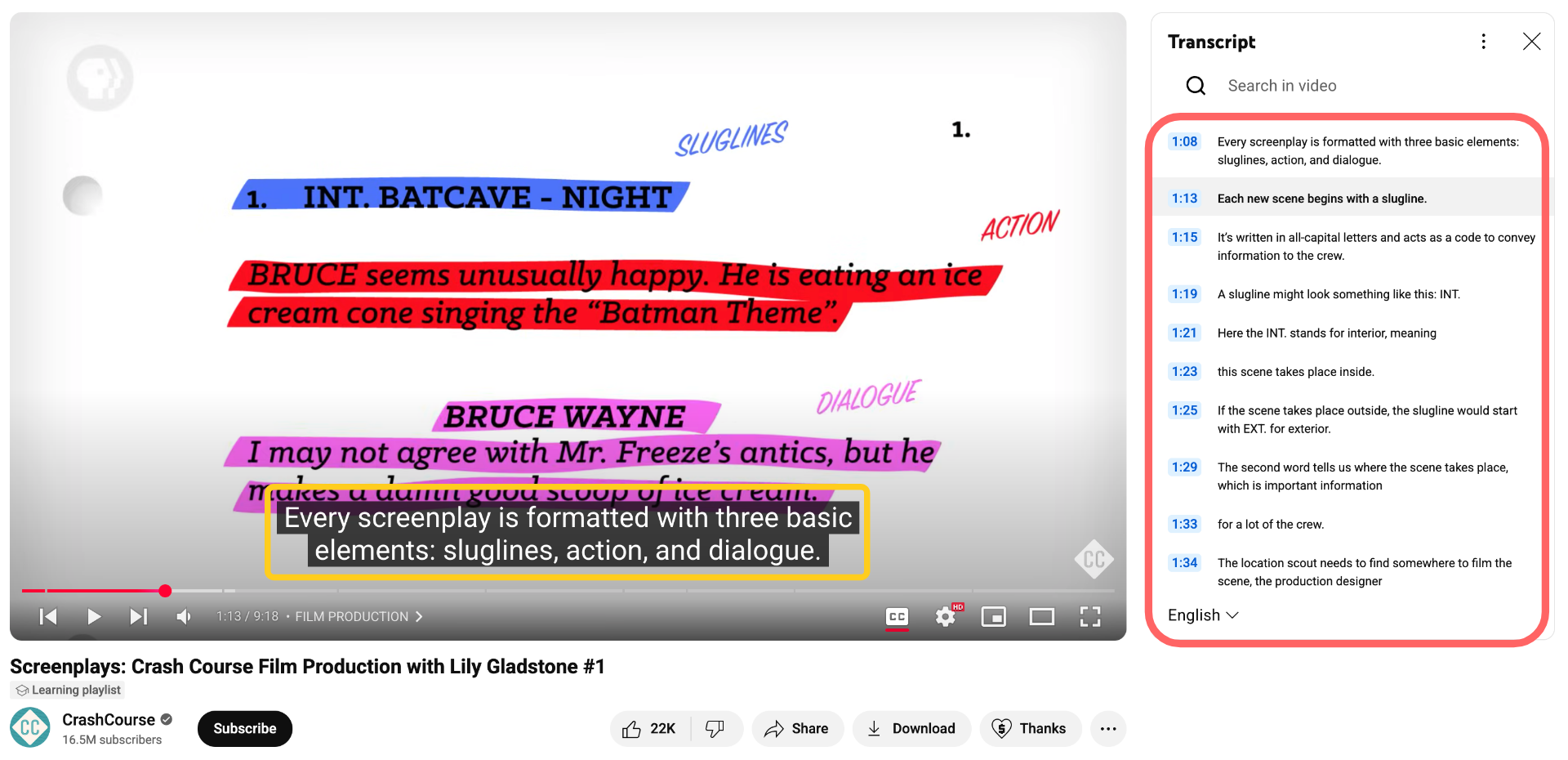
Why it's important: Without audio or text-based descriptions, blind or low-vision viewers may miss visual information entirely. Describing these visuals ensures that everyone can access the same ideas. A great example is the CrashCourse video below. While the series uses plenty of on-screen graphics, they’re always explained clearly. Key elements in the visual are also included in the transcript, so all viewers can fully engage with the content.
Applies to: Required under EAA in the EU. In the U.S., it’s typically expected under the ADA when visual content conveys essential information. Applies across all video types and platforms.
Best Examples of Accessible Video Content
Rotten Mango – Podcast & Video Hybrid
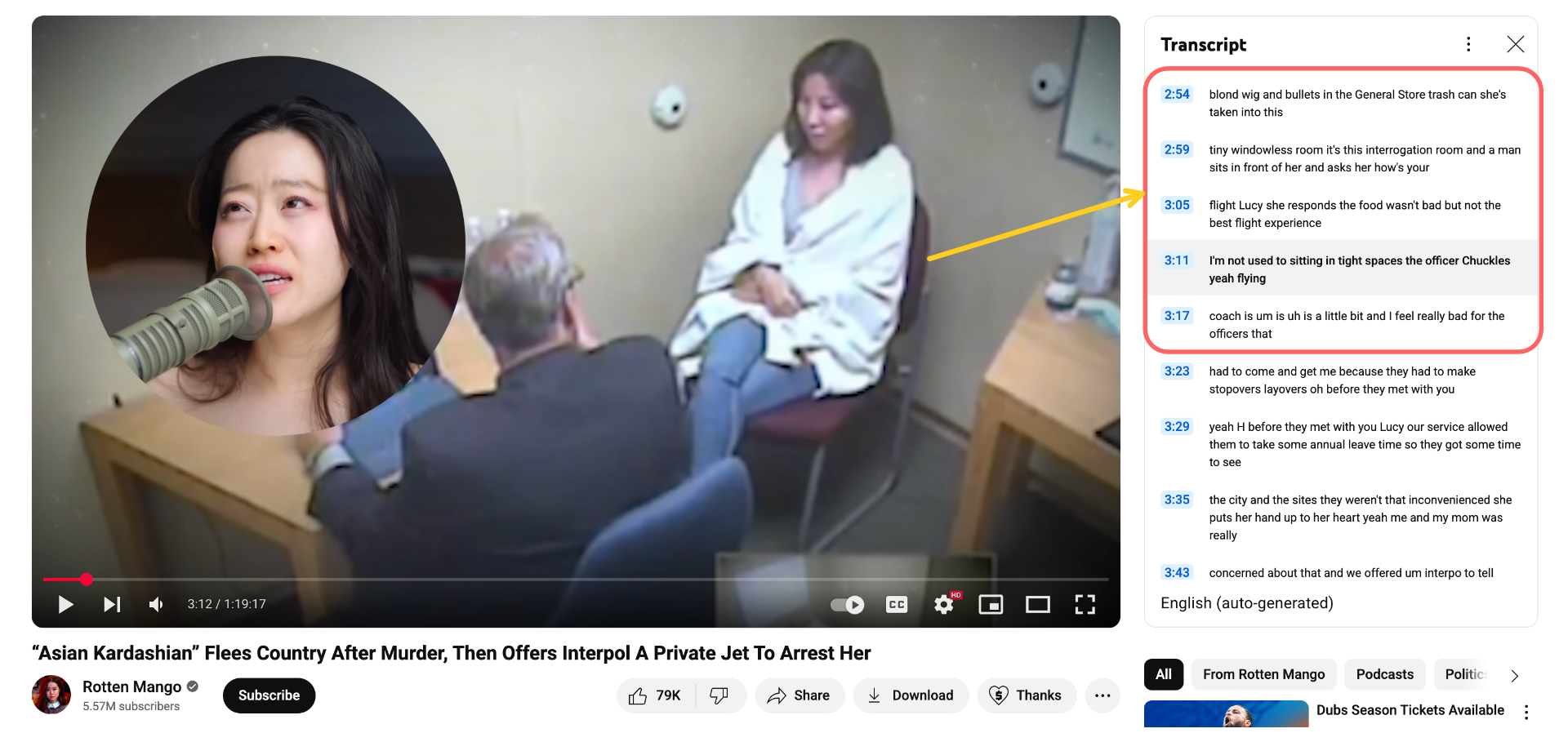
While most podcasts offer only audio, Rotten Mango provides both an audio-only version and a YouTube video version with closed captions. These captions include non-verbal cues, making the content accessible for hard-of-hearing audiences.
All graphics included in the video versions are described both verbally and in the transcript. For example, in the episode below, the podcast shows footage of an interrogation room, but also narrates the setting and interaction in a lot of detail. As a result, while the visuals may enhance the experience, the content remains equally comprehensible and impactful without them.
Vox – Short/Long Form Video
Vox consistently prioritizes accessibility in the video content on its YouTube channel. Each video comes with edited closed captions that accurately reflect both the spoken words and nonverbal sounds. When charts, maps, or archival footage appear on screen, the narrator explicitly describes what the viewer is seeing, making complex visual information accessible to those who are blind, low-vision, or watching without visuals.
Many videos also include supporting transcripts or companion articles on their website, expanding accessibility for screen reader users and viewers who prefer text-based engagement.

TED Ed – Educational Animations
TED-Ed’s animated lessons combine engaging visuals with strong accessibility practices. All videos include edited closed captions that capture both dialogue and important non-speech sounds, ensuring they’re usable for viewers who are deaf or hard of hearing. When complex visuals, such as diagrams or timelines, are shown, the narration describes them clearly.
TED-Ed also publishes full transcripts alongside each video on its website, making the content searchable and easy to reference for learners who prefer reading or need assistive technology. These combined practices mean that TED-Ed’s lessons are equally valuable whether you’re watching, listening, or reading.

Video Accessibility Checklist For Creators
Video accessibility can feel overwhelming, but it doesn’t have to be. To help you get started, we’ve created a checklist covering all the key accessibility considerations to review before you post. You can download it as a PDF below or view it online.
If you make videos, whether they’re short TikToks, long YouTube essays, internal training recordings, or marketing content, this checklist is for you. In most cases, every content creator should aim to meet these standards, regardless of region or platform.
✔ Add Accurate Captions
- Make captions easily legible with clear fonts and contrast.
- Ensure captions are synchronized with the video.
- Provide closed/open captions for both the dialogue and important sounds.
✔ Include Audio Descriptions
- Synchronize audio descriptions with the video.
- Make sure audio descriptions are concise but comprehensive.
- Narrate key visual information not conveyed through dialogue.
✔ Include Visual Descriptions
- Provide alt-text for all embedded images and videos.
- Describe charts, infographics, or key visuals in captions or narration.
✔ Provide Descriptive Transcripts
- Make sure the transcript link can be easily found from the video player.
- Ensure transcripts include descriptions of non-verbal elements as well.
- Offer a full transcript of the video content in PDF or a similar format.
✔ Provide Visual Contrast
- Avoid placing text over busy backgrounds.
- Use contrasting colors for backgrounds and text.
- Ensure text and important visual elements stand out.
Top Tools to Support Video Accessibility
Creating accessible videos doesn’t mean starting from scratch. There are plenty of tools designed to simplify the process. Below, we’ve compiled a list of recommended tools by category, along with a quick description of why each one works.
Closed Captions
Kapwing’s closed caption generator helps you create accurate, customizable closed captions for your videos quickly and intuitively. You are able to easily edit them for accuracy, in addition to adding sound effects, speaker tags, and adjusting styling to for readability.
Click “Subtitles” in the left-hand toolbar to get started. From there, you’ll be guided through the auto-generation process and given tools to fine-tune every line. For a full walkthrough, check out the tutorial video below.
Audio Description
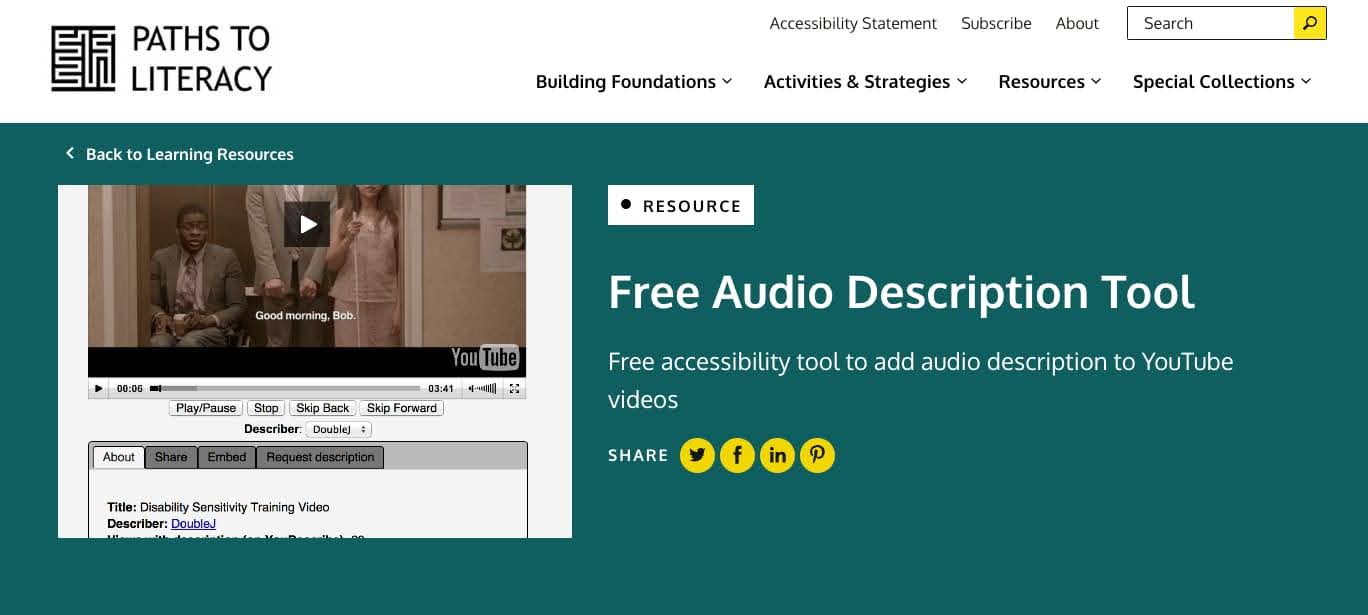
Free tools like the one from Paths to Literacy make it easy to add audio descriptions to YouTube videos. Viewers can contribute audio descriptions that narrate key visual elements. This allows creators (or even community members) to enhance accessibility without re-editing or re-uploading the video.
Beyond YouTube, platforms like Instagram, TikTok, and X now include built-in alt text for images and auto-captioning. Adding descriptions and tags on these platforms ensures your content is more inclusive and discoverable for everyone.
Transcription
Using Kapwing’s Auto-Transcript feature, you can quickly generate a written transcript of your video’s audio. The transcript is editable, allowing you to fine-tune it for accuracy, and can be downloaded as a separate file for easy sharing or posting alongside your content. It supports over 100 languages.
To use it, simply click the “Transcript” button on the left-hand toolbar, then select “Generate Transcript.” From there, you can download the transcript as a separate file to share alongside your video or upload it to platforms that support full-text accessibility. For step-by-step guidance, refer to the instructional video below.
Video Accessibility FAQs
What are the legal requirements for video accessibility?
Legal requirements vary by region, but in the U.S., the Americans with Disabilities Act (ADA), Section 508 of the Rehabilitation Act, and the 21st Century Communications and Video Accessibility Act (CVAA) all enforce video accessibility. These laws require captions, transcripts, and accessible interfaces for public-facing digital content.
What’s the difference between open and closed captions?
Open captions are burned into the video and always visible, while closed captions can be turned on or off by the viewer. Closed captions offer more flexibility and interactivity, and are often preferred for web platforms.
How do I add audio descriptions to my videos?
Audio descriptions narrate essential visual content for blind or low-vision viewers. You can add them manually during natural pauses in your video, or use tools like YouDescribe or professional voice-over services to create them.
Do I need both captions and transcripts?
Yes, ideally. Captions serve viewers in real-time during playback, while transcripts allow for easy reference, text search, and use with screen readers, especially important for podcast-style or educational content.
What does WCAG say about accessible videos?
WCAG (Web Content Accessibility Guidelines) recommends captions for all prerecorded content, audio descriptions for videos with visual information not conveyed in audio, and transcripts for audio-only content.
How do I test if my video is accessible?
Use accessibility checklists, watch with the sound off and then with visuals off to test captions and descriptions, and run your content past users who rely on accessibility features for honest feedback.
What is the difference between closed captions and subtitles?
Closed captions include sound effects and speaker IDs, unlike subtitles which are for translating spoken dialogue.