How to Write Advanced AI Prompts for Image Generators
Over 43% of marketers already use AI tools for visual content creation, making prompt-writing a must-have skill
From quick sketches to polished marketing visuals, AI image generators can create stunning content in seconds. But the results you get depend heavily on the prompt you provide. A vague prompt often leads to bland or inconsistent results, while a well-crafted prompt can unlock professional, cinematic quality.
In this guide, we’ll break down how to write advanced AI prompts for image generation. You’ll learn the core elements every strong image prompt needs–like subject, atmosphere, and style—and advanced strategies such as role prompting, anchors, and step-by-step refinement. Along the way, we’ll share examples, templates, and tips you can put to use right away to make your AI-generated images more creative, consistent, and visually compelling.
Table of Contents:
What is an AI Prompt?
An AI prompt is a written instruction you give to a generative model to tell it what to create. The quality of your prompt directly shapes the quality of the output.
Simple prompts generate basic results, often vague or inconsistent. More detailed prompts, on the other hand, let you control key aspects like style, mood, and perspective — bringing the output much closer to what you envisioned.
This becomes especially important when generating images or videos. For example, if you’re working on a travel campaign and use the prompt “generate an image of a beach”, the AI might return a plain shoreline scene that lacks distinctiveness or marketing appeal.
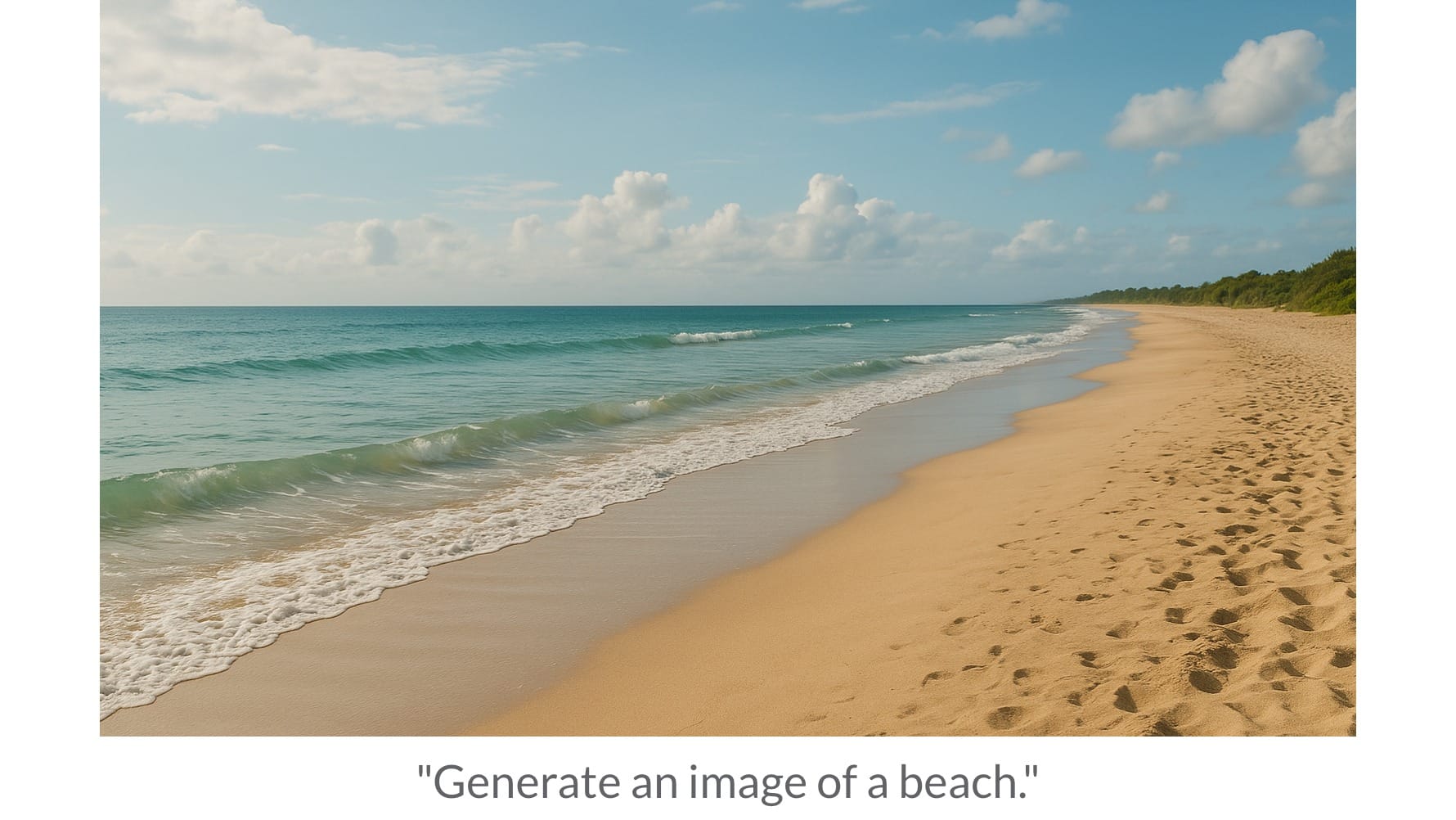
To guide it toward your vision, you need to specify details such as lighting, the type of beach, time of day, weather, or even the camera style.
An advanced prompt can push the AI to create something vivid and on-brand — like a cinematic sunset beach with palm trees, golden light, dramatic clouds, and room for text overlay. That level of specificity transforms the result into something polished and campaign-ready.
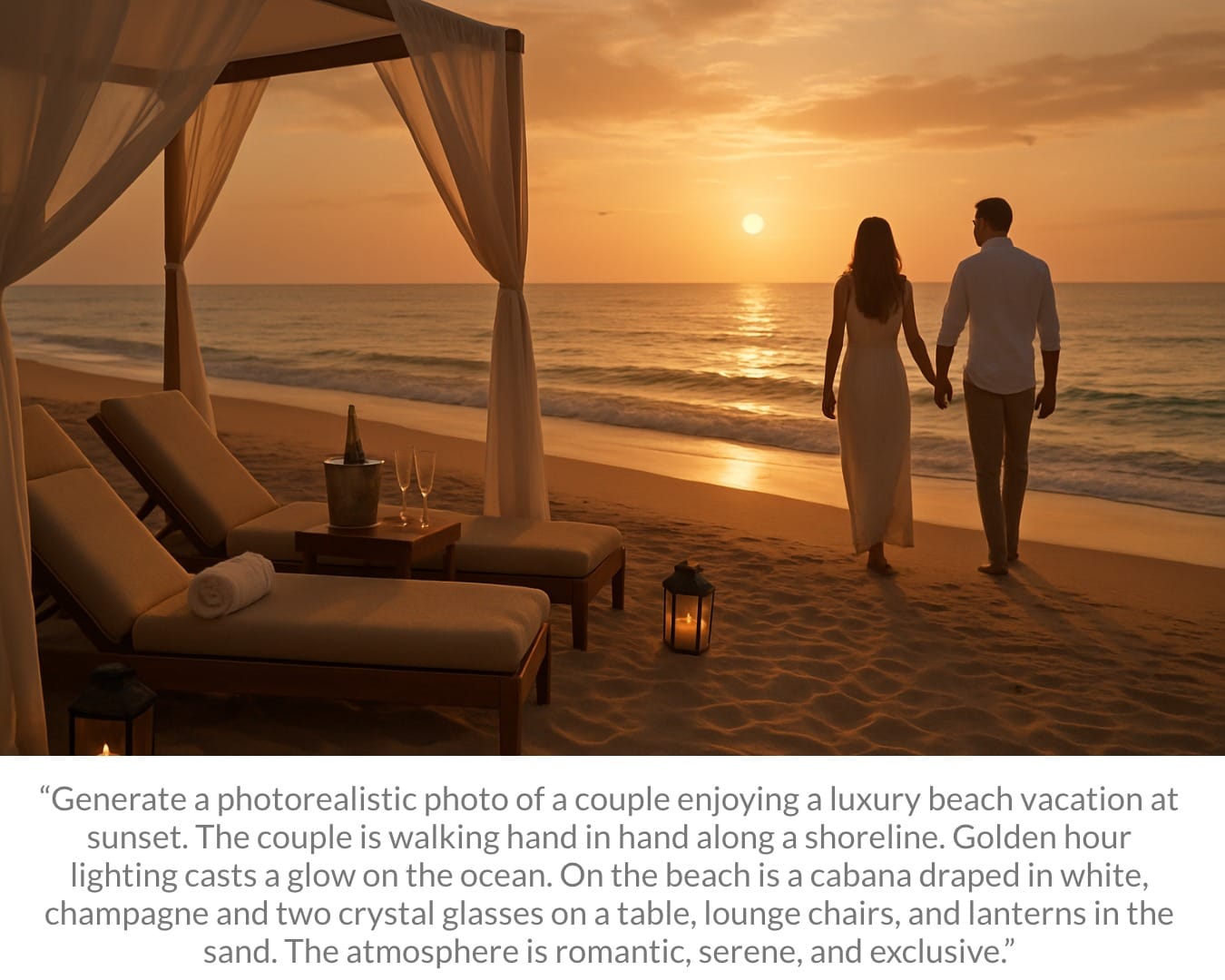
For instance, using the prompt below produced a cinematic beach scene far closer to my original vision.
“Generate a photorealistic photo of a couple enjoying a luxury beach
vacation at sunset. The couple is walking hand in hand along a shoreline.
Golden hour lighting casts a glow across the ocean, with reflections of the
sun. On the beach is a cabana draped in white, champagne, and two crystal
glasses on a table, lounge chairs, and lanterns in the sand. The
atmosphere is romantic, serene, and exclusive.”
Key Elements of an Advanced AI Prompt
When crafting an advanced AI prompt for images or videos, the details you include determine how polished, consistent, and professional the final output looks.
Here’s an overview of the main elements to consider: Composition, Atmosphere, and Creative Direction.

Composition
In advanced AI prompts, composition defines what your viewer sees and how they see it. Key elements include:
- Subject: The focus of the scene. This might be a product, person, or place.
- Frame: How much of your subject is visible. Specifying the frame controls how much of the subject and its surroundings is shown.
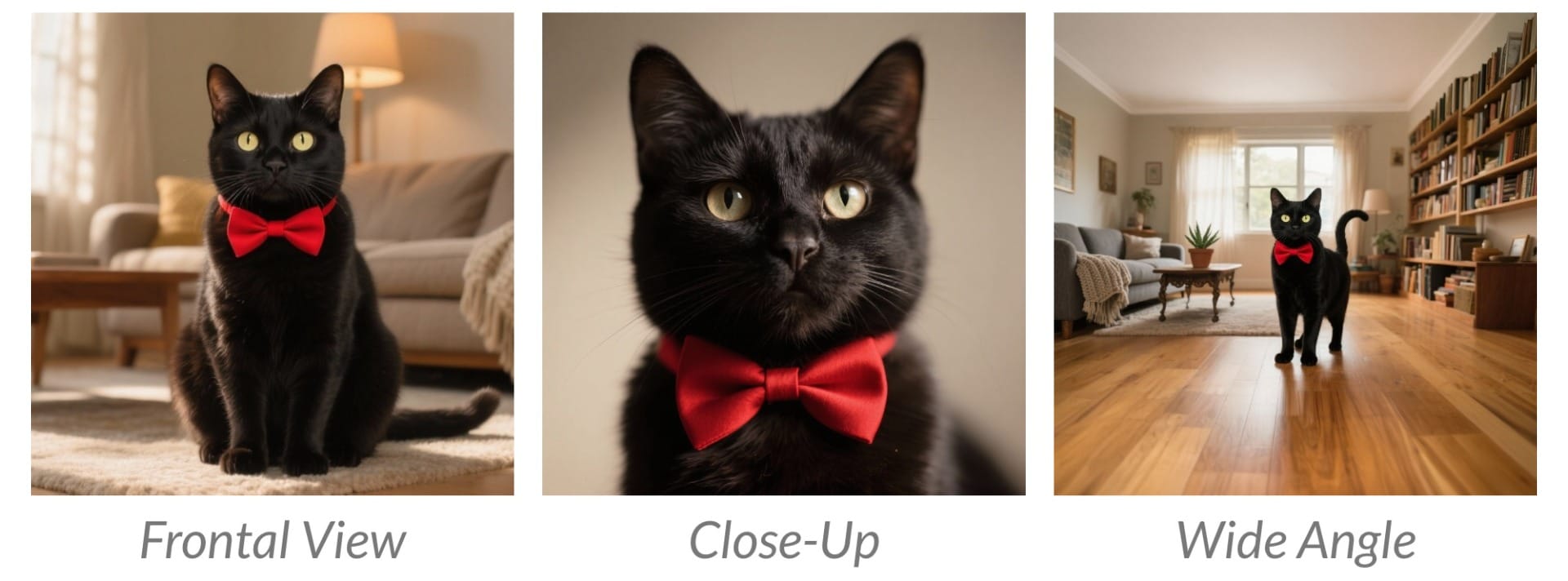
- Angle: The position relative to the subject. Specifying the angle changes how the subject appears; low angles might make it look bigger, and vice versa.
- Camera Movement: When writing an AI video prompt, it's important to specify the way the virtual camera moves. This controls how the subject is revealed, followed, or emphasized.
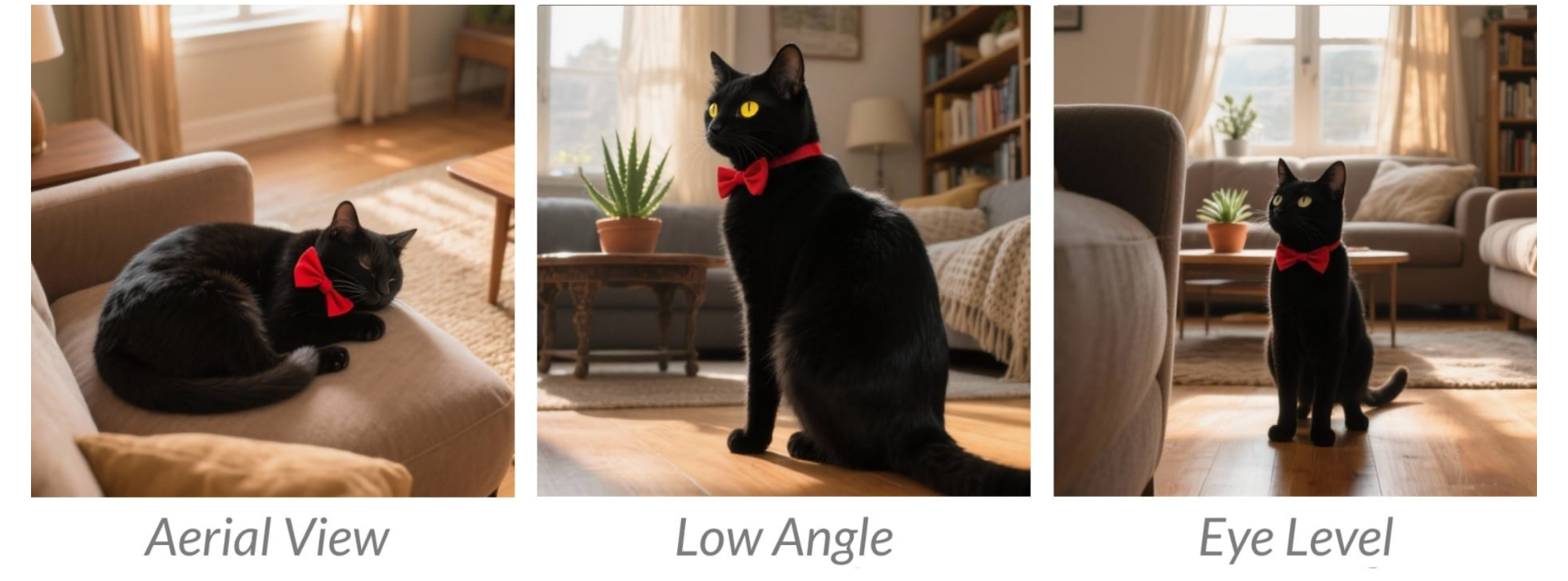
Atmosphere
In advanced AI prompts, atmosphere sets the context and mood of the scene. Key elements include:
- Lighting: How your photo is lit. This might describe the time of day (night, sunset), the light's temperature (warm, cool), or direction (backlit, front-lit).
Specifying lighting sets the mood of your photo. For example, warm golden hour light feels drastically different than cool fluorescent light.

- Background: The setting that surrounds your subject. It dictates what appears behind the subject, but it also influences the atmosphere of the image.
For example, a neon-lit city street will naturally cast dramatic shadows, while a sunset beach will add warm golden tones.

Creative Direction
In advanced AI prompts, creative direction defines the output's artistic vision. Key elements include:
- Visual Style: The overall artistic approach that determines the medium and execution of the output. This could be the format (photograph, illustration) or the treatment of the subject (romantic, cinematic, surreal)
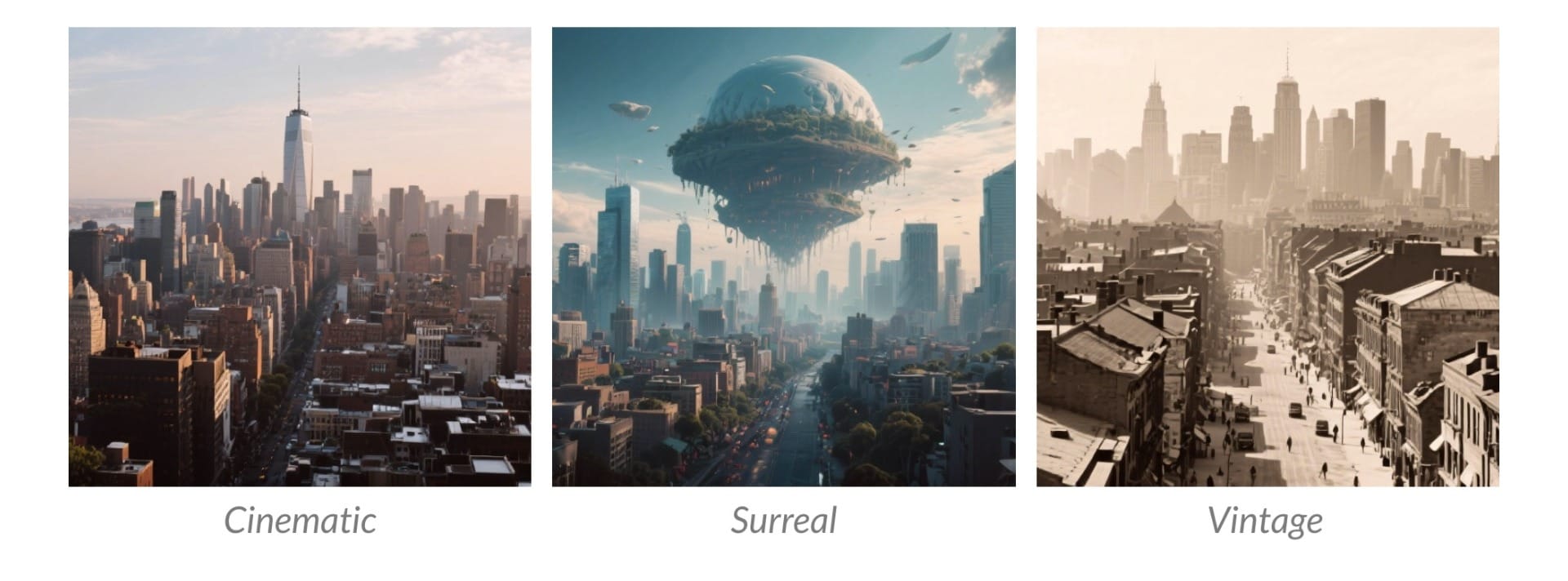
Cultural/Artistic Influences: The influences that inspire the output.
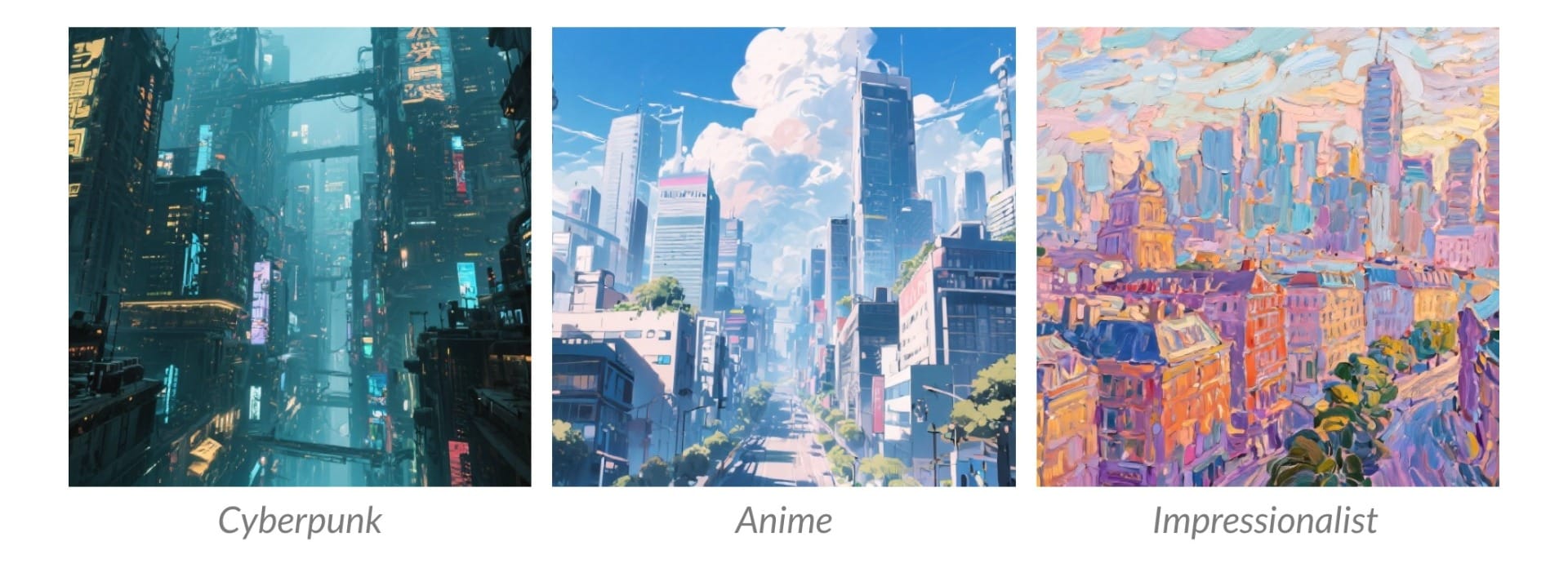
Unlike visual style, which is more general, influences are based on an artistic tradition or cultural mood. This might include references to media (The Simpsons, anime, Pixar cartoons) or art (impressionism, modern, abstract).
Referencing influences is one of the easiest ways to upgrade your prompt, with many of the most popular AI prompts referencing famous artists, directors, and cities.
How to Write Advanced AI Prompts for Image Generators
Writing effective AI image prompts guides the model into producing outputs that are polished, consistent, and visually compelling. In this section, we’ll cover advanced AI prompt writing techniques that will make your AI-generated images look intentional, cinematic, and professional.
1. Use AI to Write Better Image Prompts
One of the best ways to improve your image generation results is to let AI help you refine your own prompts. As long as you have a rough idea, AI can expand it into an advanced prompt for image generation. This technique is especially effective for beginners.
For example, your idea might be: “A whimsical image of a cat in a park.”
On its own, that’s too vague. But by asking AI to rewrite and expand it, you can turn it into a far more detailed and usable prompt. Here’s an example input using Kapwing, which features an AI Assistant alongside its image generator:
“Rewrite this as an advanced AI prompt for image generation: a whimsical image of a cat in a park. The lighting is bright and the colors are pastel.”
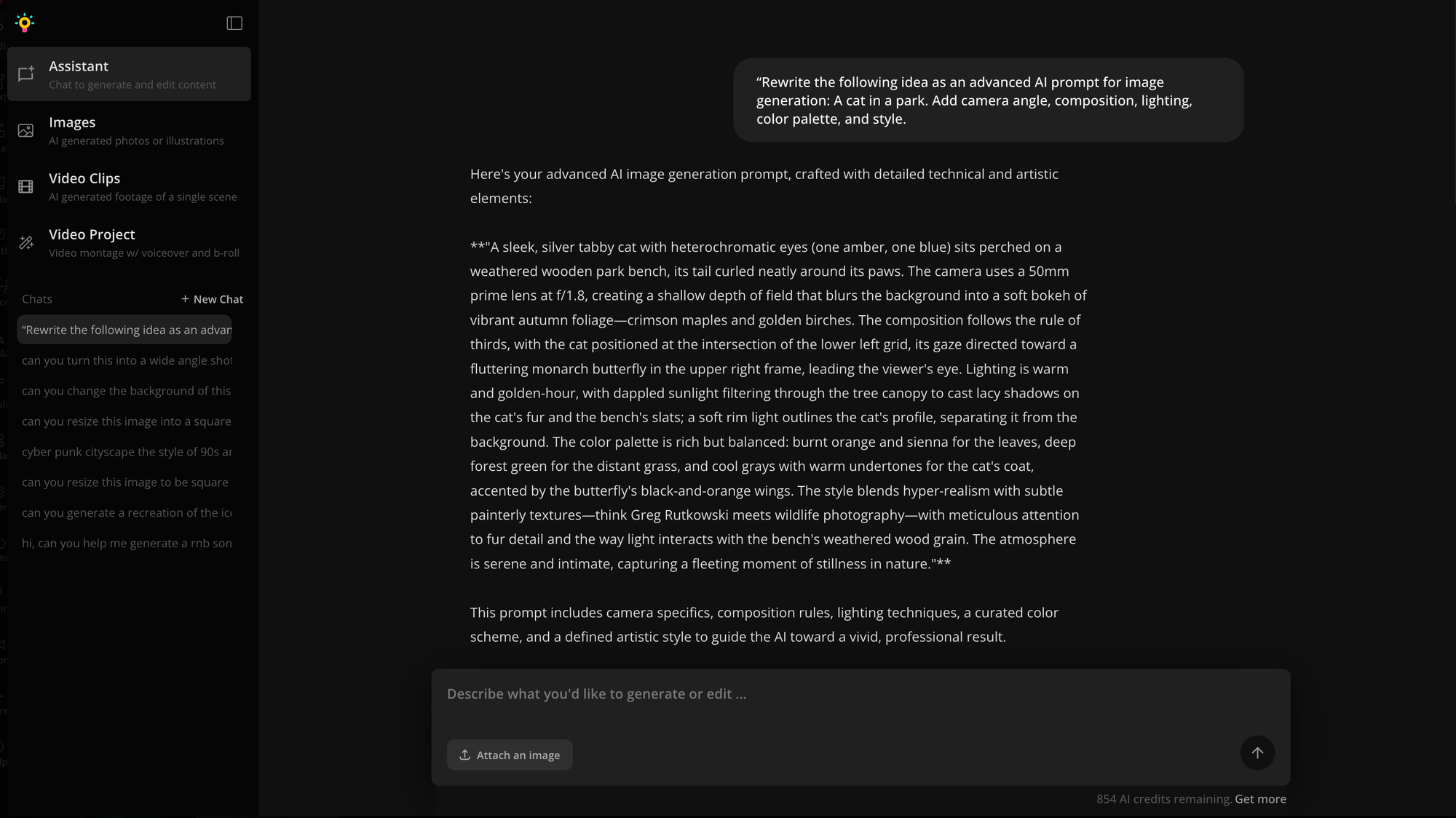
Using this input, Kai turned the idea into a much more advanced AI prompt.
In turn, the generated image shifted from a generic result (left) to a more stylized and professional version (right):
Expanded AI Prompt Using Prompt Expansion
“A silver tabby cat with heterochromatic eyes (one amber, one blue) sits perched on a wooden park bench, its tail curled neatly around its paws. The camera uses a 50mm prime lens at f/1.8, creating a shallow depth of field that blurs the background into a soft bokeh of vibrant autumn foliage—crimson maples and golden birches. The composition follows the rule of thirds, with the cat positioned at the intersection of the lower left grid, its gaze directed toward a fluttering monarch butterfly in the upper right frame, leading the viewer's eye. Lighting is warm and golden-hour, with dappled sunlight filtering through the tree canopy to cast lacy shadows on the cat's fur and the bench's slats; a soft rim light outlines the cat's profile, separating it from the background. The color palette is rich but balanced: burnt orange and sienna for the leaves, deep forest green for the distant grass, and cool grays with warm undertones for the cat's coat, accented by the butterfly's black-and-orange wings. The style blends hyper-realism with subtle painterly textures—think Greg Rutkowski meets wildlife photography—with meticulous attention to fur detail and the way light interacts with the bench's weathered wood grain. The atmosphere is serene and intimate, capturing a fleeting moment of stillness in nature."
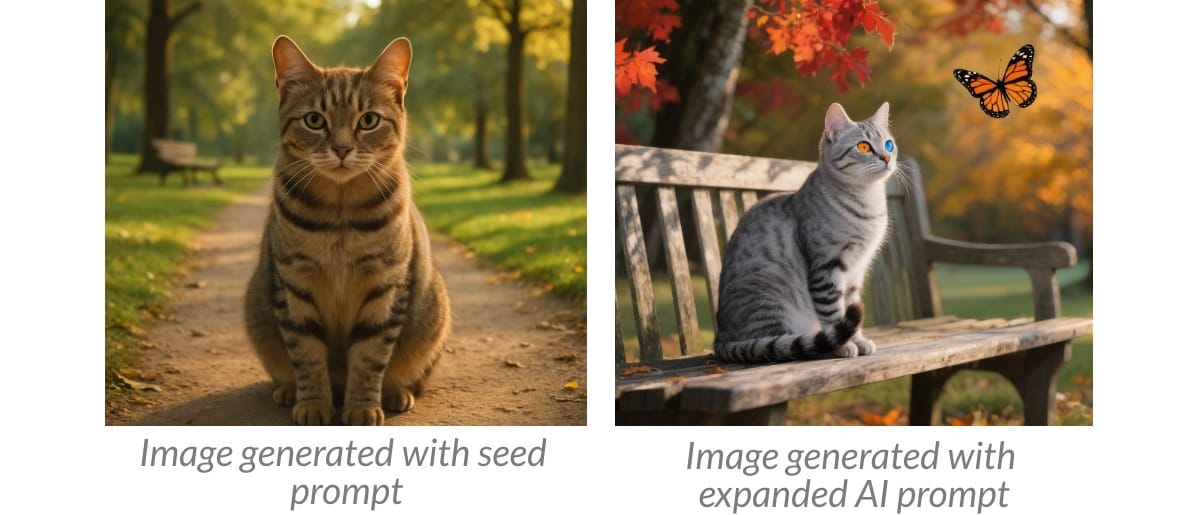
One helpful feature to note is that the Kapwing AI Assistant has automatic prompt expansion built in. When you generate an image, it shows you not only the output but also the expanded prompt it used to get there.
You can then edit or refine that expanded prompt directly, making it easier to learn prompt-writing techniques while improving your results.
2. Start Short, Then Expand with Chain Prompting
When you don’t have a clear creative vision, jumping straight into a detailed prompt can backfire. You end up locking in style, lighting, and framing before you’re ready, and if the result misses, a dense prompt is hard to debug or edit.
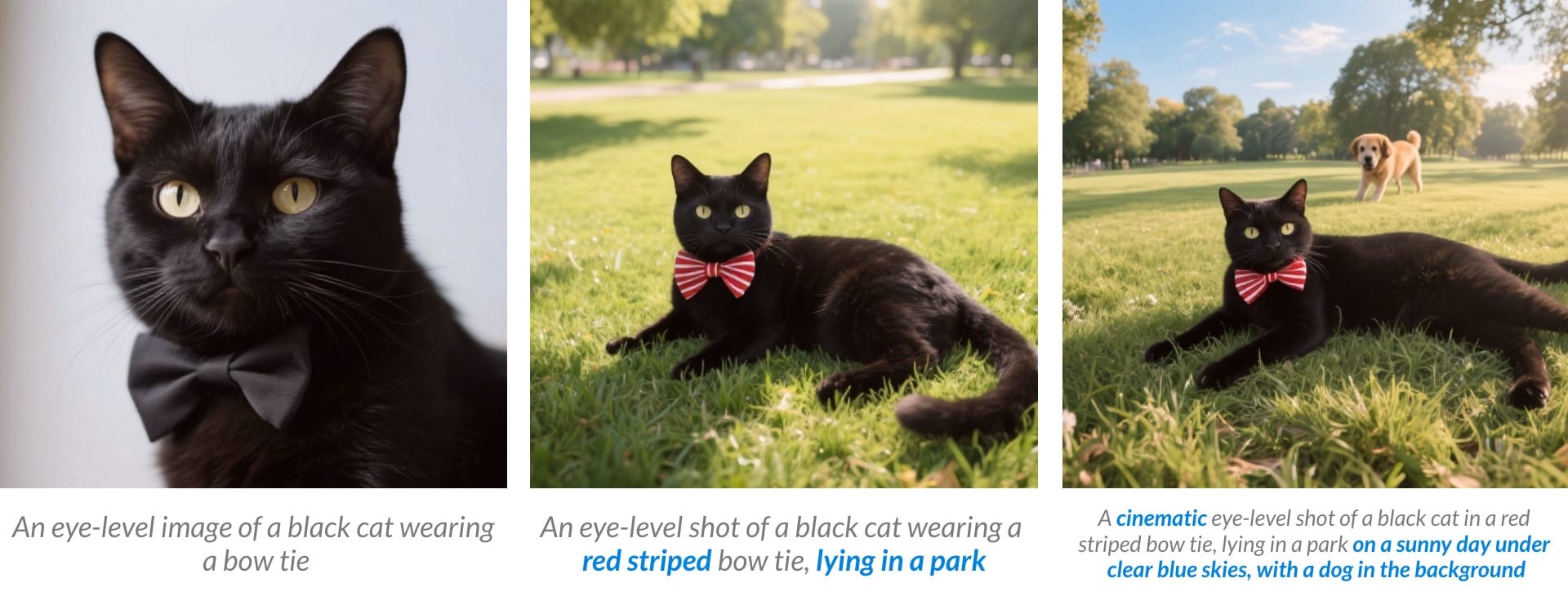
Instead, start with a short seed and expand it in small passes. For example, you might begin with a basic subject prompt. Once that’s working, you can add atmosphere, framing, and lighting, and then style.
This might look something like:
1. Subject"An eye-level image of a black cat wearing a bow tie."
2. Composition & Atmosphere"An eye-level image of a black cat wearing a red-striped bow tie, lying in a park."
3. Style & Details"A eye-level image of a black cat wearing a red-striped bow tie, lying in a park on a sunny day under clear blue skies, with a dog in the background."
3. Direct Creative Vision with Role Prompting
Role prompting means assigning the AI a persona (for example, a fashion photographer or concept artist) so it interprets your prompt through that creative lens. If you know the use case for your image but don’t have a clear vision, this approach guides the AI to fill in stylistic details drawn from the role you assign.
For example, we used the base prompt:
“An eye-level portrait of an Asian woman, wearing a jewel-blue top and a pleated skirt.”
This was paired with three different roles: a luxury fashion photographer, a photographer in the 1960s, and a concept artist designing a cyberpunk character. Each role reshaped the same prompt, producing dramatically different outputs:
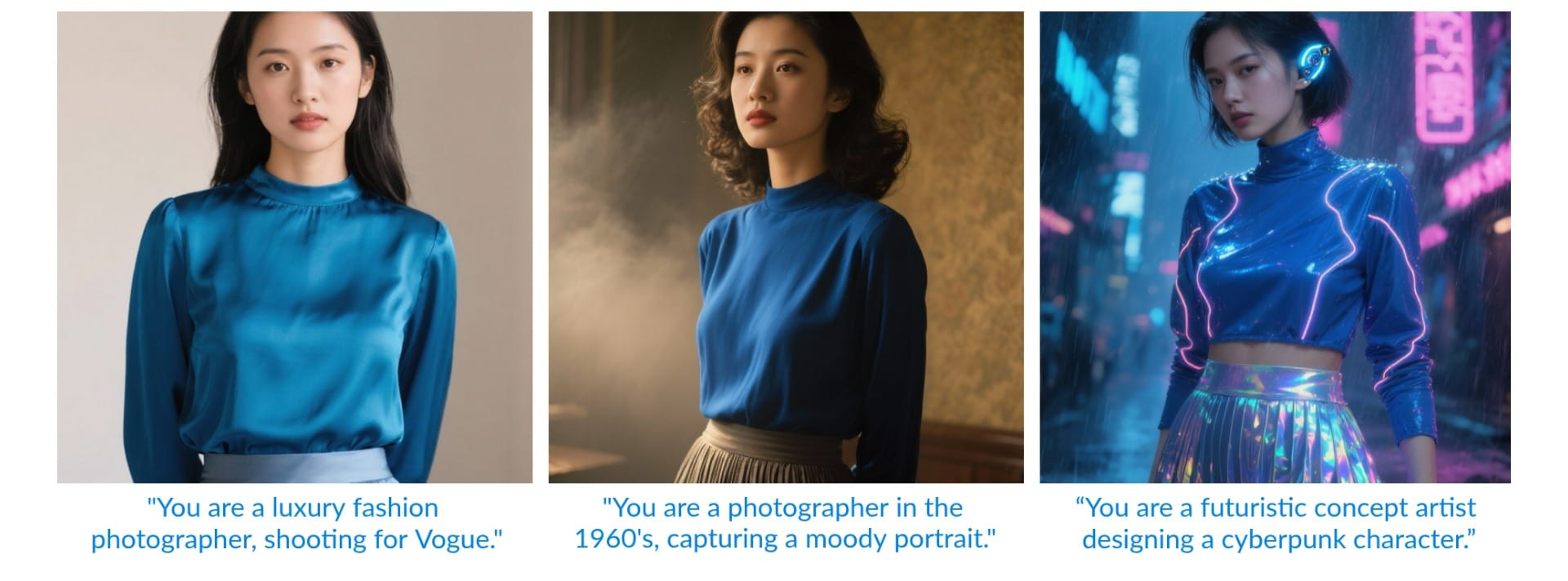
To do role prompting, add the role at the start of your prompt. This tells the AI who it should act like, framing the output through that perspective. Here’s a template you can follow, along with 20 role prompts to experiment with:
“You are [role] creating a [medium or format]. Create [your base prompt here].”
20 Example Role Prompts for AI Image Generation
Photographer Roles
- “You are a luxury fashion photographer shooting for Vogue.”
- “You are a candid street photographer in Tokyo at night.”
- “You are a 1960s portrait photographer working with film cameras.”
- “You are a fine-art portrait photographer using Rembrandt lighting.”
- “You are a National Geographic photographer documenting daily life.”
Painter & Artist Roles
- “You are a Renaissance oil painter working in the style of Caravaggio.”
- “You are an impressionist painter working in the style of Monet.”
- “You are a surrealist illustrator working in the style of Salvador Dalí.”
- “You are a pop art painter in the style of Andy Warhol.”
- “You are a modern digital concept artist designing fantasy characters.”
Stylized & Media Roles
- “You are an anime character artist for Studio Ghibli.”
- “You are a Pixar-style 3D character designer.”
- “You are a comic book illustrator for Marvel in the 1980s.”
- “You are a retro-futurist artist designing pulp sci-fi covers.”
- “You are a cyberpunk concept artist creating neon-lit characters.”
Cultural & Lifestyle Roles
- “You are a wedding photographer capturing candid emotions.”
- “You are a 19th-century painter creating an aristocratic portrait.”
- “You are a lifestyle influencer creating Instagram portraits.”
- “You are a documentary photographer capturing street activism.”
- “You are a black-and-white film photographer in 1940s Hollywood.”
4. Make Your Subject Unique With An Anchor
An anchor is a visual detail that consistently defines a subject. It can be a prop, accessory, or environmental motif, as long as they repeat across outputs.
Anchors are especially important for character design because they make the subject distinct and easy to identify. For example, in the images below, the cat with a bow tie stays recognizable across different settings and styles, while the cat without an anchor becomes harder to identify and looks more generic:
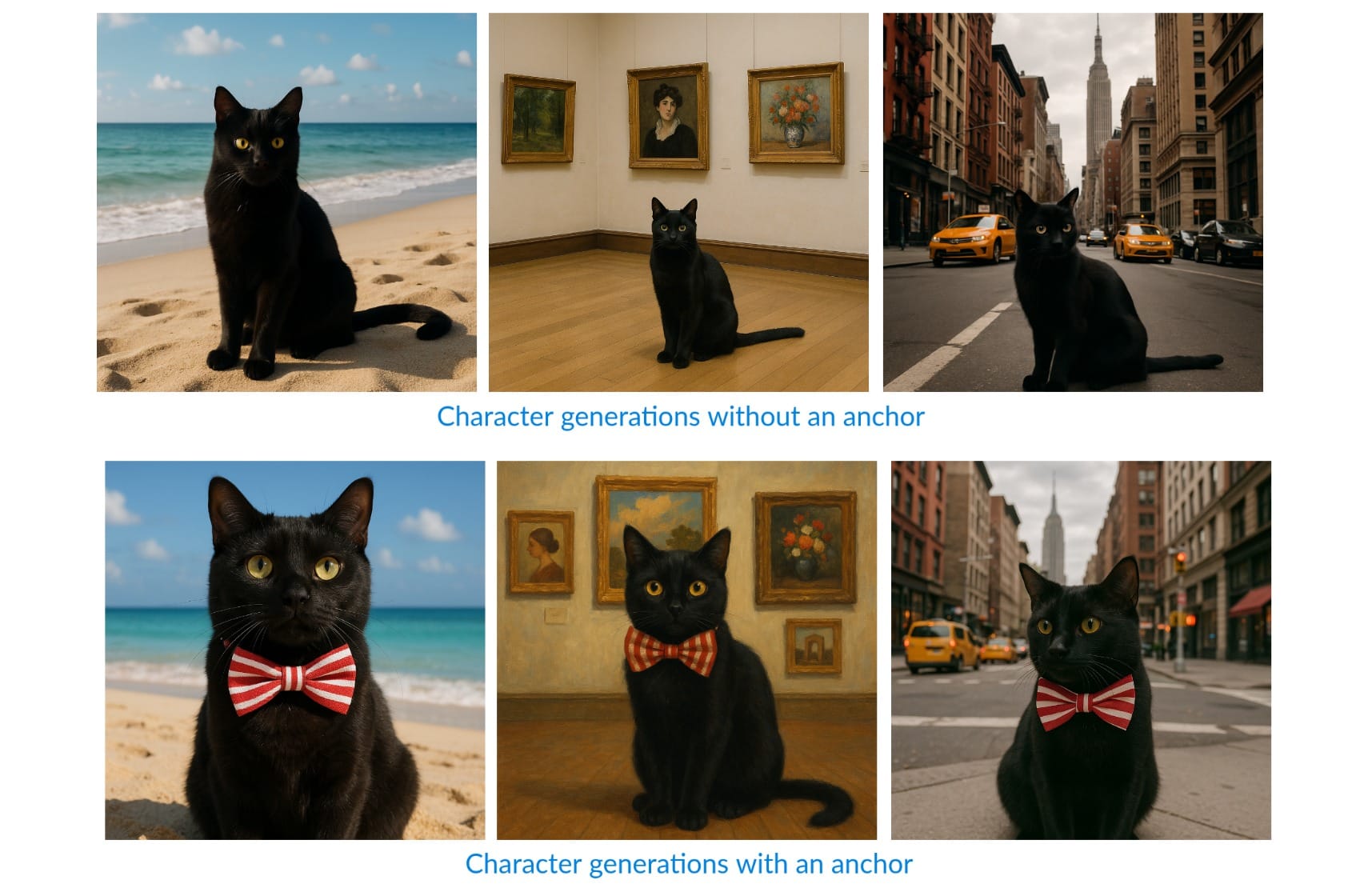
This is one of the core strategies used by AI creator Big Yowie. In an interview, Yowie explained that because outputs can feel repetitive, it’s important to build uniqueness directly into the prompt:
"The trick is to create a unique character by using different visual anchors. Like my character has a baseball cap with the word Yowie on it."
@big_yowie #yowie #night #rick #koala #shoot #fire #camping #bush #australia #sasquatch #bigfoot #dropbear #fight ♬ original sound - Yowie
When deciding on an anchor for your own prompts, think about what could act as a signature. For characters, it could be an accessory like a piece of jewelry. For products, it might be a recurring backdrop or accent color. For environments, it could be a repeating object. The best anchors are easy to describe and reproduce.
In a prompt, this might look like: “A cinematic portrait of a black cat wearing a red-striped bow tie, sitting on a park bench at sunset.”
Here, the bow tie is the anchor, repeating across different generations.
At the end of the day, writing advanced AI prompts isn’t about specifying every detail, but knowing which ones matter most. Try mixing and matching a few of the strategies here, and you’ll quickly see your AI images start to look sharper, more creative, and closer to what you imagined.
5. Use Image-to-Image Prompting
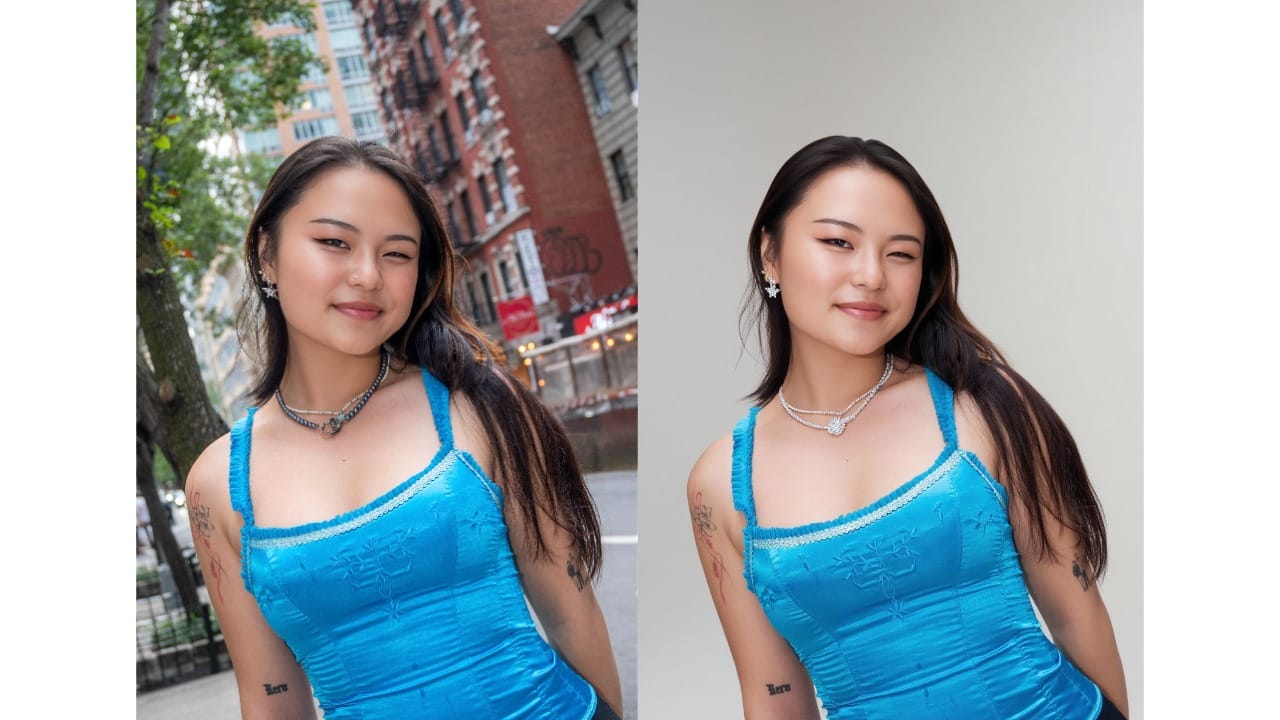
While text-to-image prompts are powerful for ideation, image-to-image prompting is an effective way to gain consistency and creative control. Image-to-image works by giving the AI a reference image alongside your prompt. Instead of inventing the scene, your written prompt then tells the AI how to transform that image.
A good image-to-image prompt typically includes:
- Preservation: What should stay the same (pose, framing, subject identity)
- Transformation: What should change (style, lighting, mood, environment)
- Style: Medium, aesthetic, or visual influence
For example:
“Using the provided reference image, preserve the subject’s pose and framing. Transform the scene into a studio portrait with soft, directional lighting, shallow depth of field, and warm color grading. The background should be minimal and studio-lit, with a polished editorial look.”
Frequently Asked Questions
What is the best way to write AI prompts for image generation?
The best way to write AI prompts is to combine a clear subject with details about style, lighting, framing, and atmosphere. For example, instead of “a cat in a park”, use “a cinematic portrait of a silver tabby cat sitting on a park bench at sunset, warm golden lighting, shallow depth of field.”
How do I make my AI art look more realistic?
To make AI images more realistic, include details like camera lens type, lighting direction, and color palette in your prompt. Specifically, phrases such as “photorealistic” will emphasize realism to the AI model.
How do I stop AI images from looking generic?
AI images often look generic if the prompt is too simple. Add a visual “anchor” (like a bow tie, scarf, or lantern) and specify artistic influences or cultural references. Anchors make characters recognizable across multiple images.
How can I write AI prompts for specific styles (anime, Pixar, cinematic)?
To target a style, reference the medium or cultural influence directly:
- Anime → “in the style of Studio Ghibli”
- Pixar → “3D character design, Pixar style”
- Cinematic → “wide shot, cinematic lighting, dramatic color grading”
Why are my AI prompts not working?
If outputs don’t match your vision, the issue is usually vague prompts. Break down the prompt into steps (subject → atmosphere → style). Also check if your AI tool supports negative prompts, aspect ratio settings, or camera details.