How To Post An Image On YouTube
47 % of YouTube users interact with brands at least once a week.

While YouTube is predominantly a video platform, creators can now share photos, text posts, and polls directly on their feed. These community posts appear alongside video recommendations and allow viewers to like, comment, and interact just as they would with a video.
For video creators, posting a picture is a great way to connect with subscribers and reach new audiences. For example, you can use photo posts to: share behind-the-scenes updates for upcoming videos, promote new uploads, or build anticipation through memes and fan art.
Table of Contents
- What Is an Image Post on YouTube?
- How to Upload an Image to YouTube
- Expert Tips to Optimize Your YouTube Image Post
- Frequently Asked Questions
What Is an Image Post on YouTube?
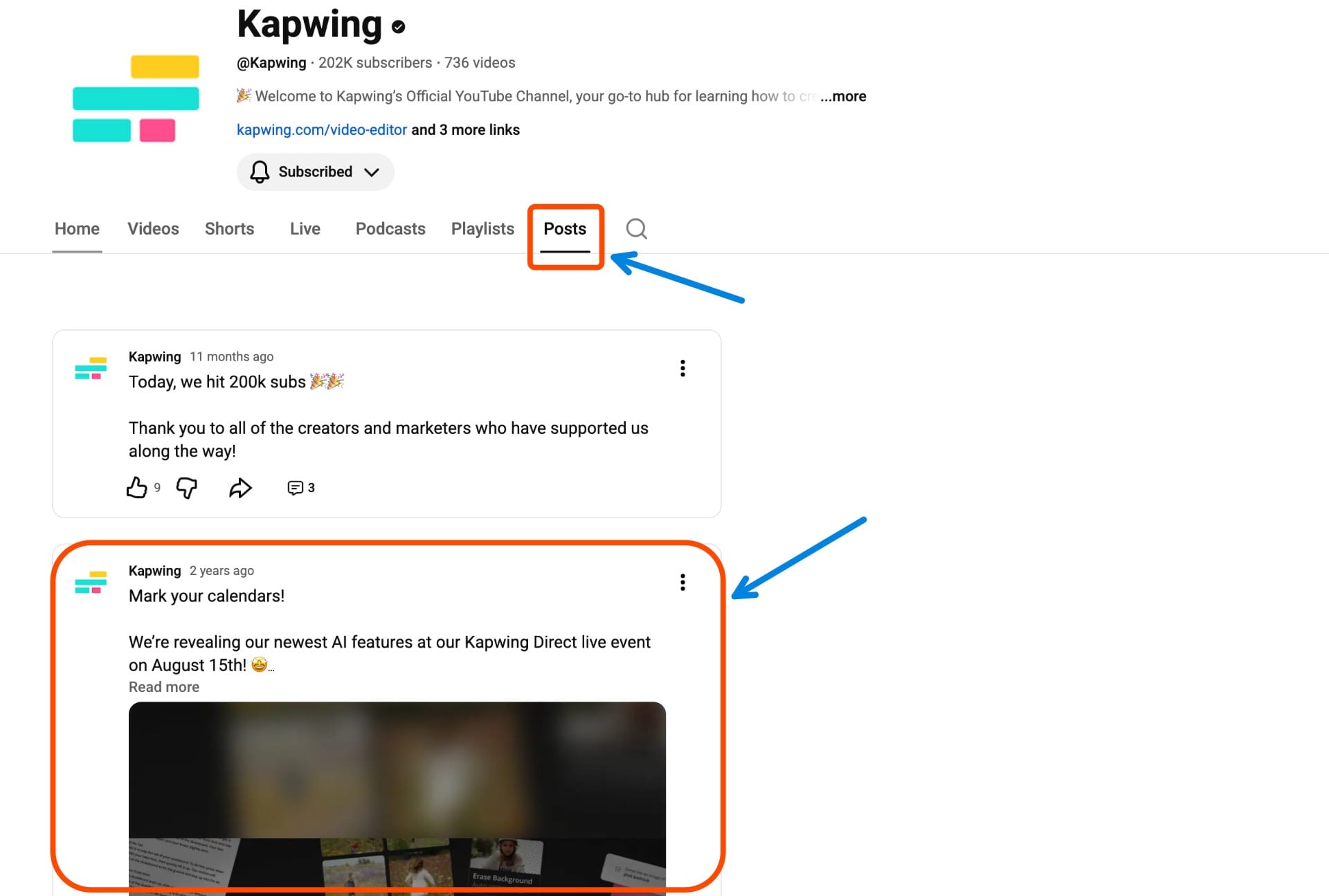
An image post on YouTube is a type of Community post that allows creators to share a photo, graphic, meme, or promotional image directly on their channel’s feed. Unlike videos, image posts appear in the Community tab and are visible to subscribers and casual viewers through YouTube’s homepage or notifications. These posts can include captions, polls, or even be combined with other types of content to drive engagement.
Supported Formats and Specs:
- Image types: JPG, PNG, GIF, WEBP
- Max size: 16MB per image
- Best aspect ratio: 1:1 (square) or vertical formats
Who Can Post Pictures on YouTube?
Any YouTube channel can upload images to YouTube, either through the Community tab or the homepage's post feed. As of recent updates, the previous requirement of having 500 subscribers has been lifted for most accounts. However, two important restrictions still apply:
- Your channel must not be marked “Made for Kids”.
- Your Google account cannot be under supervision (such as a child or family-managed account).
- In some cases, newly eligible channels may wait up to 1 week before the Community tab becomes visible.
To verify or adjust eligibility settings, go to:
YouTube Studio → Settings → Channel → Advanced Settings → Audience
How to Upload an Image to YouTube
It's incredibly easy to upload an image to YouTube, and we did just that as part of our Kai launch. The image we shared was designed to tease the new product, and we chose YouTube as one of our main platforms because it's where our community is already active and engaged.
Here’s how we did it.
Step 1: Start a New Post on Your Channel
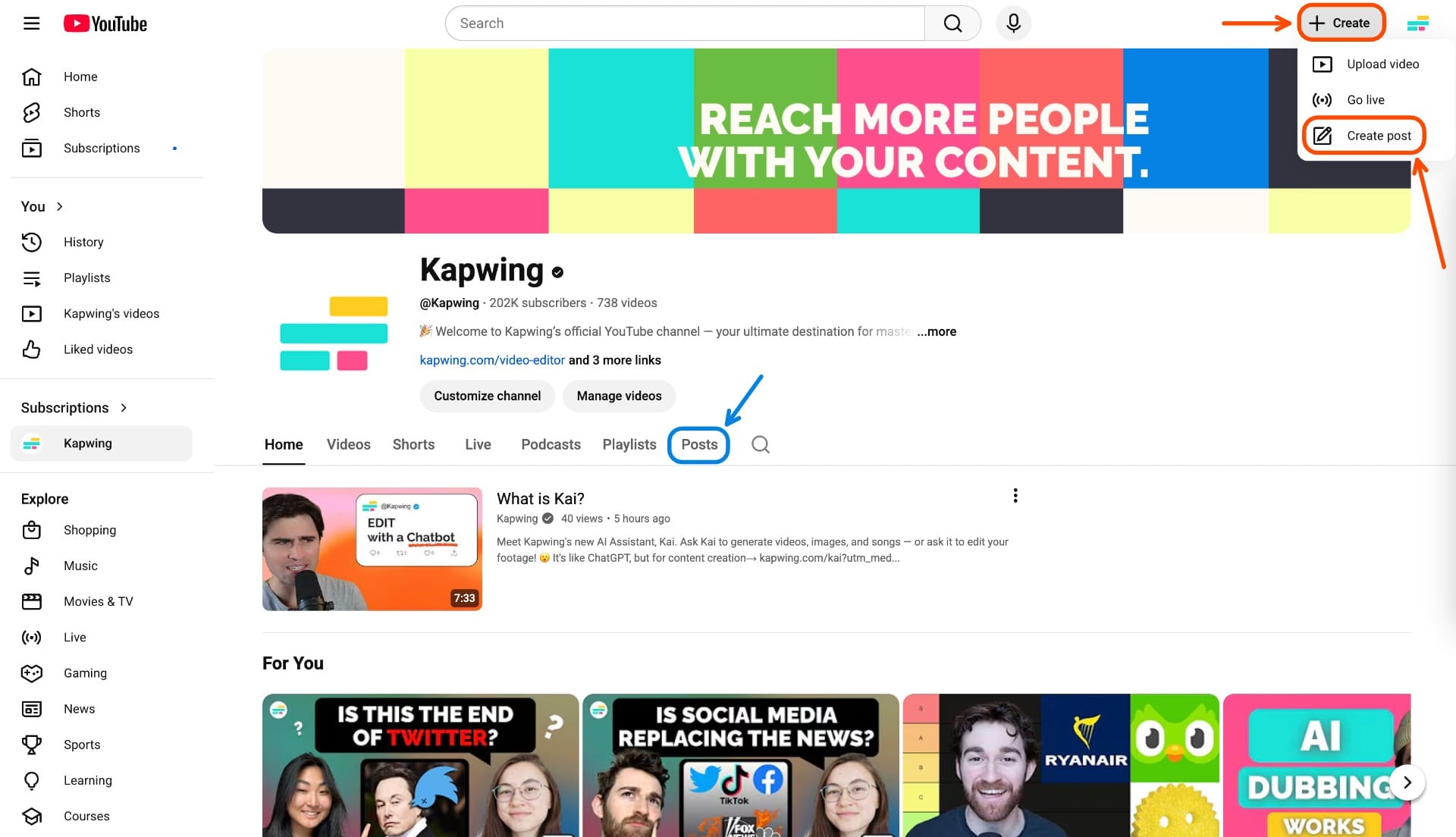
To upload an image, you can start a new post in one of two ways:
- Click the Create button (➕) in the top-right corner of YouTube, then select “Create post”
- Go to your channel page, then click the “Posts” tab
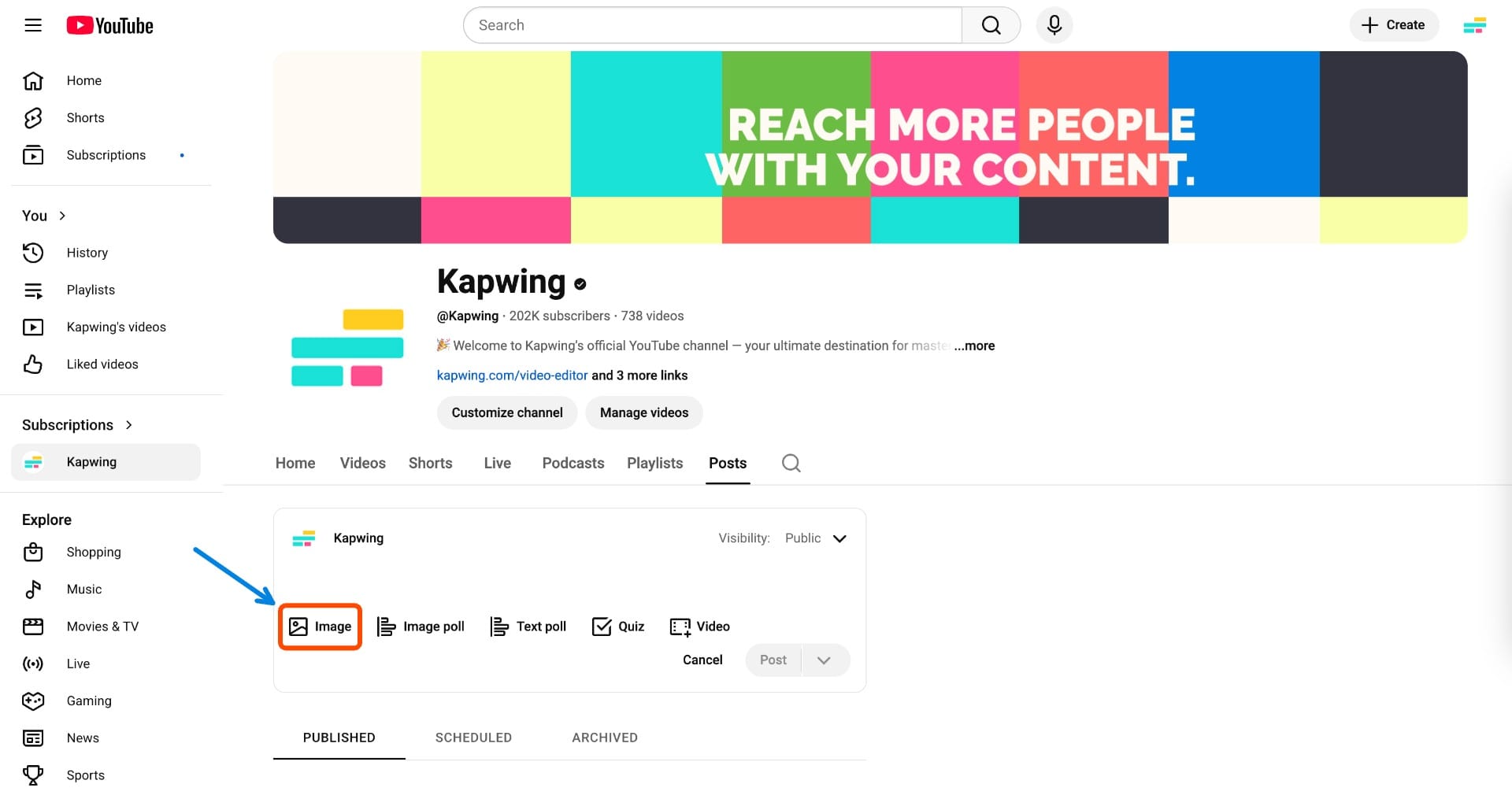
Step 2: Click the Image Icon and Upload Your Image
You’ll be taken to the post composer where you can add text, images, or polls.
Click the image icon to upload a photo. Then, choose the image file you want to share. In our case, it was a teaser poster for Kai.
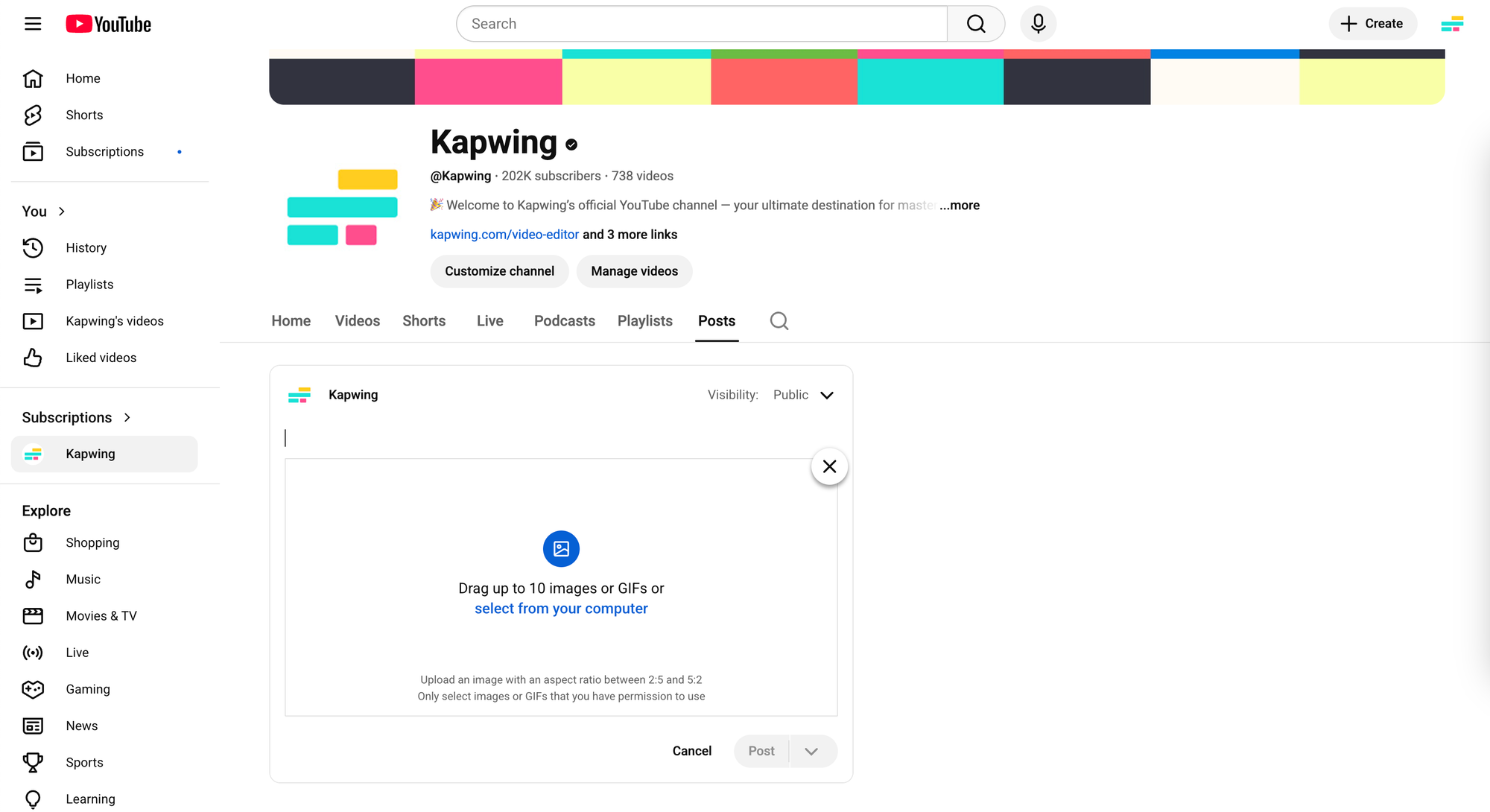
YouTube allows you to upload up to 10 images per post, so if you’re showcasing a product line, photo series, or event highlights, this is a great way to share them all at once.
Make sure each image is under 16MB and in a supported format (JPG, PNG, GIF, or WEBP).
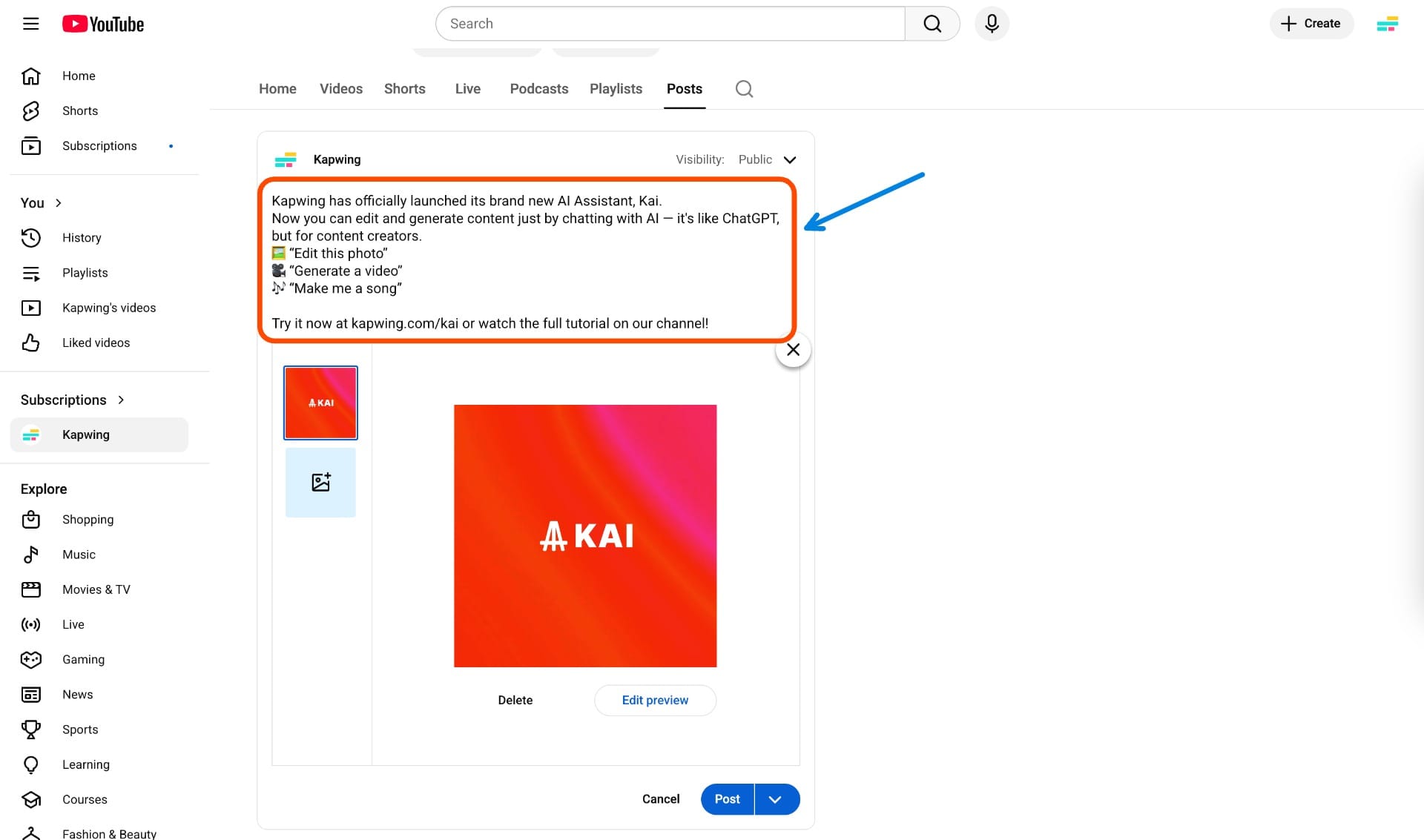
Step 3: Write a Caption
Once your image is uploaded, you can add a caption. Captions aren’t required, but they make the post more engaging. For example, you can use this space to ask a question, build anticipation, or add a call-to-action.
For the Kai launch, we kept it simple: just a short introduction and a nudge to check out the full launch details elsewhere.
Step 4: Post
Once your image and caption are ready, you can either publish right away or schedule it for later.
To schedule, click the downwards arrow next to the Post button and select "Schedule". Choose your desired date and time, and click Schedule.
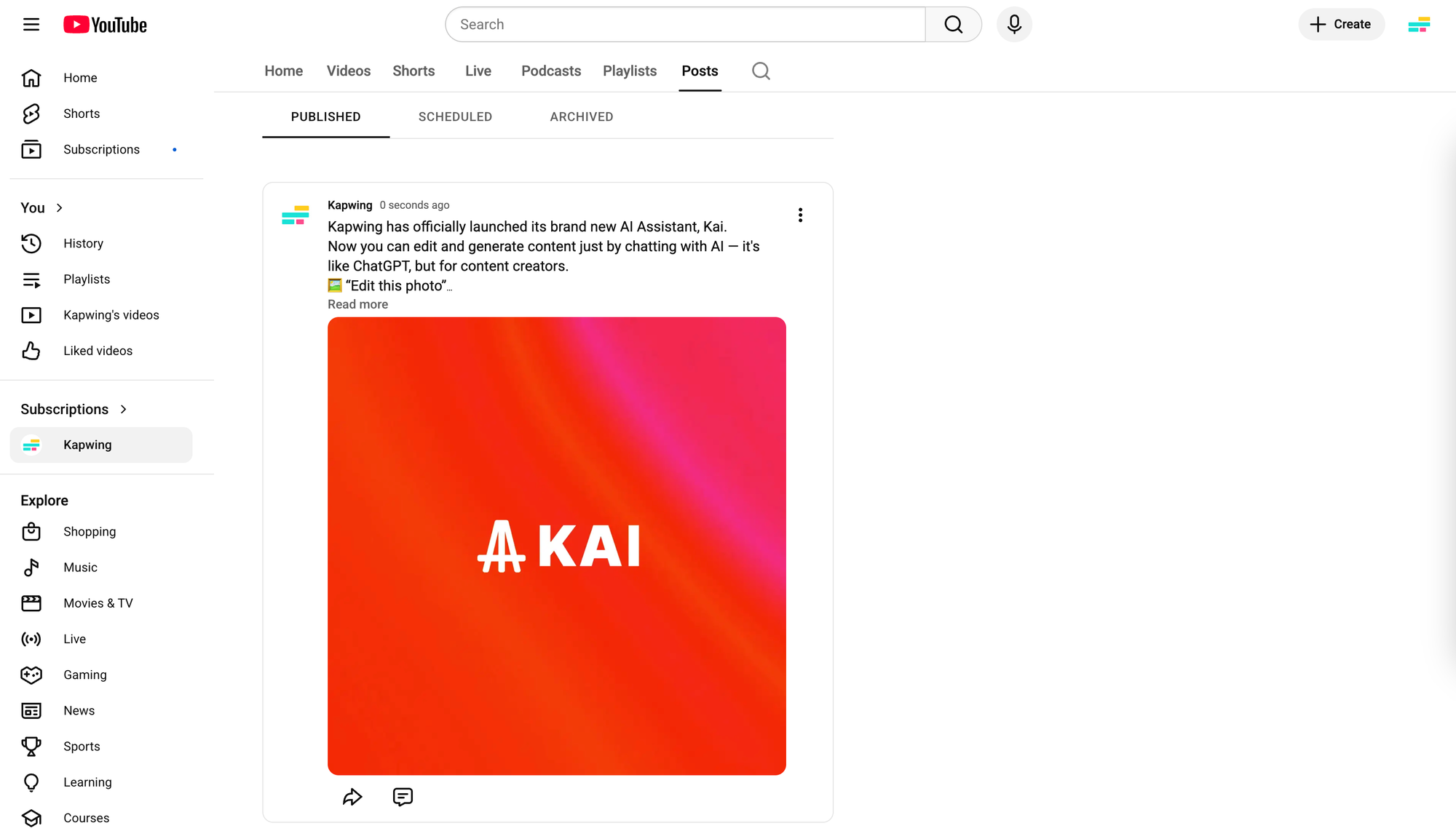
If you're ready to post immediately, just click Post. Your image will appear in your channel’s Posts tab and subscriber feeds.
Expert Tips to Optimize Your YouTube Image Post
While the process of posting images on YouTube is simple, making those posts effective requires a strategic approach. YouTube’s Community tab is a powerful but underused tool that can help you build stronger relationships with subscribers, tease upcoming videos, and drive ongoing engagement.
Here are some expert tips to get the most out of your YouTube image posts:
Leverage Image Posts to Support Your Video Content
Don’t think of image posts as separate from your video strategy. Rather, use them to reinforce and amplify your channel’s main content. Smart creators use image posts to keep their audience engaged between uploads. Here’s how:
- Tease upcoming videos: Post a screenshot, thumbnail draft, or behind-the-scenes still with a caption like “Guess what’s coming tomorrow?”
- Preview video topics: Share a quote card, graphic, or chart that hints at what your next video will cover
- Promote your latest upload: After uploading a video, create an image from the video with a different visual angle and a call-to-action to watch
- Extend value: For educational or how-to channels, post extra tips, diagrams, or summaries as images that complement your latest video
Design for Mobile-First Viewing
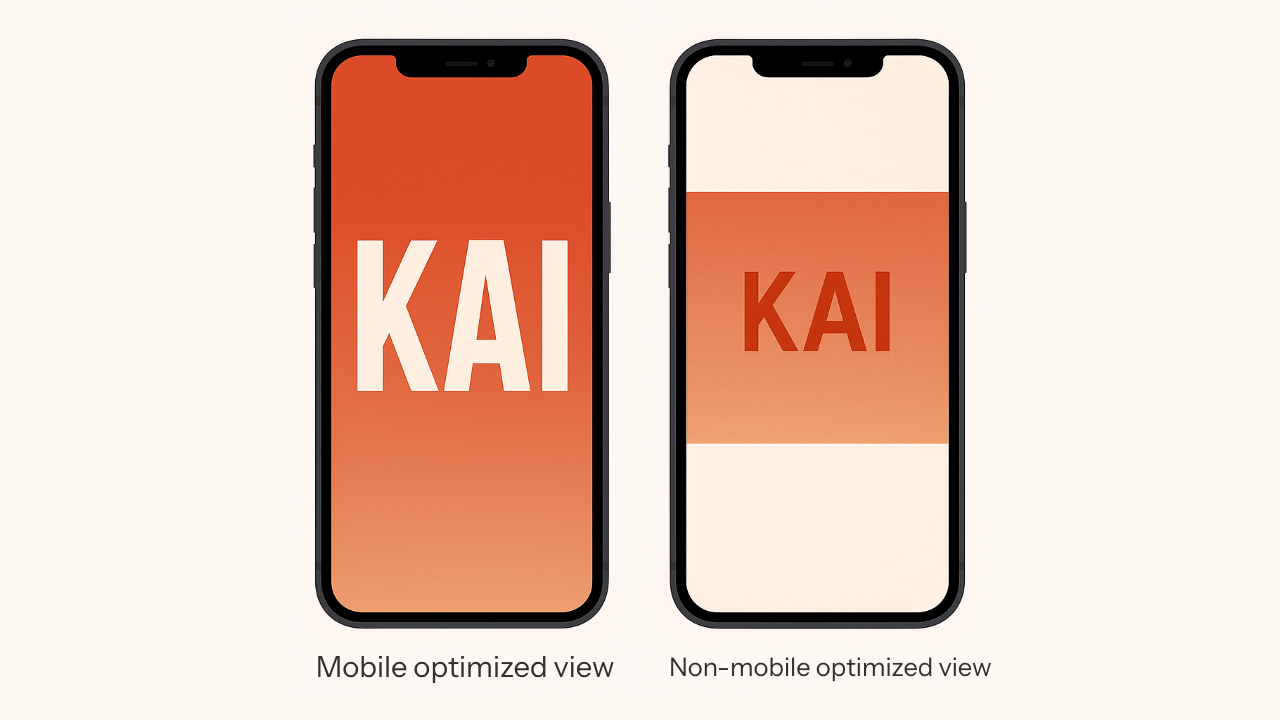
Over 70% of YouTube watch time comes from mobile devices, and that includes Community posts. Make sure your image is optimized for small screens:
- Use large, readable text (if any)
- Center key elements: YouTube often crops edges in the feed
- Stick with 1:1 (square) or 4:5 (vertical) aspect ratios for best visibility
- Test your post on mobile before publishing
Test Different Image Types & Posting Strategies
Effective creators don’t rely on one type of image; they experiment. Try:
- Photo vs. Graphic vs. Meme: For example, behind‑the‑scenes photo one week, infographic the next, meme the following.
- Different posting times: Weekday evening vs. weekend morning; test what your audience prefers.
- Caption styles: Straightforward text, emoji‑rich, questions, teasers.
Track what get more likes and comments, then double down on what works.
Maintain Visual and Brand Consistency
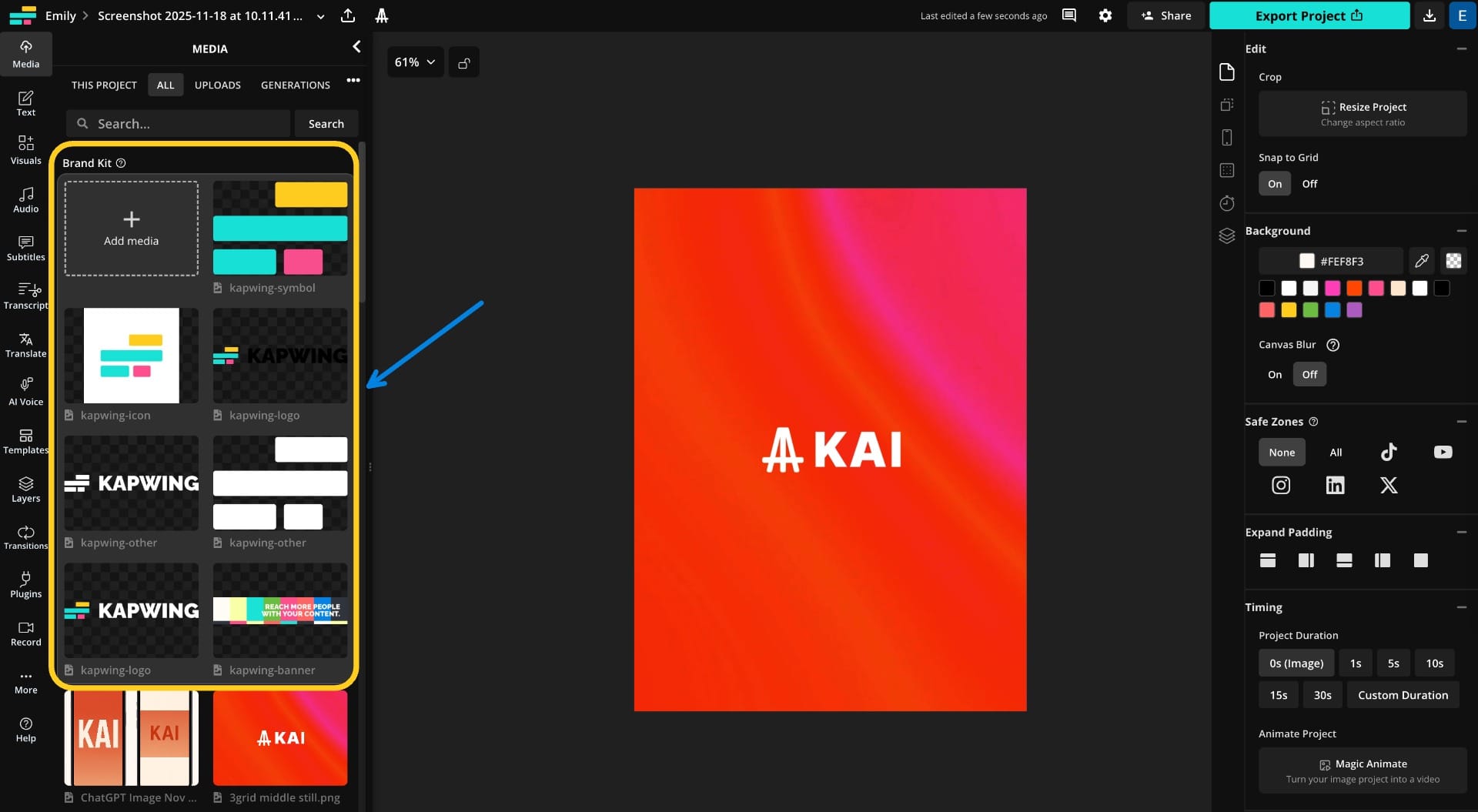
Your image posts are extensions of your channel’s brand kit. Treat them with the same care as your thumbnails or intro/outro visuals.
- Use consistent fonts, colors, and layout styles that match your channel identity.
- Consider adding your logo or watermark subtly so viewers instantly recognize your content in their feed.
For our Kai teaser post, we used the same bold typography and red-orange gradient that appears in our thumbnails and Instagram posts. With a brand kit, you can quickly drop in new images while keeping fonts, color palettes, and sizing consistent across posts.
Frequently Asked Questions
Can I post a picture on YouTube without making a video?
Yes, you can share an image directly through a YouTube Community post. If your channel is eligible, go to the Community tab, click "Create post," and upload a photo along with optional text or a poll.
Do I need 500 subscribers to post on YouTube's Community tab?
No. As of 2023–2024 updates, the 500-subscriber requirement has been lifted for most creators. However, your channel must not be “Made for Kids” and your Google account must not be supervised to access the feature.
What image formats does YouTube support in Community posts?
YouTube supports JPG, PNG, GIF, and WEBP formats for Community images. The image must be under 16MB in size.
Why can’t I see the Community tab on my YouTube channel?
If you don’t see the tab, your channel may not be eligible, or it may take up to 1 week after meeting eligibility for it to appear. Ensure your channel isn’t set to "Made for Kids" and that you're using a supported device/browser.
Will subscribers be notified of my image post?
Yes, if they have notifications enabled for your channel, they may receive an alert. Otherwise, image posts can still appear in their homepage feed or Subscriptions tab.