How to Create a Caricature of 'Me and My Job' (ChatGPT AI Trend on Facebook)
The hashtag #caricatures has over 580k posts on Instagram
The "me and my job" caricature trend uses ChatGPT to generate a detailed prompt based on your profession and daily life. This follows the ChatGPT Starter Pack trend from March 2025, which went viral for similar reasons. Both demonstrate how ChatGPT's knowledge of individual users creates highly shareable content.
This guide covers how to do the caricature trend from start to finish. You'll learn how to generate a ChatGPT caricature prompt, which AI image generator to use, and how to upload your photo for the best results. You can create a shareable caricature in just a few minutes.
Table of Contents
- What is the AI Caricature Trend?
- How to Create a 'Me and My Job' Caricature on ChatGPT (Step-by-Step)
What is the AI Caricature Trend?
The AI caricature trend is a social media phenomenon where users create personalized caricature images showing themselves at work or in their daily lives.
Unlike most AI image trends that start on Instagram or TikTok, this one has grown fastest on Facebook, where users are sharing their job-themed caricatures and generating strong engagement from friends and coworkers.
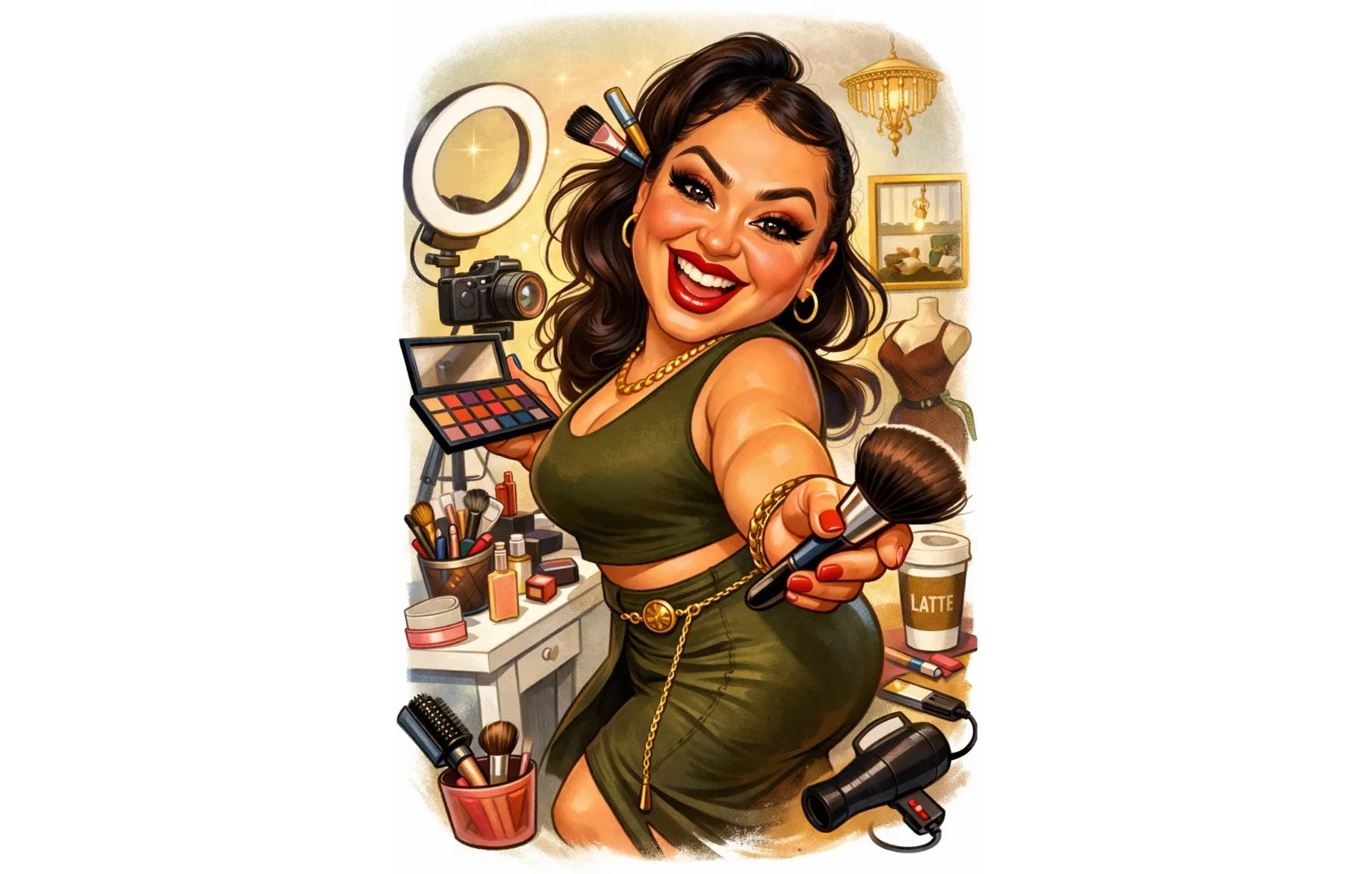
The trend works by using ChatGPT to generate a detailed image prompt based on your personal information, then using that prompt in an AI image generator to create the caricature.
The longer your chat history is with ChatGPT, the more personalized the prompt will be. If you have a limited history or are new to AI chatbots entirely, you can still create an AI caricature by manually providing some information.
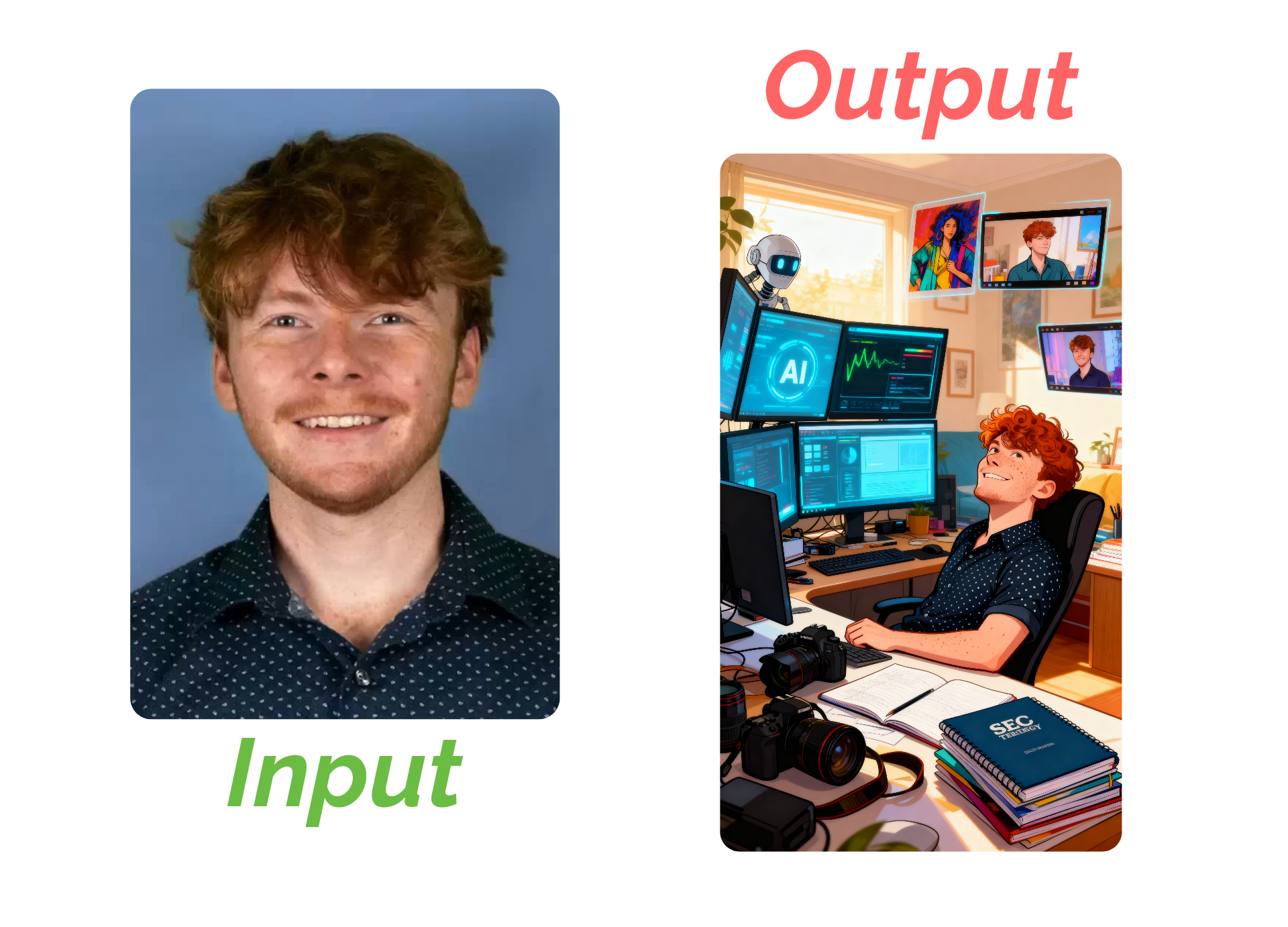
Whether you want a classic exaggerated caricature or a polished version suitable for LinkedIn, this guide will walk you through the complete process.
How to Create a 'Me and My Job' Caricature on ChatGPT (Step-by-Step)
Here is a step-by-step guide that takes only a few minutes.
1. Enter This Prompt to ChatGPT
Start by entering this prompt to ChatGPT (the same prompt also works for other LLM's you regularly use).
You can copy and paste the prompt below:
"In one sentence, describe what you know about me and my job"
(Using a one-sentence prompt is the best way to ensure you don't go overboard with information. So stick to this above prompt exactly.)
2. Copy and Paste ChatGPT's Response Into the Kapwing AI Image Generator
ChatGPT will reply after analyzing your chat history.
Copy ChatGPT's response as shown below.
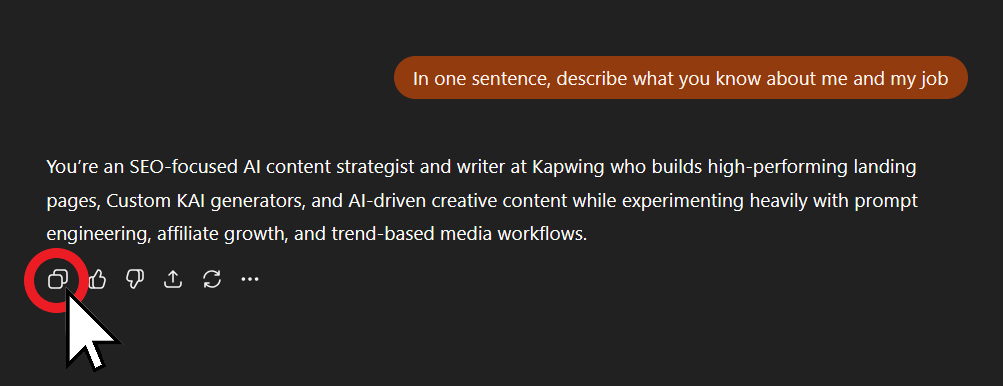
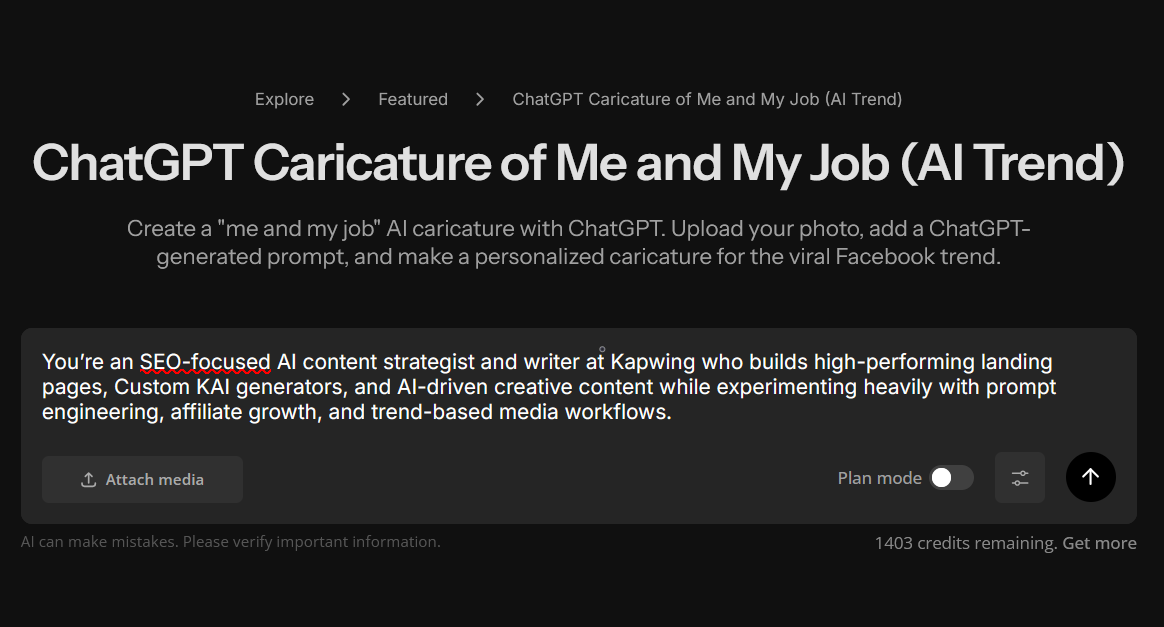
Next, paste the response into this ChatGPT Caricature Maker.
Your chat should look like this once you're done. But don't submit your prompt just yet, as there is still one key element missing.
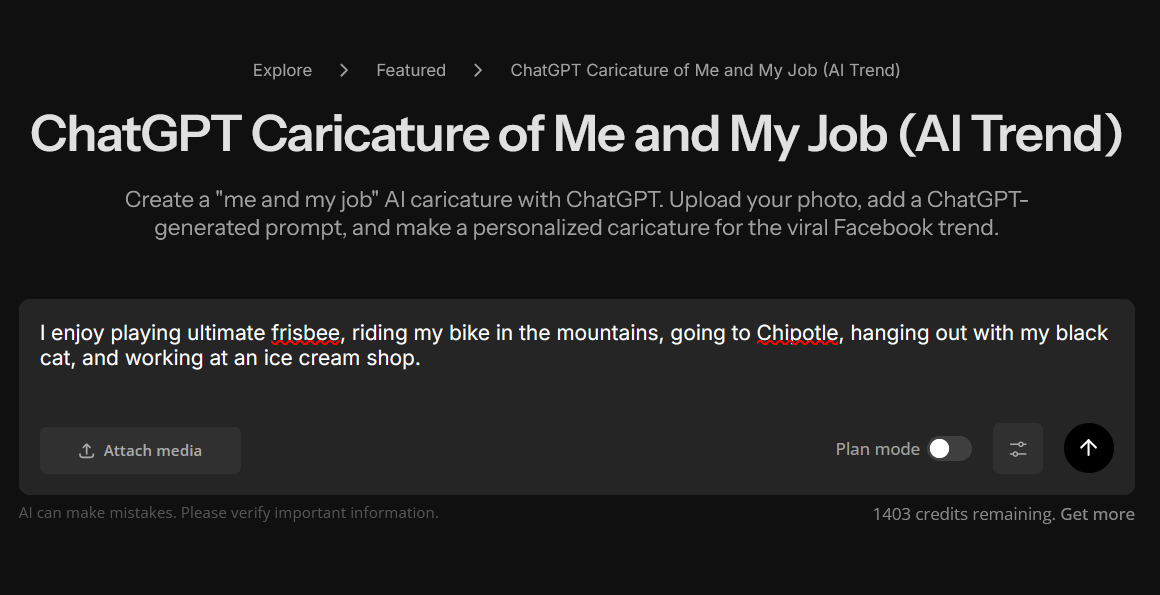
Note: If ChatGPT doesn't know much about you, or you'd like to manually add specific details, you can write your own prompt in the text box instead. Try to be as specific as possible, mentioning details about your routines, habits, professional life, and must-have daily items.
3. Upload a Clear Image of Yourself
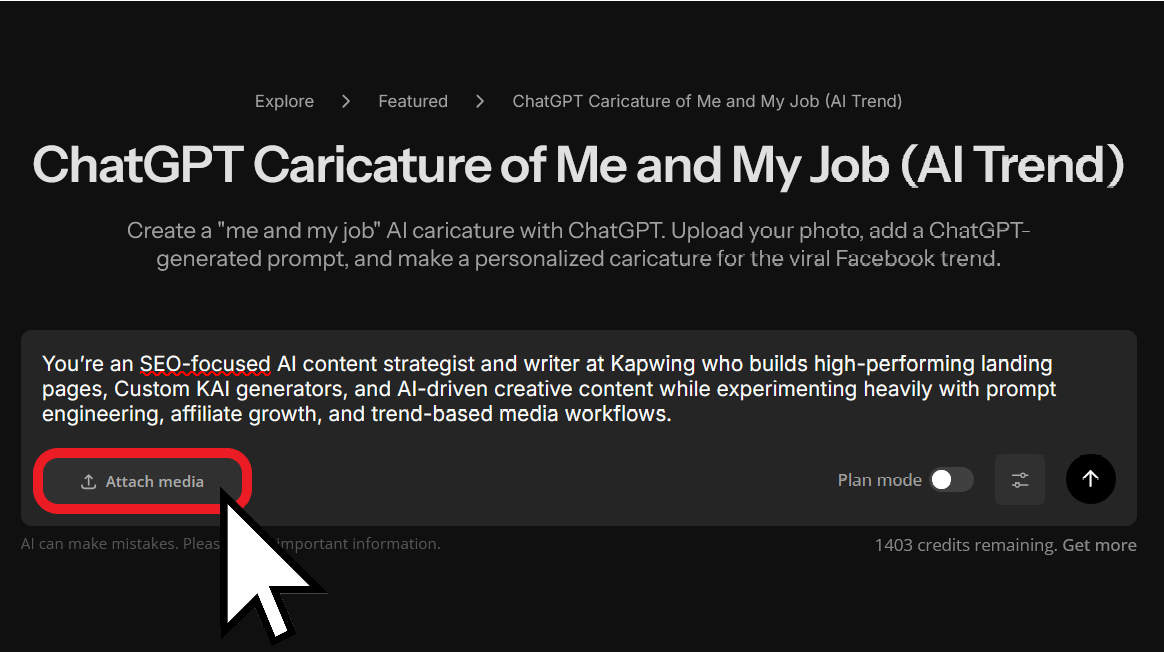
To ensure your generation is as accurate and personal as possible, upload a clear image of yourself to the generator.
To upload an image, select the "Attach Media" button in the bottom left corner of the prompt box.
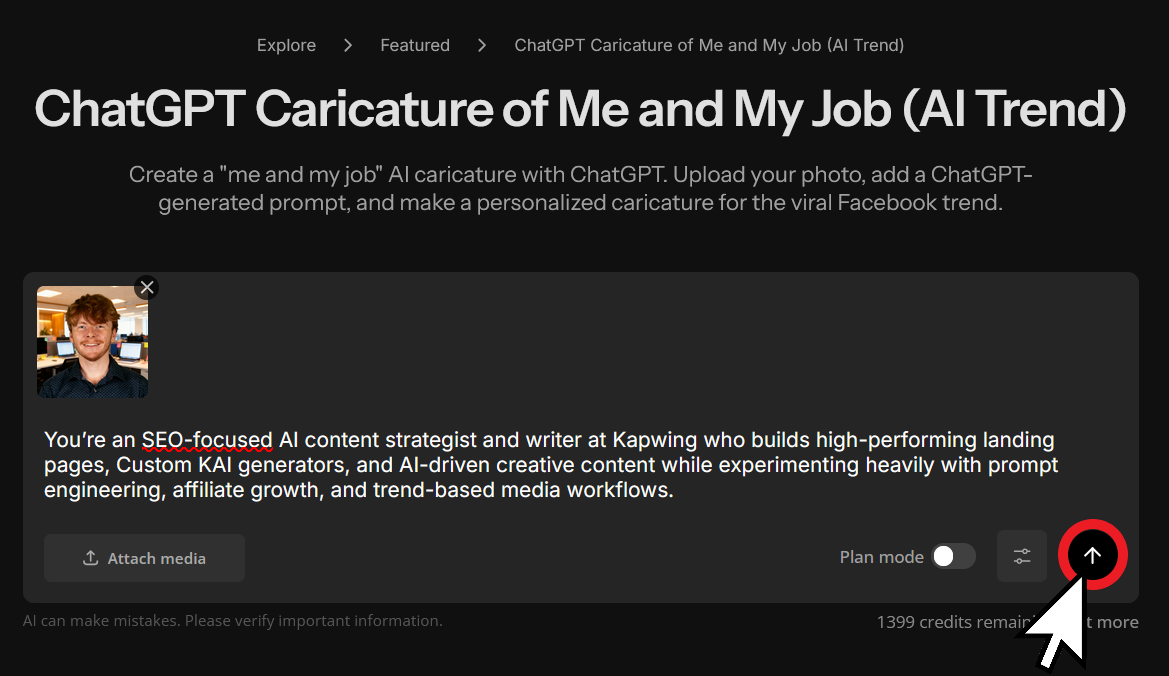
To make an even better "me and my job" style caricature, try posing with your typical work equipment visible in the image background. This can range from large machinery to small desk accessories. Any inclusions help guide the model to produce the most accurate final image.
When you've decided on the image to use, select the send button to generate your ChatGPT caricature.
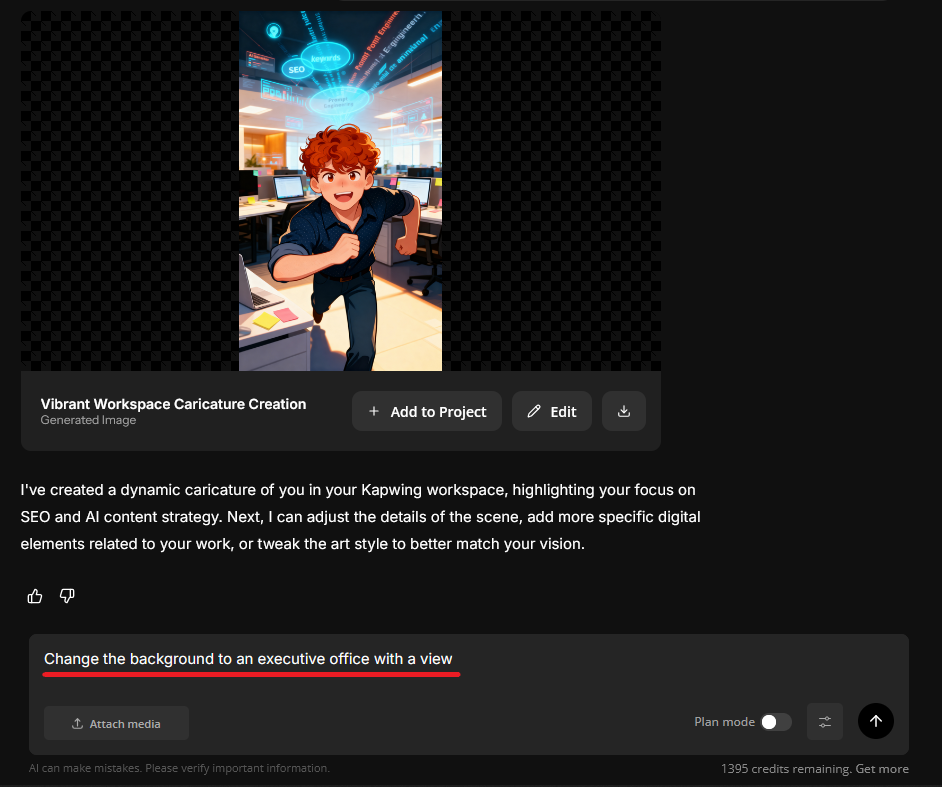
4. Make Revisions (Optional)
After generating, you may want to adjust some details in the image, such as background elements or the art style itself. To make any changes, simply ask the chat directly, and it will provide a regenerated image with your revision.
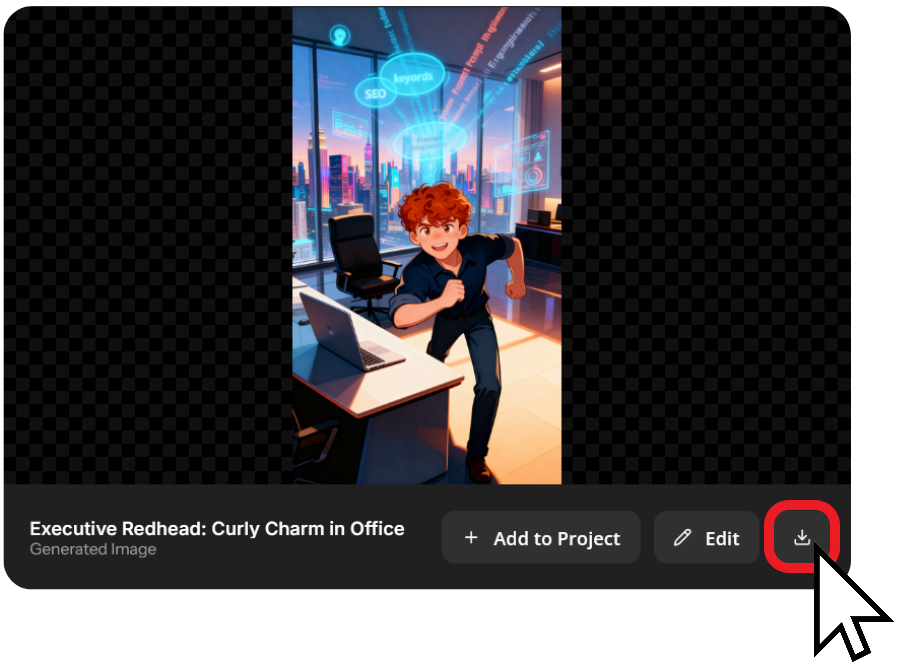
Whether it's your first try or your fifth, download your image when you're ready by selecting the download icon in the bottom right corner of the generation window.
5. Share to Social Media
Once you've finished, share the image on your social media — the trend is proving particularly popular on Facebook, LinkedIn, and Instagram.