Release Notes - February 2026
February was a big month for prompt-to-video creation in Kapwing. We made Kapwing AI faster to use inside the editor, expanded model discovery, and laid the foundation for better shared asset management across workspaces. Under the hood, we also improved long-running AI workflows so users get notified when jobs finish instead of waiting around and refreshing tabs.
Workspace Media Library
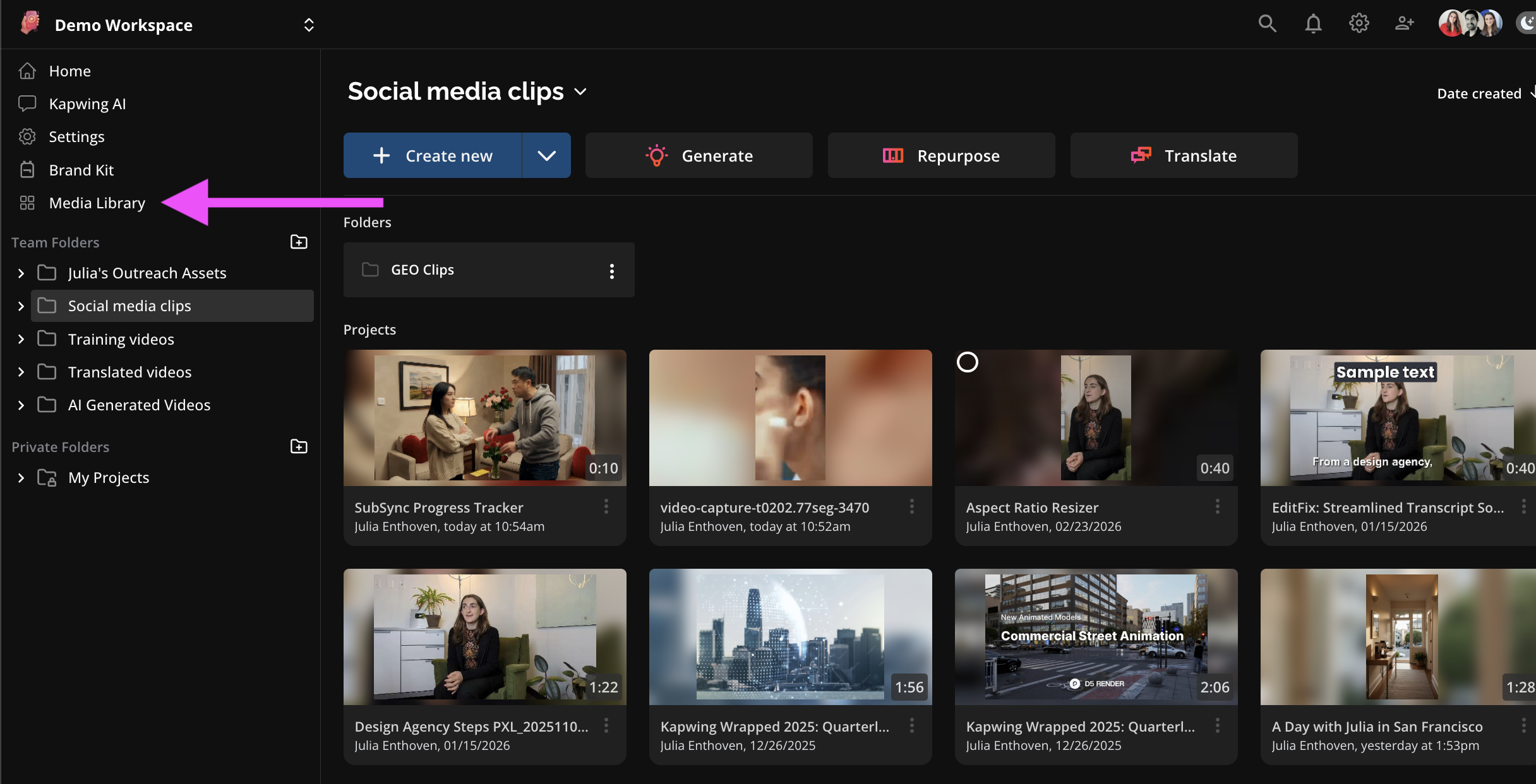
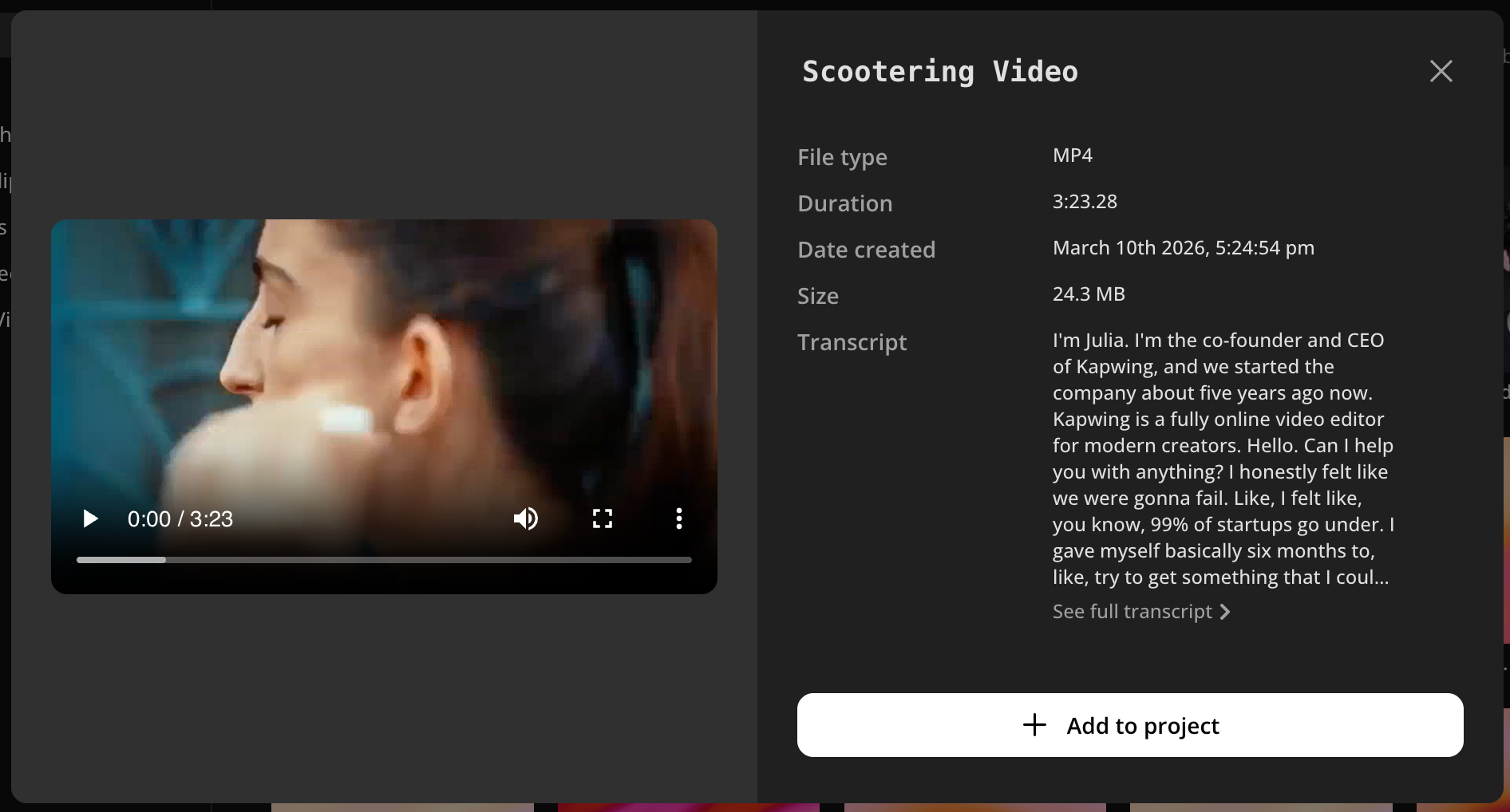
Now, Kapwing users can see a record of all the images, videos, and audio uploaded into their Kapwing Workspace. Search through old uploads to repurpose, remix, and start new projects from uploaded media. To browse the full library of your media, click the "Media Library" icon in the Workspace actions, near Settings.
In the media library, search for assets by name, filter by media type, and sort by date created and file size. Select multiple assets to start a project with them in the timeline or download in bulk.
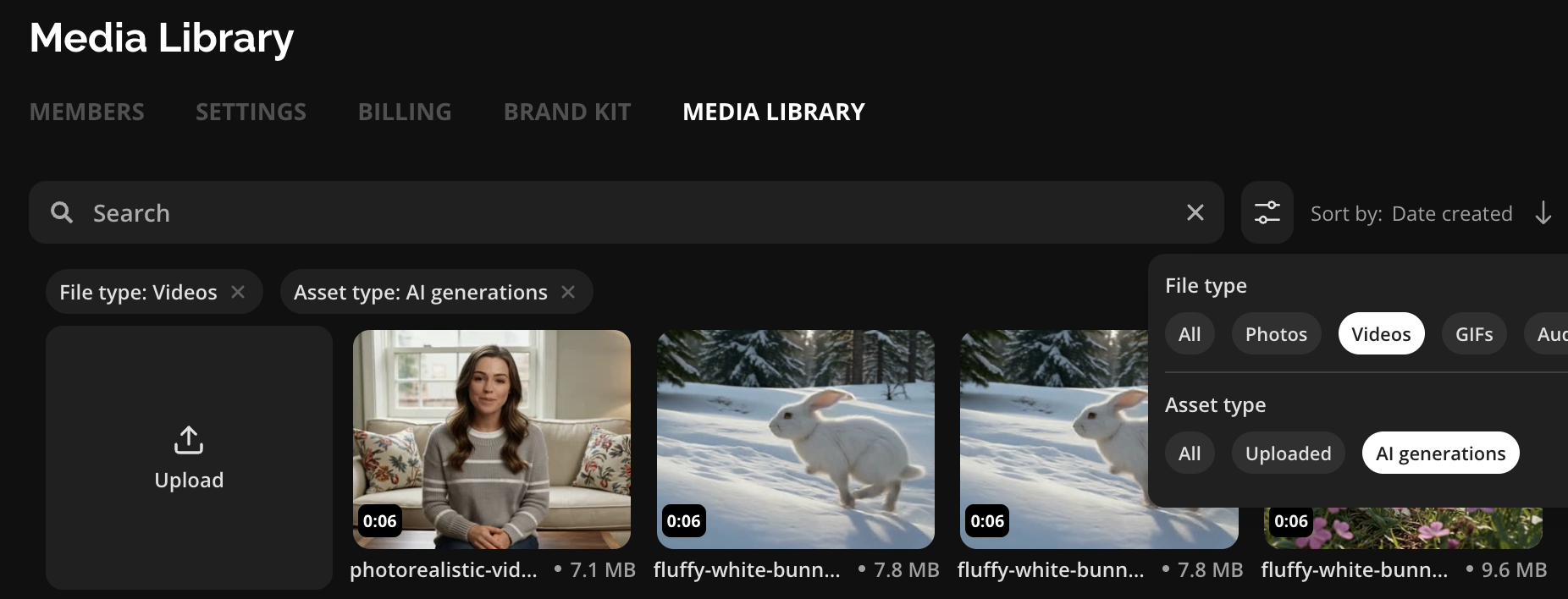
Each asset has a preview where you can review the asset and relevant information (name, duration, file size, and uploader). If the asset was transcribed with Kapwing, creators can review the transcript from the preview modal.
Popular Tools
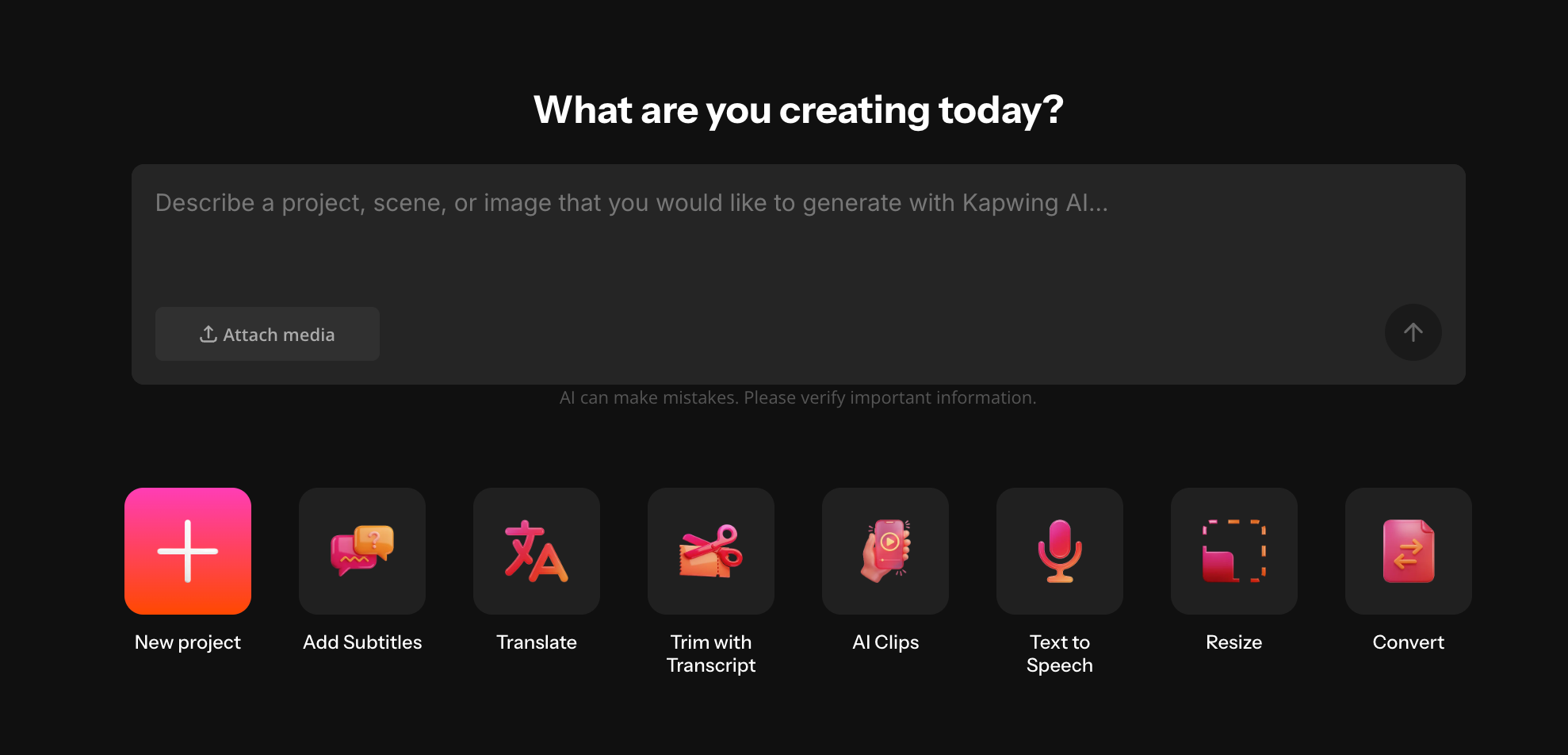
On the Workspace Home tab, users can now access Kapwing's most popular tools - like Add Subtitles and AI Clip Maker – with one click.
Kapwing AI gets easier to use
End Frame Support
Ask for a video that ends in a specific image, and Kapwing AI will deliver. Kapwing can now animate images given an end frame defined by the user.
To try it out, input a prompt on Kapwing AI to describe the video you want to generate and attach an end frame to the message. After a few minutes, Kapwing will generate a short video that ends in the uploaded image. From there, you can download the asset or open it in Kapwing to make further edits.
Kling motion control
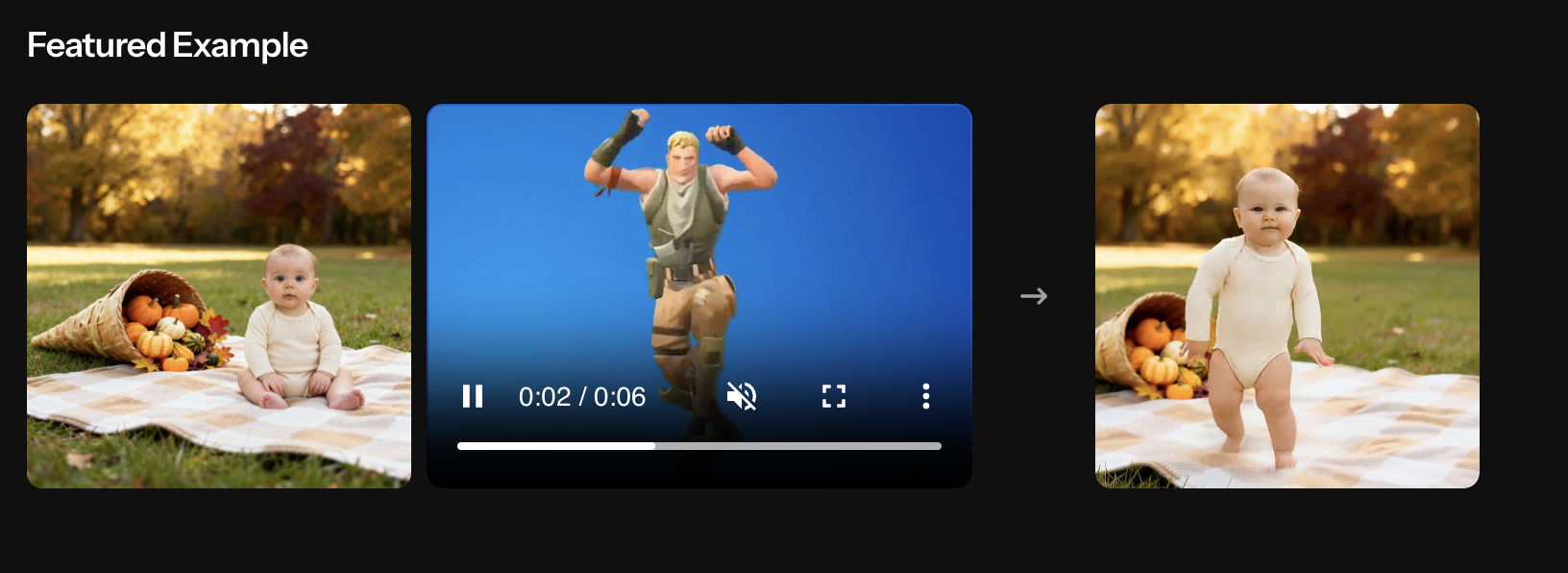
Make your images move with our newest AI model. Upload a reference video to show how you want your subject to move in the video. Kling helps people make dancing babies, dancing pets, and flying friends.
AI Model pages
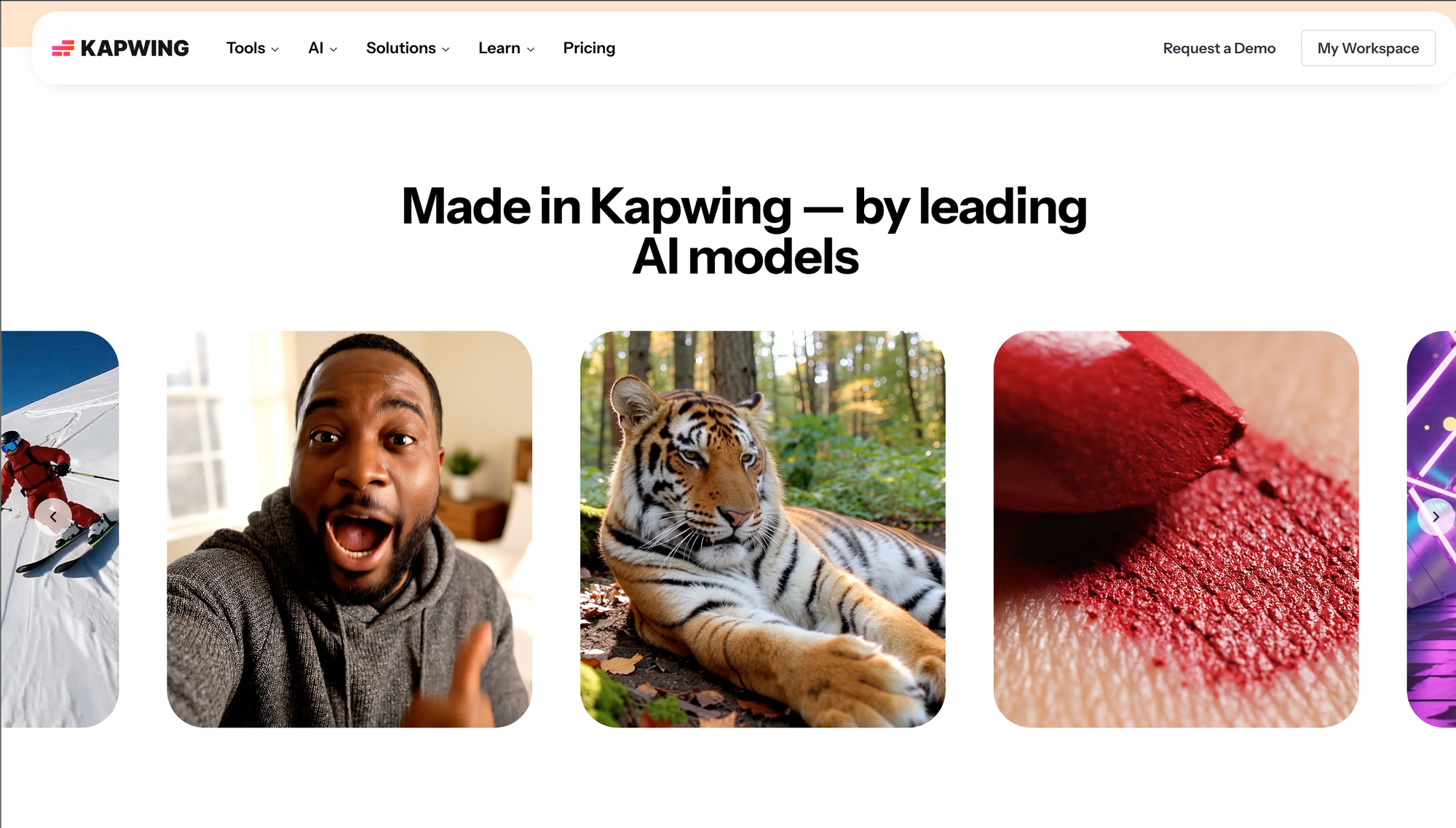
Kapwing has dozens of models available within the Kapwing AI Assistant. This month, we added informational landing pages so that AI-curious users can learn more about what Kapwing AI supports, see example generations, and learn how the technology works. Read about the models available on our site: Veo 3, Sora 2, Seedance, MiniMax, and more.
Notifications in Kapwing AI
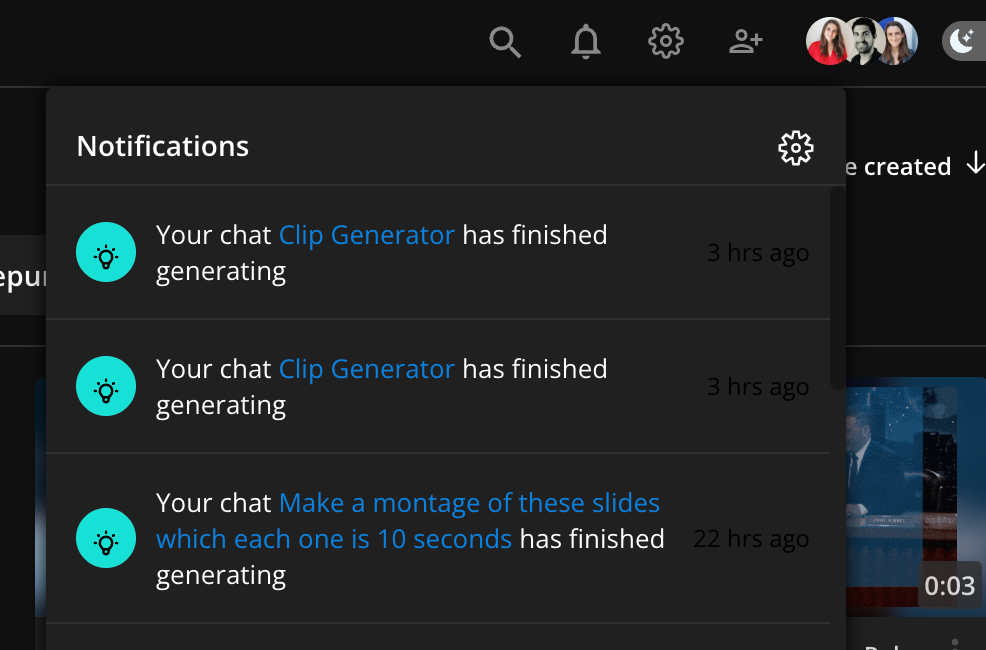
Now, we've added notifications to Kapwing AI for long-running processes so that you can get a ping when your video is ready to preview.
Notifications save you time and mindshare so that you can multitask rather than staring at your computer screen. Unlike Canva and Descript, Kapwing supports larger (up to 6GB) and longer file uploads (up to three hours). Kapwing AI can help with long-running processes like Upscale video, AI Clipping, or transcribing footage that is up to three hours long, but these processes do take a long time to run. So, notifications can help keep you on top of current jobs.
Notifications are delivered to the account email and to the Kapwing notification center under the bell icon.
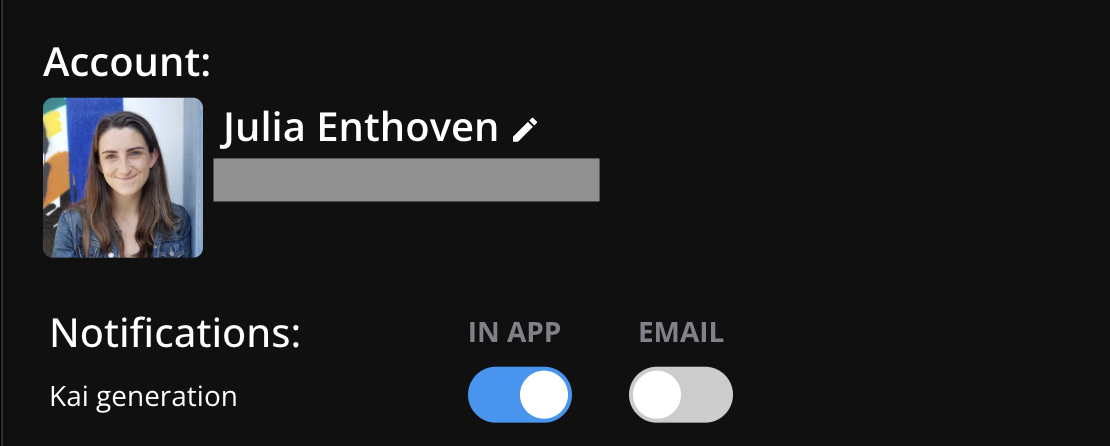
From the notification center, Kapwing AI users stay in control and can toggle these "Kai Generation" notifications off or on. To configure notifications, click on the profile icon and email address in the lower left or upper right corner.
Pasted Links in Kapwing AI
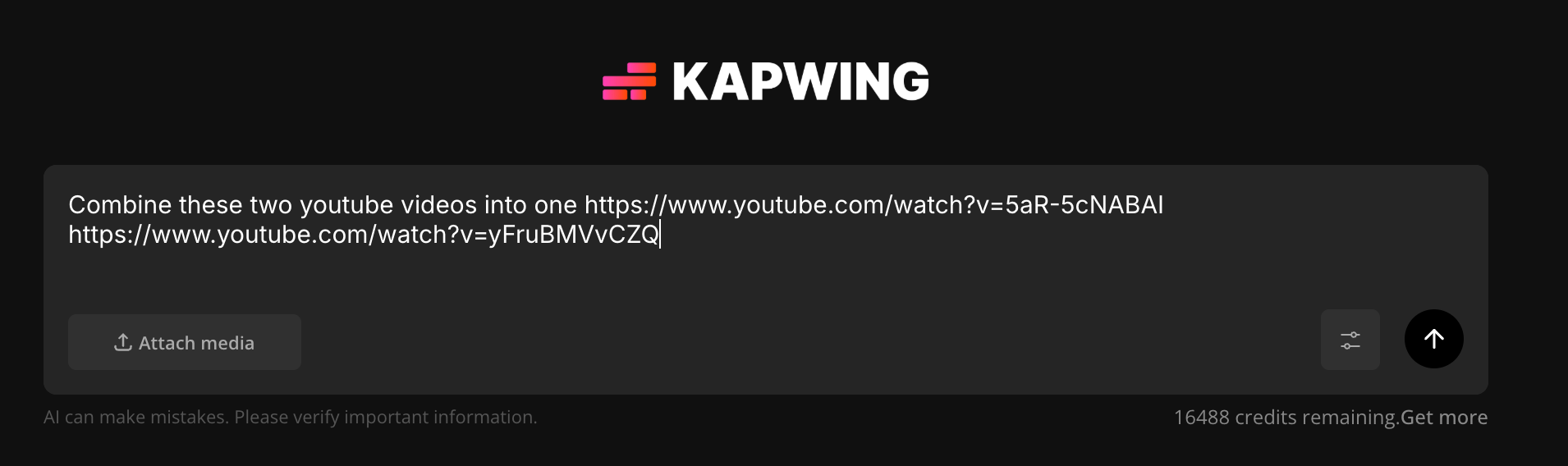
Kapwing users can now use pasted links in prompts to the AI Assistant. Reference YouTube videos, download from the web, and import long-form content directly when using the prompt-to-video AI surface. Kapwing will extract the content from the URL and import this as context and raw material for your project.
New AI Assistant in the editor
We added the Kapwing AI assistant into an AI tab in the left sidebar of the main editor. This makes it easier for creators to generate images, videos, and audio or edit canvas assets while working on a larger project. Pop open old chats to bring in assets you've already generated.
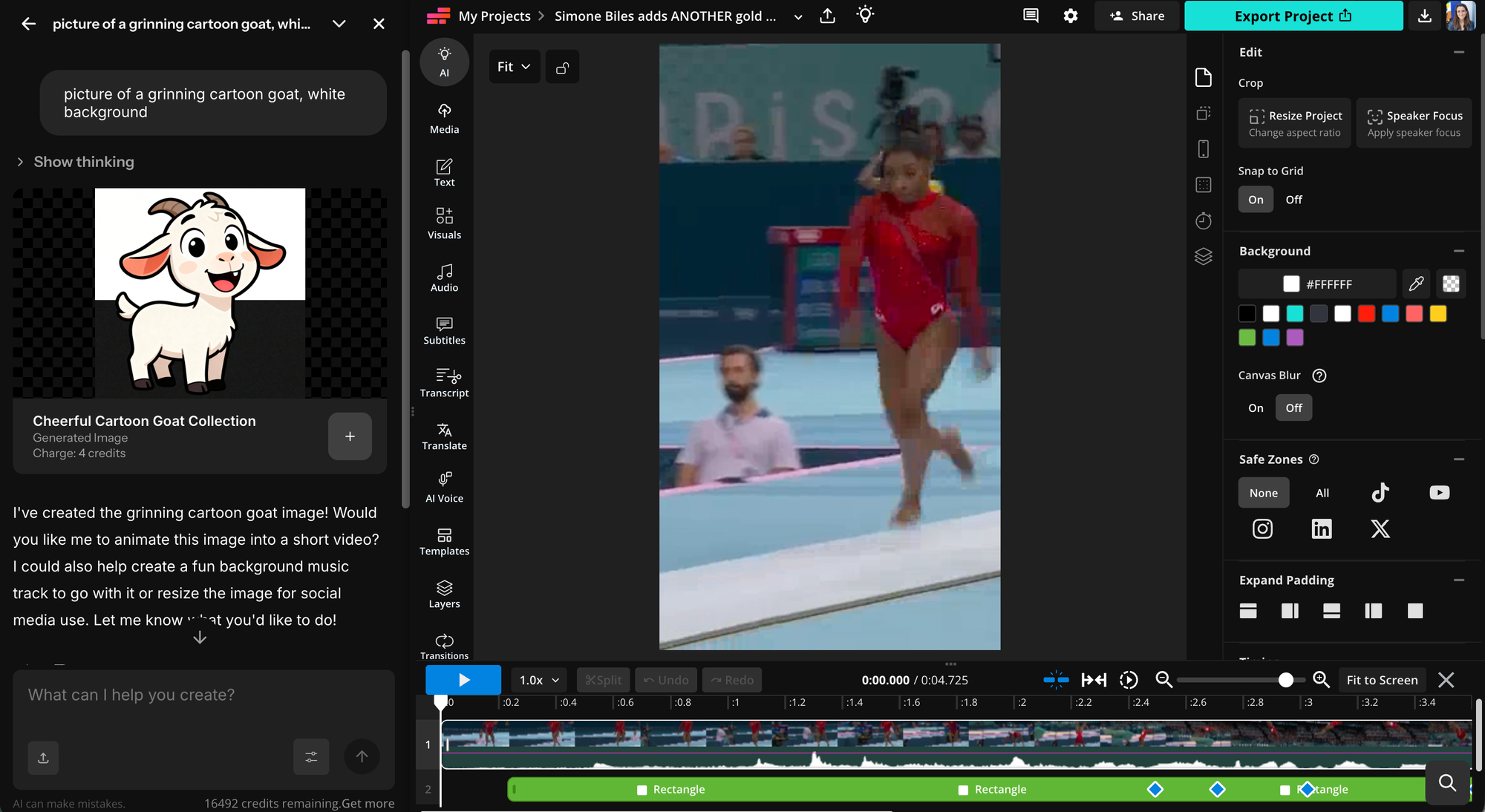
The AI Assistant is available under the "Kapwing AI" tab on the left sidebar as well or the lightbulb icon from the top header bar.
One-Off Credit Bundles
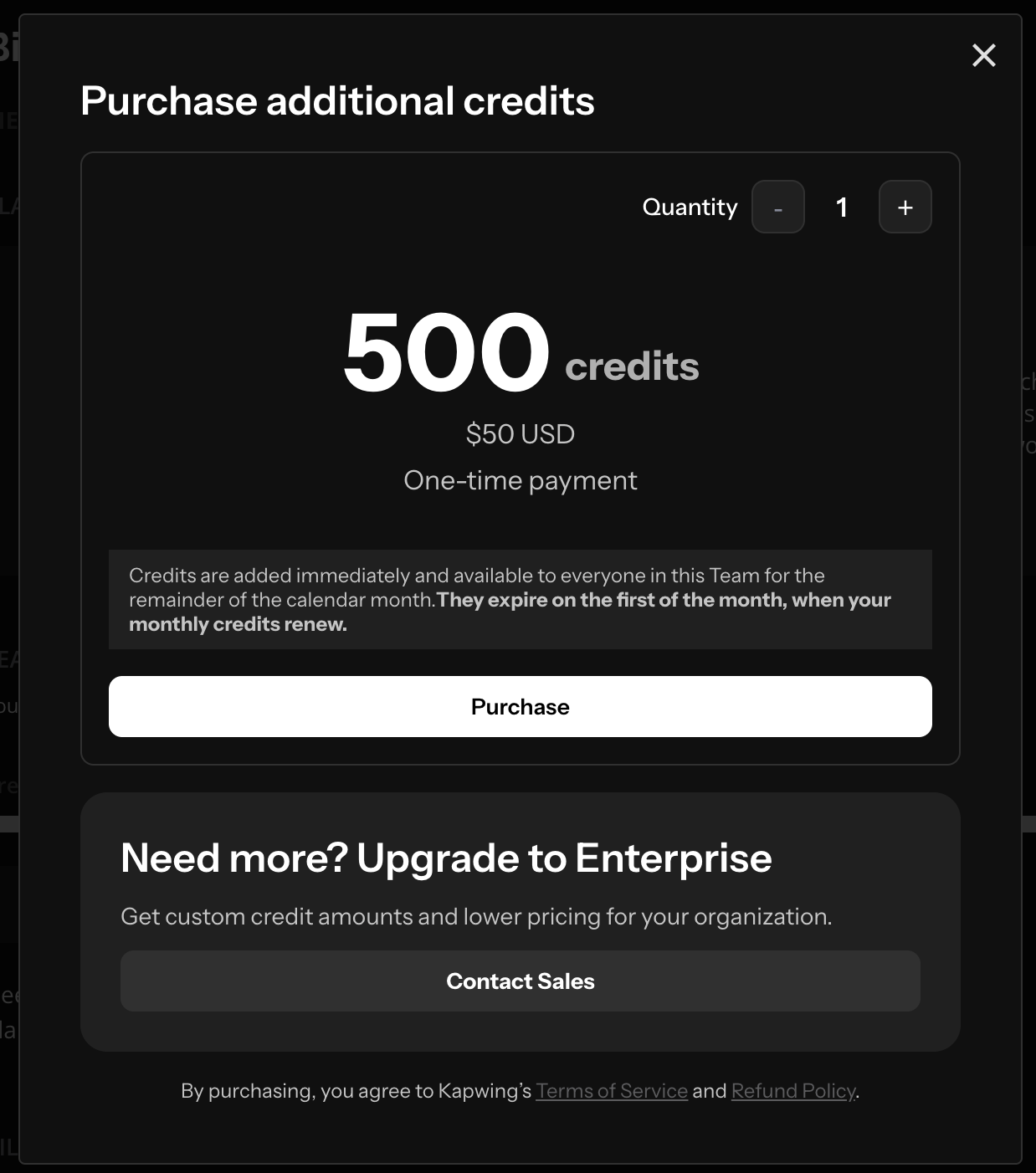
Business subscribers can purchase a one-time $50 package of 500 credits. This extends the credit limit without needing to agree to a higher recurring subscription per seat. Perfect for time-bound projects like AI Dubbing or heavy usage windows.
To add a bundle of 500 credits, head to the Workspace Settings > Billing and click "Add More Credits." From the checkout screen, you can add one or multiple credit bundles to ensure that your team is not blocked from using Kapwing's AI features.