
Advanced Dubbing Tips

Table of Contents
What if the dubbing is too slow or too fast?
Different languages have different cadences and lengths. “Hi team!” in English might become an 8-syllable phrase in Japanese. We solve this by refining translations to better match the original transcription. Sometimes, the translated text doesn’t match the original timing—it may be too long or too short. In those cases, we adjust the speed of the translated voiceover to make it fit.
In order to get the most natural-sounding voiceover, we recommend allowing adjustments to video speed, which is a setting you can turn on within Advanced settings. This setting will enable adjustments to the audio speed and video speed so that the translated voiceover has a more natural pace. If you need your dubbed video's duration to match that of the original, we do not recommend turning this on.
If you listen to your dubbed video and a certain section sounds too slow or too fast, we recommend adjusting the translation to be shorter if the layer sounds too fast or longer if the section sounds too slow. You can adjust the translation within the Translate Tab. Once you have edited your translation, make sure to update the dubbed audio.
You can also adjust the speed of a dubbed section by splitting the voice-over layer around that section and adjusting the speed in the right sidebar.
Dubbing Consistent Brand Words and Translations
You can double click on words to edit pronunciation. Or, you can access the Brand Glossary through the Brand Kit, Dubbing, Translating, and/or Subtitle settings within Kapwing's Studio.
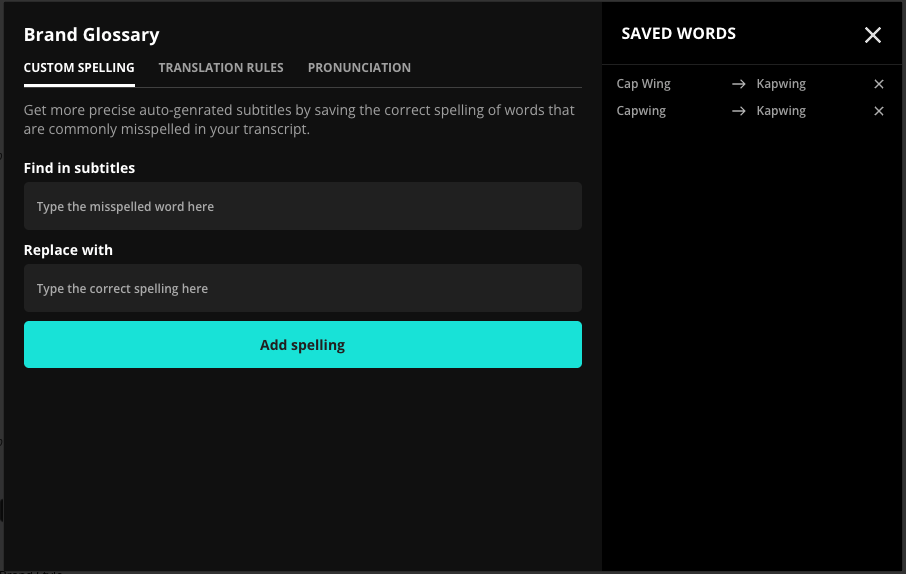
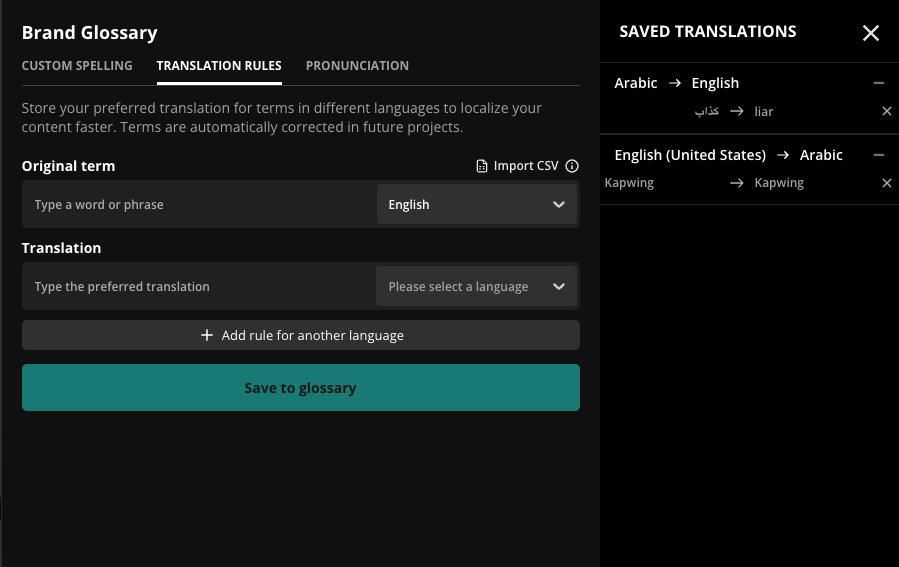
Brand Glossary allows users to enhance their subtitling, translation, and dubbing process. This tool allows you to customize how certain words or phrases are translated in your subtitles to ensure accuracy and consistency in your multilingual content. The Brand Glossary is made up of "Custom Spelling", "Translation Rules", and "Pronunciation".
For "Custom Spelling" you can input a commonly-misspelled word and automatically replace it with the desired spelling so every video you subtitle will automatically use your spelling. These pairings are saved and automatically updated in every new transcription and SRT file. You can review and delete saved pairs in the Custom Spelling section of brand kit or in the subtitles panel under the Dictionary icon.
For "Translation Rules", similar to "Custom Spelling", you can select commonly-mistranslated words and automatically set them to the right or intended translation. You can also set "no-translate" words to keep brand names or specific terminology in their original language.
How do I correct pronunciation mistakes in the dub?
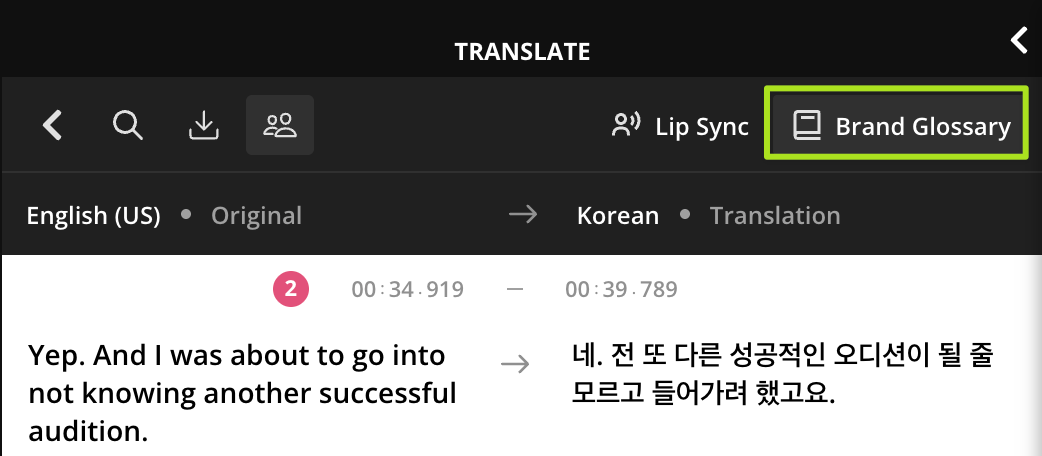
If you dub a video and notice that there is an issue with the pronunciation of one or multiple words, you can use the Pronunciation tab within the Brand Glossary to fix this. Open the Brand Glossary in the top right corner of the Translate Tab.
Select "Pronunciation", and enter the term that you hear is mispronounced in the dub.
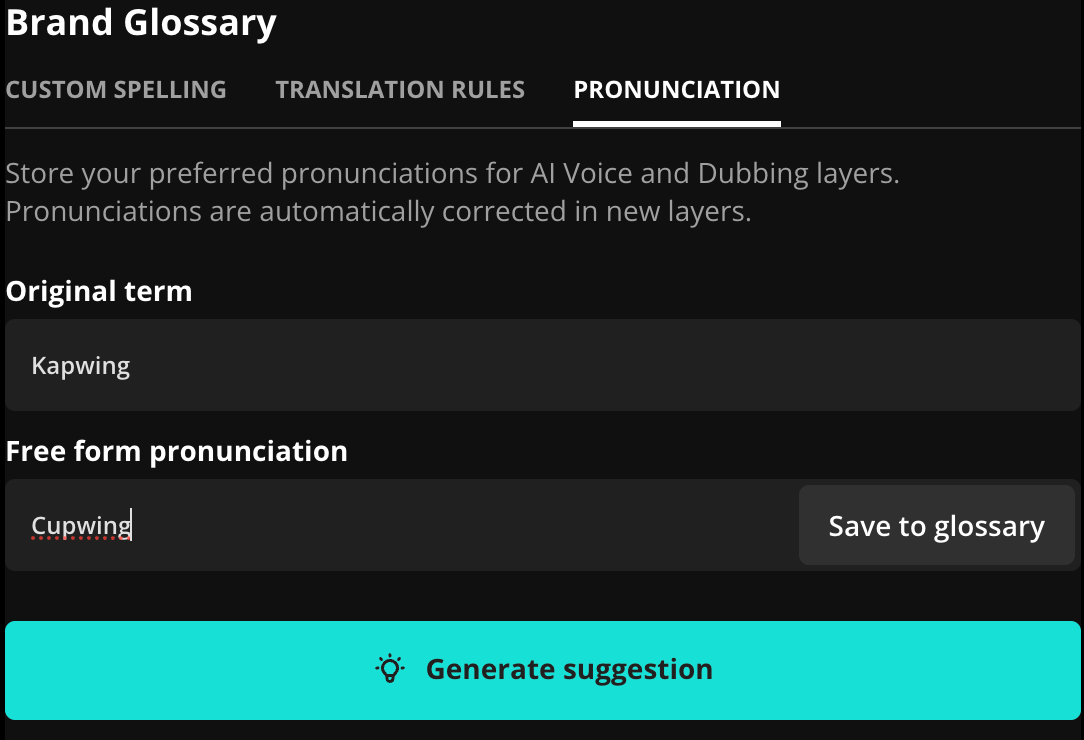
Spell out how the word should be pronounced in the "Free form pronunciation" section, or click "Generate suggestion". Once you are happy with the pronunciation rule, click "Save to glossary" to save for future generations.

Improving Inflection
To better inform inflection please use punctuation. For example, an exclamation mark (!) is used to express strong feelings, such as anger or joy so using this punctuation will better convey those emotions.
How to Have Higher Quality Dubbing
The key to high quality dubbing starts with the source video. If your video is low quality with unclear audio, it is harder for the AI to covert the audio into a crisp dub. However, if you already have your video recorded, some other tips are:
- Generate a custom voice clone with high quality audio to use in the dub. This is especially helpful in cases where source audio is lower quality. You can also choose a stock voice in this case.
- Adjust position speed of translated voiceover layers after generation so that they sound more natural.
- Lower background audio volume if there is no high quality background audio in the original video as sometimes this layer can add static.
Additional Resources:
How to Dub a Project
Dubbing FAQs
How to Add Subtitles or Captions with Kapwing
How to use Text-to-Speech in Kapwing
Looking for more help?
Check our Release Notes for tutorials on how to use the latest Kapwing features!



