How To Change Your Phone Charging Sound (iPhone and Android)
Make your mobile device say anything when you plug it in
If you’ve been on TikTok lately, you’ve probably seen phones saying things like “charger connected, my liege” or playing funny sound effects the moment they’re plugged in.
@chrisevangehayes As a full time working mom of 2, yes 😂#iphonechargingsound #todaydrainedme ♬ original sound - Christi Hayes
@keith2747 #iphonechargingsound ♬ original sound - your faverite 125
This TikTok trend is blowing up because it’s surprisingly easy to set up — and you can make your phone sound however you want.
Here’s how to do it on iPhone, Android, and how to create your own custom sounds with Kapwing.
How To Change Charging Sound on iPhone
The easiest way to change your charging sound on iPhone is by using the Shortcuts app. While Apple doesn’t let you replace the default charging sound in Settings, you can create a personal automation that plays your own audio file whenever your iPhone is connected to power.
Before you set up the automation, make sure the sound you want to use is already saved on your iPhone. A short clip works best, usually around 1 to 3 seconds.
1. Save your audio file to the Files app
First, export or download your custom charging audio sound to your iPhone. If you made the sound in Kapwing, save the finished audio file to your device. Then:
- Open the app where your audio file is located
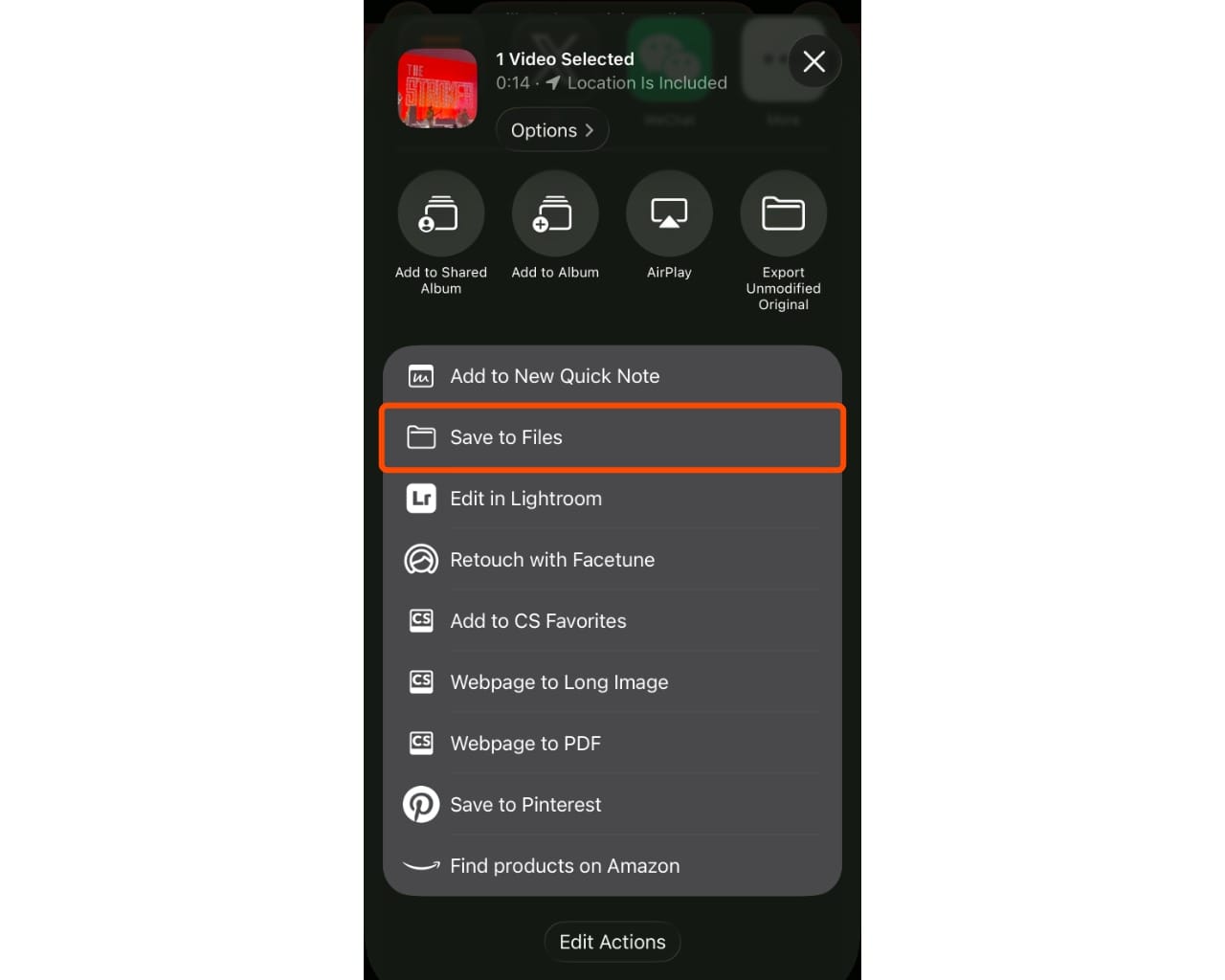
- Tap the Share icon (square with an arrow pointing up)
- Scroll down and tap “Save to Files”
- Choose a location:
- On My iPhone (best for offline use)
- iCloud Drive
2. Open Shortcuts and create a new automation
Once your audio file is saved in Files:
- Open the Shortcuts app.
- Tap Automation in the menu at the bottom of the screen.
- Tap the + button in the top-right corner. You'll see a menu of different events that can trigger customized Personal Automations.
- Search for Charger.
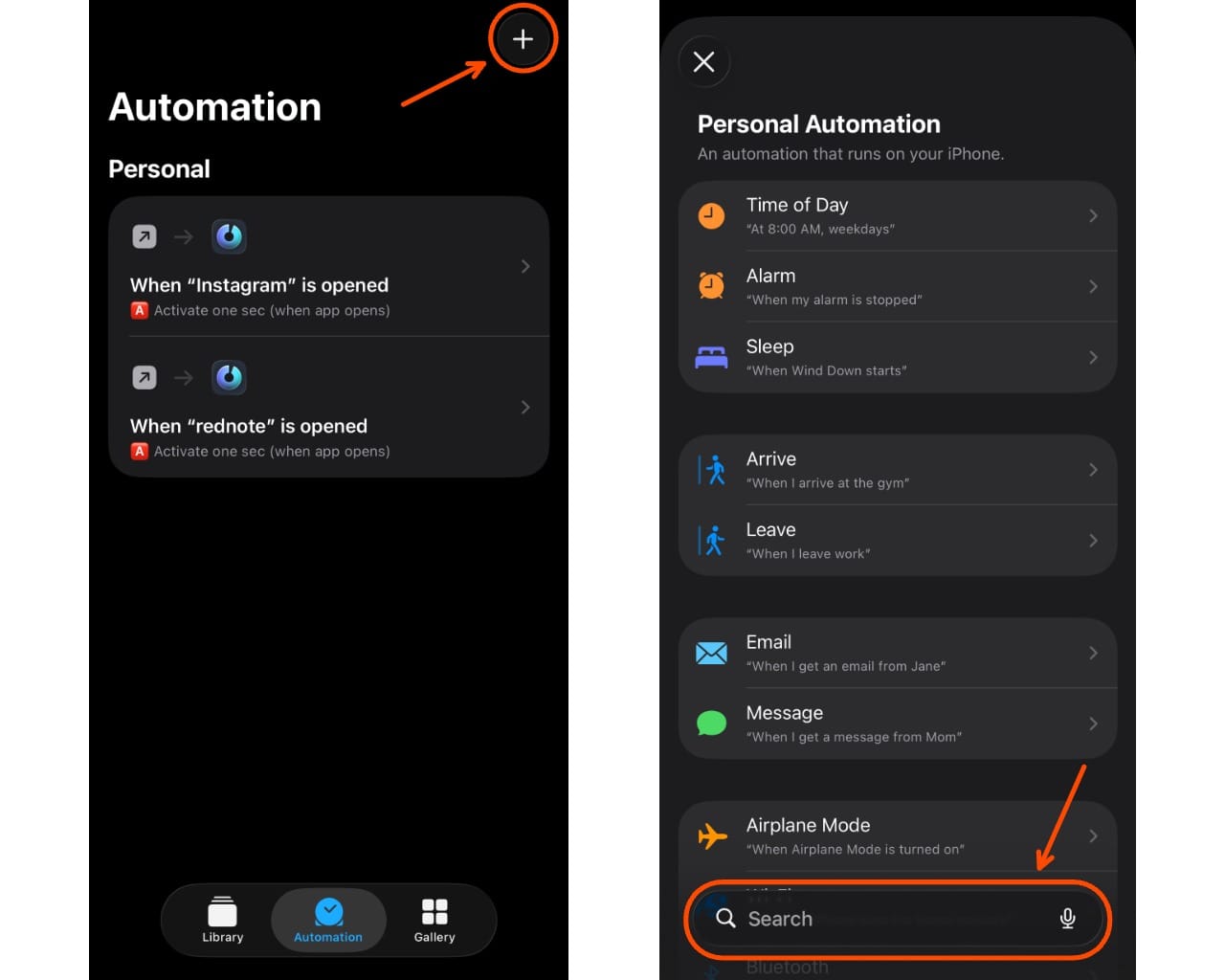
3. Choose the charging trigger
Now you’ll choose the event that starts the automation:
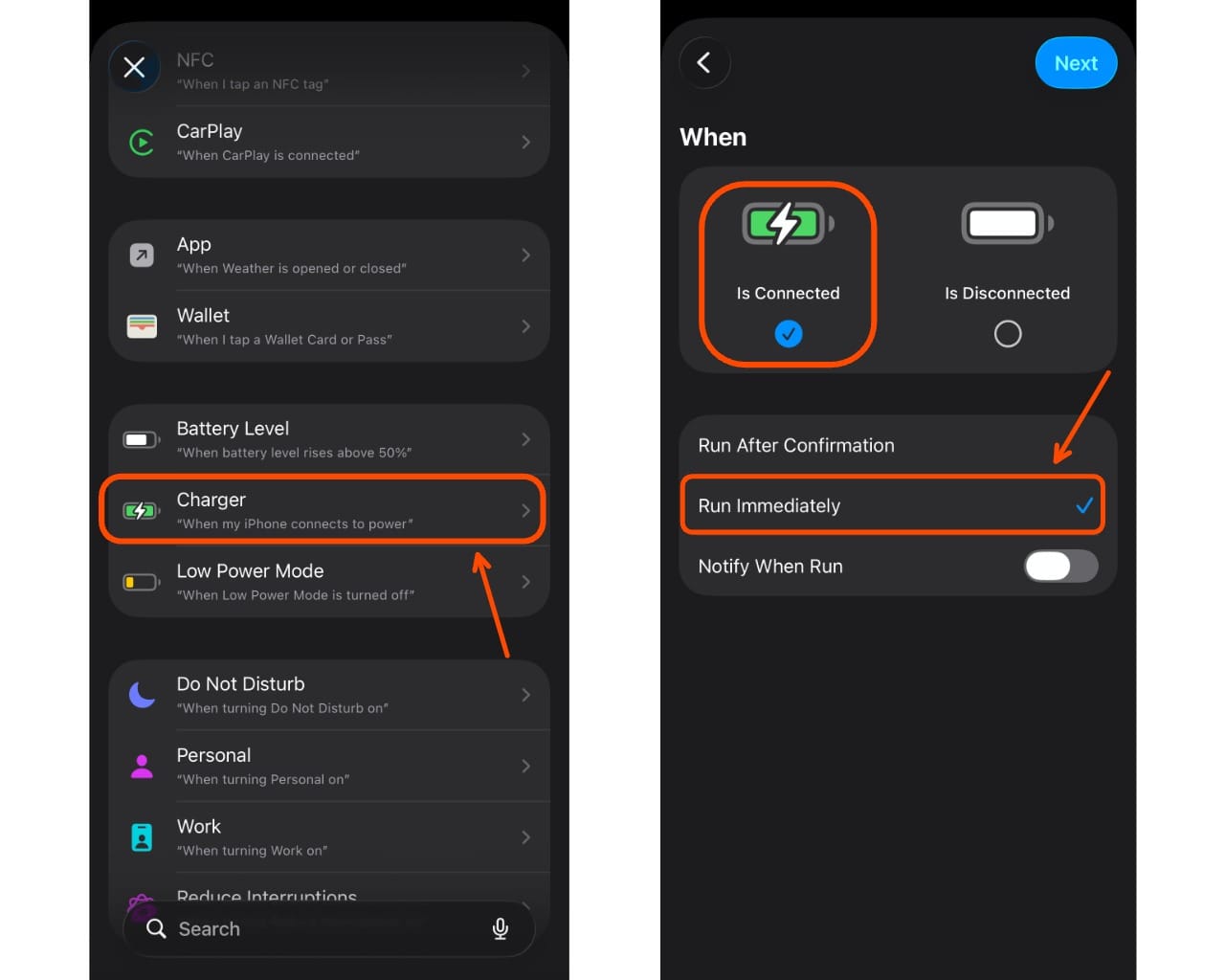
- Select Charger.
- Select Is Connected and Run Immediately.
- This means the automation will start running immediately every time your iPhone starts charging, whether you plug in a cable or place it on a wireless charger.
- Tap Next.
4. Add an action to play your audio
After choosing the trigger, you’ll need to tell the automation what to do when your charger connects.
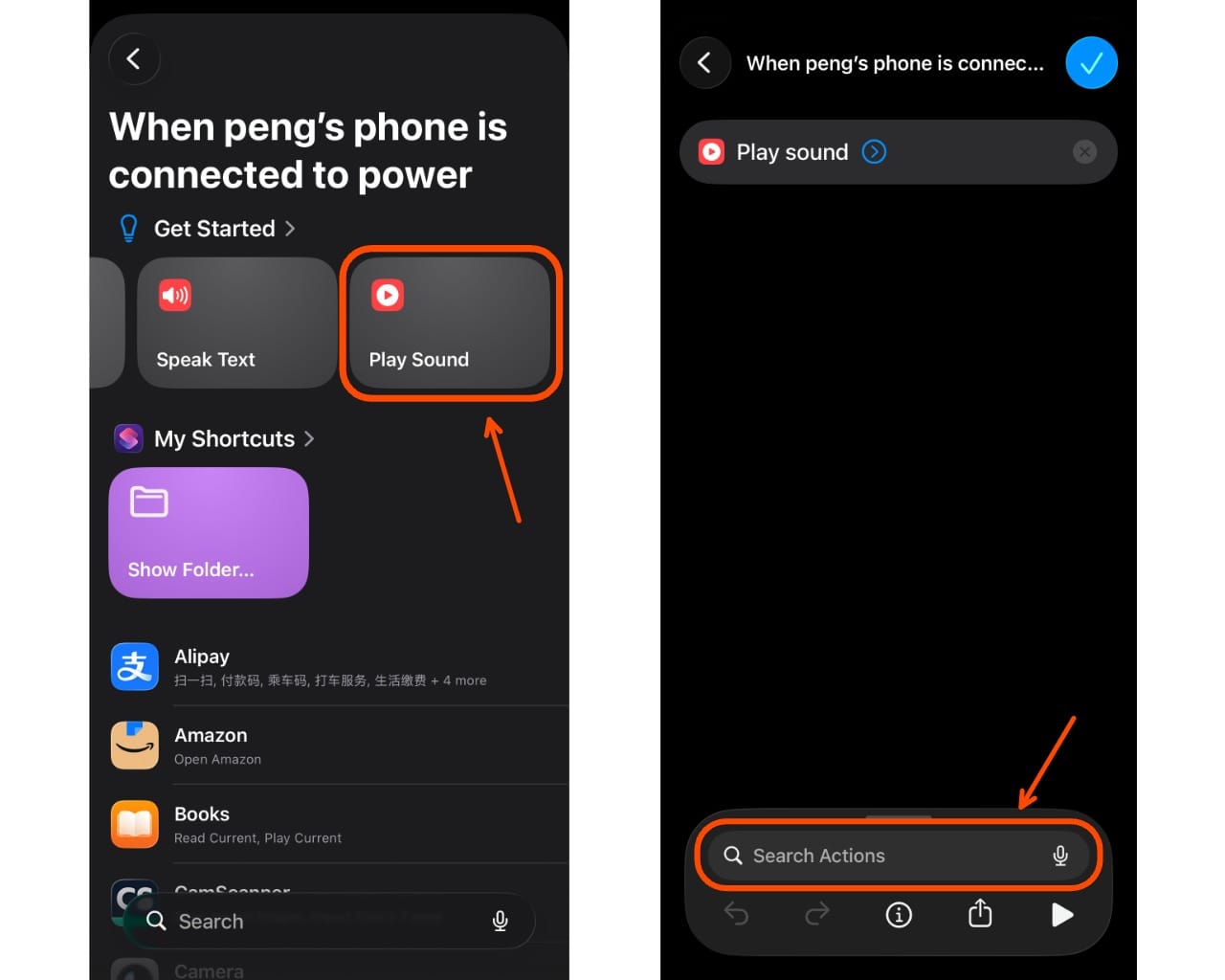
- In the scrollable menu at the top, tap Play Sound.
- If you'd like to use a text-based automation, tap Speak Text and enter your custom phase.
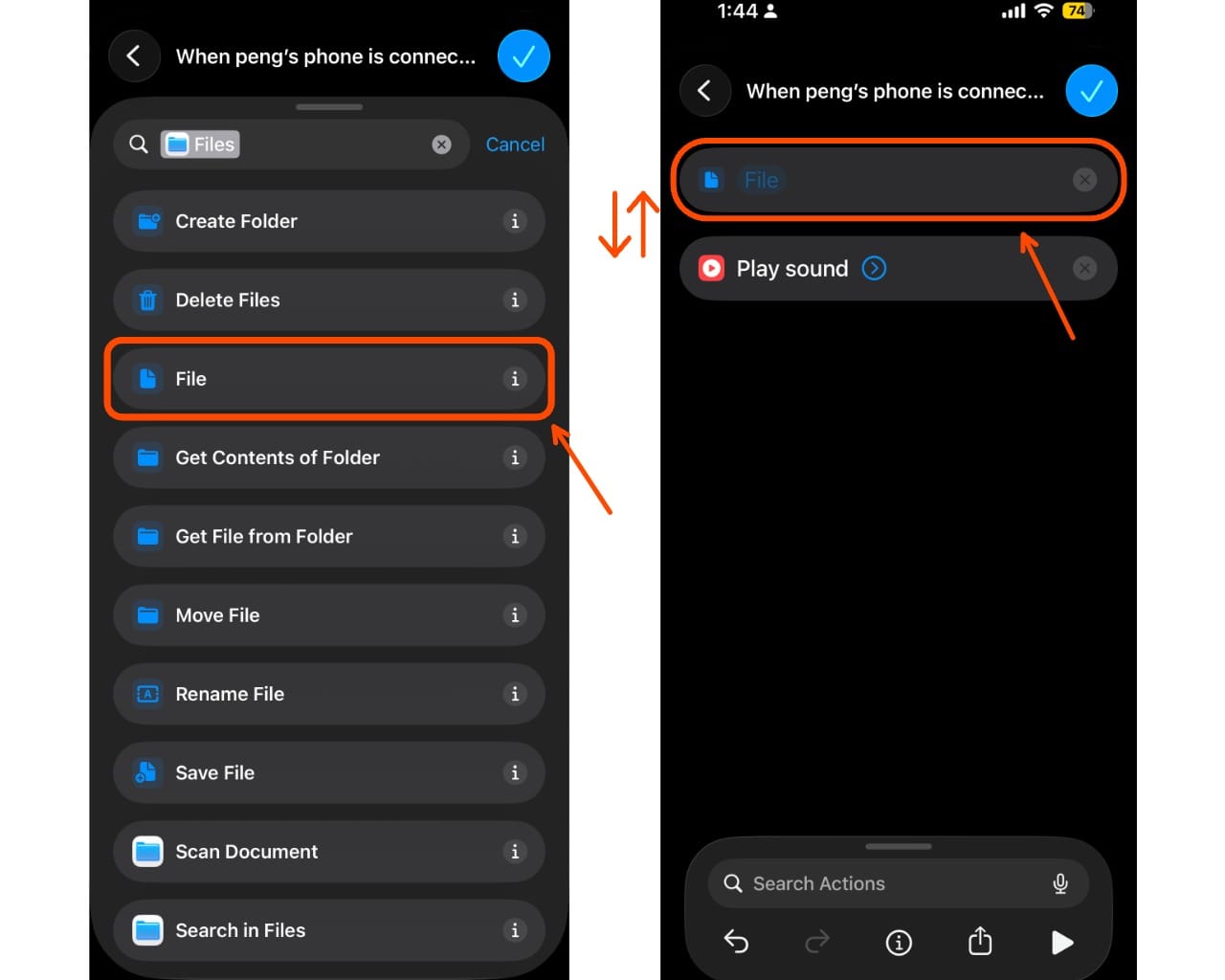
- In the Play Sound automation editor, search for Files in the bottom search bar. Select Files.
- Select the action File from the menu.
- This should take you back to the automation editor. Drag and drop the File action to be above the Play Sound trigger.
- Tap on the File action, and select the audio file that you previously edited.
- Click the blue Check mark button once you are down.
Now every time you plug in your phone, it will play your custom sound or voice. This method uses built-in automation triggers, which is why it’s become the go-to trick behind the TikTok trend.
How To Change Charging Sound on Android
To change the charging sound on Android, you can use built-in features (on Samsung devices) or automation apps like Tasker to trigger custom audio when your phone starts charging.
Option 1: Samsung (Modes & Routines)
- Open Modes and Routines
- Create a new routine
- Set trigger: Charging started
- Add action: Play sound or media
- Select your audio file
Option 2: Any Android (Apps like Tasker)
- Install an automation app like Tasker
- Create a profile:
- Trigger: Power → Charging
- Action: Play sound
This lets you fully customize what plays when your phone is plugged in.
How To Make a Custom Charging Sound
This is where the trend really gets fun. Instead of using default sounds, people are:
- Turning memes into charging sounds
- Using voice clips (“Welcome back, king”)
- Adding AI-generated voices
- Converting TikTok videos into audio
You just need a short audio file (usually MP3 or M4A) to use in your automation. Kapwing makes it easy to create your own custom charging sound, even if you’re starting from a video or just text.
Option 1: Convert Video → Audio
One of the easiest ways to make a custom charging sound is by turning a TikTok or video into a audio clip. This is exactly how many viral charging sounds are created.
Here’s how to do it with Kapwing:
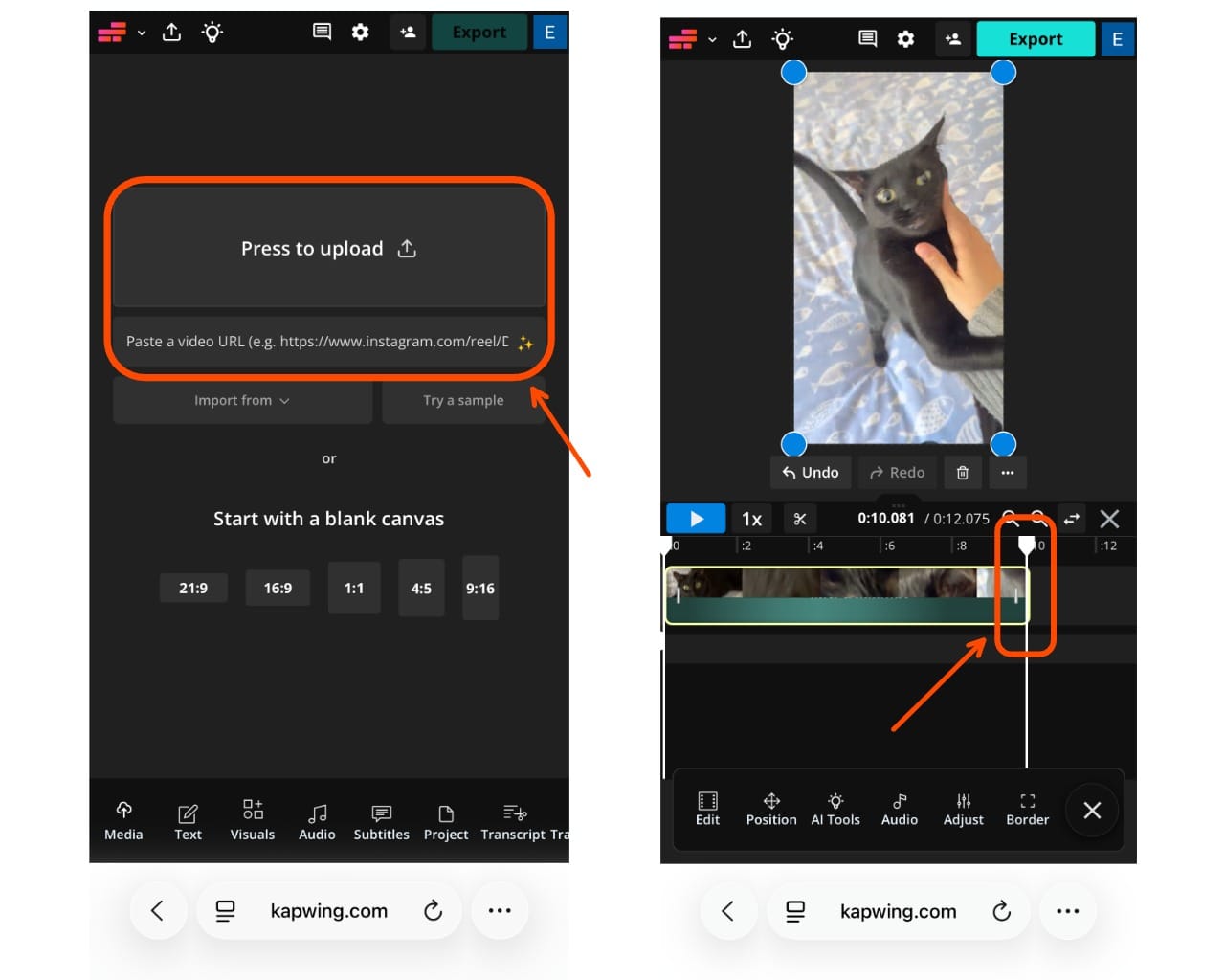
- Upload your video to Kapwing
Open Kapwing and upload a TikTok, screen recording, or any video file. You can also paste a link or drag and drop your file directly into the editor. - Trim the clip to 1–3 seconds
Charging sounds should be short so they play instantly when you plug in your phone. You can trim your clip by dragging and dropping the start and end points.
- Export as an MP3 file
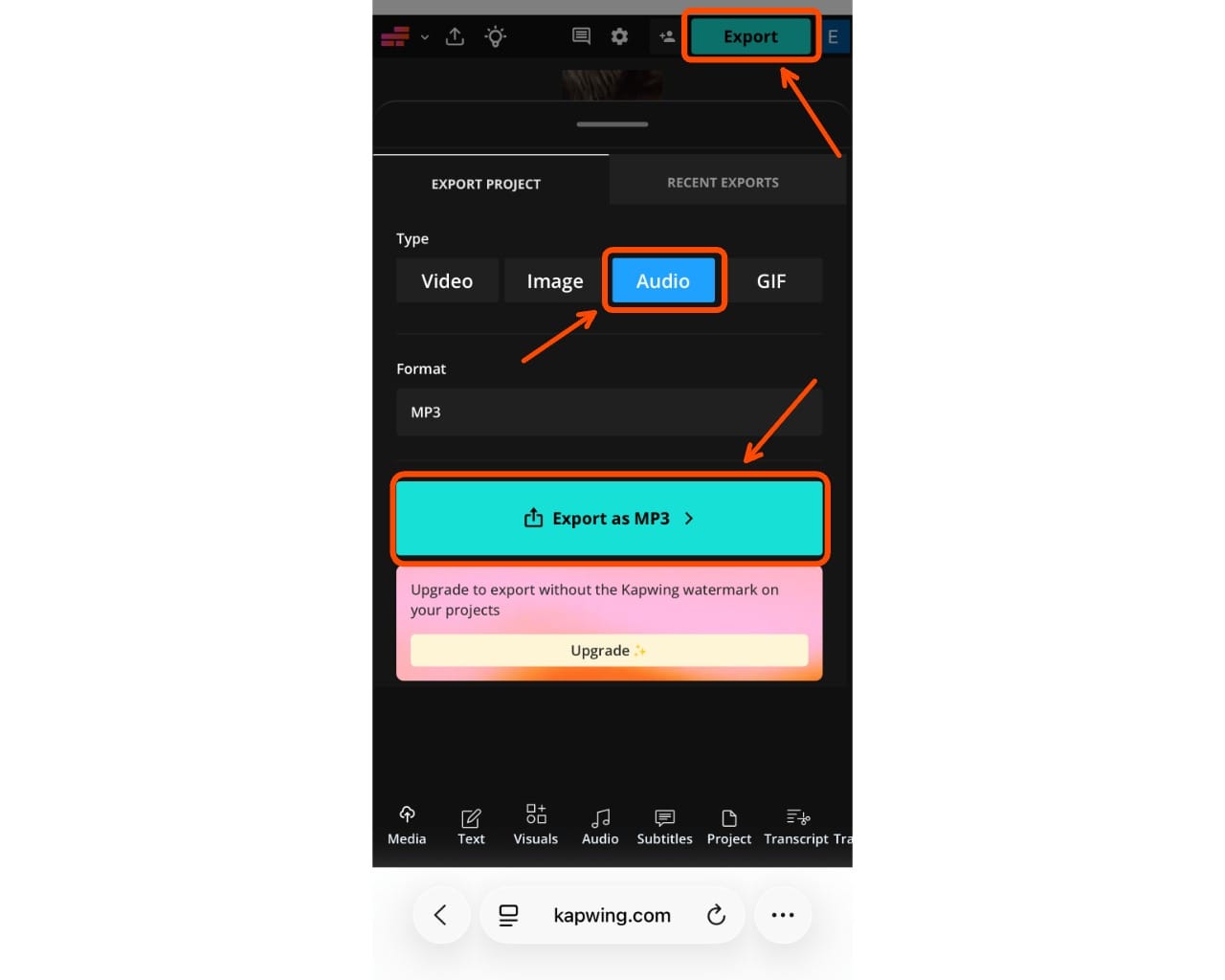
Export your project and choose MP3 as the format.
This ensures your file works smoothly with both iPhone Shortcuts and Android automation apps.
Option 2: Generate AI Sound
If you don’t already have a clip in mind, you can use Kapwing AI to generate a completely custom charging sound from scratch. This is perfect for creating original sounds that feel personalized, funny, or on-trend, especially if you want something unique that no one else has.
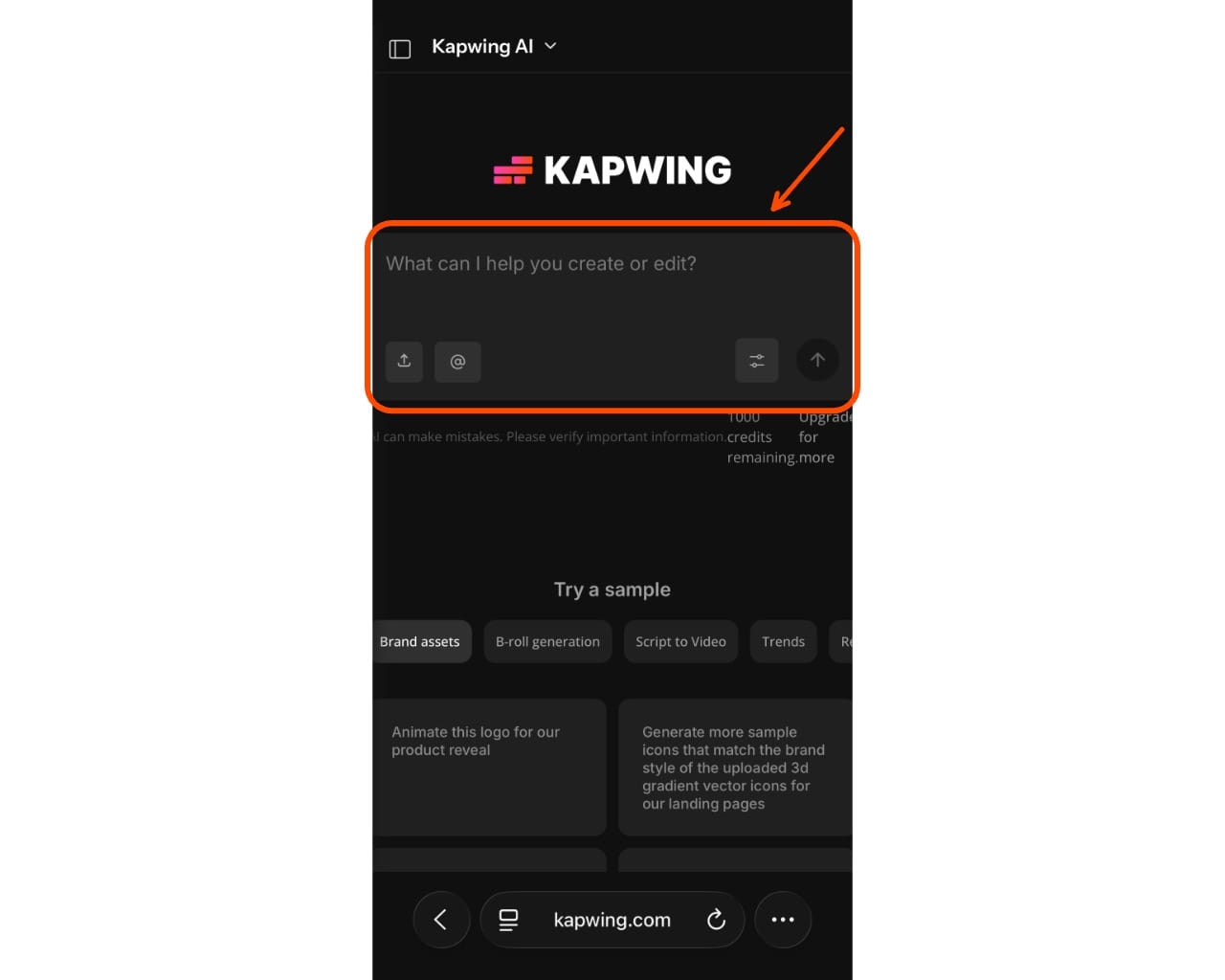
- Open Kapwing AI
Go to Kapwing’s AI tools and find the audio or sound generation feature. - Enter a text prompt
In the text box, describe what you want your charging sound to be. You can keep it simple or get specific.Examples:
- “A robotic voice saying ‘Charging activated’”
- “A sarcastic voice saying ‘Finally, you plugged me in’”
- “An anime-style voice saying ‘Power restored!’”
- Be descriptive for better results
The more specific your prompt, the better the output will match what you’re imagining. If you’re creating a voice-based sound, it helps to include:- Tone (serious, funny, dramatic, annoyed)
- Voice type (robotic, deep, energetic, female, etc.)
- Style (meme, cinematic, assistant-like)
- Iterate or refine
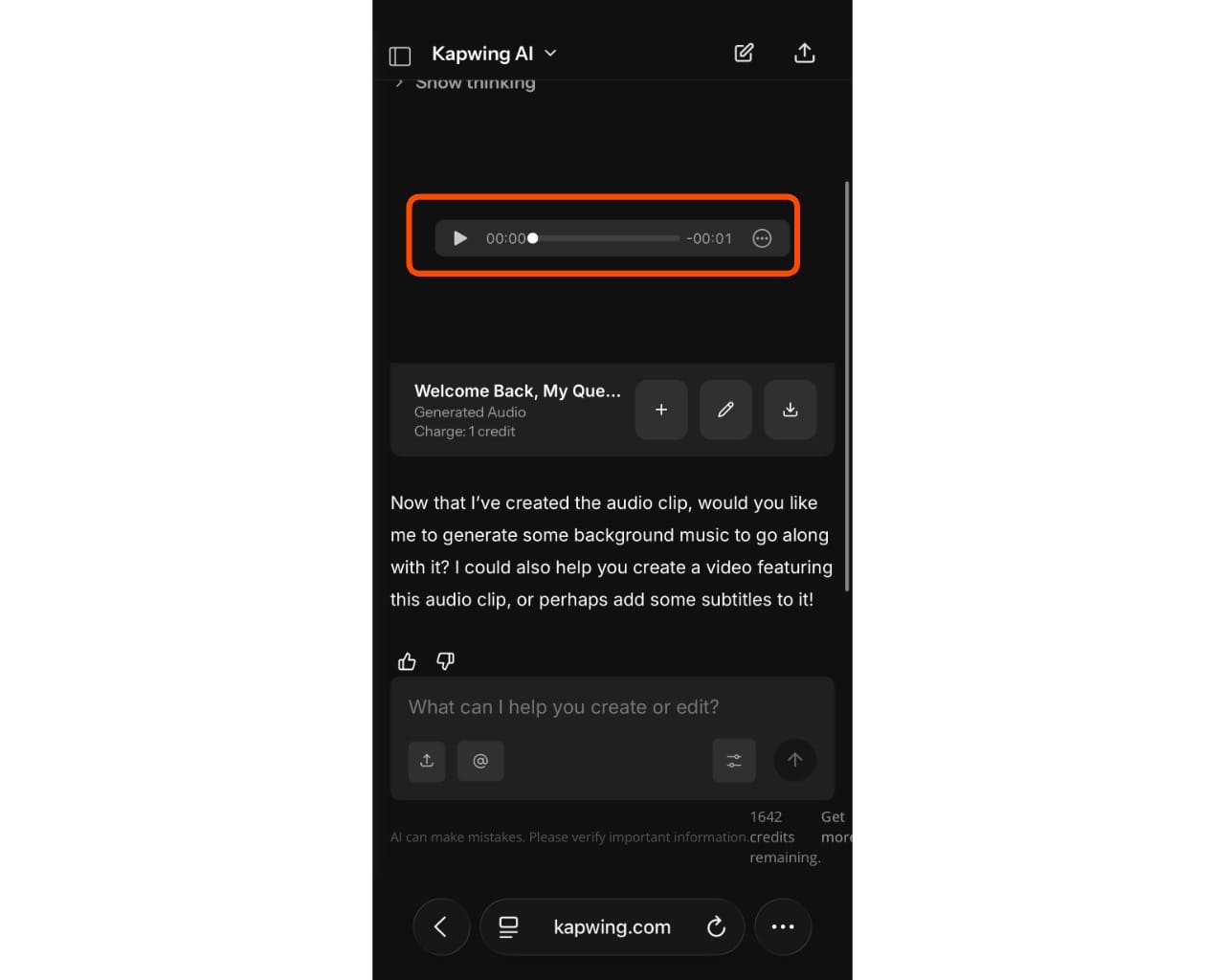
Submit your prompt and let Kapwing AI generate the audio. You can listen to the result in the chat.
If it’s not quite right, you can tweak your prompt or continue refining it in the AI chat until you get the exact tone and delivery you want.
- Download your audio file
Once you’re happy with the result, download the file and use it as your charging sound.